
How to Manage Connected Bank Accounts
How to Manage Connected Bank Accounts
Learn how to manage your connected bank accounts on Creatures by following these steps.
1. Open your profile menu.
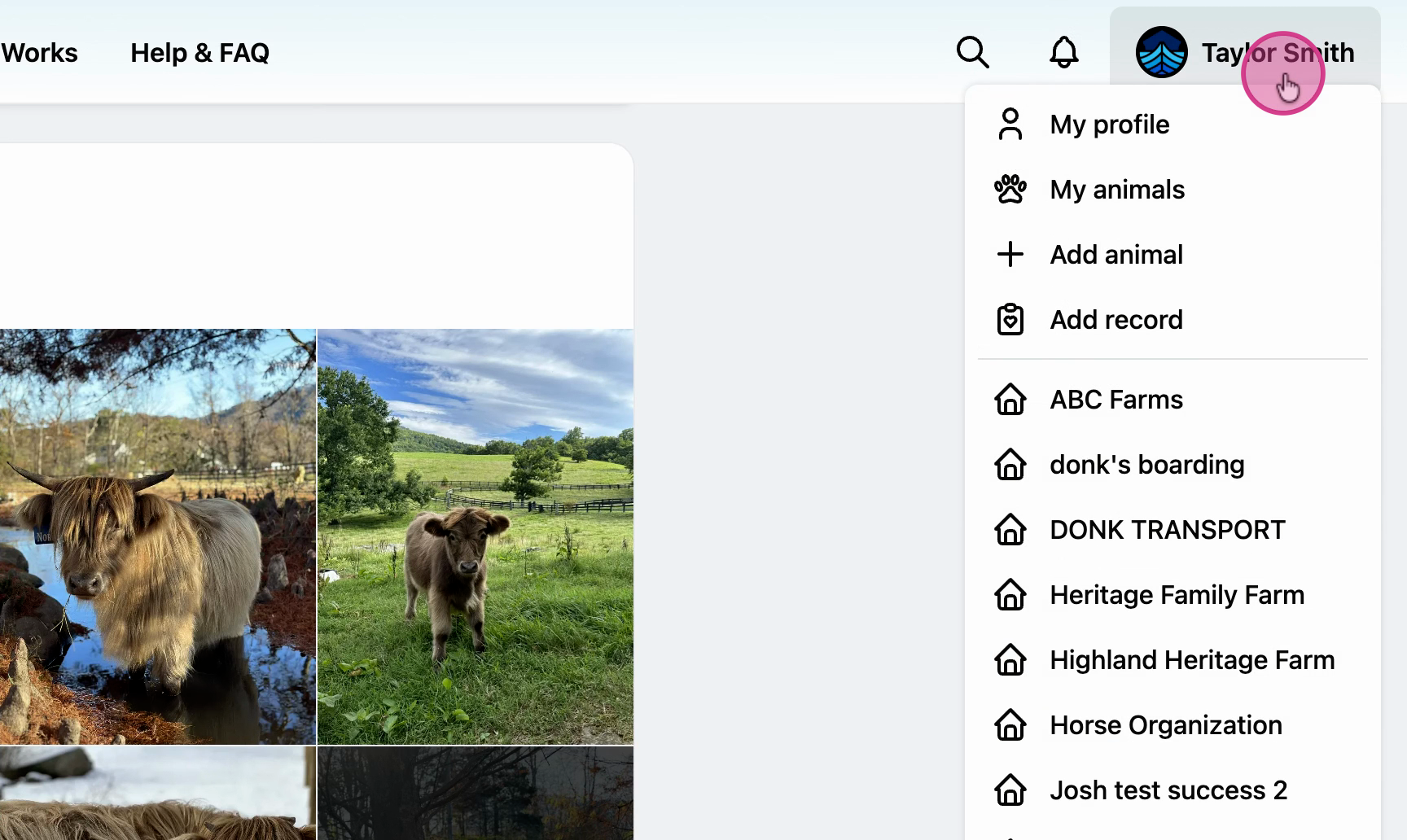
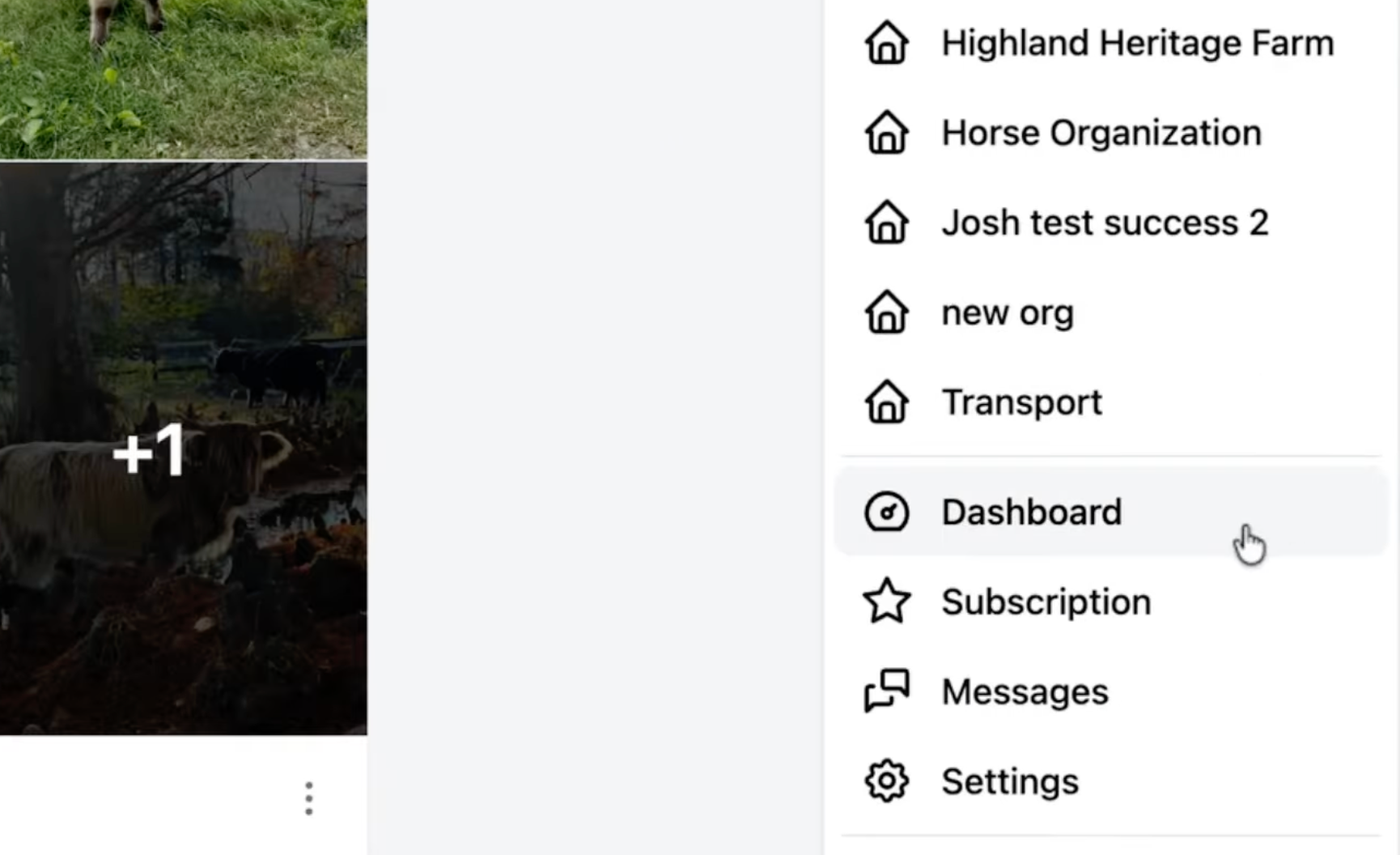
2. Click on Dashboard.
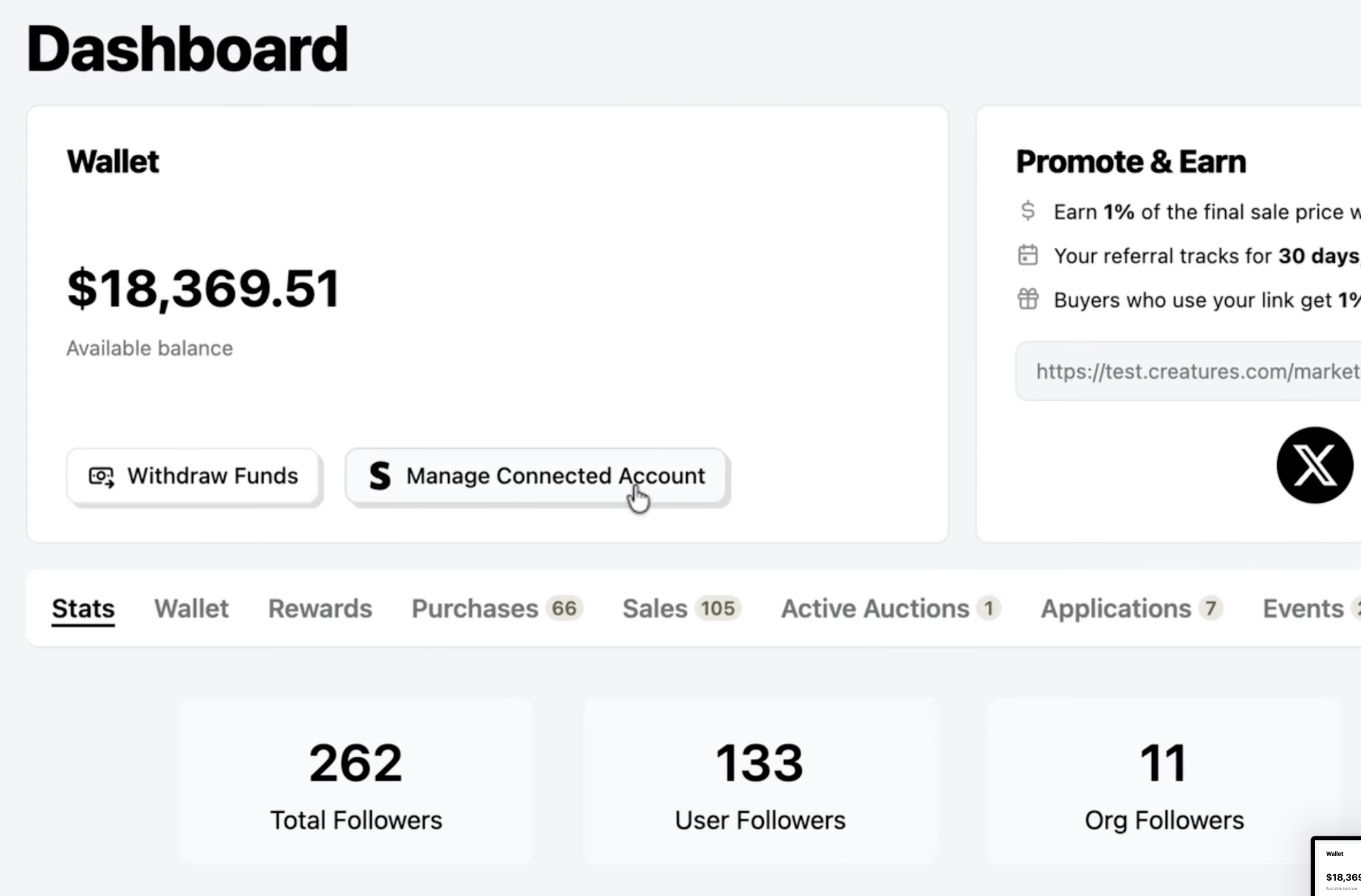
3. Go to the Wallet tab and select Manage Connected Account. This will take you to your personal Stripe Express account.
4. From your Stripe Express dashboard, you can view your recent earnings and latest transactions. These reflect your payouts from your Creatures sales. To learn more about withdrawing funds on Creatures, please check out How to Withdraw Funds to Your Bank Account.
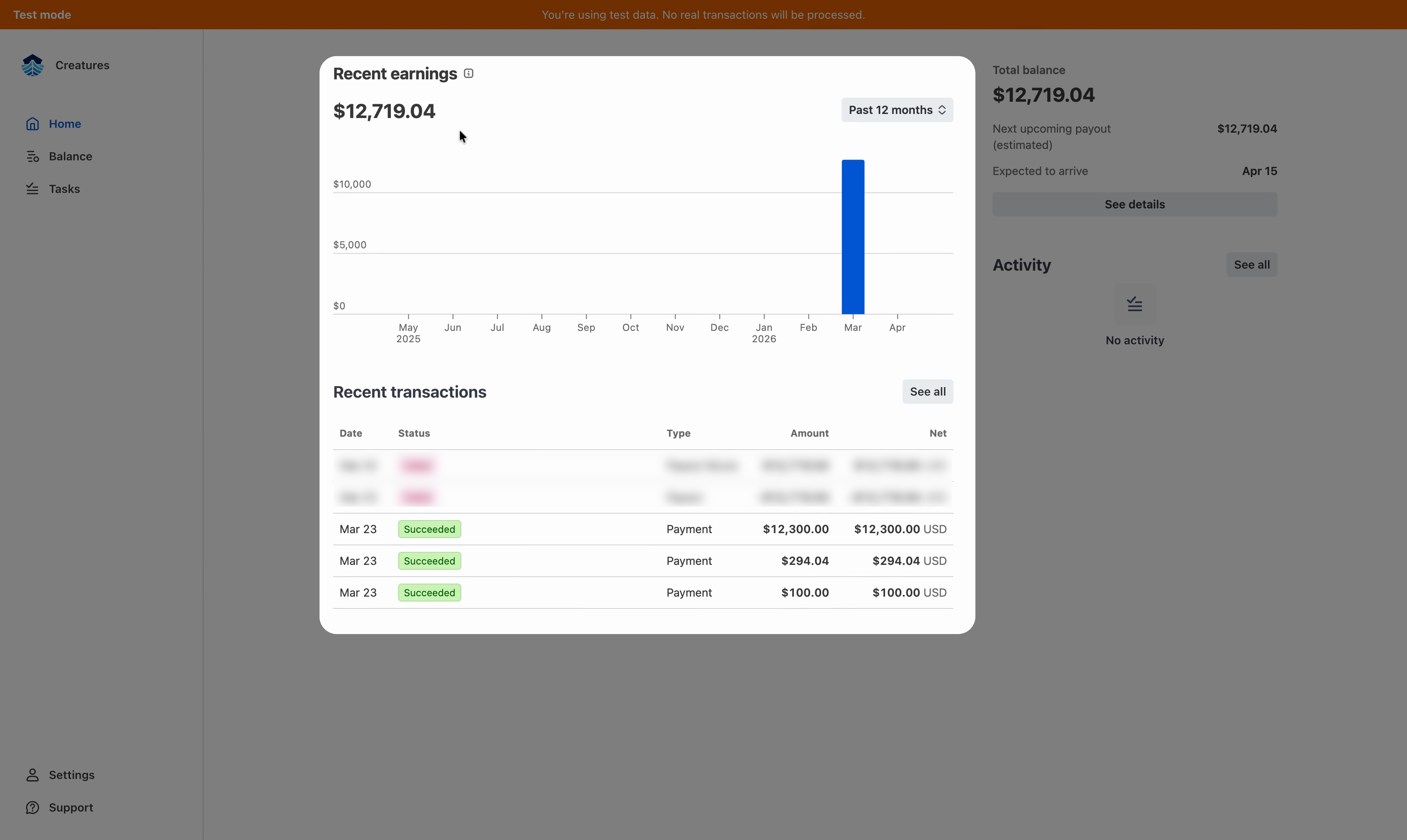
Note: All revenue from your listing sales is held within the Creatures Wallet until you select Withdraw Funds.
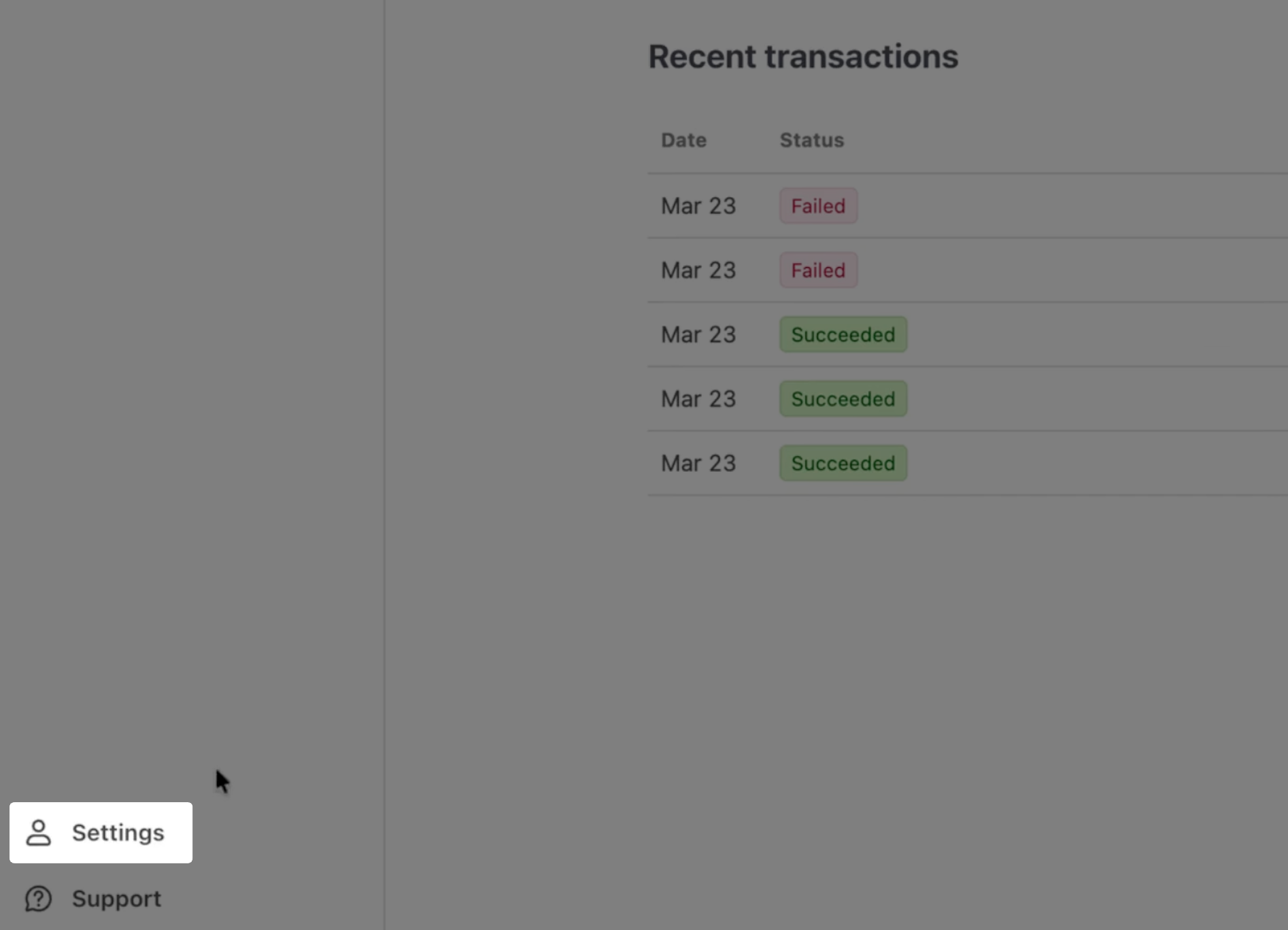
5. To change your connected bank account, head over to Settings.
6. Adjust any of your business or personal details as needed, like display name, team members, business type, and payout settings.
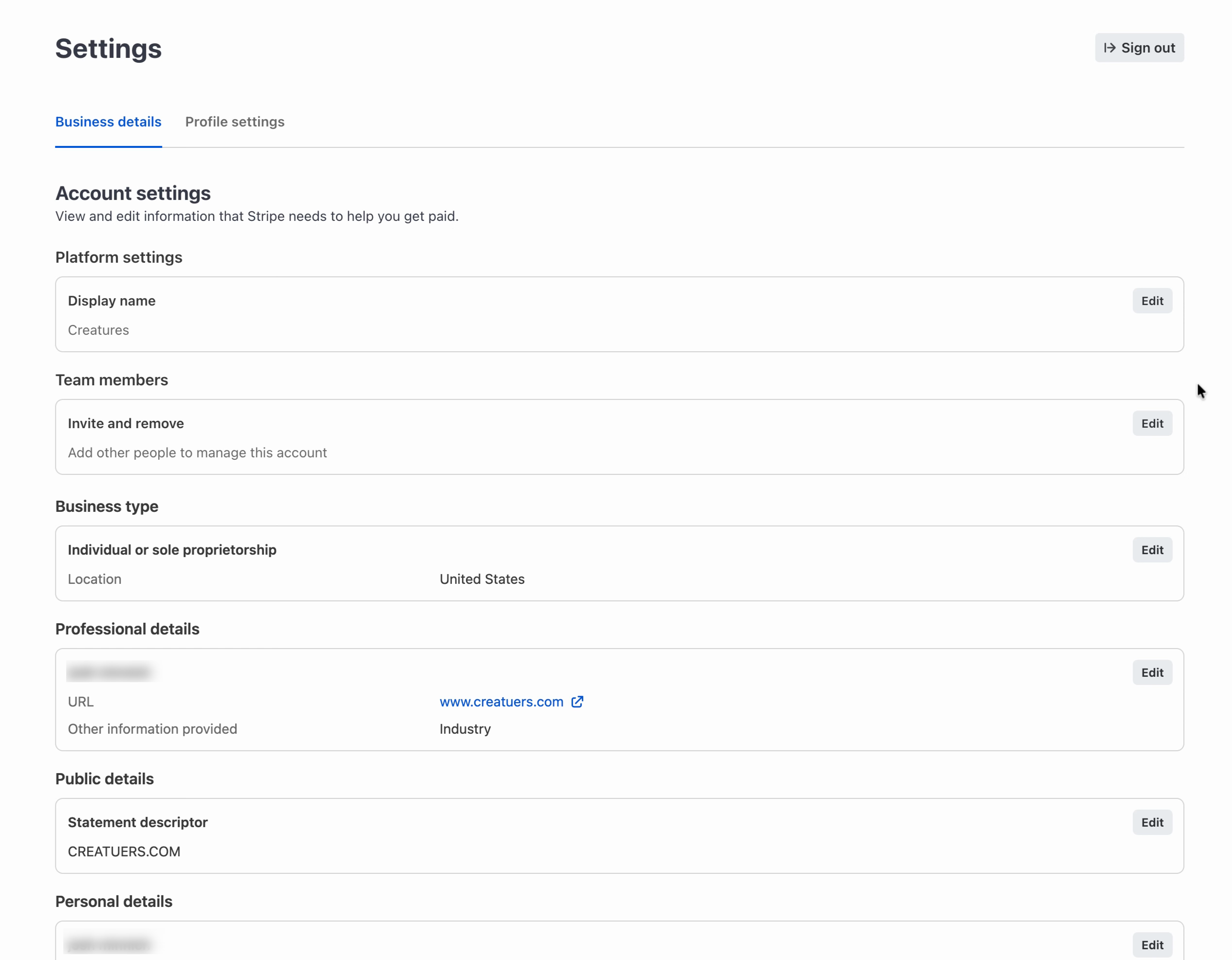
7. To update your payout account, scroll to the bottom of the page, find Payout details, and click the Edit button.
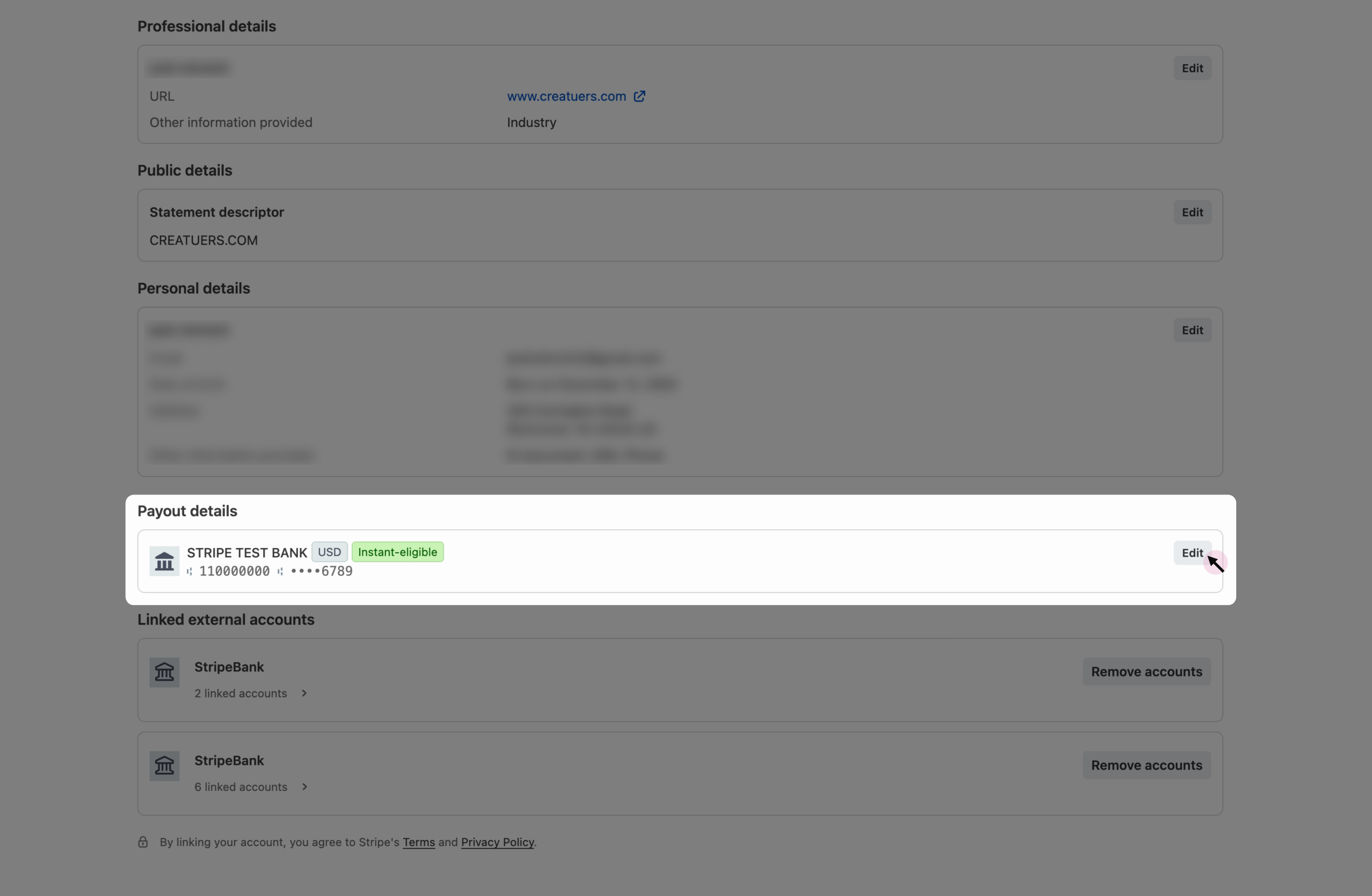
8. From this page, you can choose from any existing bank accounts you've previously connected, or you can link a new account or enter your bank details manually.

9. To link a new account:
- Agree to Stripe's terms.
- Search for your banking institution.
- Follow the prompts to connect your desired payout account.
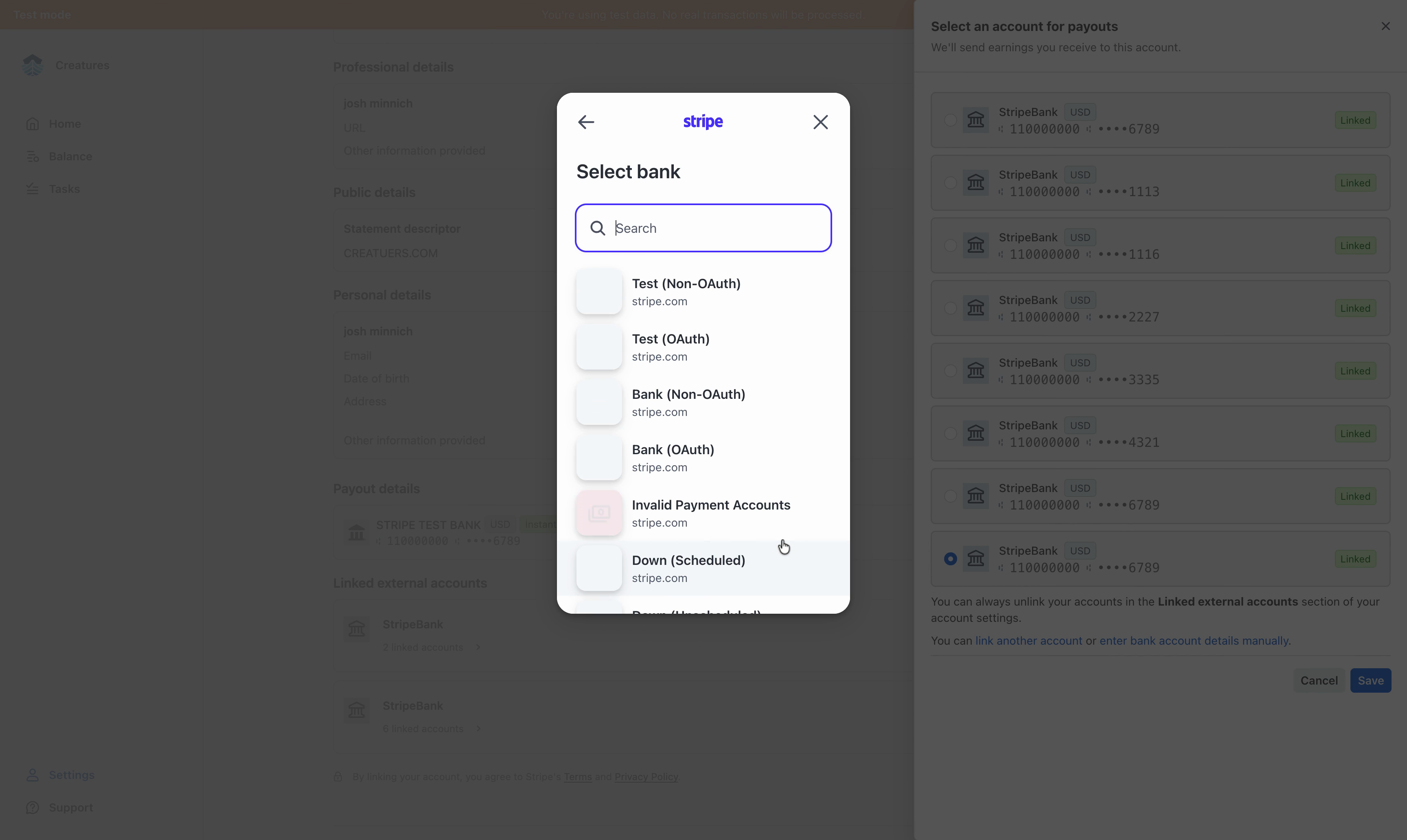
Note: Creatures.com does not store any of your bank account information. All of your bank account information is handled through our trusted payment processor, Stripe.
10. Once connected, select the new bank account and click Save to finish.
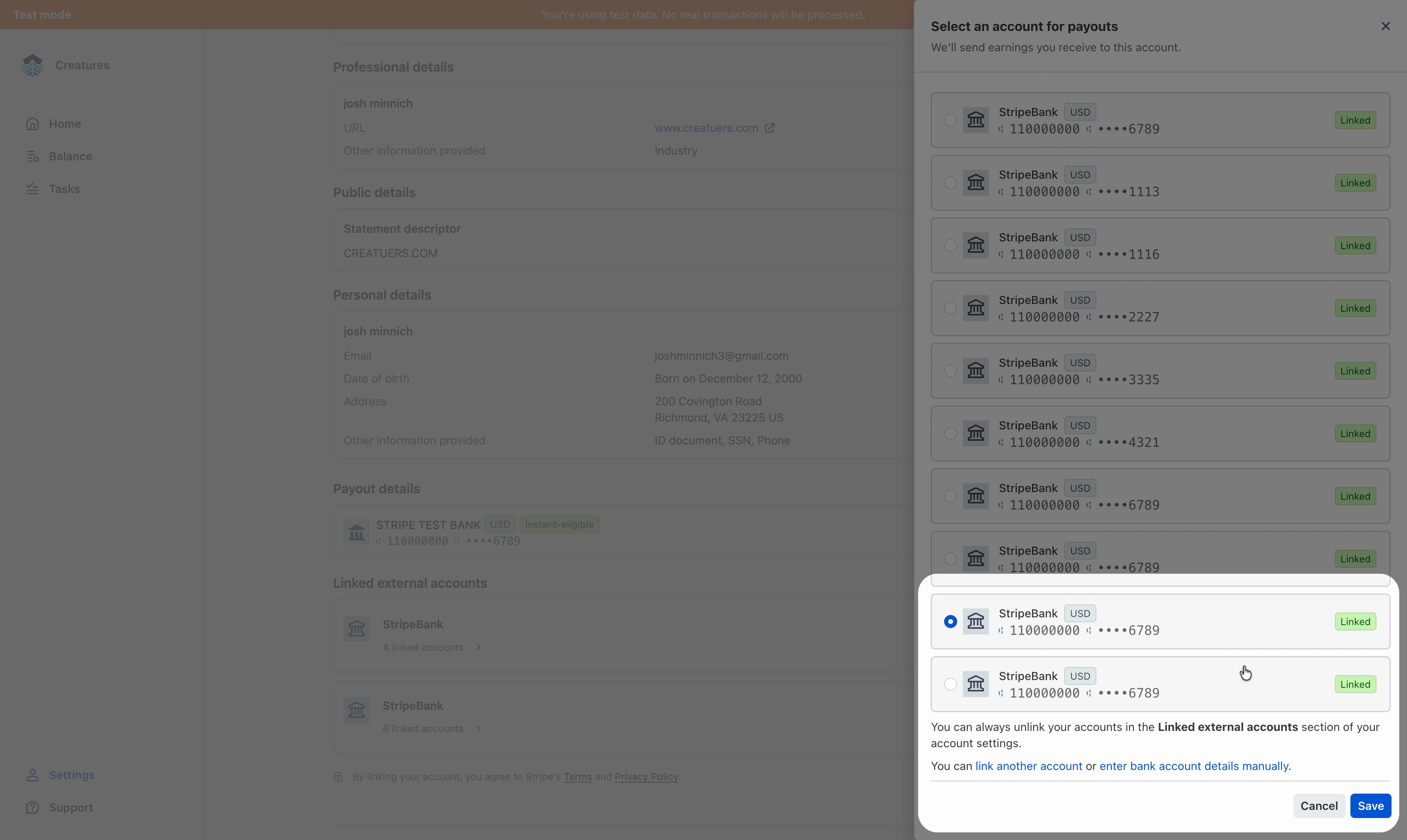
Your new bank account is now set up for payouts!
If you have any questions about managing your connected bank account, give us a call at (434) 218-2178 or send an email to support@creatures.com and we'll get back to you within 24 hours.
We're building software that helps animal enthusiasts and organizations reach their goals, and we'd love to hear your questions and feedback on this process.
Updated on: 20/04/2026
Thank you!