Articles on: Selling Tools: Buyers & Outreach

Automated buyer follow-up (email series)

Automated buyer follow-up (email series)


An email series is a sequence of pre-written emails that go out to a buyer automatically on a schedule: a welcome note when they are accepted, a reminder before pickup, a check-in after they take the animal home. You build and run series from the Email series dashboard tab.


The promise to hold onto while you read this: nothing sends until you approve every step and activate the series. A draft or partly-approved series sends no email at all, so you are never surprised by an automatic message going out before you are ready.


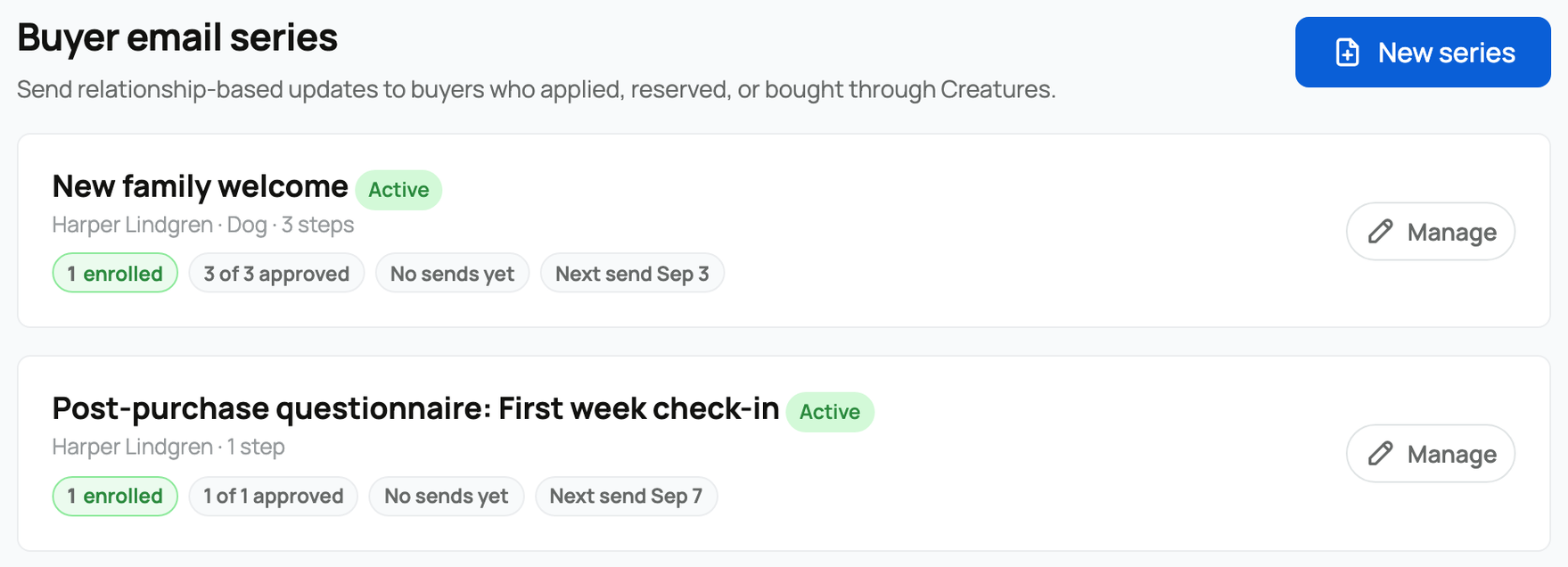
Your email series, with status, enrolled count, and approval progress


Creating a series


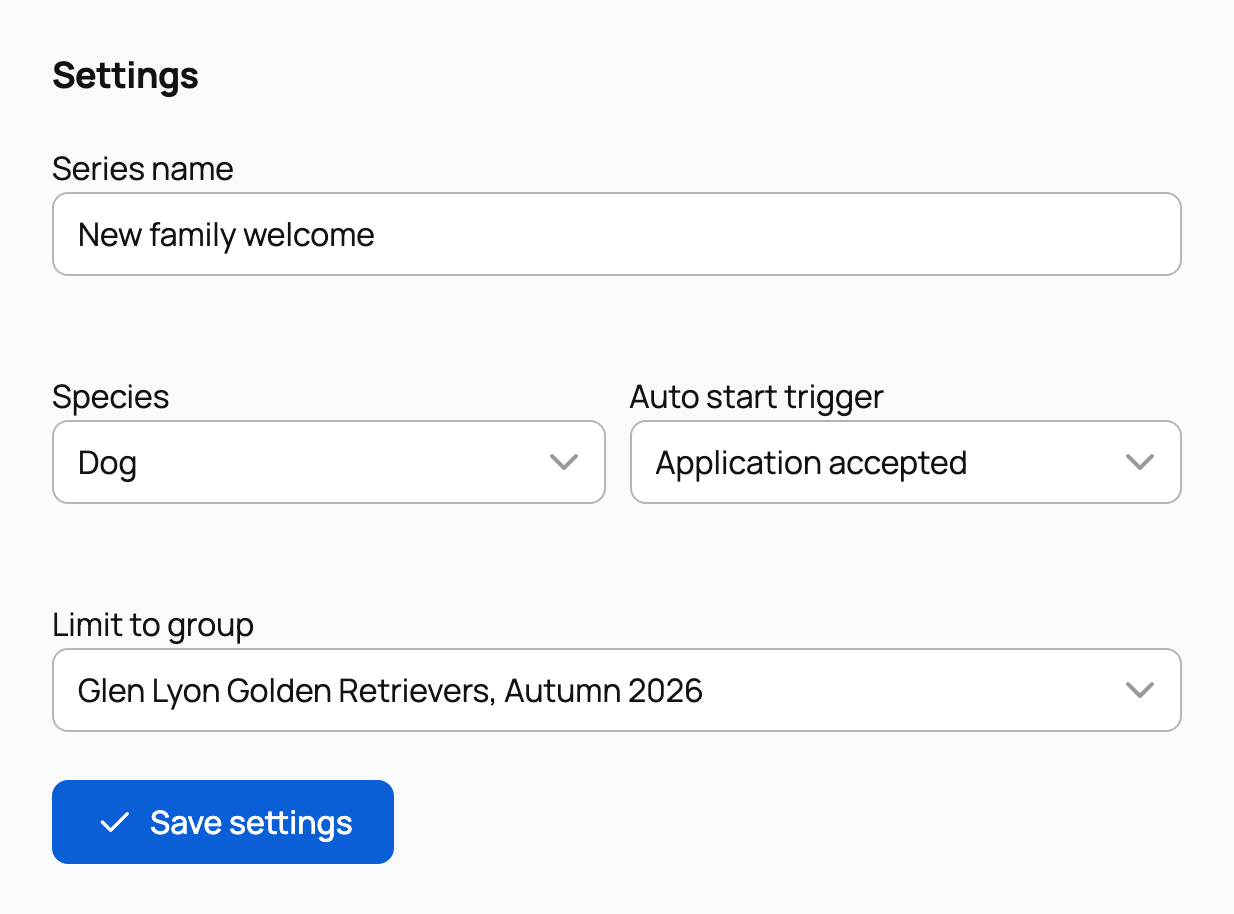
From the New series form you set up the series itself:


Creating a new email series


  • Sender: you or an organization you manage. The buyer must already have a relationship with this sender (they applied, reserved, or bought).
  • Series name: a name for your own reference, up to 120 characters.
  • Species (optional): "All species," or a single species. Choosing one scopes automatic enrollment to buyers of that species only.
  • Auto start trigger: the milestone that automatically enrolls a matching buyer. This is the core enrollment setting, and the choices are:
  • Manual only: no automatic enrollment. You add buyers by hand.
  • Application accepted: enrolls a buyer the moment you accept their application. Good for an onboarding welcome.
  • Deposit captured: enrolls a buyer when their deposit is captured.
  • Balance paid: enrolls a buyer when their invoice balance is paid in full.
  • Pickup confirmed: enrolls a buyer when pickup is confirmed. The natural trigger for a post-sale care drip.

Each trigger fires from the real sale events, so a matching buyer is enrolled automatically the moment that milestone happens.

  • Limit to group (optional): "Any group from this sender," or one specific animal group. Choosing a group restricts automatic enrollment to buyers tied to that group.


When you create a series it starts as a draft, which means it cannot send anything yet.


Steps: the emails themselves


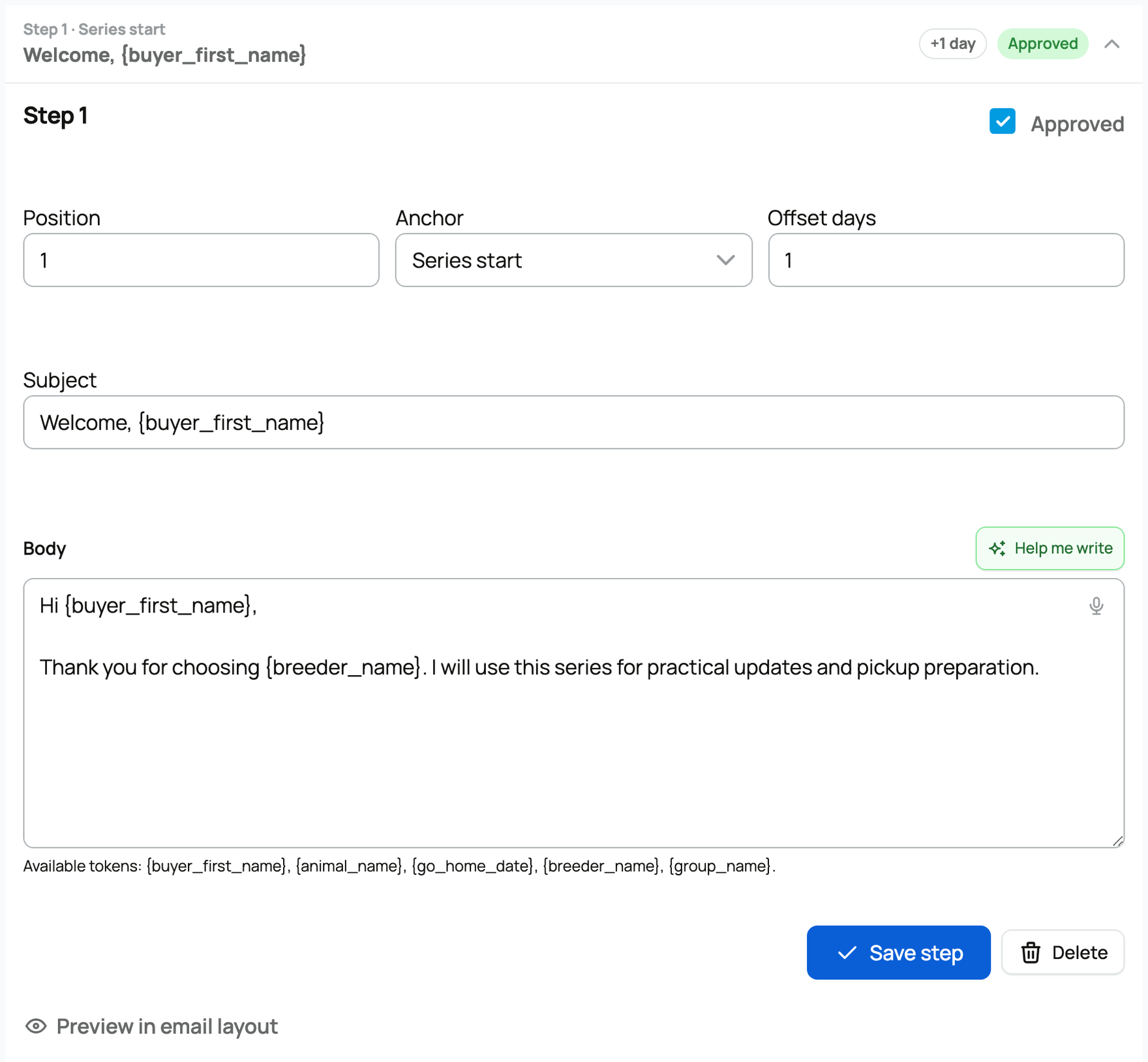
A series holds up to 30 steps, and each step is one email. Open a step to set:


  • Position: its order in the series, 1 to 30.
  • Anchor: what the step's timing is measured from. The choices are Series start (timed from when the buyer is enrolled) and Go-home date (timed from the buyer's pickup date). A go-home anchor is what lets you say "three days before pickup" or "the day after pickup."
  • Offset days: how many days before or after the anchor the email goes out, from -365 to 365. Some worked examples: anchor Series start with offset 0 sends on enrollment; offset +3 sends three days after enrollment; anchor Go-home date with offset -7 sends one week before pickup; offset +1 sends the day after pickup.
  • Subject: the email subject line, up to 180 characters.
  • Body: the email body, up to 8000 characters.
  • Tokens: you can drop these placeholders into the subject or body and Creatures fills them in per buyer: {buyer_first_name}, {animal_name}, {go_home_date}, {breeder_name}, and {group_name}.
  • Approved: a checkbox on each step. A step must be approved before it is allowed to send, and new or edited steps default to needing review. The step editor has a Preview in email layout button that renders the step in the real email template with sample data, so you can see exactly what the buyer will get.


A series in detail: the activation gate, the steps timeline, and an open step


"Draft my series" gives you a starting point


The Draft my series button creates 4 starter steps in one click: a welcome, a note three days later, a note one week before pickup, and a check-in the day after pickup. Two honest notes about it: this is fixed starter copy, not generated by AI, so treat it as a template to make your own, and the steps still arrive as drafts you must edit and approve before anything can send. It only works on an empty series.


The activation gate


A series can be activated only when it has at least one step and every step is approved. Until then, the activation gate on the series page shows how many of your steps are approved ("N of M steps approved") and blocks activation. A series moves through three statuses: draft, then active, then archived. This gate is the safety rail: a draft or partly-approved series sends nothing, so you stay in control of every email before it can go out.


Who gets enrolled, and how


There are two ways a buyer enters a series:


  • Automatically: if the series is active and has an Auto start trigger, a matching buyer is enrolled the moment that milestone fires, respecting any species and group limits you set.
  • Manually: the Enroll buyers section lists buyers who already have an application, reservation, or invoice relationship with the sender. You select Start to enroll one. The Start button is disabled if the buyer is already enrolled, has unsubscribed, or the series is not active. As with the pipeline, you cannot enroll a cold prospect: only buyers already engaged through Creatures appear here.


Enroll eligible buyers, and manage who is enrolled


The schedule, and how emails actually go out


When a buyer is enrolled, each approved step is scheduled: Series start steps are timed from the enroll moment, and Go-home date steps are timed from that buyer's go-home date (at around 9am), each plus its offset. From there:


  • Sends run on a schedule, about every ten minutes. A step due "now" goes out on the next sending pass, not the instant you approve it. There is no instant send.
  • One email per buyer per day, maximum. If two steps would land on the same calendar day for the same buyer, the later one shifts to the next day, so you never send someone two series emails in a day.
  • Go-home steps wait for a date. A Go-home date step has no schedule at all until that buyer has a go-home date. With no date, it sits unscheduled and never sends. You set or change the date in the Enrollments section (the "Go-home" field on each enrollment), which schedules those steps.
  • Steps are skipped (and logged, not sent) when context changes. If, at send time, the enrollment was stopped, the buyer unsubscribed, the underlying reservation or invoice was cancelled, refunded, or voided, or the buyer has no email on file, that step is skipped rather than sent. (For completeness, a step's send status is one of: scheduled, sent, skipped because it was already past, skipped because the context changed, or skipped because the buyer opted out.)


Managing enrollments


The Enrollments section is where you watch and steer who is in a series. For each enrolled buyer you see their status (active, completed, stopped, or unsubscribed), a count of emails sent and still scheduled, the Go-home date field, and a Stop button that ends further sends for that buyer. The series cards in your list also surface the enrolled count, the approved-step count, the last email sent, and the next scheduled send.


Unsubscribe and email compliance


Every series email carries a one-click unsubscribe link, plus the standard mail headers (List-Unsubscribe and one-click List-Unsubscribe-Post) that make mail apps show an Unsubscribe button. The unsubscribe page works with a single click from a secure link, with no login required.


The one-click unsubscribe page


A few things to understand about what unsubscribing does:


  • It is per sender. Unsubscribing stops this sender's series emails to that buyer: it marks their active enrollments as unsubscribed and cancels their scheduled sends.
  • It blocks re-enrollment. After a buyer unsubscribes from a sender, that sender cannot re-enroll them, and they show as unsubscribed in the picker. Treat opt-out as permanent and respect it.
  • Transactional emails are not affected. Invoices, security alerts, and account notifications still reach the buyer. Unsubscribing only stops the marketing-style series emails. This is both the on-page promise to the buyer and the right way to run email.


Who can manage a series


A series is owned by a sender (you or an organization). Anyone who can manage that sender, such as an organization owner or co-owner, can view and edit the series. Organization co-owners share the same series and the same pipeline, so a team can run buyer follow-up together.


Starting a series from the pipeline


You do not have to come to the Email series tab to enroll someone. On your buyer pipeline, each lead has a Start a series control that hands the buyer straight into an active series for that sender. It is the quickest way to put a specific buyer onto a follow-up sequence while you are already looking at them. For the after-the-sale survey that rides on this same engine, see Buyer questionnaires (post-purchase check-ins). A warm post-sale drip is also the natural moment to invite a happy buyer to leave a review.


Updated on: 23/06/2026

Was this article helpful?

Share your feedback

Cancel

Thank you!