Articles on: Selling Tools: Buyers & Outreach

Your buyer pipeline

Your buyer pipeline


Your buyer pipeline, on the Buyer pipeline dashboard tab, is a single view of everyone currently working with you: people who applied, people you have reserved an animal for, and people you have invoiced. On top of that read-only view it gives you private, seller-only tools: notes, a contact log, and saved replies.


The most important thing to understand first: the pipeline builds itself. There is no "add lead" button, and there is no way to type in a prospect by hand. A buyer appears the moment they apply, reserve, or get invoiced on Creatures, and their row drops off once that relationship reaches a final state. If someone has not engaged with you on Creatures yet, they will not be in the pipeline. This is a view of your real buyer activity, not a contact book you fill in yourself.


Your buyer pipeline, populated from applications, reservations, and invoices


How a row (a "lead") gets here


Every row comes from one of three real sources. For each one, here is what it is, what makes it appear, and what makes it drop off:


  • From an application. A buyer application to you that is still open (its status is pending, screening, accepted, or waitlisted) shows up as a lead. What it means: a brand-new applicant appears here as "Needs review" with nothing you had to do. Once an application advances into a reservation, it stops showing as an application and shows as the reservation instead, so the same person is never listed twice. These are the same buyer applications covered in Requiring buyer applications and building a form and Reviewing and approving buyer applications; the pipeline shows them, it does not replace them.
  • From a reservation. A reservation slot in any active state (application accepted, reservation held, matched, placed, or closed) shows up as a lead. What it means: anyone you have reserved an animal for is tracked here right through pickup. Reservations are explained from the buyer's side in Reserving from a breeder: applications and deposits.
  • From an invoice. A standalone finance invoice (one that is not tied to a reservation slot) in a live state (draft, sent, processing, or paid) shows up as a lead. What it means: direct or manual sales that never went through the reservation flow still land in your pipeline.


The stage badge on every row


Each lead carries a stage badge that tells you, in one word or two, where that buyer stands. The label depends on the underlying state. Here is what each one means:


  • From an invoice: Draft invoice (you have started an invoice but not sent it), Invoice sent (the buyer has it but has not paid), Payment processing (a payment is in flight), Paid (paid, pickup not yet confirmed), and Complete (paid and pickup confirmed).
  • From a reservation: Accepted (an application accepted into a slot), Reservation held (a deposit or hold is in place), Matched (matched to a specific animal), and Complete (placed or closed).
  • From an application: Needs review (pending or screening, so it is waiting on you), Accepted, Waitlisted, and Applicant as a fallback.


The way to read the badge: Needs review is your to-do, Complete is finished, and everything in between is a sale in motion.


The three counters at the top


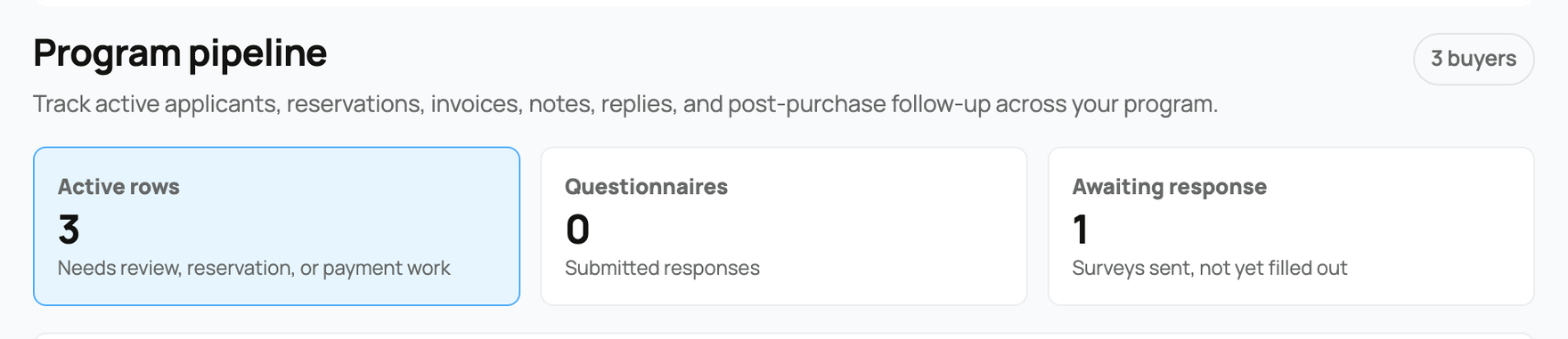
Above the leads, three counts give you the shape of your pipeline at a glance:


  • Active rows: leads that still need review, a reservation, or payment work. In other words, anything not yet paid, placed, or closed with pickup confirmed. This is your real open workload.
  • Questionnaires: post-purchase survey responses that have been submitted across your leads. (Note: these results are tied to sale invoices; see Buyer questionnaires (post-purchase check-ins) for exactly when they appear.)
  • Awaiting response: questionnaires that were sent to buyers but not yet filled out.


What each lead row shows


The row gives you a glanceable summary of the buyer: depending on the lead, it can show the group name, the animal name, the deposit amount, the sale amount, and the buyer's email. This is a read-only summary so you can recognize the buyer at a glance; you do not edit these details from the pipeline.


Private notes


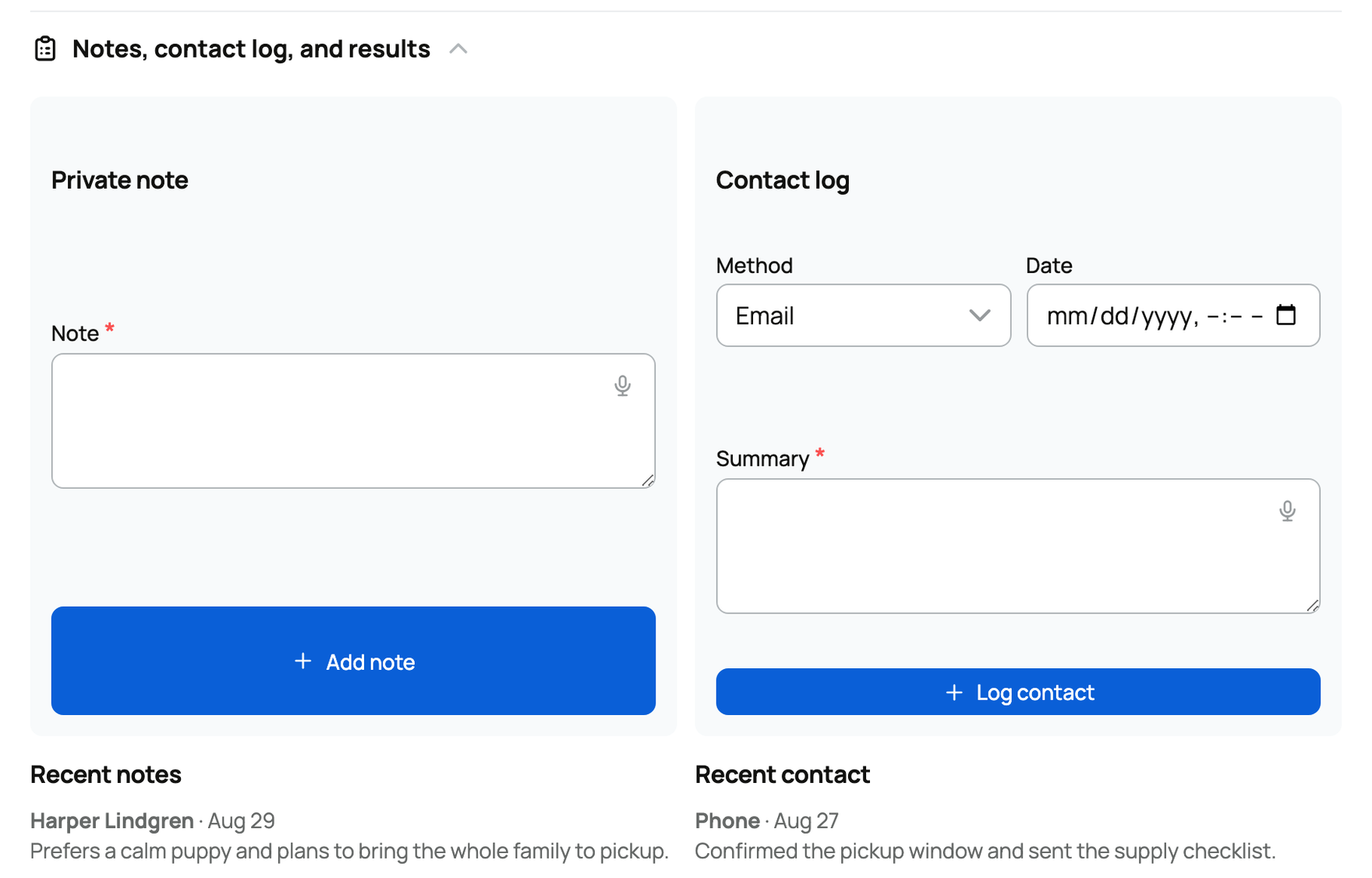
Open a lead and you can add a private note: free text up to 2000 characters, stamped with who wrote it and the date.


  • Who can see it: only you and anyone who can manage your seller account. The buyer never sees your notes.
  • What it is for: a safe place to keep context for yourself, like "called Tuesday, leaning toward the blue merle pup, wants pickup after the 15th." It is your memory of the relationship, not a message to the buyer.


Contact log


Next to notes, the contact log records each time you reached out, so you always know who you owe a follow-up. Each entry has three fields:


  • Method: how you reached them. The choices are Email, Phone, Text, Call, Video, In person, and Other. It is just a label for the kind of touch; pick the closest one.
  • Date: when the contact happened. Leave it blank and it defaults to now. The lead row surfaces your last contact date, and if the most recent contact is more than 14 days old, that date turns a warning color: a gentle nudge that the lead is going cold.
  • Summary: what was said. This is required, up to 2000 characters.


Open a lead to add a note, log a contact, and view questionnaire results


Saved replies


At the bottom of the pipeline is the Saved replies panel: reusable message templates you write once and fire from a lead, so you are not retyping the same reservation answers over and over.


  • What a saved reply is: a template with a Title (up to 120 characters) and a Body (up to 3000 characters), tied to a Sender (you or one of your organizations).
  • What "Send reply" actually does: from a reservation lead, you pick a saved reply and select Send reply. That posts the text into the existing reservation message thread with the buyer, tagged as a saved-reply message. It does not send a separate email; it lands in the same reservation conversation you already share. An optional edits box lets you tweak the wording for that one send without changing the saved template.
  • Archiving: Archive removes a template from your active list. A saved reply is either active (in the list, ready to send) or archived (set aside).
  • What it means for you: write your common reservation answers once, then answer buyers from the pipeline without opening the reservation screen.


The Saved replies panel: a reusable template tied to a sender


What the pipeline builds on


The pipeline does not introduce a new inbox or a separate contact database. It sits on top of tools you already use: buyer applications, reservations, and the reservation message thread. It adds a single dashboard view of those, plus your own private notes, contact log, and saved replies. To go deeper on the buyer journey, see Buyer questionnaires (post-purchase check-ins) for after-the-sale check-ins and Automated buyer follow-up (email series) for scheduled email sequences.


Updated on: 23/06/2026

Was this article helpful?

Share your feedback

Cancel

Thank you!