
Add photos and papers from your phone
Working on a computer but the photo or paper is on your phone? Choose the phone option, scan the code with your phone, and send the files. They show up in the form on your computer, ready to save.
Where you'll see it
On a computer, many places that ask for a photo or file offer a phone option, including:
- Records: in Files, the Camera choice reads Use your phone on a computer (Take photos on a phone).
- Profile pictures and cover photos for you, your organization or an animal: Use your phone.
- A pedigree when you add an animal: select Import it instead, then Use your phone.
- Imports: the Camera choice, Take photos.
- Today's feed board and routine photos: Send from phone.
- Money entries: on a receipt card, Use your phone. This one asks you to sign in on your phone.
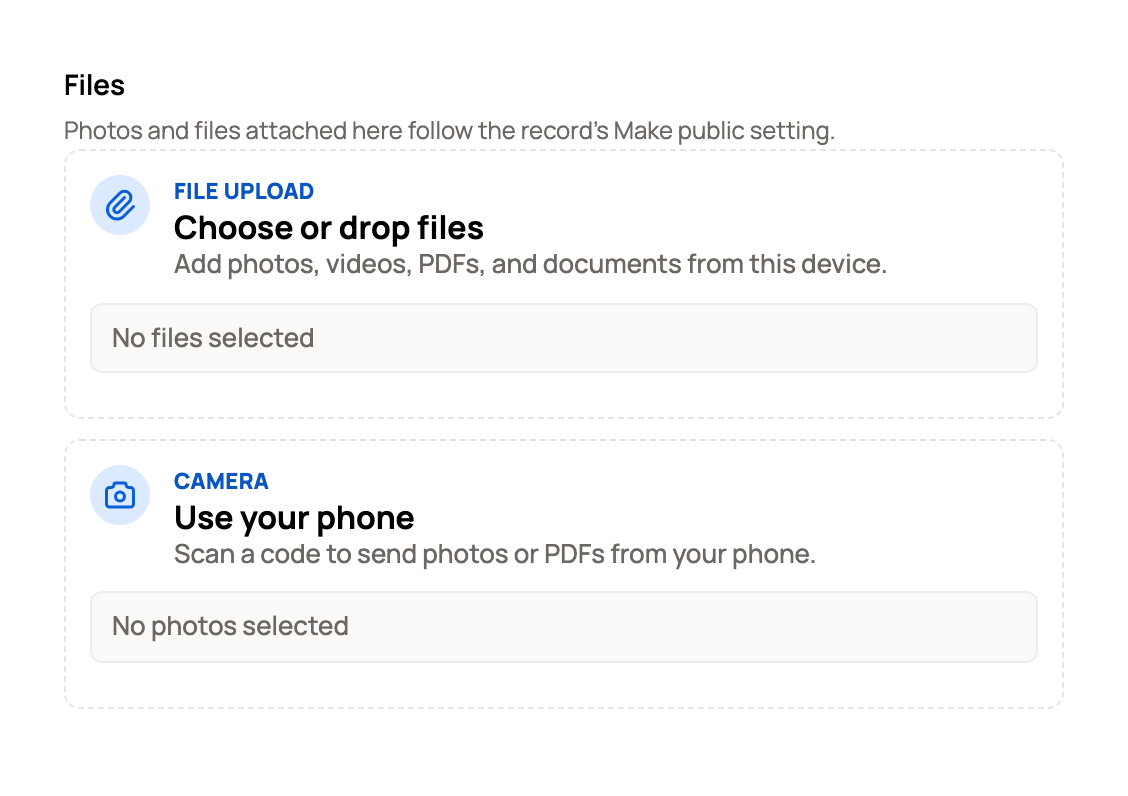
On your computer: get a code
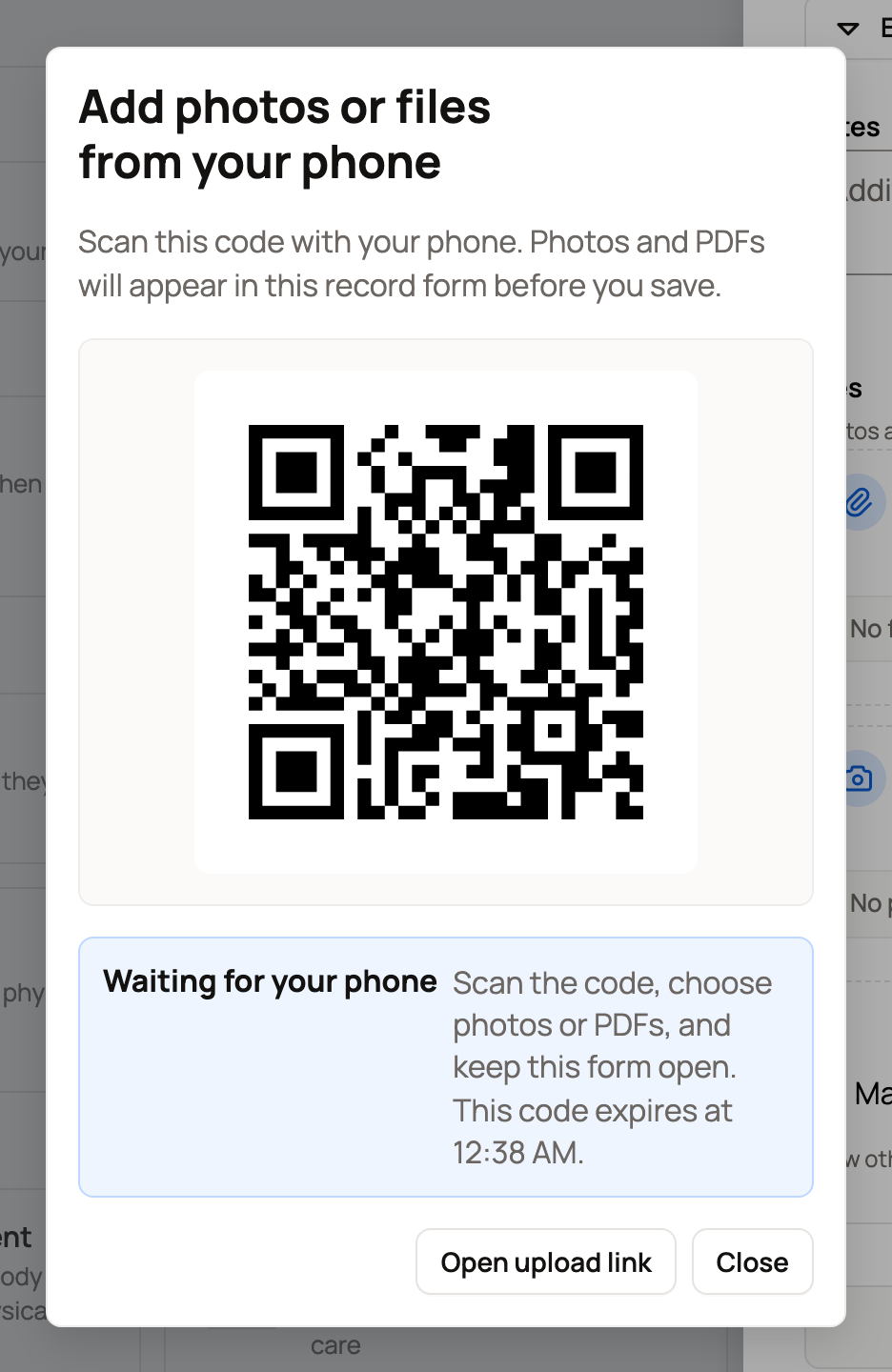
- Select the phone option. A window opens with a code, for example Add photos or files from your phone.
- Leave this page open. The code works for 10 minutes, and the window says Waiting for your phone until your files arrive.
On your phone: send the files
- Point your phone's camera at the code and tap the link that pops up. You don't need to sign in on your phone, except for money entries.
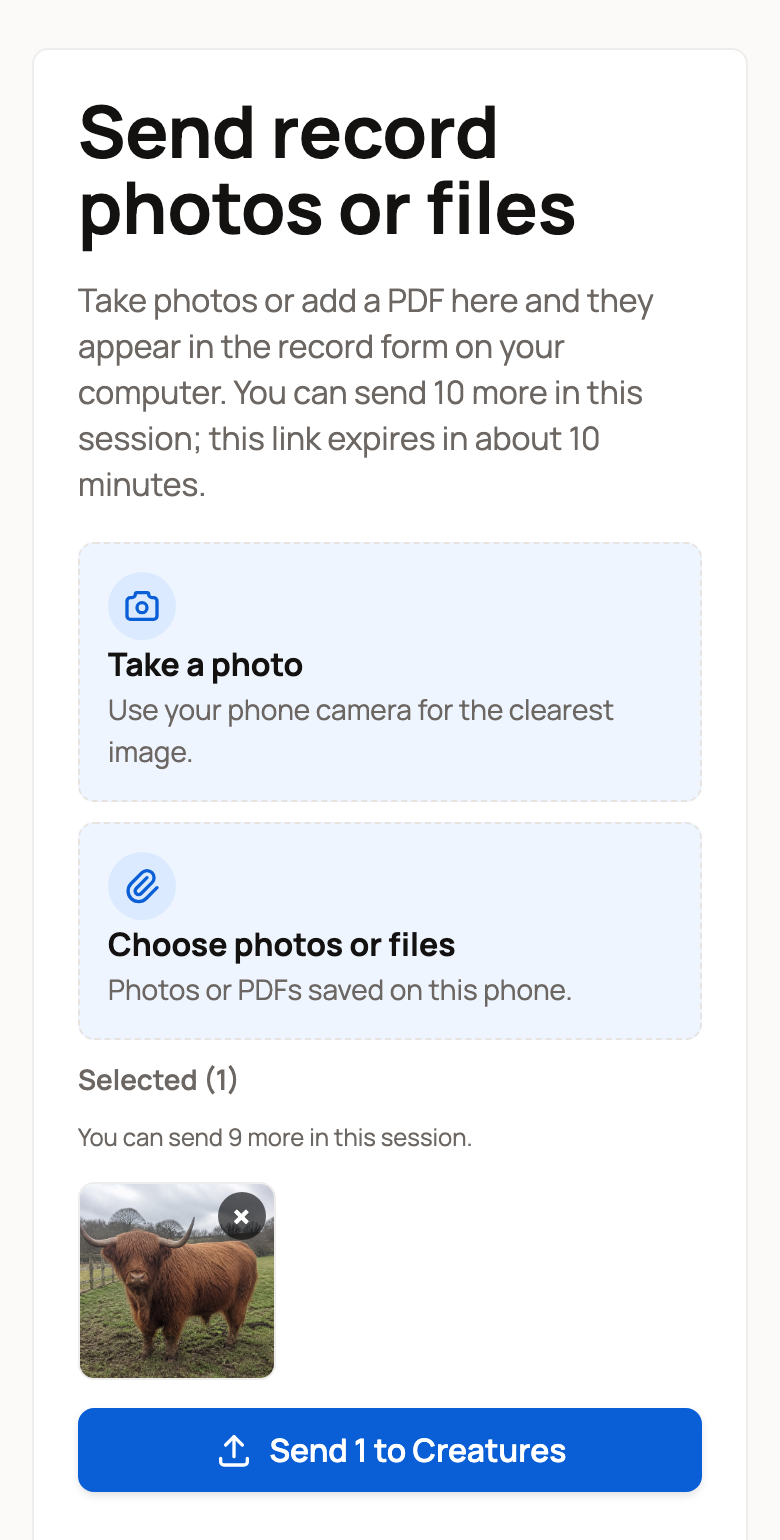
- Tap Take a photo to use the camera, or Choose photos or files to pick photos or PDFs already saved on the phone.
- Tap the blue send button. It counts your files, for example Send 1 to Creatures. The phone confirms when they're added.
Back on your computer
The photos or PDFs appear in the form. A profile or cover photo opens ready to crop. Finish the form and save it as usual. Nothing is saved until you do.
Big photos are made smaller for you before they send. A PDF can be up to 5 MB. A record takes up to 10 files, while a profile photo or a pedigree takes just one. Videos can't be sent this way, so add those from your computer.
Can't scan the code?
Select Open upload link (on some pages, Open phone upload link). The upload page opens in a new tab. Copy its web address and send it to your phone, for example in a text or email to yourself, then open it there.
If something looks wrong
- Upload link closed on your phone: the code ran out of time, or every file it allows was already sent. On your computer, close the window and choose the phone option again to get a new code.
- Code expired on your computer: the 10 minutes are up. Close the window and make a new code.
- Already on your phone? There's no code to scan. The same choice (on profile photos it reads Take a photo) opens your phone's camera right away.
Related information
Updated on: 29/10/2026
Thank you!