Articles on: Getting Started

Creating your account and signing in

Creating your account and signing in


Joining Creatures takes under a minute, and the same screen both creates a new account and signs you back in to an existing one. There is no separate signup page to hunt for: a "Sign in" or "Join Free" button sits on every page, and selecting it opens the Join Free window right where you are. On the home page this is a window that slides over the page (a modal), not a page you navigate away to, so you do not lose your place.


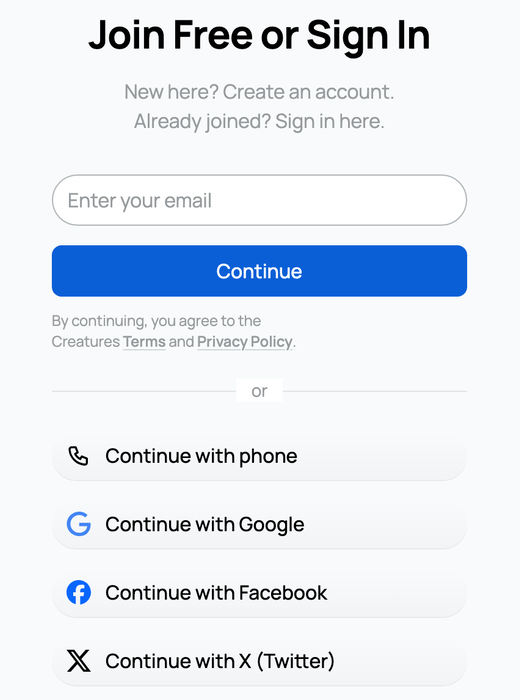
The Join Free window with phone, email, and social sign-in


The five ways to join or sign in


Creatures gives you five ways to get in, and you can use whichever you prefer. The first two, phone and email, are equal first-class options: pick either one. Depending on the day, the window may open showing the phone field first ("Enter your phone" with a "Text me a code" button) or the email field first ("Enter your email" with a "Continue" button); the other method, and the social buttons, are always one tap away.


  • Phone (text message code). You enter your mobile number and Creatures texts you a 6-digit code to type back in. This is a real sign-in method in its own right, not a backup. What it means for you: if you live on your phone, this is the fastest way in, and the number you verify here is the same one that later unlocks selling and text alerts.
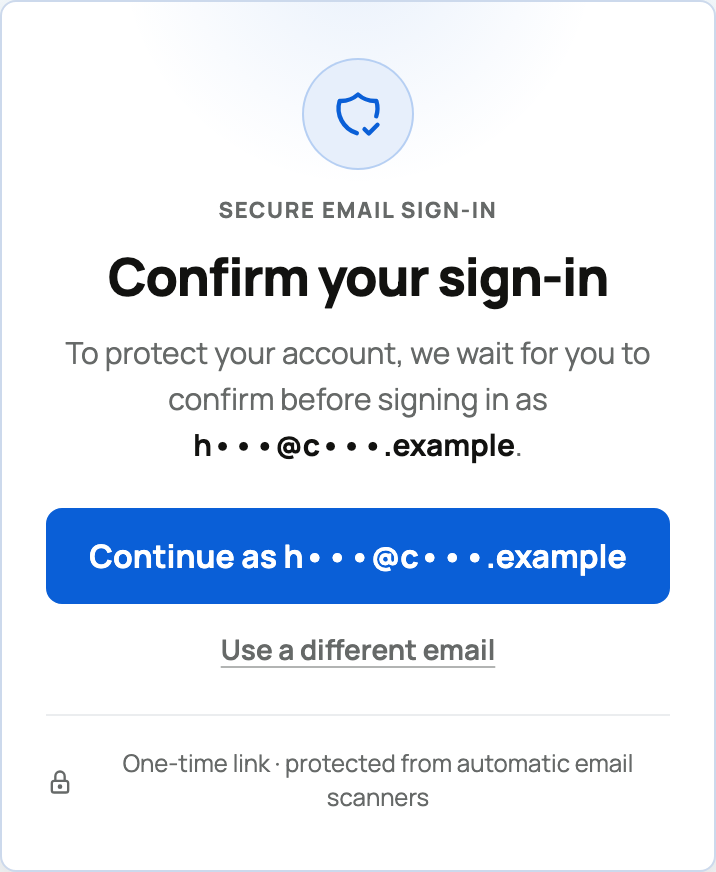
  • Email (emailed code or link). You enter your email address and Creatures sends you both a 6-digit code and a one-tap magic link. Enter the code, or open the link, and you are in. What it means for you: no password to remember or reset. Every sign-in uses a fresh code, so there is nothing to leak or forget.
  • Google. Sign in with your Google account. One tap, no code to type. What it means for you: convenient if you already use Google, and Creatures never sees your Google password.
  • Facebook. Sign in with your Facebook account, the same one-tap way. What it means for you: handy if Facebook is where you already are, with no separate password to manage.
  • X (Twitter). Sign in with your X account. What it means for you: the same fast, passwordless path for X users.


If a social provider is ever briefly unavailable, the window tells you and points you to the others (for example "Please continue with email, Google, or Facebook"). You can always fall back to phone or email.


Signing in with your phone


Entering your phone number, then the 6-digit text code


  1. Choose the phone option and enter your mobile number.
  2. Tap Text me a code. Creatures sends a 6-digit code by text. (Codes are rate-limited and time-limited for security, so request one only when you are ready to enter it. If you mistype the number, you can correct it and send a new code.)
  3. Enter the 6-digit code to finish. If the number is new to Creatures, you continue into a quick account setup; if it already belongs to you, you are simply signed in.


A number can be tied to only one account. If you enter a phone number that already belongs to a different account, Creatures will not silently merge them; it confirms you control the number by text first and then helps you sort it out, rather than mixing two people up.


Signing in with your email


  1. Choose the email option and enter your email address.
  2. Tap Continue. Creatures emails you a 6-digit code and a magic link (a one-tap sign-in link).
  3. Enter the code, or tap the link, to finish.


The one tip that saves your first sign-in


For your very first sign-in, enter the emailed (or texted) code in the same browser where you started, rather than opening the email link in a different browser or app. Here is why it matters: a sign-in is tied to the browser session that began it. If you start in one browser and then open the magic link in another (say the in-app browser inside Facebook or Gmail), the second browser does not carry the session you started, and you can end up looking signed out. Typing the code back into the original tab avoids that entirely. Creatures shows this reminder in the window when it detects you opened it inside another app's browser. After this first time, staying signed in is automatic.


What happens right after you join


Signing up automatically creates your personal space on Creatures. There is no extra "create workspace" step. You land on the home screen, already set up as you, ready to add an animal, set up your profile, or look around. From there:


A personal account is all you need to browse, follow breeders, add animals, and buy. If you breed or run a farm under a business name, you can also create an organization later, which gives you a public business page, a team, and its own payouts. See Creating an organization and adding your team.


Updated on: 23/06/2026

Was this article helpful?

Share your feedback

Cancel

Thank you!