Notification and account settings
Your settings live at /settings and are split into two tabs: Notifications (what Creatures tells you, and how) and Account (the email, phone, and card that support messaging, alerts, and selling). This article explains every control on both.

The Notifications tab
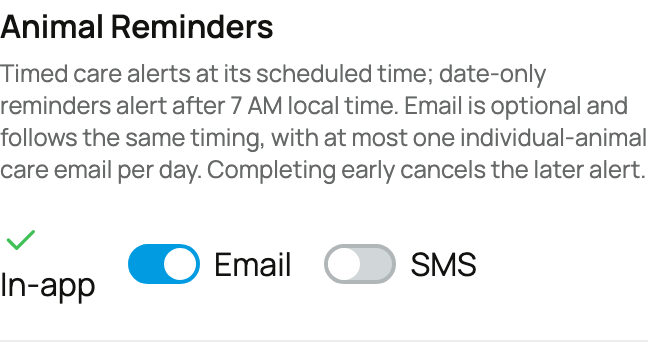
The Notifications tab is a grid. Down the left are the notification types (each kind of thing Creatures can tell you about). Across the top are three channels:
- In-app: the bell and notifications list inside Creatures.
- Email: sent to your email address.
- SMS: sent as a text to your verified phone.
Where a type meets a channel, you get one of three kinds of cell, and it helps to know what each means:
- A toggle (switch). You control this one: on means you get that type on that channel, off means you do not. Most cells are toggles. The implication: this is where you tune the noise to your liking.
- A locked-on cell (shown with a check). This type always sends on that channel and cannot be turned off. Creatures locks on the notifications that are genuinely important to not miss (for example major marketplace events, or money and care matters that need your eyes). The implication: you can rely on these reaching you, and there is nothing to set.
- A locked-off cell (shown with an x). This type is not available on that channel and cannot be turned on. The implication: nothing to do here; that combination simply does not apply.
SMS is off until you choose it (and needs a verified phone)
Every notification type starts with SMS turned off. Text alerts are strictly opt-in, so Creatures never texts you until you ask it to. When you switch on an SMS toggle:
- If your phone is already verified, the toggle turns on and you will start getting that type by text.
- If your phone is not yet verified, Creatures cannot text you, so flipping the toggle opens phone verification first (a "set up SMS alerts" step). Verify the number once and the toggle then turns on. The implication: turning on a single SMS alert is also how you can get your phone verified for texts, in one step.
A recommended-SMS card at the top can turn on a sensible starter set of text alerts in one tap (tuned to whether you mostly buy or mostly sell), so you do not have to hunt through the grid. When those are all on, it simply confirms "Recommended SMS alerts are on."
The notification groups
To keep the long list manageable, types are organized into groups. The groups are:
- General: direct messages, new followers, mentions, reactions and comments on your posts, and review activity.
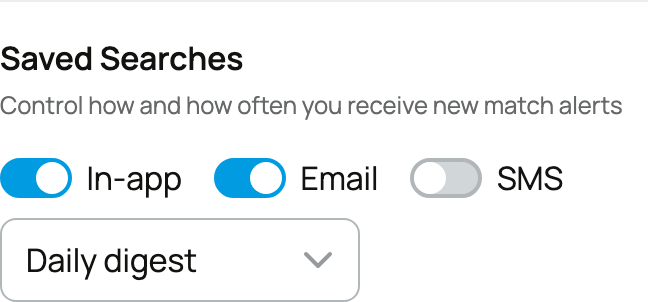
- Marketplace Activity: important marketplace events (an auction ending, a shipment, a delivery), bids and outbids on your listings, listing comments, buyer applications, boarding subscription activity, genetics sales and alerts, and saved-search match alerts.
- Rewards & Referrals: referral payouts and credit earned, when someone clicks your referral link, and reminders to share your link.
- Accounts You Follow: new posts and new listings from breeders and accounts you follow.
- Finance: reviewer and bookkeeper access changes, and mentions on finance notes and flags.
- Animals & Organizations: animal care reminders, daily and weekly care summaries, animal ownership changes, and organization team changes.
- Transport & Events: shipment and transporter updates, and sale-event applications, approvals, and reminders.
Each row also has a short note under its name describing exactly what triggers it, so you know what you are turning on or off.
Saved-search digest frequency
If you have saved any marketplace searches, the saved-search row has an extra control: a frequency dropdown for how often Creatures tells you about new matches. Your options:
- Instant: notified as soon as a matching animal is listed. Best for competitive or rare finds where being early matters.
- Daily digest: the day's matches gathered into one message. A calm once-a-day catch-up.
- Weekly digest: a single weekly roundup. For casual browsing with no rush.
- Off: keeps your saved searches for one-tap reuse but sends no match alerts.
The default is Daily, and you can change it any time.
The Account tab
The Account tab manages the contact details and card behind your account. Open it from /settings?tab=account.
Your profile, email, and phone at a glance
The top of the tab shows your name and username with an Edit profile shortcut (full profile editing is covered in Setting up your profile), then your email and phone, each labeled Verified or not. A verified email keeps account recovery and important mail reliable; a verified phone shows "Verified for SMS alerts" and is what unlocks text messages (and, on the selling side, listing and getting paid).
If your phone is not yet verified, this tab has a Verify phone button that opens the same verification step described above.
Changing your email or your phone
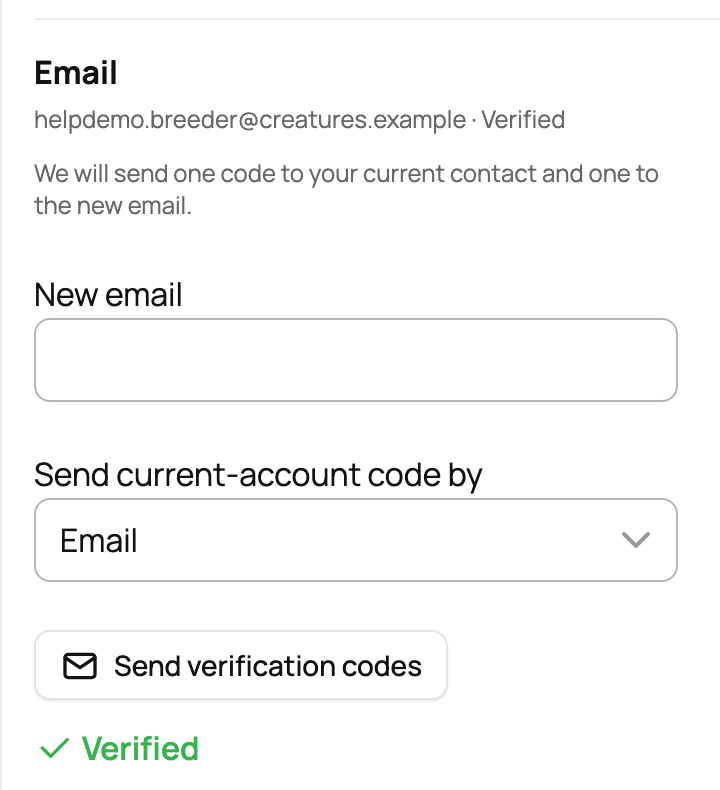
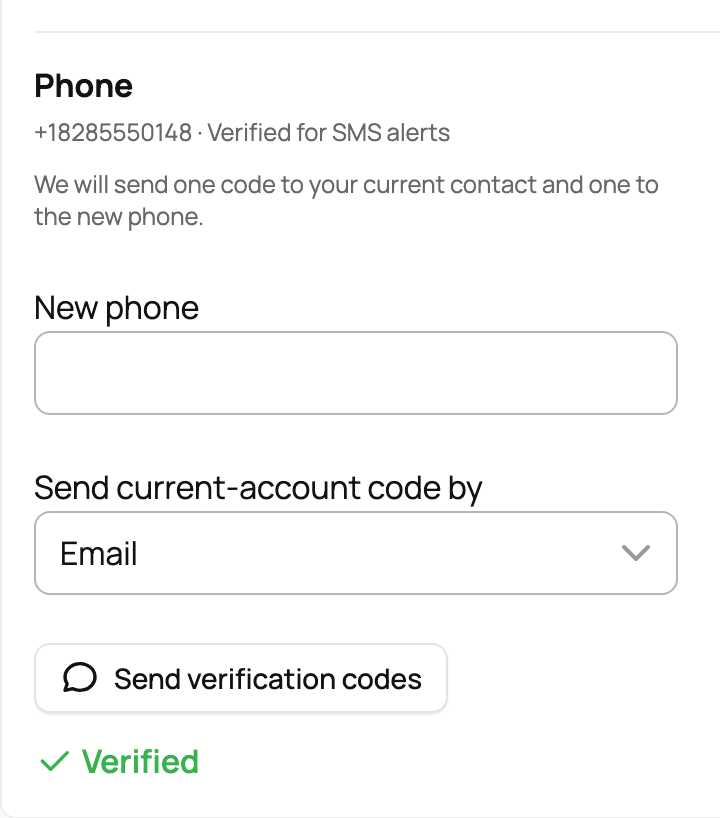
You can change either your email or your phone from here, and both use the same careful, two-code confirmation so no one can quietly move your account to contacts you do not control:
- What happens: you enter the new email (or new phone), and Creatures sends two codes: one to your current verified contact and one to the new one. You then enter both codes to confirm the change. Requiring a code at your existing contact proves it is really you; requiring a code at the new one proves you own the new address or number.
- The codes: each is a 6-digit code, valid for about 10 minutes, with up to 5 tries. If you run out of tries or let them expire, just send a fresh pair and try again.
- If you have no verified contact yet: the two-code change needs at least one already-verified channel to send the "current" code to. If neither your email nor your phone is verified, the form is replaced by a "Contact support to change this email" (or phone) message, because there is no trusted way to confirm the change automatically. The fix is to verify your email or phone first; then the self-serve change becomes available.
Your saved auction card
The Account tab also shows the card saved for auction holds. When you bid in a Creatures auction, a small temporary authorization (a hold, not a charge) is placed on a saved card to confirm your bid is backed by a real payment method.
- What it shows: the card brand and last four digits if you have one saved, or "No saved auction card" if not.
- What you can do: Add or Change the card, or Remove it. Removing it means you will be asked for a card again the next time you bid; there is no downside to keeping one saved if you bid regularly.
- Where it connects: there is also a Wallet shortcut here to your Creatures balance. For how bidding and the hold work, see How buying works.
Where to go next
- Verify your phone to turn on text alerts and unlock selling: see Verifying your phone number.
- Get oriented on everything else the home screen offers: see Your home screen and getting started.
- Round out who you are publicly: see Setting up your profile.
- Thinking about selling? Start with What you need to start selling.
Related information
Updated on: 23/06/2026
Thank you!