Articles on: Trust, Verification & Reviews

Verifying your phone number

Verifying your phone number


Verifying your phone number is the first trust step on Creatures, and it is the one most people hit first. It ties your account to a real, reachable person, and it is the key that unlocks selling: sharing a sale page, letting buyers check out, getting paid, issuing agreements, and turning on text alerts. This article walks the verify-phone dialog, the rules around it, and precisely what verifying unlocks.


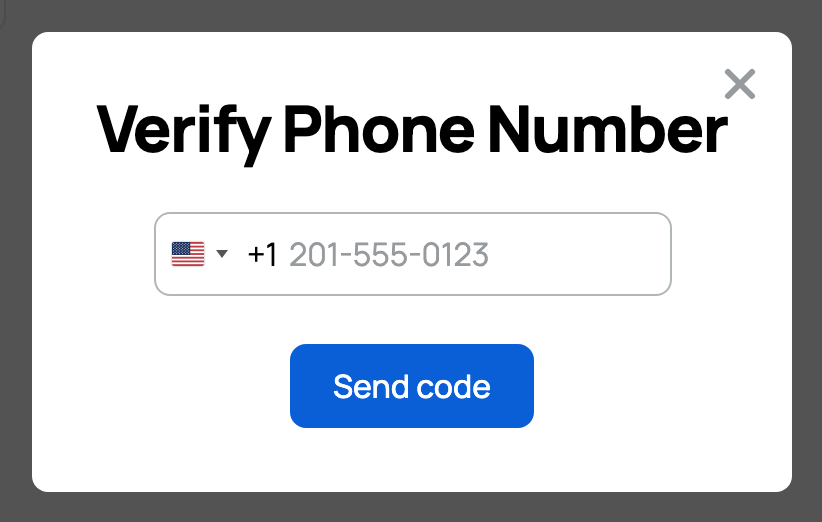
The Verify Phone Number dialog: enter your number and send a code


The verify-phone dialog


The same Verify Phone Number dialog opens from several places (your profile, your settings, and a marketplace listing when you go to share or publish it). Wherever it opens, it works the same way, in two steps.


Step 1: enter your number and send a code.


  • The phone field. A single box labeled "Enter your phone number." Type the mobile number you want to verify. It should be a number that can receive text messages, because that is how the code arrives.
  • The "Send code" button. Tap it and Creatures texts a 6-digit code to that number. The dialog then moves to step 2.


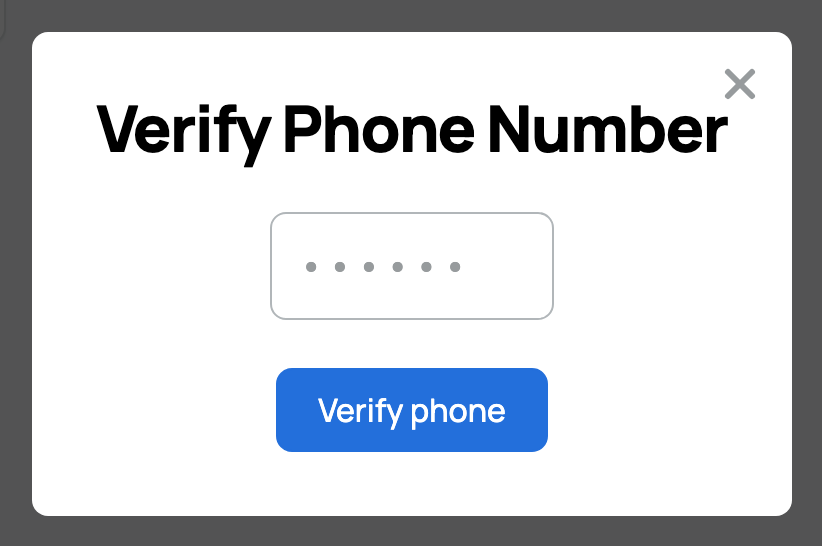
Step 2: enter the code.


  • Once the code is sent, the phone field locks (so you are confirming the exact number the code went to) and a 6-digit code field appears.
  • The button changes from "Send code" to "Verify phone." Type the code you received and tap it.
  • If the code is right, your number is verified and the dialog closes. If it is wrong, you can try again; after a few wrong tries the attempt resets and you start over with a new code.


Step 2: the phone field locks and the 6-digit code field appears, with the button now "Verify phone"


The rules, and why they exist


A few guardrails keep phone verification trustworthy. Knowing them upfront saves confusion:


  • A limit of two codes per hour. You can request at most 2 verification texts per hour for your account. The reason is to stop abuse of the texting system. The implication: request a code only when you are ready to type it in, and if you mistyped the number, you have a little room to correct it and resend.
  • A few tries per code. Each code allows a small number of attempts before it is cleared. If you run out, request a fresh code and try again. This stops anyone from guessing a code.
  • A number can belong to only one account. If you try to verify a phone number that is already verified on a different account, Creatures rejects it with "This phone number is already verified for another account." A real phone number identifies one person here, so it cannot be shared across accounts.
  • Verifying it yourself is what counts. Creatures treats a number you verify by entering a texted code as fully confirmed (the strongest grade). A number that was merely on file from somewhere else (for example carried in on an invite) is not treated as verified for selling until you complete this code step yourself. If a listing or payout still asks you to verify even though a number is showing, this is why: do the code step to upgrade it.


What a verified phone unlocks


This is the part worth reading closely, because a verified phone is a gate in front of most of selling. Until your phone is verified (by code, as above), these stay locked:


  • Sharing or sending a private sale page. When you create a private (unlisted) sale page and go to share or send it, Creatures checks your phone first. If it is not verified you see "Verify your phone number before sharing this sale page." Verify, and the share link goes live.
  • Buyers being able to check out. On any sale where you are the seller, your buyers cannot pay until your phone is verified. On the listing, a buyer is told "Checkout opens after the seller verifies their phone number." Verifying your phone is literally what opens checkout for them.
  • Accepting payment, and publishing a public listing. Taking payment and listing publicly both require a verified phone (and, for public listings, identity verification too, covered next). Your phone is the first half of that gate.
  • Issuing agreements. Creating and sending sale agreements (and editing agreement templates) requires a verified phone, so the person putting their name to an agreement is a confirmed account.
  • Becoming a transporter. Applying to transport animals on Creatures requires a verified phone (along with identity and a payout account), so shippers can trust who is hauling.
  • Sending an invoice. Billing a buyer through Creatures requires a verified phone.
  • The SMS notification channel. Text alerts only work once a phone is verified. In fact, switching on any SMS alert in your settings will prompt you to verify your phone right then. See Notification and account settings.


The takeaway: verify your phone once, and all of the above becomes available. It is the single highest-leverage minute of setup on Creatures.


Two different reasons to add a phone (do not confuse them)


You may also have seen an "Add a recovery phone" prompt on your home screen. That prompt and this dialog can use the same number, but they exist for different reasons:


  • Recovery phone is about getting back into your account if your email or sign-in access changes. It secures your login.
  • Verified phone (this article) is about trust for selling and text alerts.


Verifying your number satisfies both. There is no need to add two different numbers.


If you run an organization


Organizations carry their own verification status. If you are the owner of an organization, verifying your personal phone number also marks that organization's phone as verified automatically, so you do not verify twice. If you are a co-owner (not the owner), verifying your own phone does not currently flip the organization's status; the owner's verification is what counts for the organization. For how organization roles and verification work, see Creating an organization and adding your team.


Next steps


With your phone verified, the next trust step for selling is identity verification, and then connecting a payout account.


Updated on: 23/06/2026

Was this article helpful?

Share your feedback

Cancel

Thank you!