Creating an organization and adding your team
A personal profile represents you. An organization represents your farm, ranch, breeding program, or business as its own entity, with its own public page, its own payouts, and a team of people. This guide covers creating one, every field on the form, the team roles and what each can do, and how organization verification works.

Personal account vs. organization
- Your personal account is your individual identity: your profile, your animals, your activity.
- An organization is a shared entity with its own profile page at
creatures.com/org/{handle}, its own payout account, and a team. You can own and run more than one, and bring other people in. - Why create one: an org is how a business presents itself, how multiple people work under one name, how you take payouts as a business rather than an individual, and how you get listed in the breeder directory (organizations of type breeder, farm, or ranch are listed automatically). See Getting listed in the breeder directory.
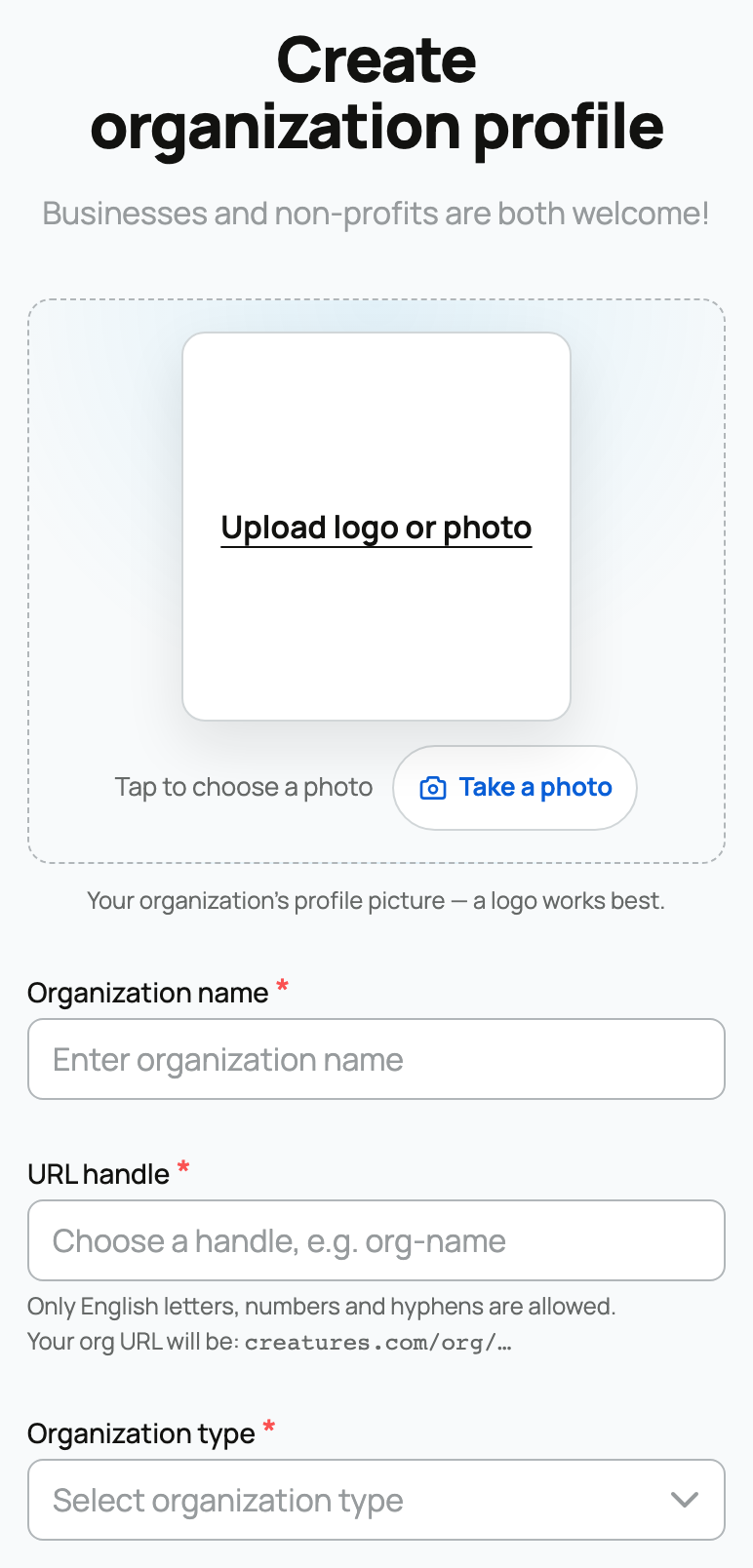
You create one from /orgs/create_profile.
The create form, field by field

- Name (required): the organization's display name, 2 to 64 characters. This is what shows on the org page and in search.
- URL handle (required): the unique address in the org's web link, so
creatures.com/org/marigold-cattle. It follows the same rules as a username: start with a letter, then letters, numbers, and hyphens, 4 to 32 characters, stored lowercased, and it must be unique across all organizations. If it is taken, pick another. - Type (required): what kind of organization this is. The choice describes the org and, for the breeding types, affects directory listing. The available types are:
- Breeder for a breeding operation.
- Farm for a farm.
- Ranch for a ranch.
- Veterinary for a veterinary practice.
- Boarding for a boarding facility.
- Rescue for an animal rescue.
- Shelter for an animal shelter.
- Transport for an animal transport business.
- Training for a training business.
- Grooming for a grooming business.
- Reproduction for a reproduction or breeding-services provider.
- Broker for a broker.
- (Registry also exists for breed and animal registries, but it is reserved for Creatures admins to assign and is not a self-serve option when you create an org.)
- What the type changes: beyond labeling your org, the three types breeder, farm, and ranch are the ones that get listed in the public breeder directory. The others identify the kind of business you run.
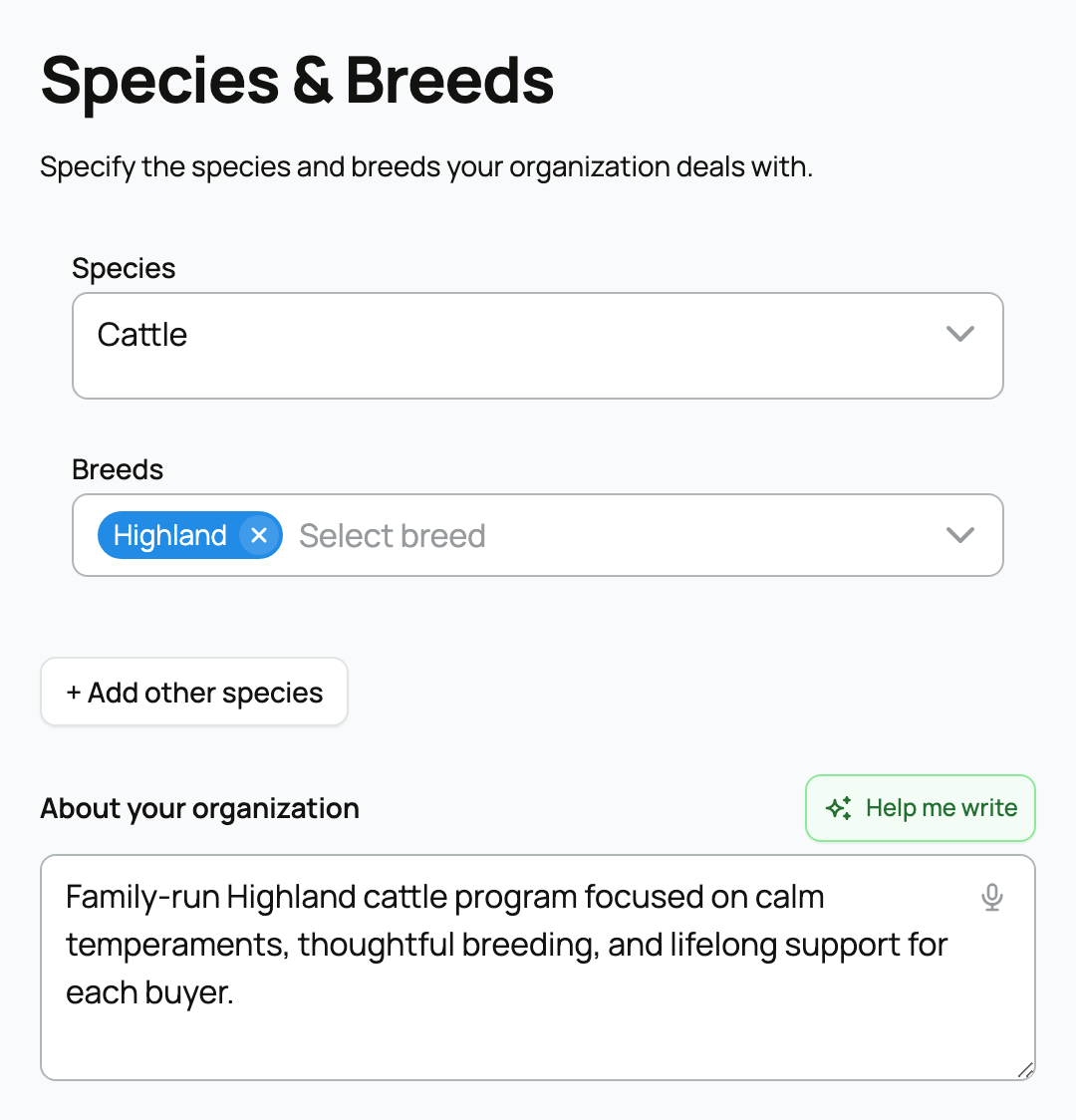
- About: a description of the organization, the org equivalent of a bio, shown on its page.
- Species and breeds: the species you work with and the breeds within them. These power directory and marketplace matching, so buyers searching that species or breed can find your org.
- Email and phone: contact details for the org. If you leave them blank, the org falls back to your own. A phone must be a valid number.
- Location: where the org is based. As with your personal profile, only the city and state are shown publicly; a full address stays private and is used for distance.
- Website and social links: an optional website plus the same six socials as a personal profile (Facebook, Instagram, TikTok, YouTube, X, LinkedIn).
- Picture: the org's profile image, uploaded and cropped.
When you submit, the org is created, you become its owner, and you automatically follow it.
The three team roles
Every member of an organization has a role, and the roles are not interchangeable. Here is exactly what each one can do.
- Owner
- What it is: the person who created the org. There is one owner by default, and it is the most powerful role.
- What it can do: full control of the organization, including editing it, managing its payout account, and, uniquely, managing the team. The owner is the only role that can open the team management screen to add, remove, or change members.
- The implication: because only the owner manages the team, and the team screen can assign just co-owner and team roles, you cannot promote someone else to a second owner from the normal team UI. Owner is meant to stay with the person responsible for the org.
- Co-owner
- What it is: a trusted second-in-command you add to help run the organization.
- What it can do: edit the organization and manage its Stripe Connect payout account (connecting and maintaining how the org gets paid). A co-owner also counts toward the org being payout-ready, meaning their verification can satisfy the org's ability to accept payments and pay out.
- What it cannot do: a co-owner cannot manage the team (that is owner-only).
- The implication: give co-owner to someone you trust with the money and the org's settings, not to every helper.
- Team
- What it is: a member associated with the organization, the day-to-day helper role.
- What it can do: a team member can create animals for the organization and, on the org's animals, edit posts, edit the gallery and images, update records, and respond to comments. It is not a payout role and not a team-management role.
- What it cannot do: a team member cannot list animals for sale (even ones they created) and cannot edit core profile or ownership details. Listing for sale is a co-owner and owner action.
- The implication: use team for people who help run the operation but should not control sales, payouts, or settings.
Inviting members
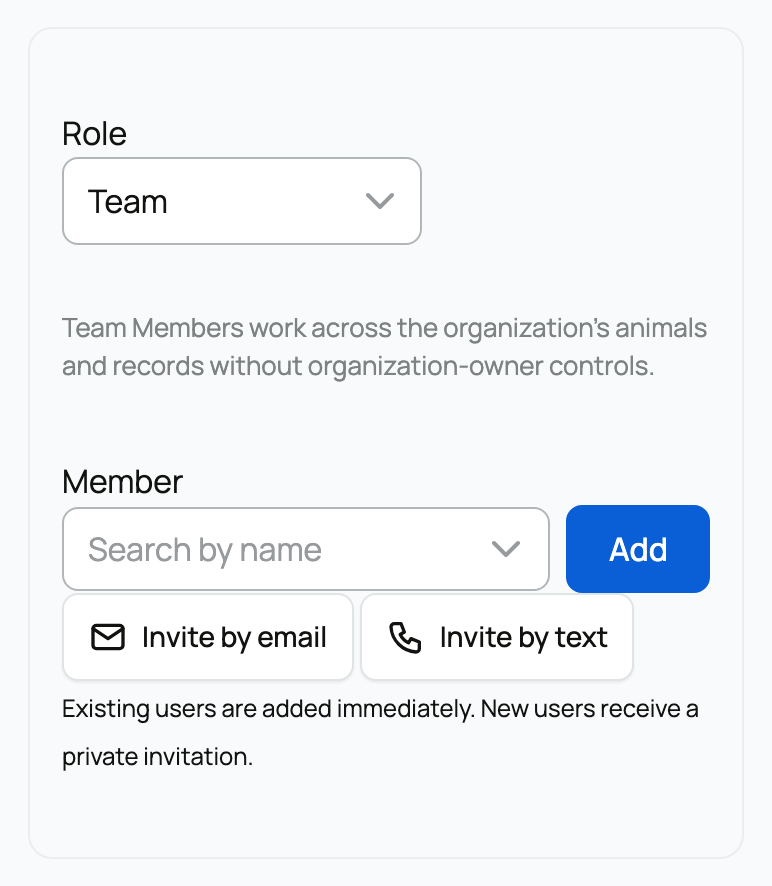
You add people from the team management screen (/org/{handle}/edit_team), which only the owner can open.

- Two ways to invite: by email or by text (SMS). You also choose the role to give them (co-owner or team).
- If they already have a Creatures account: a person whose email or phone already matches a Creatures account is added to the org directly, with the role you chose, and notified.
- If they are new to Creatures: they are sent an invitation (a magic link by email, or a link by text) and are added to the org when they accept it. Text invites require texting to be set up and a confirmation that you have the person's consent to text them.
- How long an invite lasts: an invitation is valid for 7 days. After that it expires and you would send a new one. You can also cancel a pending invite before it is accepted.
How organization verification works
An organization carries its own verification status (phone and identity), and it is worth understanding where that comes from, because there is one current limitation.
- At creation, the org snapshots the creator's status. When you create an org, its phone-verified and identity-verified state is copied from you, the owner, as you are at that moment. If you were already verified, your new org starts out reflecting that.
- The owner verifying later cascades to the org. If you, the owner, verify your phone after creating the org, that verification is also applied to the org, so the org stays in step with the owner.
- One honest limitation today: a co-owner verifying their own phone does not cascade to the organization right now. Only the owner's verification flows through to the org. So if your org needs to show as phone-verified, make sure the owner is verified, not only a co-owner. This is a known gap and a fix is on the list.
- Org payouts: an organization takes payouts through its own Stripe Connect account, which the owner or a co-owner can set up and manage. Connecting a payout account is part of getting an org ready to sell and receive money. For what a seller (personal or org) needs in place before listing, see What you need to start selling.
Where to go next
- To shape the personal profile that your org links back to, see Setting up your profile.
- To make sure your org shows up where buyers browse, see Getting listed in the breeder directory.
Related information
Updated on: 23/06/2026
Thank you!