
Running shows on Creatures
Running shows on Creatures
Creatures has a full show and competition tool, separate from the marketplace and from sale events. You publish a class list, take entries and payment online, run the judging ringside, and publish a permanent results page. This article is the map: what a show is, who can run one, the stages it moves through, and where to find everything.
A show is not a sale event
Creatures has two different "events," and it helps to keep them straight:
- A show (or competition) is what this category covers: exhibitors enter their animals into classes, a judge places them, and you publish results. Nothing is being sold.
- A sale event is a selling format: a group of listings (often auctions) that go live together. See What sale events are and Creating a sale event for that side.
They share no settings. If you want to sell animals, use a sale event. If you want to hold a show and judge animals, you are in the right place.
Who can run a show
- It is free for organizers. There is no charge to create a show, and no Pro subscription is required. Exhibitors pay a small service fee at checkout when they enter (covered in Show earnings and fees); you, the organizer, pay nothing to run one.
- A show is produced by an organization. You run shows as a club, association, or producer group, not as a personal profile. If you do not have an organization yet, create one first (see Creating an organization and adding your team).
- Only the organization's Owner and Co-Owners can create and manage a show. A regular Team Member added to the org cannot create, edit, judge, or manage a show. If you need someone to help run the show, they need to be an Owner or Co-Owner of the producing org.
- There is no separate ID-verification step to run a show, unlike creating a sale event.
The lifecycle of a show
A show moves through a clear set of stages, and you advance it yourself from the manage page:
- Draft. Only you can see it. You set it up and build the class list here.
- Published. The show appears in the public directory and exhibitors can enter.
- Entries open / Entries closed. You can close entries and reopen them as needed. A published show already takes entries; closing stops new ones while keeping the show page visible.
- In progress. The show is running (entries stay closed).
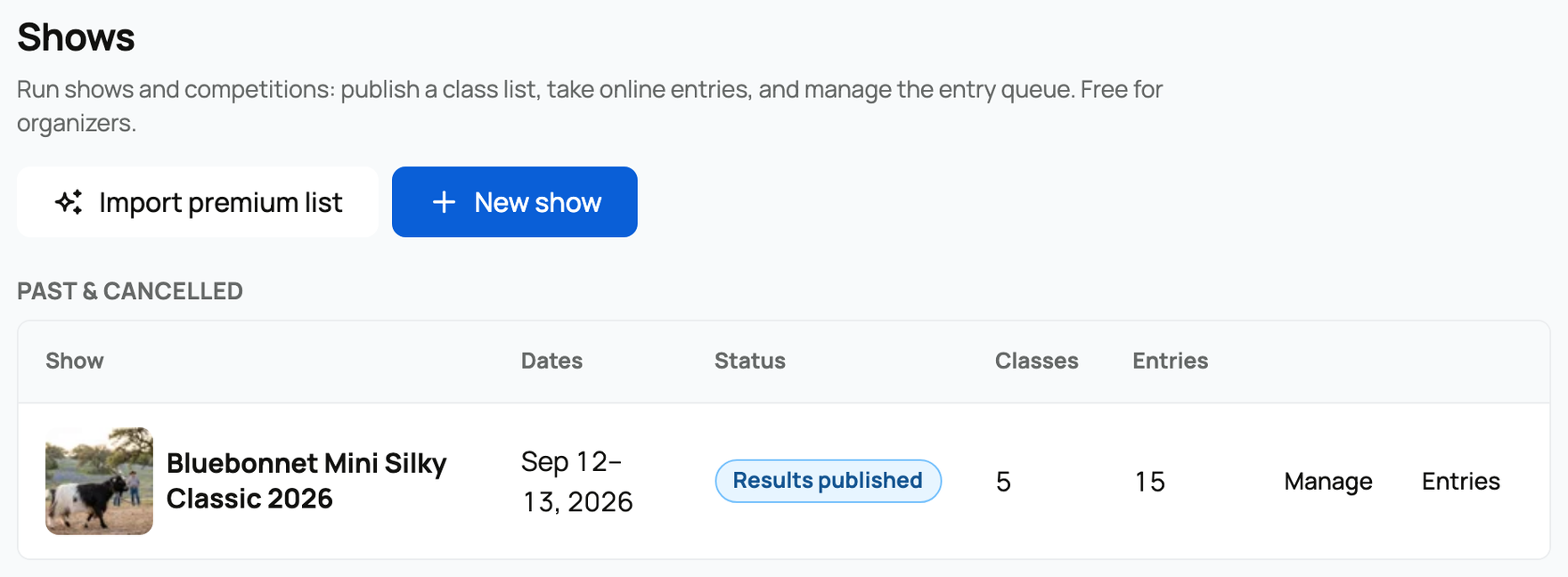
- Results published. You have published at least one ring's results. The public results page goes live.
- Completed. The show is finished.
A show can also be Cancelled from any stage before it is completed. You do not have to use every stage: many organizers go draft, published, then straight to judging and results.
Where you manage it, and where exhibitors find it

- You manage shows from your dashboard: go to Dashboard > Events > Shows. That is where you create a show, edit it, add classes and rings, work the entry queue, judge, and see earnings.
- Exhibitors find shows at the public directory, /shows. One important note: the shows directory is not linked from the main site navigation yet, so the way to send exhibitors to it is to share the direct link (your show's own page, or creatures.com/shows). See Finding and entering a show for the exhibitor's view.
Why running your show here is worth it
When you publish results, each placing becomes a permanent, Verified record on that animal's profile (see Judging and publishing results and Show results on your animal's profile). If a champion is later listed for sale, those verified wins travel with it onto its marketplace listing. Results do not just live on a slide or a Facebook post; they become part of the animal's record and can help sell it.
Where to go next
- Creating a show: every field on the show form, including the fee options.
- Classes and rings: build your class list and set up multiple rings.
- Managing entries: the secretary console: the entry queue, check-in, and refunds.
- Judging and publishing results: the ringside console and publishing.
- Finding and entering a show: what your exhibitors will do.
If your organization is also a registry, association, or club, that is a separate Creatures tool: see Registries and associations on Creatures.
Related information
Updated on: 17/07/2026
Thank you!