
Classes and rings
Classes and rings
A show is entered class by class, and judged ring by ring. This article covers the two catalog screens on the manage page: the class list and the rings setup.
The class list
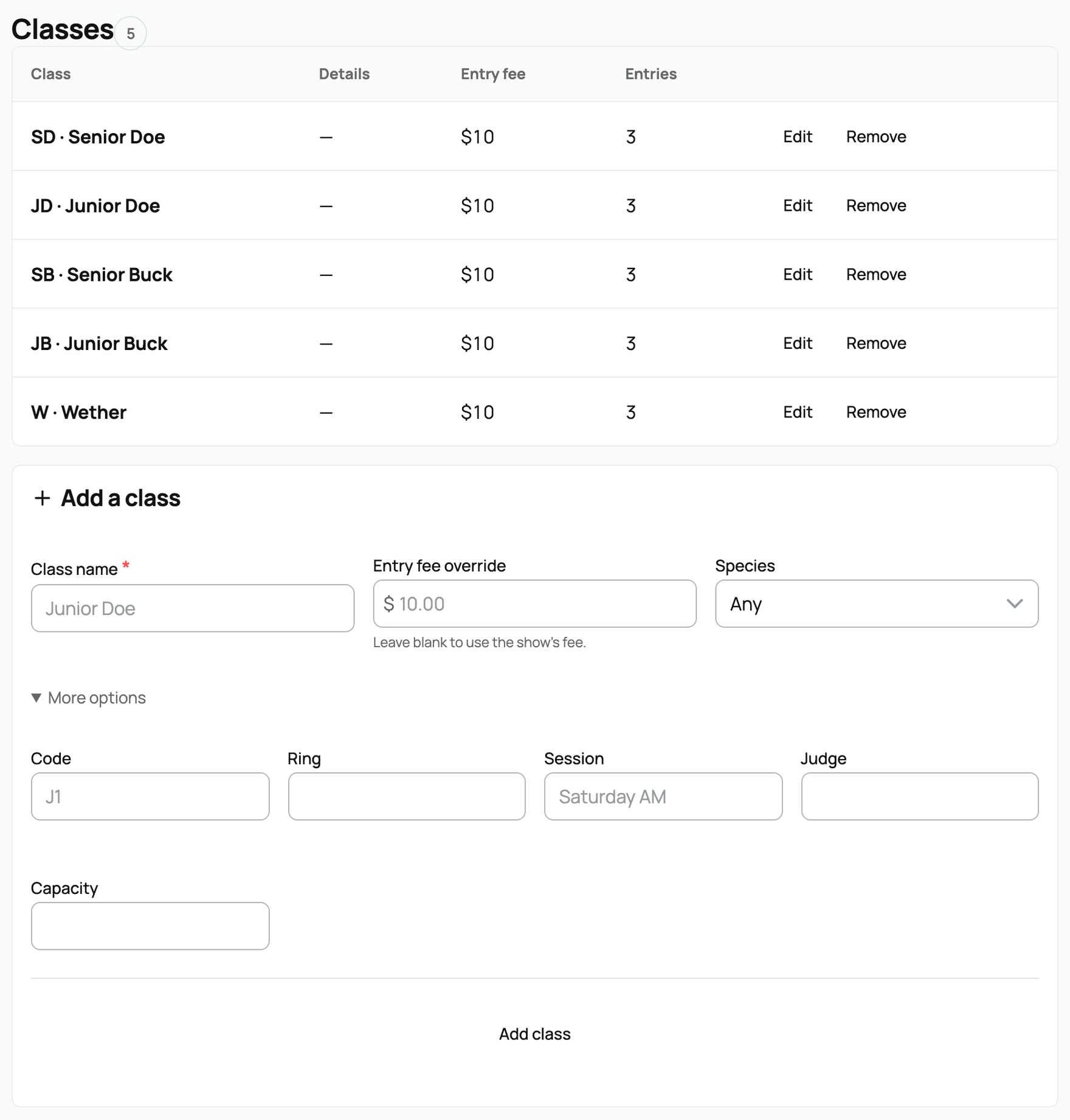
Open your show at Dashboard > Events > Shows and select Manage. The manage page shows a status bar (with the buttons that move the show from draft to published and beyond), a few stat tiles, and your Classes list.
Adding a class
The "Add a class" form has three main fields plus a "More options" disclosure:
- Class name. Required, up to 120 characters (for example "Junior Doe," "Best Udder," "Showmanship"). This is what exhibitors pick when they enter.
- Entry fee override. An optional dollar amount for just this class. Leave it blank to use the show's default entry fee.
- Species. Optional. Scope the class to one species, or leave it "Any."
- More options (select it to expand):
- Code. A short label like "J1" for your catalog and steward sheets.
- Ring. A free-text ring label on the class itself (this is a note, separate from the multi-ring setup below).
- Session. A grouping like "Saturday AM."
- Judge. A judge's name for the class. This is a label only. It does not create a login or give anyone access (there is no separate judge account; see Judging and publishing results).
- Capacity. An optional entry limit for the class.
Select Add class and it appears in the list. You can Edit any class (the same fields plus a sort order) or Remove it.
What Remove does
Removing a class is safe by design: a class that already has entries or orders is cancelled and kept for the record, not deleted, so your history stays intact. Only a class that has never had an entry is deleted outright.
Rings
Rings let one show be judged in more than one ring, each with its own judge, so an animal can be shown under several judges over a weekend. If you only need one ring, you can skip this: every show is created with a default Ring 1 already in place.
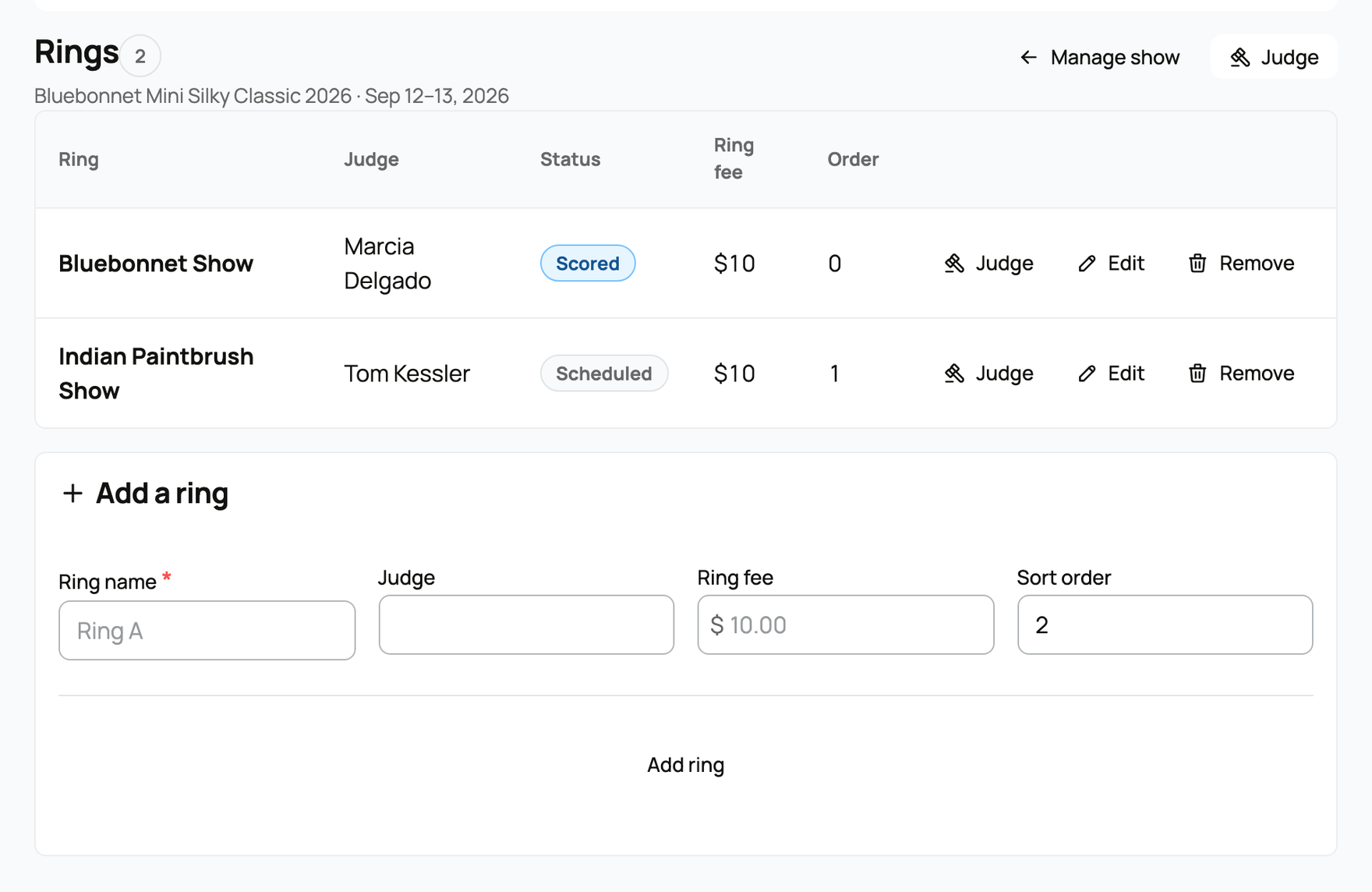
To set up rings, open the show and select Rings.
Adding and editing a ring
The "Add a ring" form and the edit dialog share these fields:
- Ring name. Required, up to 120 characters (for example "Ring A").
- Judge. The judge's name for the ring. Like the class judge, this is a label, not a login.
- Ring fee. An optional per-ring dollar amount. Leave it blank to use the show's default entry fee for that ring. (This is what the "Flat fee per ring" fee scope sums up: see Creating a show.)
- Sort order. The order rings appear in.
- Status (edit dialog): Scheduled, Judging, Scored, or Cancelled. This tracks where each ring is. Publishing a ring's results sets it to Scored automatically.
Two protections worth knowing
- A show always keeps at least one ring. If you try to remove the last active ring, Creatures stops you with "A show needs at least one ring."
- A ring that has been judged is kept. If a ring already has placings, removing it cancels and keeps it for the record rather than deleting it. An empty ring is deleted outright.
Once your classes and rings are set, publish the show from the manage page, then take entries and, on show day, judge (see Managing entries: the secretary console and Judging and publishing results).
Related information
Updated on: 17/07/2026
Thank you!