Articles on: Selling

Creating a sale event

Creating a sale event


If you host a sale, the create-event form is where you set it up and define the rules every participating listing will follow. This guide walks every field, what it is, the values it takes, and what choosing it means.


The create-event form


Event Name and images


  • Event Name: the title buyers and sellers see (up to 100 characters). Make it descriptive, since it is how the event is recognized.
  • Cover Image: a banner for the event. A strong image helps the event stand out.
  • Short Description (Teaser) and Full Description: a brief hook and the long details. The teaser shows in listings of events; the full description is the event's page.


Event Type (choose one)


  • What it is: a choice between "Auction (Bidding)" and "Fixed Price."
  • What it controls: it decides which listings can join. An "Auction (Bidding)" event accepts only auction listings; a "Fixed Price" event accepts only fixed-price listings.
  • The implication: pick the type that matches how you want animals to sell, because it cannot be changed once sellers have applied. Decide up front.


What can be listed


  • Accepted Listings: whether the event accepts live animals, genetic material (such as semen or embryos), or both. Toggle each on or off.
  • Accepted Species (optional): restrict the event to chosen species. Leave it open to allow any species.
  • Accepted Breeds (optional): when you have restricted species, you can narrow further to specific breeds.
  • The implication: these filters keep an event coherent (for example a single-breed sale) and stop off-theme applications. Leave them open for a general sale.


Host Organization


  • What it is: the organization the event runs under, or your personal account if you leave it blank.
  • What it means: hosting under an org puts the event and its branding with that organization, and proceeds and management sit there. Choose the account that should own the event.


The timeline


  • Start Time: when the event begins and its listings become active.
  • End Time: when the event ends. For a fixed-price event its listings expire; for an auction event its auctions close.
  • Application Deadline (optional): the cutoff for sellers to apply, which must be before the start time. After it, no new listings can apply.
  • The implication: these define the windows for applying, bidding or buying, and closing. A sensible application deadline before start gives you time to review applications.


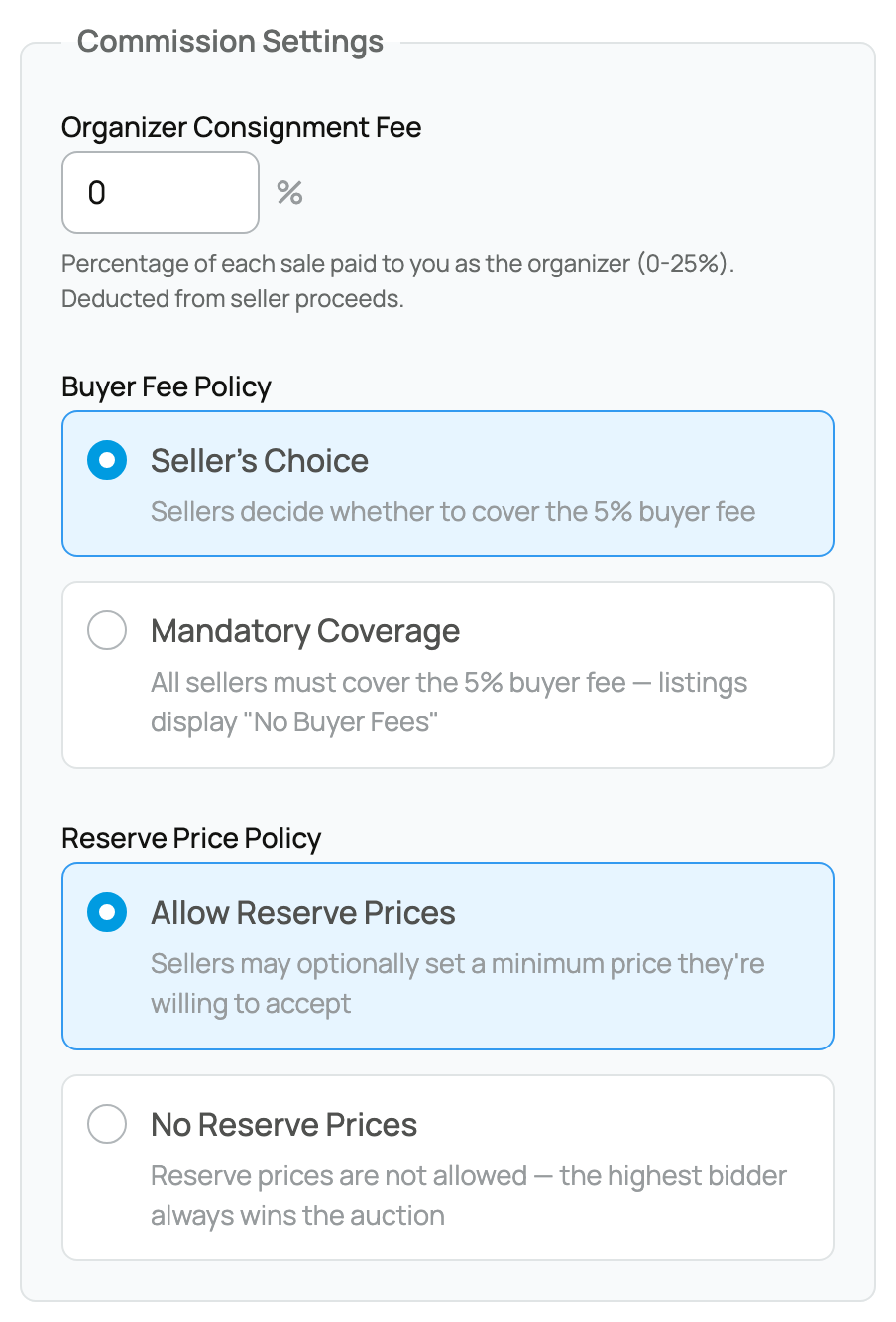
Commission Settings


This is where you set what the event costs sellers and how fees are handled.


  • Organizer Consignment Fee: a percentage from 0% to 25% (in 0.5 steps) that you, the organizer, take from each sale. It is deducted from the seller's proceeds, on top of the normal Creatures fees. This is your compensation for hosting; set it where the value you add justifies it, because sellers see it when they apply.
  • Buyer Fee Policy: how the buyer's 5% fee is handled across the event (covering the buyer fee is one of the Sale Incentives detailed in Promo codes and Sale Incentives at checkout):
  • Seller's Choice: each seller decides on their own listing whether to cover the buyer's 5% fee.
  • Mandatory Coverage: every seller in the event must cover the buyer's 5% fee, and their listings display "No Buyer Fees." This makes the whole event read as fee-free to buyers, at the sellers' expense.
  • Reserve Price Policy (matters for auction events):
  • Allow Reserve Prices: sellers may set a hidden minimum on their auction listings.
  • No Reserve Prices: reserves are not allowed, so the highest bidder always wins. This tends to attract more bidders and signals a true no-reserve sale.


All three commission settings lock once listings have applied, so finalize them before you open applications.


After you create it


The event management dashboard: applications, lots, earnings, and fulfillment


Once the event exists, sellers can apply their listings into it and you approve or deny each application. See Applying your listing to an event for the seller side and the approval step. Your consignment fee is deducted at sale time alongside the standard seller fee; the broader fee picture is in Seller fees and the Creatures Pro subscription.


Updated on: 23/06/2026

Was this article helpful?

Share your feedback

Cancel

Thank you!