Listing an animal for auction
An auction listing lets buyers compete by bidding, and the highest bid when the clock runs out wins. This guide walks every field on the auction create form, what each does, and the important rule about what you can and cannot change once bidding starts.

The animal, photos (at least five), description (at least 50 words), location, buyer-approval, boarding, fulfillment, delivery, and Sale Incentives all work exactly as on a fixed-price listing; see Listing an animal at a fixed price for those. The Activity feed controls (covered below) are where an auction has one extra option. Below are the fields unique to an auction.
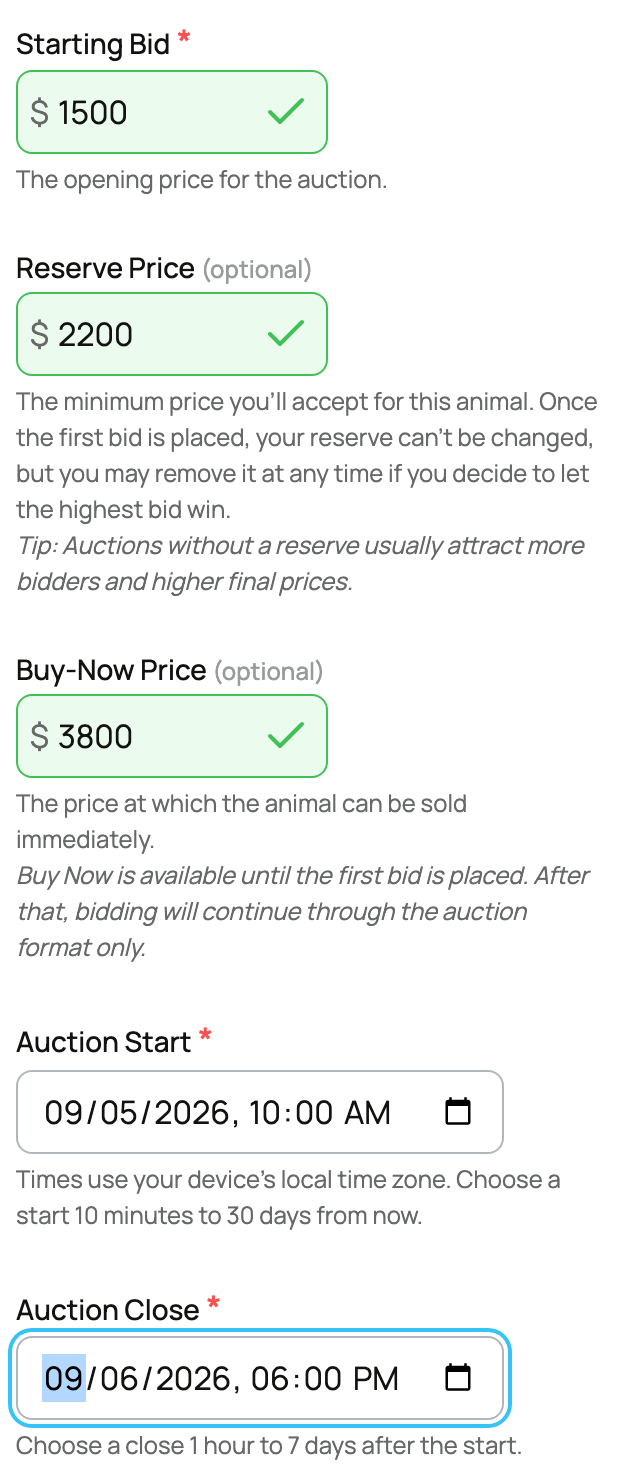
Starting Bid
- What it is: the opening price, the lowest first bid you will accept. Range is $1 to $100,000.
- What it means: bidding begins here and climbs by set increments. A low, fair starting bid usually attracts more bidders and competition than a high one.
- Setting your starting bid and reserve: a Crestimate gives you a market value to ground both numbers. See Showing a Crestimate and using it for pricing.
Reserve Price (optional, and hidden from bidders)
- What it is: a minimum you are willing to sell for. It is optional.
- Hidden: the reserve amount is never shown to bidders. They are only told whether bidding is still below it, not the number.
- What it means: if the auction ends below your reserve, you are not obligated to sell. If bidding meets or beats it, the high bidder wins. The form notes that no-reserve auctions usually draw more bidders and higher final prices, so reserve is a safety floor, not a free lever.
Buy-Now Price (optional, before the first bid only)
- What it is: a price at which a buyer can skip the auction and buy immediately. It is optional.
- When it is available: only until the first bid is placed. Once anyone bids, Buy Now disappears and the listing runs as a pure auction to its close.
- What it means: Buy Now is a way to let an eager buyer close the deal early. If bidding starts first, that option is gone for everyone, by design.
Auction Start and Auction Close
- Auction Start: when bidding opens. You set the date and time in your local time zone.
- Auction Close: when the auction ends. Also your local time zone.
- What it means: these define the bidding window. Note that the close can extend slightly at the very end (anti-snipe), described below.
What locks once the first bid is placed
This is the rule to remember before you publish, because it protects the integrity of a live auction:
- Starting Bid locks once the auction has started. You cannot raise or lower the opening price once it is running.
- The auction start time locks once it has started.
- Reserve Price can be removed but not changed after a bid. Once a bid exists you may drop your reserve entirely (letting the high bid win), but you cannot edit it to a different number. So set your reserve thoughtfully before the first bid.
- Buy-Now ends at the first bid, as above.
The practical takeaway: get your starting bid, reserve, and buy-now right before bidding begins, because afterward your only auction-price lever is removing the reserve.
How bidding climbs, and the close-time safeguard
Bids rise by set increments that scale with price (for example $1 under $100, $5 from $100, $25 from $1,000, up to $100 at $5,000 and above), and a bid in the final moments extends the close so nobody wins by sneaking in at the last second. Buyers see the full mechanics in the Buying help; as a seller, the effect is a fair auction that does not end on a last-millisecond bid.
Activity feed and bidder identity
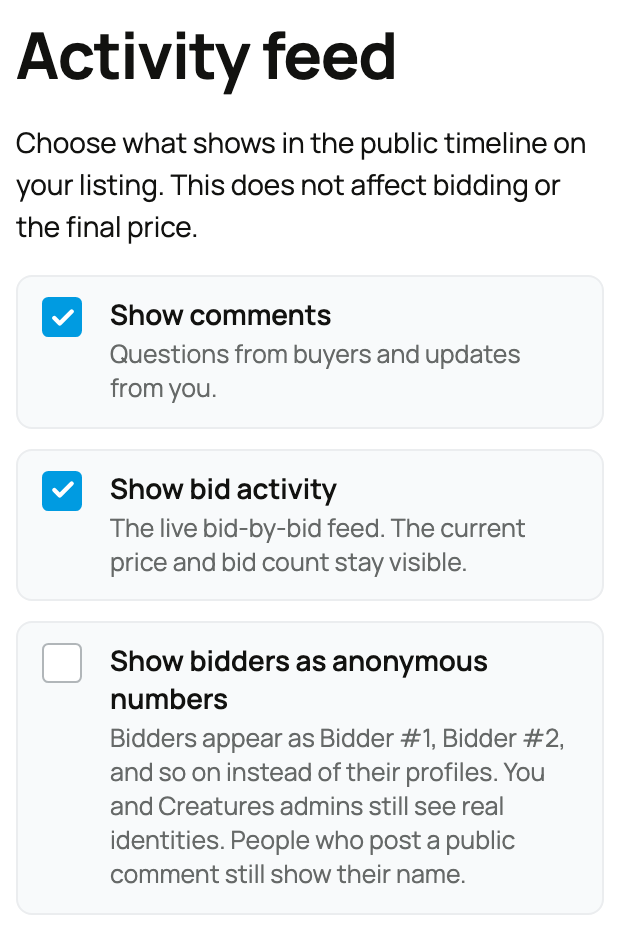
The Activity feed section sets what your auction shows about participation. None of it changes bidding or the final price.
- Show comments: turn the public question-and-answer comments on your listing on or off.
- Show bid activity: show or hide the live bid-by-bid feed. With it off, the current price and the bid count still show; only the running list of individual bids is hidden.
- Show bidders as anonymous numbers (auctions only): when on, bidders appear as Bidder #1, Bidder #2, and so on instead of by name and profile. You and Creatures admins still see real identities, and anyone who posts a public comment still shows their name. This is the auction-only control that a fixed-price listing does not have. Use it when you want competitive bidding without putting bidders' names on display.
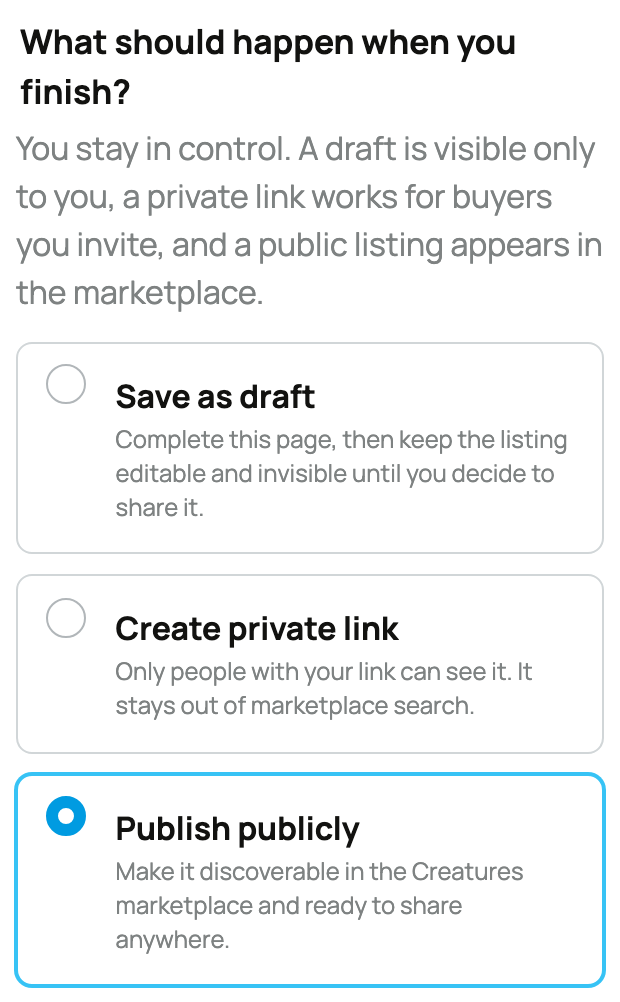
If you apply this listing into a sale event, the organizer can set an event-wide policy that locks any of these (forcing comments, the bid feed, or named-versus-anonymous bidders on or off for every listing); see Creating a sale event. The full transparency picture across listings and events is in Auction transparency: the activity feed and anonymous bidders.
Fulfillment: how the winner gets the animal
Auctions carry the same Fulfillment section as fixed-price listings. Check every handoff method you accept, and the winning buyer chooses among them at checkout:
- Buyer pickup: the buyer collects in person. On by default.
- Buyer-arranged or informal shipping: the buyer organizes transport, or you arrange it informally between you.
- Creatures transport: the animal moves through the Creatures transport network with a tracked trip.
These are separate from the paid Delivery option (you driving it for a per-mile fee), and how each affects your payout is in Getting paid when transport is involved. The full field-by-field walkthrough is in Listing an animal at a fixed price.
Ending an auction early: cancel with a reason
If you need to pull an auction down, open it and choose Cancel this listing. Because it is an auction, cancelling ends the auction and stops it accepting bids. Creatures then asks one quick question, with an optional note, so the right thing happens next:

- Sold outside Creatures. The auction ends, and Creatures offers to transfer the animal's profile to the buyer so its records continue with the new owner (the invite reaches a buyer even if they are not on Creatures yet, by email or text).
- No longer for sale. The auction comes down and the animal stays on your profile, ready to relist whenever you like.
- Other. For anything else, with the note for the details.
(The dialog's one-line summary reads "The auction will end and stop accepting bids" for an auction, rather than the fixed-price wording shown above.) Cancelling ends the auction; it does not delete the animal. As a courtesy to bidders, avoid cancelling a hot auction late unless you must.
When it sells
When the auction closes with a high bid at or above any reserve, the buyer completes checkout. From there it is the standard protected flow: their payment is held by Creatures, and it reaches your Wallet only after the buyer confirms delivery. See What happens after I sell an animal?.
Related information
Updated on: 22/07/2026
Thank you!