Articles on: Your Profile & Organization

Setting up your profile

Setting up your profile


Your profile is your home on Creatures and the page everyone else sees when they look you up. It lives at creatures.com/u/{username}, and you edit it from Edit profile (/user/edit_profile). This guide walks every field, what it is, the values it accepts, and what it changes about how you appear.


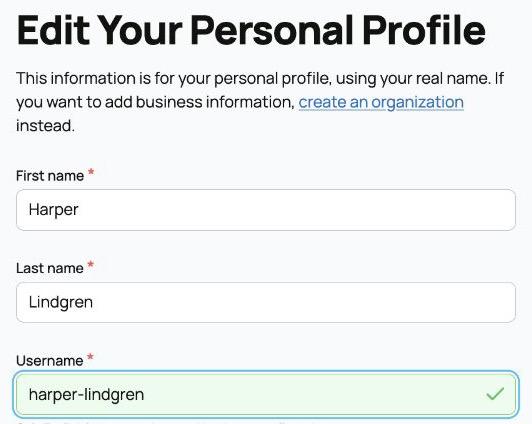
The edit profile screen


Your name


  • First name and last name (required): your real name, the way you want it shown across Creatures. Each can be 1 to 64 characters. These are required because a real name is part of trusting who you are dealing with on a marketplace where real animals and real money change hands.
  • What it changes: your name appears on your profile, your posts, your listings, and anywhere you are mentioned.


Lock name capitalization


  • What it is: a toggle that freezes the exact capitalization you typed. Normally Creatures tidies names into standard title case (so "mcdonald" becomes "McDonald"). Turning the lock on tells it to leave your name exactly as written.
  • When to use it: names that are not standard title case, like "von Trapp", "DeShawn", or a deliberately lowercase brand name. Leave it off and Creatures formats the name for you; turn it on and your exact capitalization is kept.


Username


Your username is the unique handle in your profile address. Type it and Creatures checks availability live as you go.


  • What it is: the part after creatures.com/u/ in your profile URL. Pick "marigold-farm" and your profile lives at creatures.com/u/marigold-farm.
  • The rules: a username must start with a letter, then use only letters, numbers, and hyphens, for a total length of 4 to 32 characters. It is always stored lowercased, so "Marigold" and "marigold" are the same username. No spaces, and no other punctuation or symbols.
  • It must be unique: no two accounts can share a username. As you type, Creatures runs a live availability check and tells you whether the name is free. If it is taken, you will need a different one.
  • One honest caveat: there is no reserved-word list today. Common or official-sounding names (like "admin" or "support") are not specifically blocked, so a username is available purely on a first-come basis. If you want a particular handle, claim it early.
  • What it changes: your username is your public web address. Changing it later changes your profile URL, so anyone with the old link would need the new one.


Bio


  • What it is: a short, public description of you, your animals, or your program. It shows on your profile for anyone to read.
  • Help writing it: there is a "Help me write" assist that drafts bio text for you from a few details, so you are not staring at an empty box. You can edit whatever it suggests.
  • What it changes: a filled-in bio is what turns a bare profile into one people trust enough to buy from or follow.


Location


  • What it is: where you are based. You can enter a full address, but Creatures treats it carefully.
  • What is public vs. private: only your city and state are shown publicly. Your full street address is kept private and is used for distance and matching, not displayed on your profile. The form says this directly as you enter it.
  • What it changes: setting a location is how buyers find you by distance on the marketplace and how local breeders show up to people near them. The exact address stays yours.


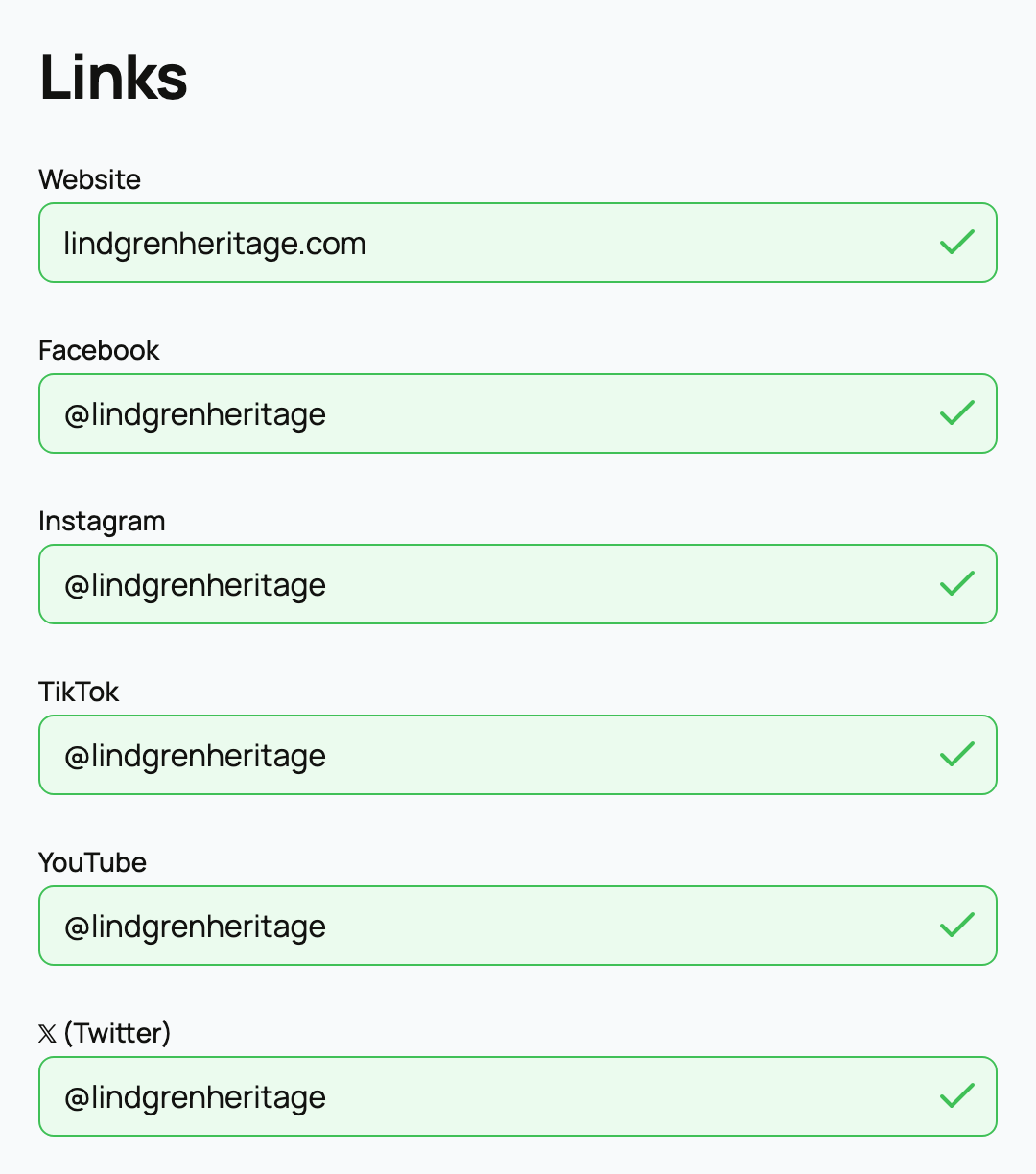
  • What they are: an optional website plus up to six social links: Facebook, Instagram, TikTok, YouTube, X, and LinkedIn.
  • What they change: any link you add appears on your profile so people can find you off Creatures too. Each must be a valid URL, or the form flags it. Leave any you do not use blank.


Profile photo and cover image


  • Profile photo (avatar): the round picture that represents you everywhere. You upload an image and crop it to frame it the way you want.
  • Cover image: the wide banner across the top of your profile, also uploaded and cropped, that sets the visual tone of your page.
  • Accepted formats: standard image files work: JPG, PNG, WEBP, GIF, and SVG. Upload the best photo you have; a real, clear profile photo is one of the strongest trust signals on your page.


What people see: your profile tabs


A filled-in profile as visitors see it


Once your profile exists, visitors browse it through tabs. Which tabs show depends on what you have, and counts appear next to each:


  • Posts: your updates and activity feed, the default view of your profile.
  • Animals: the animals you own, plus reference animals you have added. See Adding an animal to Creatures to start filling this tab.
  • Listings: your animals currently for sale (and any stewardship offerings).
  • Sold: your past sales. This tab appears once you have sold something.
  • Genetics: genetic listings, shown when you have any (always visible to you on your own profile).
  • Services: boarding services you offer, shown when you have any.
  • Reviews: reviews other people have left about you, and a "Reviews given" view of reviews you have written.
  • Activity: a record of your recent activity on Creatures.


The implication is simple: the more of your profile you fill in, the more complete and trustworthy your page looks to a buyer, a breeder, or anyone deciding whether to work with you.


Profile vs. organization


Everything above is your personal profile. If you run a farm, ranch, breeding program, or business, you can also create an organization, which is a separate page with its own payouts and team. See Creating an organization and adding your team. And if you want to appear in the public breeder directory, see Getting listed in the breeder directory.


Your profile is your home on Creatures, but it is not the same as having your own website. If you want a standalone public site with your own pages, design, and web address, Creatures includes a website builder. See Your Creatures website: what it is and how to open the builder.


Updated on: 23/06/2026

Was this article helpful?

Share your feedback

Cancel

Thank you!