
Blocking or reporting another member
Use Block when you want contact to stop. Use Report conversation when Creatures should review recent messages. Look for the three-dot (⋮) Conversation actions button in the upper-right corner of the conversation.
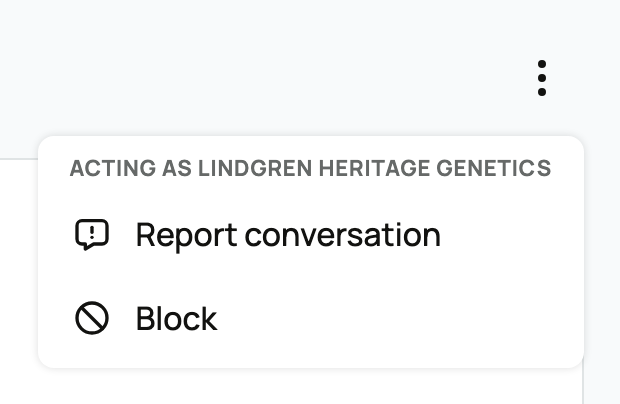
Block from a conversation
- Open the conversation.
- Select the three-dot (⋮) Conversation actions button in the upper-right corner.
- Select Block.
- Confirm Block.
Blocking stops messages in both directions, disables reactions, removes the reply box, and hides the conversation from both inboxes. The person also disappears from the new-message picker. Creatures does not notify them that you blocked them.
To reverse this later, open the person's or organization's profile and select Unblock to message. If you still have the conversation open, you can also select Unblock in the notice there.
Official Creatures staff accounts cannot be blocked, so Block is not shown in those conversations. You can still report a staff conversation from your personal profile or contact Creatures Support if something is wrong.
Report a conversation
- Open the three-dot (⋮) Conversation actions menu.
- Select Report conversation.
- In What should moderators know?, explain what happened. Recent messages are shared with the moderation team.
- If Also block [name] or Also block [name] for [organization] is shown, leave it selected if you also want contact to stop. It is not shown for official Creatures staff accounts.
- Select Submit report.
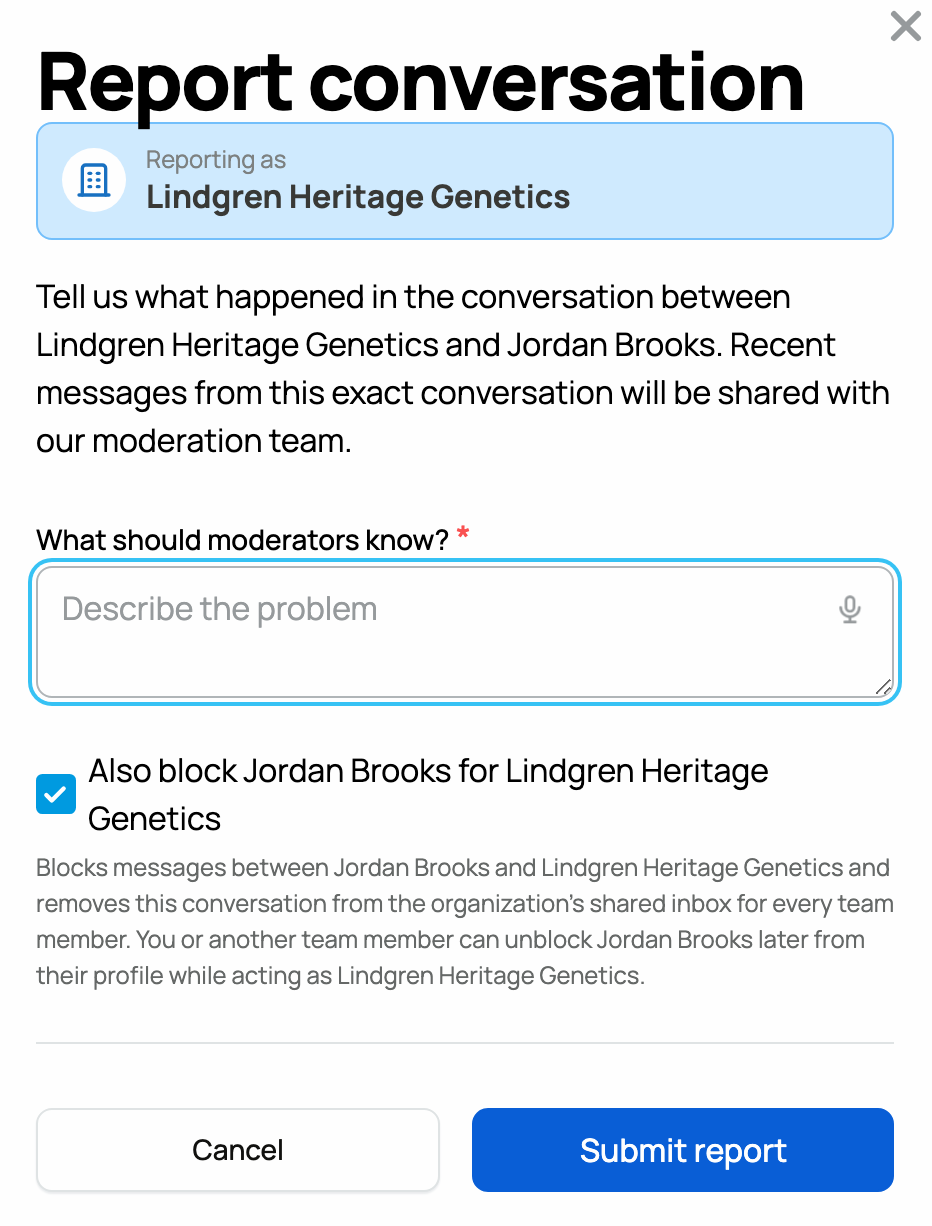
A report needs a written explanation. Give enough detail for a moderator to understand the concern without guessing. Reporting does not publish your explanation or show a public moderation result.
Report conversation is available from your personal profile and from an organization you are allowed to use.
Block or report from a profile
You can also open another member's or organization's profile, select its actions menu, and choose Block or Report. Blocking from a profile has the same messaging effect as blocking from a conversation. It does not hide the person's public profile, posts, or comments.
Blocking is not the same as deleting your own history. It hides the conversation and prevents new contact, but Creatures may retain messages needed for safety and moderation. If there is an immediate safety concern, preserve any information you may need outside Creatures and contact the appropriate local authority.
For ordinary message controls, see Messaging other members. To locate a conversation first, see Finding and managing your messages.
Related information
Updated on: 02/09/2026
Thank you!