
Your Creatures website: what it is and how to open the builder
Your Creatures website: what it is and how to open the builder
Your Creatures website is a standalone, public, branded site for one account, built and published from inside Creatures. It is not a new thing you have to fill from scratch. It surfaces the profile, animals, photos, listings, and groups you already have on Creatures, presented under your own brand at your own web address. This article explains what the website is, how it differs from two things people often confuse it with, and how to open the builder.
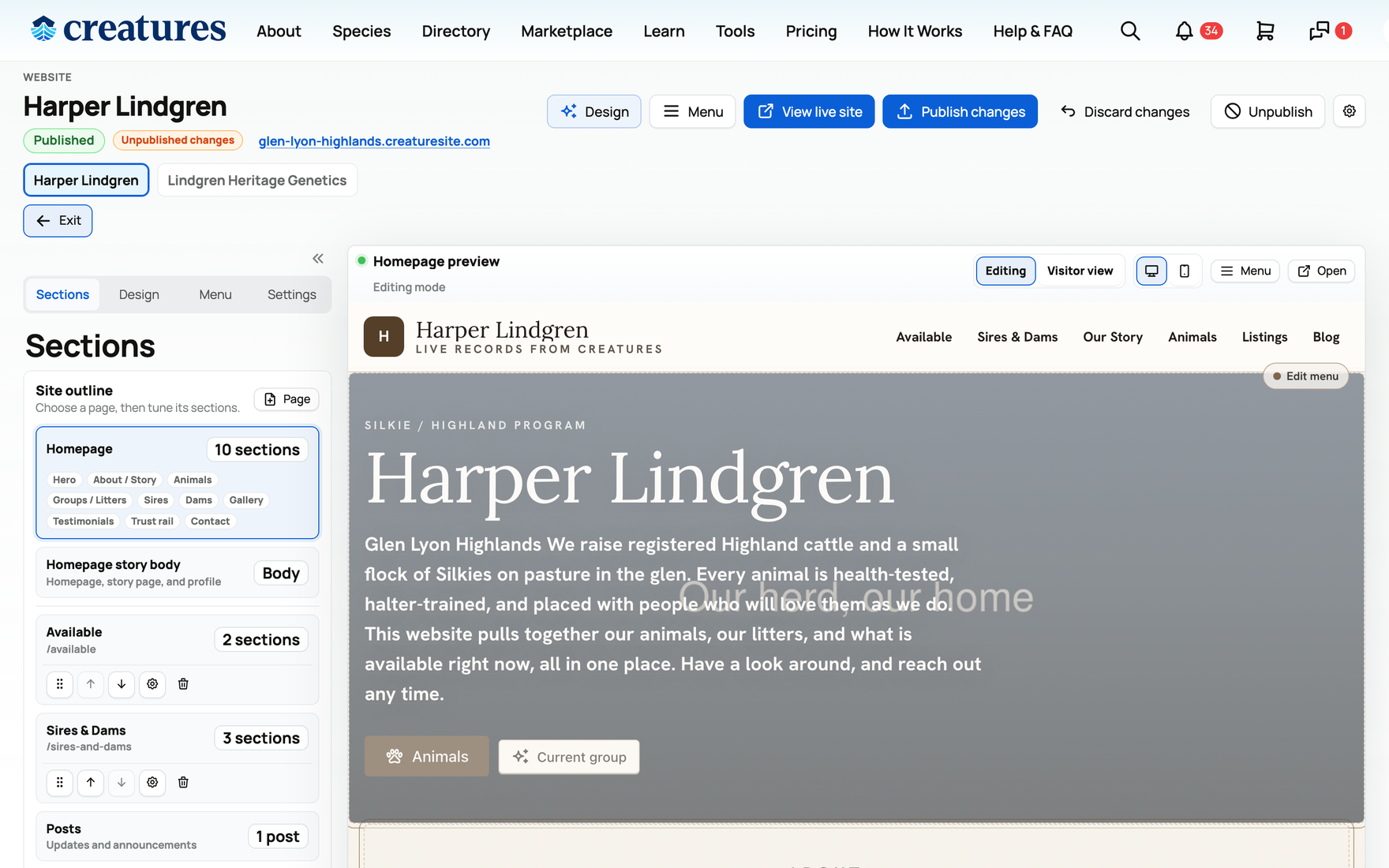
Three different things, kept straight
It helps to draw three lines once, because they are easy to mix up:
- Your website (this cluster): a standalone, branded site you design and publish to its own address, for example
your-handle.{the Creatures sites domain}. It has its own pages, look, navigation, and public address. This is the thing you build in the website builder. - Your Creatures profile page (
/u/{username}for a person,/org/{handle}for an organization): your presence inside Creatures, with your avatar, cover, and bio. It is part of the Creatures app, not a separate site you style. - Your breeder directory listing (a row in Creatures' own breeder search): how buyers find you inside Creatures. It is a search listing, not a site you design. Setting it up is covered separately in Getting listed in the breeder directory.
The website builds on your profile rather than replacing it. The avatar, cover, bio, animals, and photos you set there are what the website pulls from.
One site per account
Each account has at most one website. An account here means an "actor": either you as a user, or an organization you own.
- A user builds their own site. If you are a single breeder, your website belongs to you.
- An organization site is built by its owner or a co-owner. Only the org's owner or co-owner can build and publish the org's website. Setting up an organization and its team is covered in Creating an organization and adding your team.
- If you manage more than one account, the builder shows an owner switcher at the top so you can pick whose site you are editing (your own, or one of your organizations).
What shows as your site's name
There is no separate "site name" or "site title" field to fill in. Your website's brand and hero use your account display name: your name as a user, or the organization's name. The way to change what your site is called is to set your display name on your profile (or the organization's name in its settings). The website then reflects it. So you do not name the site in the builder; you name the account, and the site follows.
How to open the builder
You reach the builder from your profile:
- On your profile page (
/u/{username}) or your organization's profile page (/org/{handle}), click the Website button (the globe icon). - That opens the builder at
/site/settings. It is the single entry point; there is no separate top-navigation item for it. - Opening the builder creates a private draft site for that account. Nothing is public until you publish, so you can explore freely without anyone seeing it.
Your web address (the subdomain)
A published site lives at a subdomain built from your site handle: https://{your-handle}.{the Creatures sites domain}/. The handle is the only thing that sets your public address, and it has rules:
- Format: starts with a letter, 4 to 32 characters, lowercase letters, numbers, and hyphens only.
- Unique: no two sites can share a handle, so the one you pick has to be available.
- Not a reserved word: common system words (such as admin, api, app, blog, www) are reserved and cannot be used.
A starter handle is suggested from your username or organization handle when the site is created, and you can change it in the builder's Settings before you publish. Changing the handle changes your public web address.
Your subdomain is your site's built-in address, and it comes free with every published site. There is nothing to buy or set up: publish, and the subdomain works. If you would rather your site answer at a domain you already own (like www.yourfarm.com), you can connect one as a Creatures Pro benefit, in the builder's Custom domain settings. The full setup, including the exact records to add and how the connection is verified, is in Connecting a custom domain to your website.
The "Finish your site" checklist
When you open the builder, you never start from a blank page. Creatures prefills a sensible starter, pulling in your animals if you have any, so there is always something real on the canvas. To take it from "prefilled starter" to "unmistakably yours," the builder shows a "Finish your site" checklist at the top.
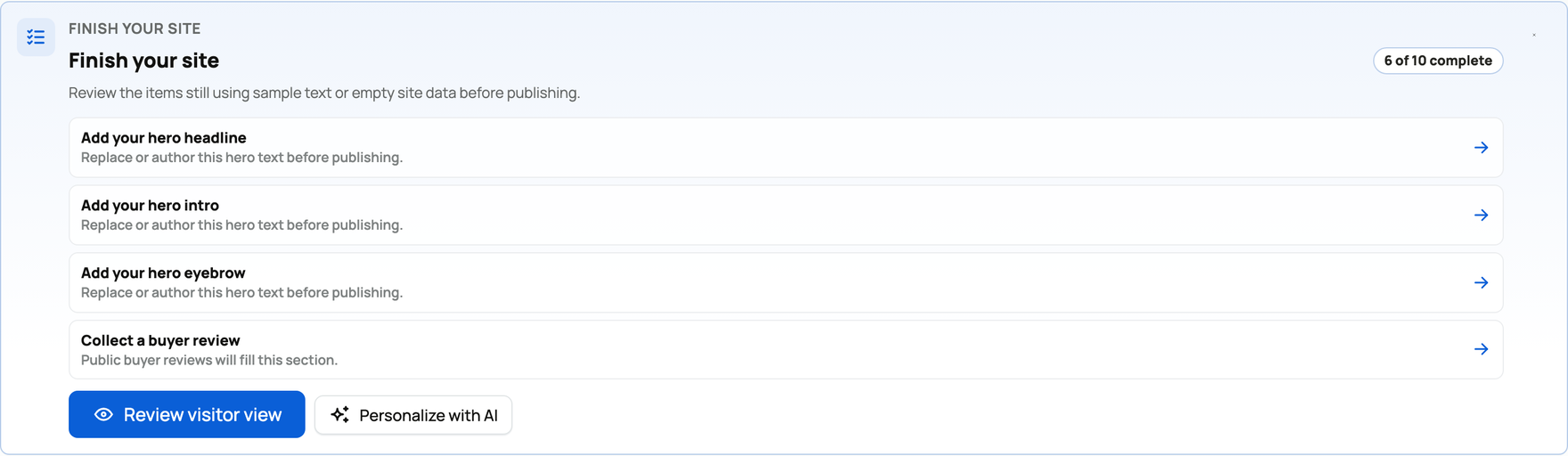
The checklist is a running tally of what still needs your attention before you publish:
- A progress count (for example "6 of 10 complete") shows how close the page is to being fully filled in.
- Each item is a specific to-do, such as "Add your hero headline," "Add animals," or "Collect a buyer review," with a one-line reason it is flagged: it is still showing sample text, or the section has no real data behind it yet. Selecting an item jumps you straight to that section in the editing rail, so you fix it right where it lives.
- Review visitor view switches the preview to exactly what a guest would see, which is the quickest way to spot sample text and empty spots.
- Personalize with AI hands the look to the AI restyle, covered in Designing your website.
The list only shows what is genuinely unfinished, so it shrinks as you go and clears once every section holds your own content. You can hide it with the x if you would rather work without it. Nothing on it blocks you from publishing; it is guidance, not a gate. (The one real requirement to publish is a valid handle, covered in Adding photos, then publishing and updating your site.)
Draft and published, at a glance
Your site always has a live version (what the public sees) and an optional draft layer of edits you have not pushed out yet. While you work, your changes stage into the draft and the public site keeps showing the live version. The builder shows an "Unpublished changes" pill when a draft exists, and you resolve it two ways:
- Publish changes pushes your whole draft live in one step.
- Discard changes throws the draft away and reverts to the live version.
The first time you publish, the site goes from draft to live. You can also Unpublish later to take it back offline, after which the subdomain returns "not found" until you publish again. Crucially, publishing is free and needs only a valid handle. There is no identity check, phone check, or payment required to publish a website (unlike selling). The full publishing flow is in Adding photos, then publishing and updating your site.
What the rest of this guide covers
- Designing your website: layouts, colors, and the AI restyle sets the look.
- Building pages, sections, and posts builds the content and structure.
- Choosing what the public sees: animals, listings, the menu, and visibility controls what is public, including the per-animal privacy lever.
- Adding photos, then publishing and updating your site covers media, going live, and the ongoing draft-and-publish loop.
Related information
- Designing your website: layouts, colors, and the AI restyle
- Building pages, sections, and posts
- Choosing what the public sees: animals, listings, the menu, and visibility
- Adding photos, then publishing and updating your site
Updated on: 22/07/2026
Thank you!