
Commenting on and managing community posts
Use the controls below a post to comment, react, repost, share, or report it. Comments appear in one list beneath the post rather than in nested threads.
Add a comment
- Select Write a comment beneath the post.
- Enter your reply. Type @ to mention a person, organization, or animal.
- Add media with the photo button if needed.
- Select Send comment.
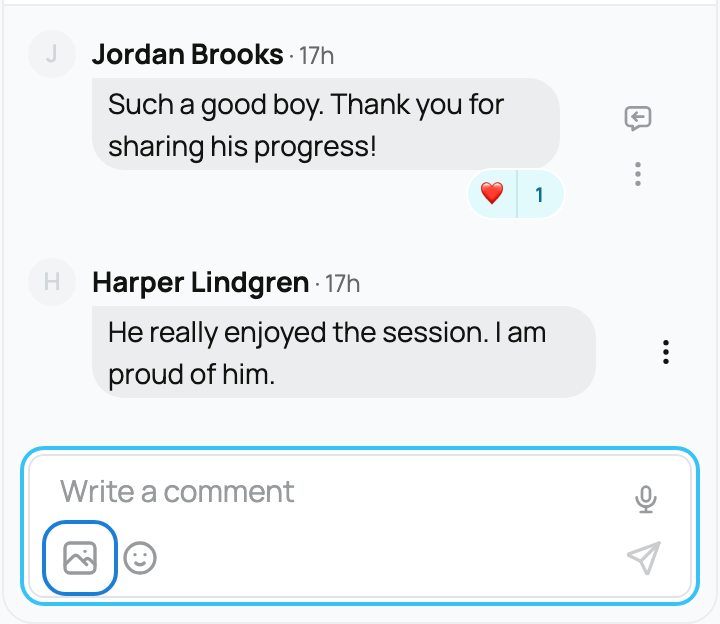
Mention the person you are answering when the conversation is busy, because comments are not nested. You can react to a comment with an emoji. Select the number beside an existing emoji to see who reacted; select the emoji itself to add or remove that reaction for your account. You can delete a comment you wrote from Comment actions.
Repost or share
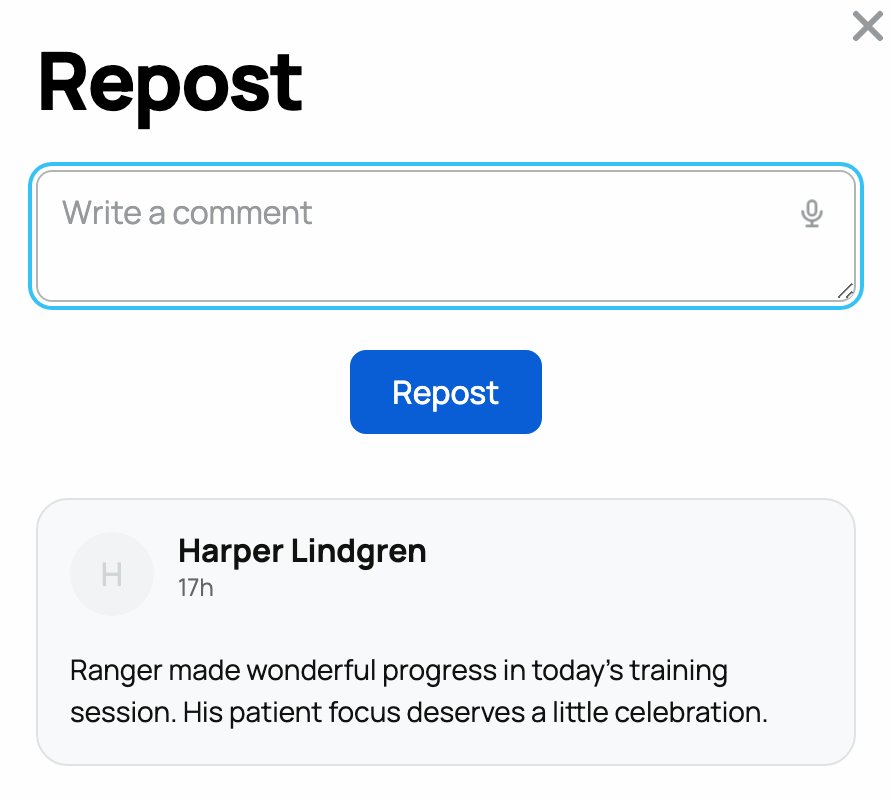
Select the repost button when you want the original post to appear inside a new post with your commentary. Select the share button when you want to copy or send a link instead.
Report a post or comment
- Open the post's or comment's actions menu.
- Select Report for a post or Report comment for a comment.
- In What should moderators know?, describe the issue with the post or comment.
- Select Submit report.
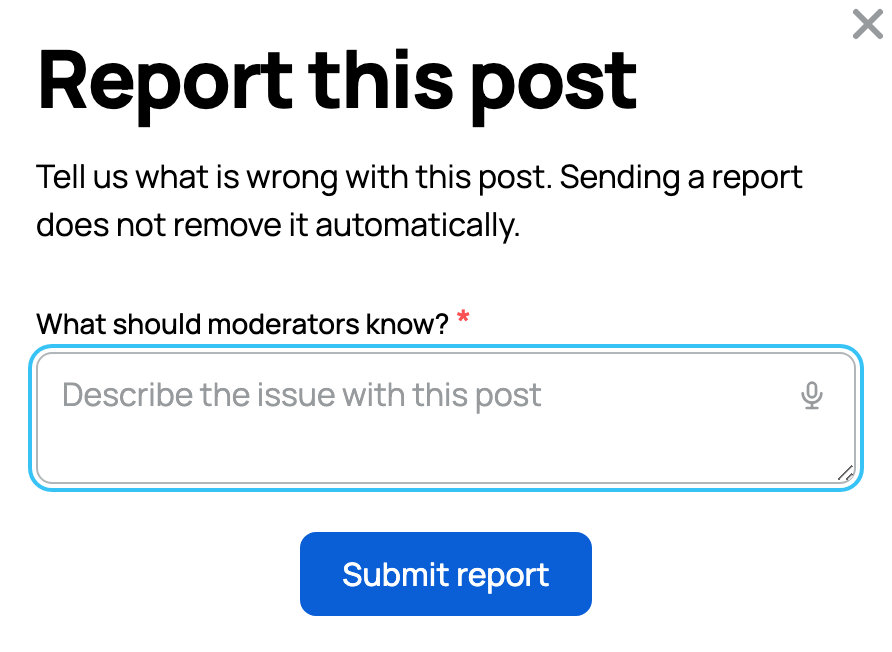
Your explanation goes to Creatures moderators. Reporting does not hide or remove the post or comment from your view, and Creatures does not display a public moderation result.
What appears in the community feed
The feed shows public posts, newest first. Posts about private animals and updates intended only for a litter, group, or team stay out of the public feed. Hidden posts also stay out.
There is no personal Not interested control for hiding another member's individual post. You can hide a post you authored with Hide post. Creatures administrators can hide content during moderation.
Select Load more posts to continue browsing.
For creating posts and choosing the correct posting voice, see Posting, reacting, and reposting in the community feed. Reviews are separate from community posts; see Leaving a review.
Related information
Updated on: 02/09/2026
Thank you!