Articles on: Getting Started

Getting Creatures on your phone (add it to your home screen)

Getting Creatures on your phone (add it to your home screen)


Is there a Creatures app?


Not a separate one in the App Store or Google Play, not yet. Creatures runs in your phone's web browser today. But you do not have to keep finding it from a bookmark or a link: you can add Creatures to your home screen so it gets its own icon and opens like a regular app. You start that from the Get the app option in your account menu.


This is a real, supported way to use Creatures on your phone, and for most people it is the better way. Adding it to your home screen takes about ten seconds, needs no download, and fixes the most common phone annoyance, which is getting signed out over and over.


Why add it to your home screen


The home-screen version is not just a shortcut. When you open Creatures from the icon it adds, two things change:


  • It opens in its own full-screen window, without the browser address bar and tabs, so it looks and feels like an app rather than a web page.
  • It keeps you signed in. This is the big one. The icon opens Creatures in its own space that remembers your sign-in, so you are not asked to log in every time you come back.


The sign-out problem it solves


If Creatures keeps signing you out on your phone, here is almost always why. When you tap a Creatures link from inside the Facebook app or the Google app, it opens in that app's own built-in mini browser (an "in-app browser"), not in Safari or Chrome. That mini browser does not hold onto your Creatures sign-in the way your real browser does, so the next time you open a link you look signed out again, and you have to log back in.


Adding Creatures to your home screen sidesteps that completely. The home-screen icon does not run inside Facebook or Google. It opens Creatures in its own window that keeps your session, so you sign in once and stay signed in. If you have been fighting repeated logins, this is the fix.


How to add it


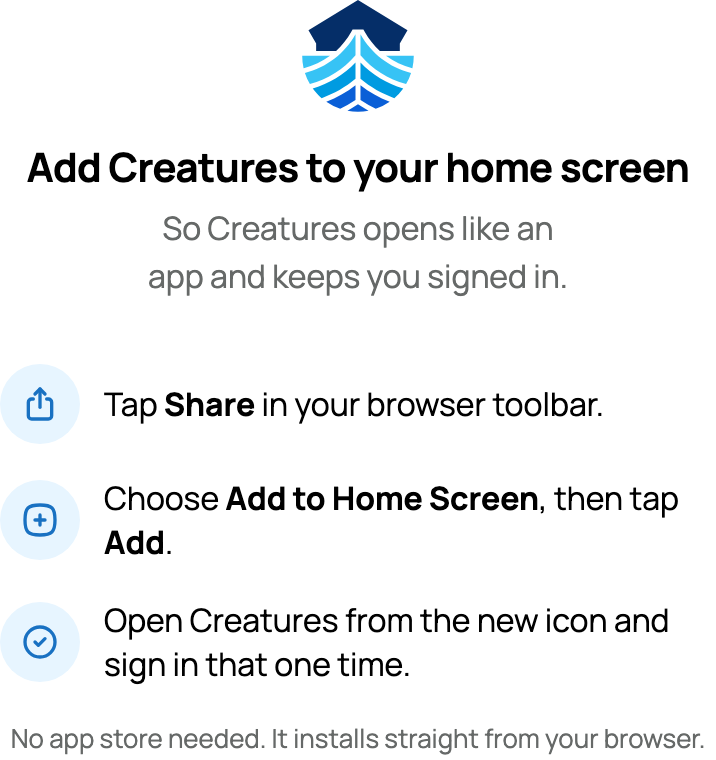
Open the Get the app option from your account menu (tap your name or photo in the top corner to open the menu). Creatures shows you the steps for your device. You can follow them here too.


On iPhone or iPad (Safari)


  1. Open Creatures in Safari (if you are currently in the Facebook or Google in-app browser, open it in Safari first).
  2. Tap Share in your browser toolbar (the square with an arrow pointing up).
  3. Choose Add to Home Screen, then tap Add.
  4. Open Creatures from the new icon and sign in that one time.


On Android (Chrome)


  1. Open Creatures in Chrome (if you are currently in the Facebook or Google in-app browser, open it in Chrome first).
  2. Open your browser menu (the three dots).
  3. Tap Install app or Add to Home screen.
  4. Open Creatures from the new icon and sign in that one time.


There is no app store download involved. It installs straight from your browser, and once it is on your home screen you open it from the icon like any other app.


After you add it


Open Creatures from the new icon and sign in that one time. From then on it launches full-screen and stays signed in, so day to day you just tap the icon and you are already in. If a brand-new sign-in ever asks for the emailed or texted code, enter that code in the same window rather than opening the email link somewhere else; that is covered in Creating your account and signing in.


When a dedicated Creatures app does arrive in the app stores, we will say so. Until then, the home-screen version is the recommended way to use Creatures on your phone.


Where to go next


Updated on: 23/06/2026

Was this article helpful?

Share your feedback

Cancel

Thank you!