
Keeping your account secure: sign-in links and security codes
Some Creatures emails and texts include a link that signs you straight in, with no code to type. If you came in through one of those links, Creatures emails you a 6-digit code before anything sensitive, and Settings can sign out every other device.
Sign-in links in emails and texts
Everyday notifications, such as a new message, a comment on your post or a finished import, can carry a one-time sign-in link. Opening it shows Continue as with your name, photo and a partly hidden email address.
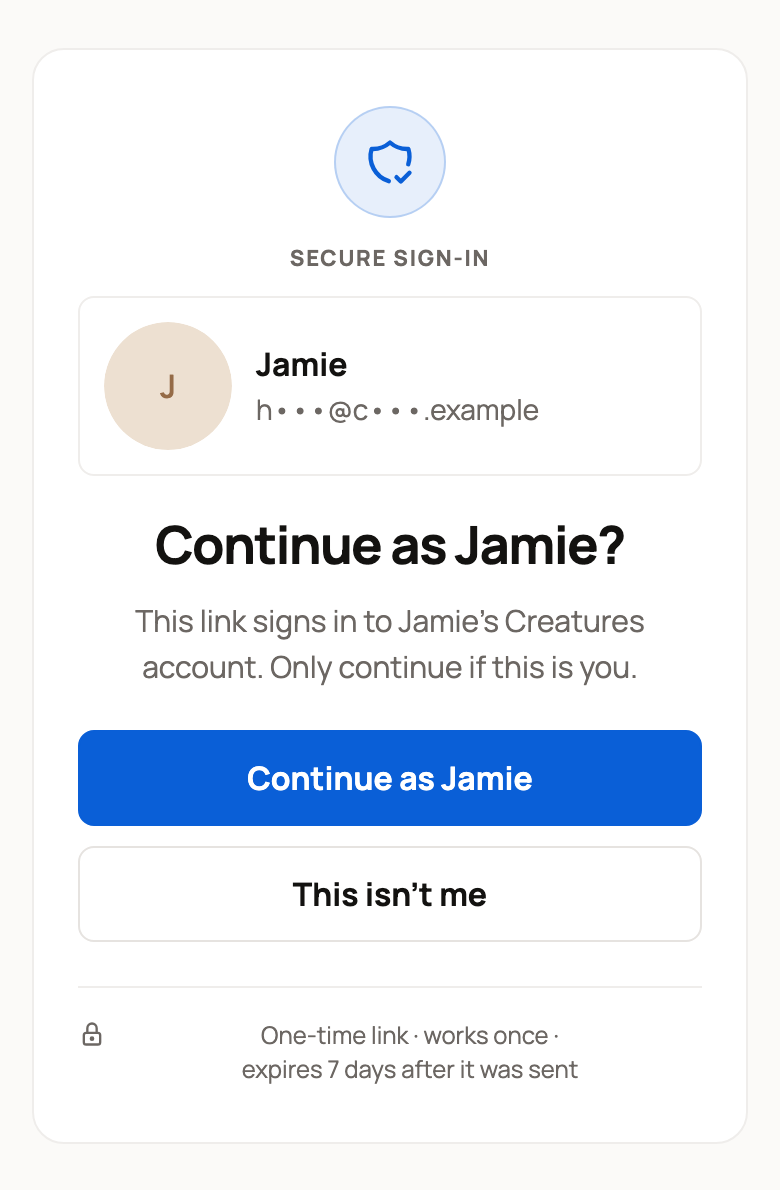
- Select Continue as to sign in and open what the message was about.
- If that device is signed in to a different account, the page asks Switch to your account instead.
- If the link isn't meant for you, select This isn't me. Creatures switches the link off and nobody is signed in.
Each link works once and expires 7 days after it was sent. If you're already signed in, it just opens the page. Messages about money, ID checks or account security never sign you in.
A link sign-in on a new phone or browser also sends you a notification, so you can spot one that wasn't you.
Open in Safari (or Open in Chrome) from Facebook or Instagram uses the same kind of link, but it lasts only 10 minutes. Didn't just tap it? Select This isn't me.
Confirm it's you
A link sign-in can do everyday things. Before sensitive steps, Creatures shows Confirm it's you and asks for a code first:
- Money: withdrawals, payouts, your card or plan, paying with your balance or credit, bidding with your saved card, releasing or refunding funds, and opening your finances.
- Identity and sign-in: verifying your ID, changing your email or phone, and signing out other devices.
- Control: your organization's team, contact details or deletion, who owns your animals, inviting someone to help with care, sharing private records or calendar links, sale terms and notification settings.
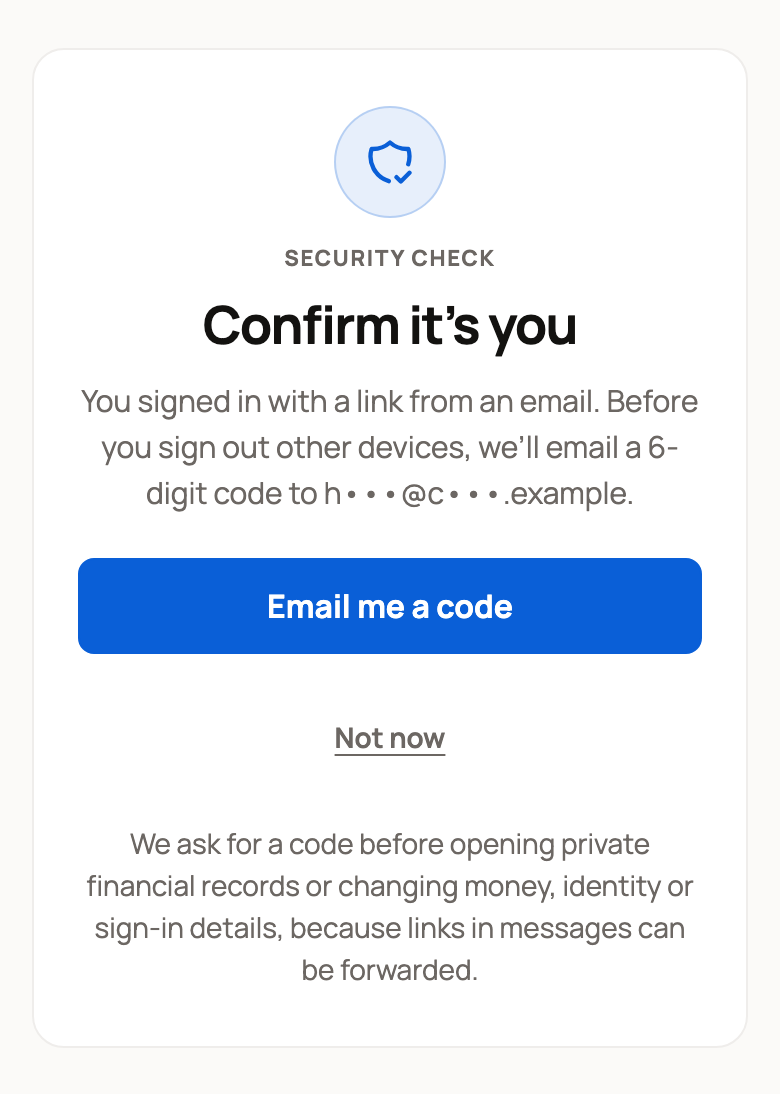
- Select Email me a code.
- On Enter your code, type the 6-digit code from the email. It expires in 10 minutes.
- Select Confirm.
After that, this browser won't ask again. If the code expired or you made too many tries, select Send a new code. Not now skips the change. If you signed in with a code, you won't see this check.
One more step to keep your account safe
You may see this when you sign in on a new phone or browser with an email address your account hasn't confirmed yet. If the account has a verified phone, select Text me a code. Then enter the code sent to that phone and select Confirm.
No longer have that phone? Select I don't have this phone. If the account has ID verification or payouts, select Email support and the Creatures team will confirm it's yours. Other accounts keep signing in, but Creatures removes the old phone, disconnects Google, Facebook or X sign-in and signs out other devices.
Sign out other devices
- Tap your photo, then Settings, then the Account tab.
- Under Signed-in devices, select Sign out other devices.

The device you're using stays signed in. Every other phone and browser is signed out, and unused sign-in links in your emails and texts stop working.
If you came in by a link, you'll confirm it's you first. Creatures then returns you to Signed-in devices. Select Sign out other devices once more to finish.
Good habits
- Creatures has no password, and staff never ask for your code. Never share it.
- Don't forward Creatures emails or texts that contain links.
- Didn't ask for a code? Ignore the email. No one can sign in without it.
Related information
- Creating your account and signing in
- Why Creatures asks for a code before showing your money
- Changing your email, phone, or privacy defaults
- Getting Creatures on your phone (add it to your home screen)
Updated on: 29/10/2026
Thank you!