
Changing your email, phone, or privacy defaults
Open Settings and select the Account tab. Changing your email or phone takes two codes: one to a contact you already use, and one to the new address or number. The Privacy switches there decide whether new animals and records start out private.
To get there, select your photo at the top of any page, then Settings, then Account. The My access tab next to it shows the teams, animals and other accounts that have given you access. See Seeing and leaving the accounts you can access.
Change your email
- In the Email row, type the new address in New email.
- If your phone is verified too, pick where the first code goes in Send the first code to: Your current email or Your current phone.
- Select Send verification codes. Creatures sends one code to your current contact and one to the new email.
- Type them into Current code and New email code, then select Change email.
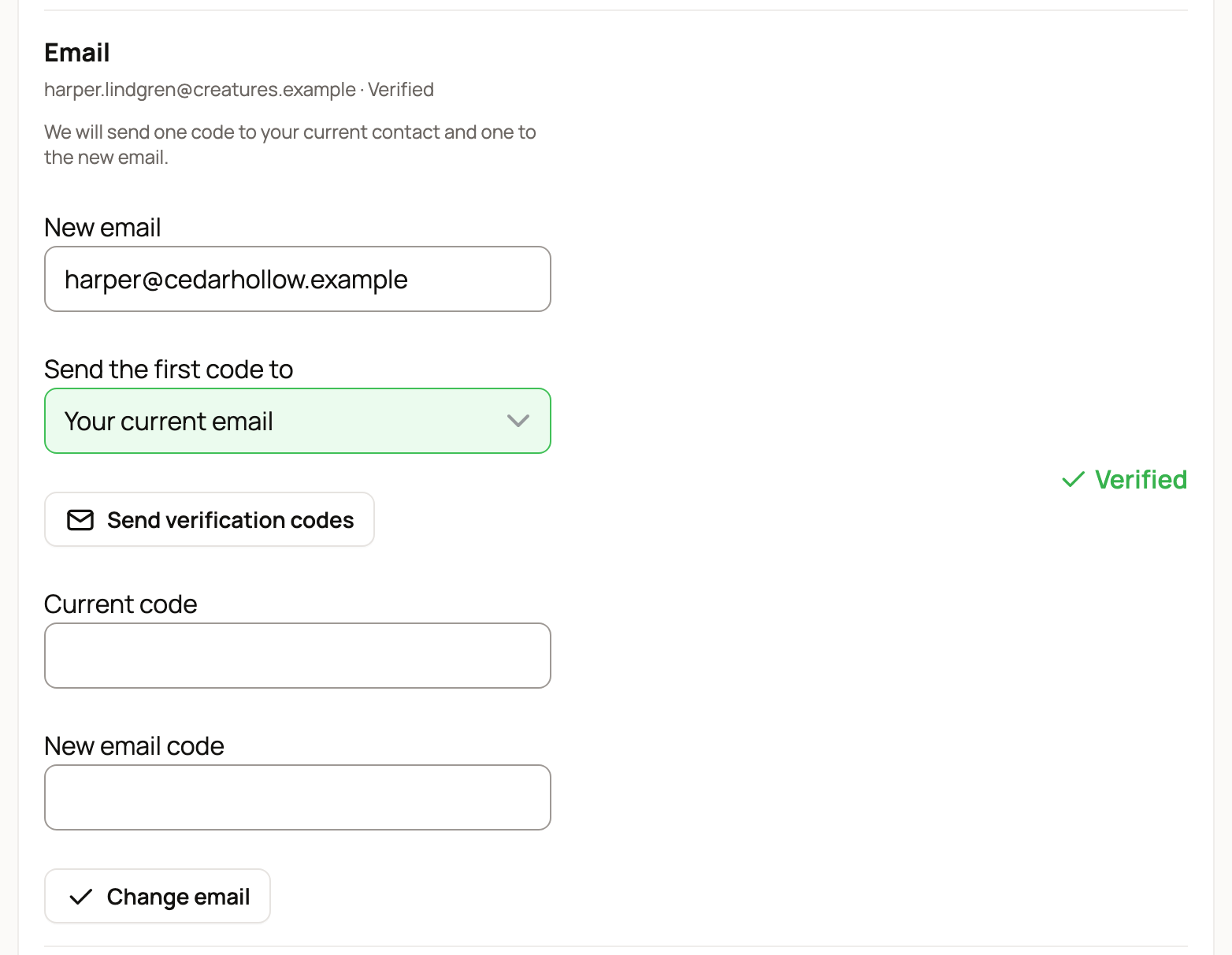
The codes work for 10 minutes. If they expire, select Send verification codes again. If the new address already belongs to another Creatures account, sign in with that account or contact support to connect them.
Change your phone
Use the same steps in the Phone row: enter the number in New phone, select Send verification codes, type the Current code and New phone code, then select Change phone. Creatures can text US and Canadian numbers.
Your number shows in a format like +1 828-555-0148. It's never shown on your profile or listings. No phone yet? Select Verify phone to add one.
If your phone shows Alerts only
A number added when you answered a Creatures text invitation shows Alerts only. It can get text alerts, but it isn't strong enough to confirm a change yet, so the row asks you to confirm it first.
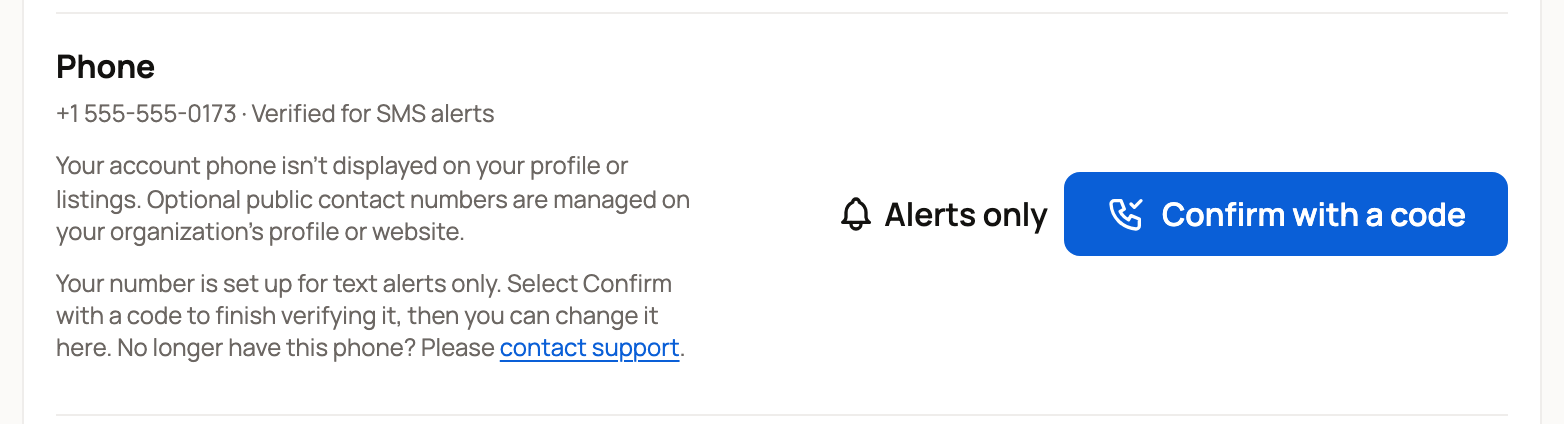
If you still have that phone, select Confirm with a code. Your number is already filled in. Select Send code, type the code from the text, then select Verify phone. The row then says Verified, and you can change your email or phone yourself.
If you no longer have that phone, select contact support in the row. It opens an email to info@creatures.com, and our team will make the change with you.
Choose your privacy defaults
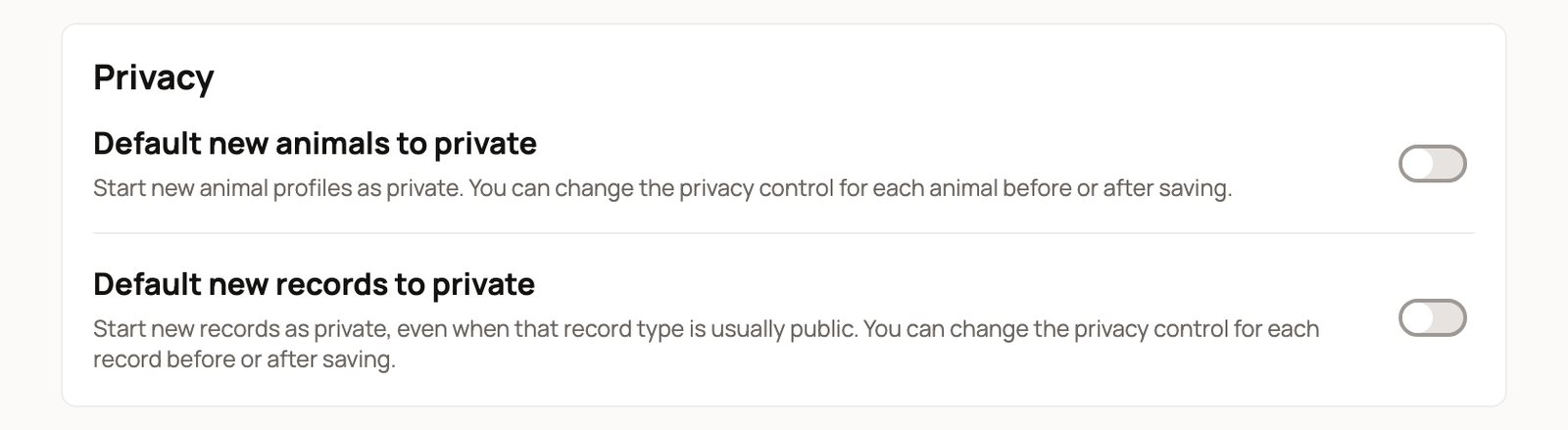
The Privacy section sets how new things start:
- Default new animals to private starts every new animal profile as private.
- Default new records to private starts new records as private, even kinds that are usually public.
You can still change the privacy of each animal or record before or after you save it.
The animals switch only changes new animals. With it on, you may also see Animals you already have, with how many are still public. Select Make them private (or Make it private) to change them too. An animal with an active listing stays public, and Creatures tells you which. You may also see Parents added from pedigrees. Select Make them private to make those parent profiles private as well.
Under Animal profiles, turn off Valuation tools on animal profiles if you'd rather not see value panels and suggestions when you view animals. This only changes what you see.
Your auction card
The Auction card section shows the card saved for bidding. Creatures uses it for temporary authorization holds when you bid on auctions. Select Add card, Change card or Remove. Saving a card doesn't charge it.
If Creatures asks you to confirm it's you
If you signed in from a link in an email or text, changing your email or phone first asks for a code we email you. The Signed-in devices row on this tab can also sign you out everywhere else. See Keeping your account secure.
Related information
- Choosing how Creatures notifies you
- Keeping your account secure: sign-in links and security codes
- Verifying your phone number
- Public, private, and reference animals
Updated on: 29/10/2026
Thank you!