Sending an agreement for signature
Sending, or "issuing," an agreement turns a template into a real document and emails a personal signing link to each person you list. You do it from the issue form in your dashboard. This guide walks every field and then the management screen you land on afterward.

First, the readiness gate
To send agreements you must be a payout-ready seller. Three things have to be set up on your account: your identity is verified, your phone number is verified to a one-time-code standard, and you have a connected payout account (your own, or through an organization you own or co-own). If any one is missing, the issue form is replaced by a short screen telling you exactly what to finish, and an attempt to send is blocked until each item is done. The reason is trust: a signer needs to know a verified, real party sent the document. See What you need to start selling. Signers, by contrast, need none of this to sign.
The fields on the issue form
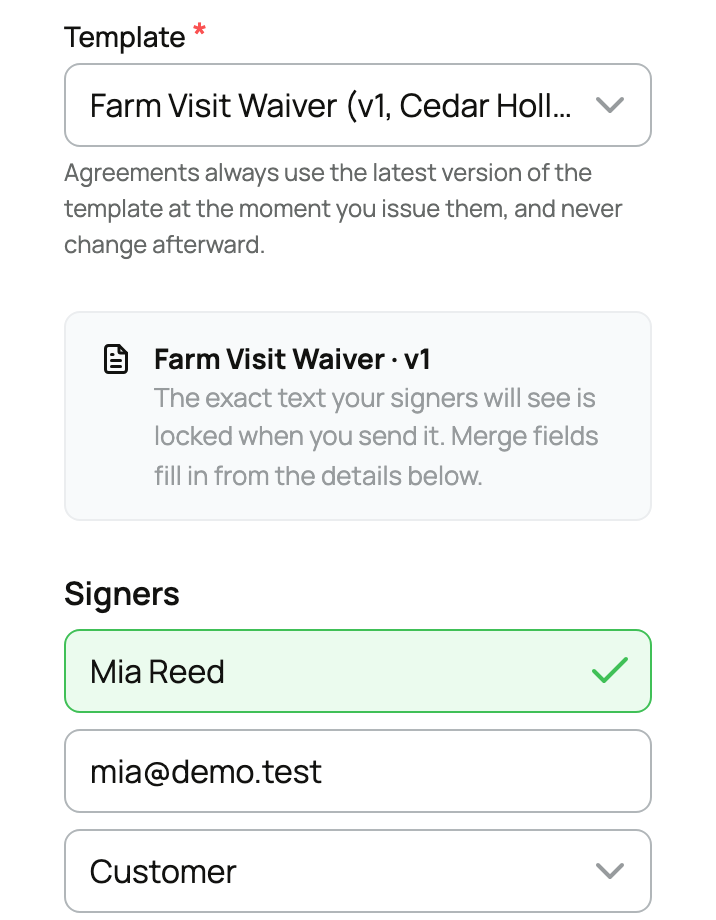
Template
- What it is: which of your active templates to send.
- The values: any active (non-archived) template you own.
- What choosing it means: changing the template reloads the form to show that template's merge inputs. Agreements always send the latest version of the template you pick, which the form states.
- The implication: pick the document you want signed; the form then asks only for the values that document actually needs.
Signers (up to 5)
For each signer you provide three things:
- Name (required, up to 120 characters): the signer's expected full name. It pre-fills the name field on their signing screen.
- Email (required, up to 200 characters): where their personal signing link is sent.
- Role: a label from the set signer (the default), buyer, seller, customer, provider, or witness. It is display only: it prints next to the signer on the detail screen, in the evidence, and on the signed document. It does not change signing mechanics in any way.
Add up to five signers. The implication: each signer gets their own personal link, everyone must sign before the agreement is Completed, and the order does not matter, which the form states ("Out-of-order signing is allowed").
Linked animal (optional)
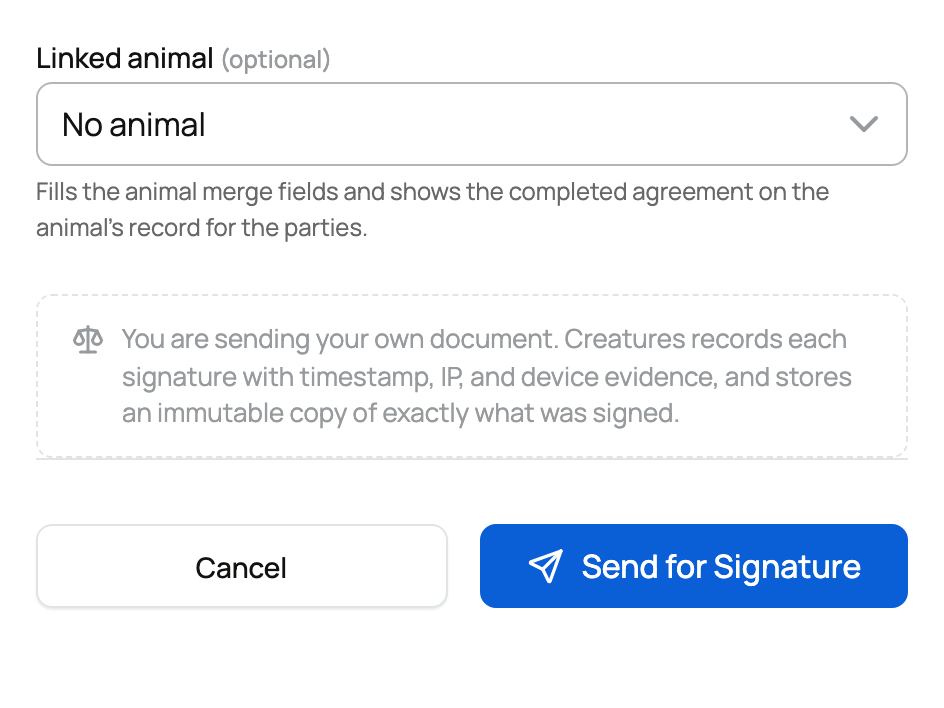
- What it is: an animal the agreement is about, chosen through a searchable picker (the same Tom Select control used elsewhere).
- The values: only animals you own or co-own, including through your organizations, appear in the search.
- What choosing it means: it fills the
{animal_name},{animal_species}, and{animal_breed}merge fields, and once the agreement is completed it surfaces the signed copy on that animal's record for the parties. - The implication: link the animal when the contract is about a specific animal, so the document is filled in correctly and the signed copy is filed where it belongs. If you mention an animal-linked sale on the record, see What happens after I sell an animal.
Merge values you type ({amount} and any other manual token)
- What it is: a value for any merge field in the body that does not fill automatically. In practice this is
{amount}. - The values: plain text, up to 300 characters.
- What choosing it means: the text is printed in the document where the token sits.
- The implication:
{amount}is descriptive wording, not a charge. Sending the agreement collects no money. Type the figure you want the contract to state and nothing is billed.
The required-field gate
You cannot send until every merge field your body uses resolves to a non-blank value. If something is missing, Creatures stops the send with "Fill in these merge fields before issuing." The implication: a sent document never has an empty placeholder in it.
What "Send for Signature" does
When you send, Creatures freezes the document: it renders the final text, pins the template version, and computes a SHA-256 fingerprint so the exact wording is locked. It creates one signer slot per person, emails each a personal signing link, and lands you on the agreement's detail page.
The detail and management screen

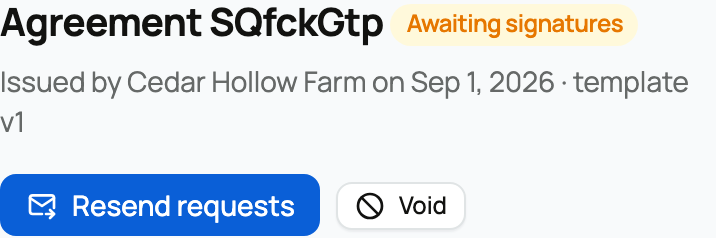
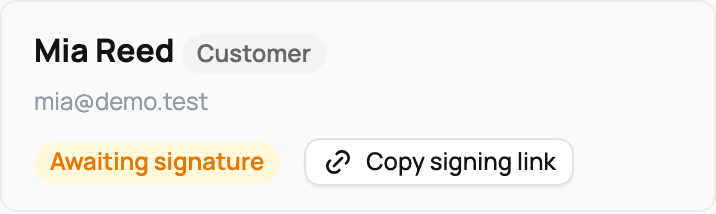
The detail page is your control center for a live agreement. It shows the overall status chip and a per-signer status (awaiting signature, signed, or declined). For an agreement that is still live, you have three actions:
- Resend requests: re-mints and re-emails a fresh signing link to every signer who has not yet signed. Use it when someone says they did not get the email.
- Copy signing link (per pending signer): rotates a fresh link for that one signer, copies it to your clipboard, and kills the previous link for them. Use it to deliver the link yourself, outside email (in a chat, for instance).
- Void: cancels the agreement after a confirmation dialog that warns the links will stop working. You cannot void a completed agreement; if you need a change after completion, issue a replacement instead.
Below the actions you also get:
- The evidence panel: once a signer signs, their row shows the recorded IP address, device, timestamp, and the document SHA-256, plus the identity-discrepancy note if their typed name or email differed from what you expected. The discrepancy is recorded for your awareness; it does not undo the signature.
- The audit trail (you only): an append-only log of everything that happened (issue, send, resend, sign, decline, void, replace, view, and link rotations), each with a time and IP. Nothing in it can be deleted.
After completion
Once everyone has signed, the agreement is Completed and you can view or download the signed document, which carries the "Signature record" appendix listing every signer's evidence (name, role, signed-at time in UTC, email, IP, device, and consent sentence). If the agreement was linked to an animal, the signed copy also appears on that animal's record for the parties.
For the signer's side of this, and for attaching an agreement as a booking waiver, see Signing an agreement, and requiring one before a booking. To build the documents you send, see Creating and managing agreement templates.
Related information
- What agreements are and how signing works
- Creating and managing agreement templates
- Signing an agreement, and requiring one before a booking
Updated on: 23/06/2026
Thank you!