
Notifications and the Action Center
The bell at the top of the page shows anything that needs a decision first, then your recent notifications. For the full list of what's waiting on you, open the Action Center on your Dashboard.
Open the bell
The red number on the bell counts your new notifications plus the items that need you. Select the bell to open it. Opening it clears the new notifications from the count, so the number left over is what still needs action.
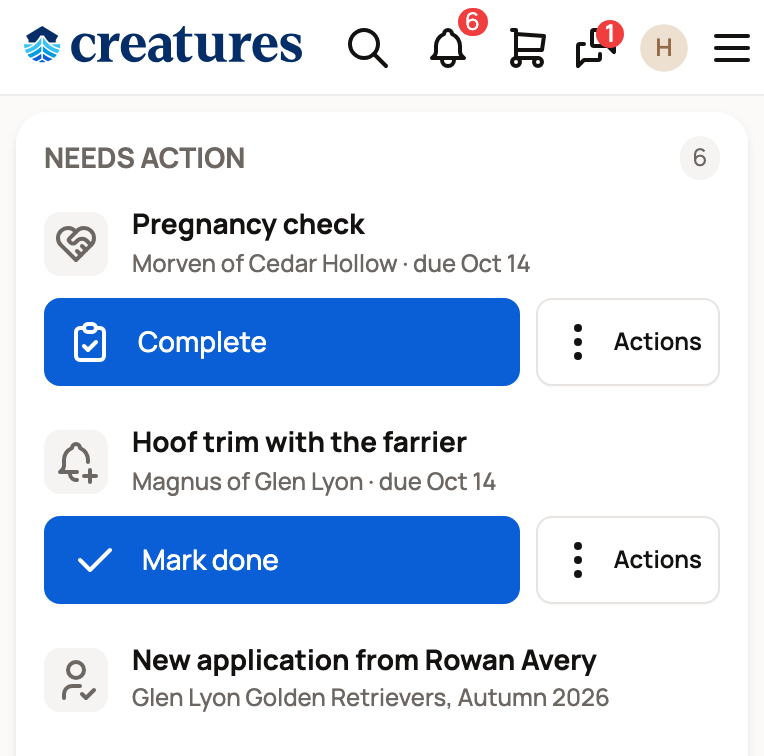
Needs action
Needs action lists up to five items, with the total beside the heading. Select an item to open it. When there are more, a line such as 3 more in the Action Center takes you to the rest.
Care reminders have a main button, like Mark done or Done now, or Complete when the check needs a short form. Actions holds more choices, such as Skip or Snooze.
Some other items, like a reminder to check an egg clutch, show Snooze. It opens Snooze until:
- 1 hour, 1 day or 1 week, or
- a Custom date and time, then Set snooze.
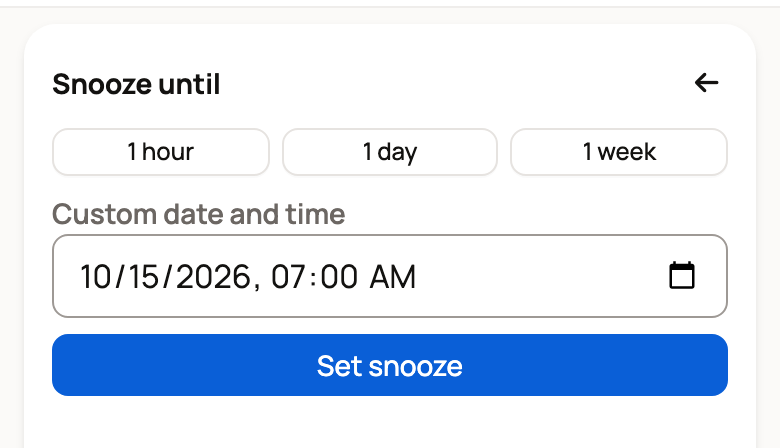
The item leaves the list until that time, and a short note confirms when it will come back. When nothing is waiting, you'll see Nothing needs a decision right now.
Notifications
Notifications shows up to six of your latest updates from about the past week. New ones are highlighted. Select one to open what it's about, such as a message, a sale or a record.
When nothing needs you and you've had no notifications in the past week, the bell says All clear.
At the bottom of the bell, Open Today shows the care that's due today. Open Action Center shows the full list.
The Action Center
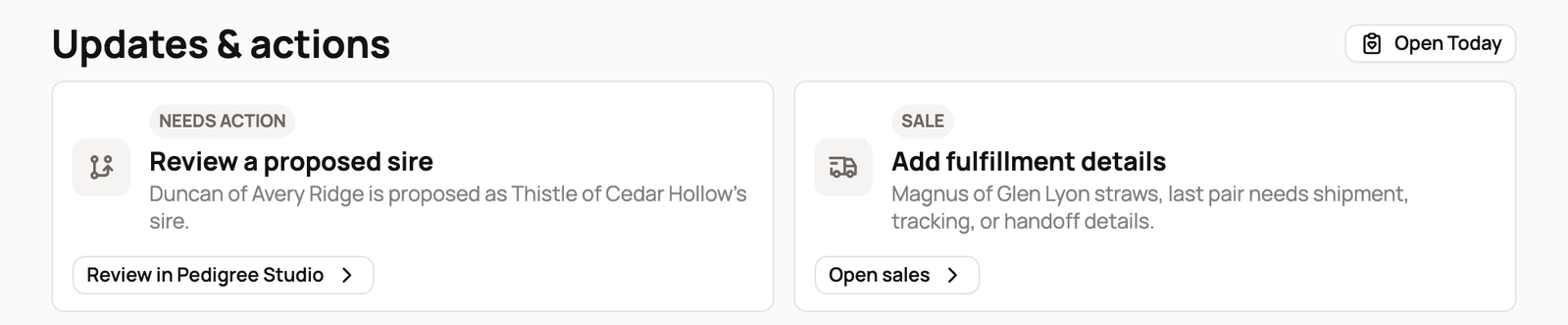
The Action Center is the Updates & actions section of your Dashboard. To get there, select your photo at the top of the page, then Dashboard. On a computer, Dashboard is also in the left menu.
It gathers applications, sales, delivery and receipt steps, stud breeding requests, profile decisions, care that's due and recent notifications in one place. Each card has a label, like Needs action, Sale or Care due, and a button for the next step.
Some cards are marked AI suggestion. Creatures prepared them from your records, and nothing is saved until you select Accept. You can also Reject or Snooze them.
At the bottom, Previous holds items you've handled, seen or snoozed. A snoozed item there has Change snooze and Unsnooze. When there's nothing new, the section says No new items here.
On a brand new account, the Dashboard shows Add your first animal instead. The Action Center appears once you have something to track.
Choose what reaches you
The bell and the Action Center always show work that needs you. To choose which updates also come by email or text, see Choosing how Creatures notifies you.
Related information
- Choosing how Creatures notifies you
- Your Today page: what's due and how to check it off
- Your home screen and getting started
Updated on: 29/10/2026
Thank you!