
Find and download a signed agreement
If you sent the agreement, open it from your Agreements page and select Signed document or Download. If you signed it, use the View signed document button in the email that says "Agreement completed."
If you sent it
- Open Dashboard, choose Tools, then Agreements.
- Under Issued agreements, select the agreement. Once you have more than five, type a signer's name or the title in Find an agreement.
- Select Signed document to open the copy with every signature. Select Download to save it.

These buttons appear once the status is Completed, which means everyone has signed. Download saves a copy you can open in any web browser and print.
A few kinds of agreements have other places to look:
- Booking waivers: on your Bookings page, select Waiver signed or Waiver on file on the booking.
- Walk-in waivers: open the waiver's Walk-in links and select Find all signed copies. These copies aren't in Issued agreements. See Walk-in waiver links and QR signs.
- Invoice agreements: these are in Issued agreements like any other agreement.
On the animal's profile
A completed agreement linked to an animal is listed on that animal's History tab, under Signed agreements. Only the people on the agreement and the animal's managers can see this list.
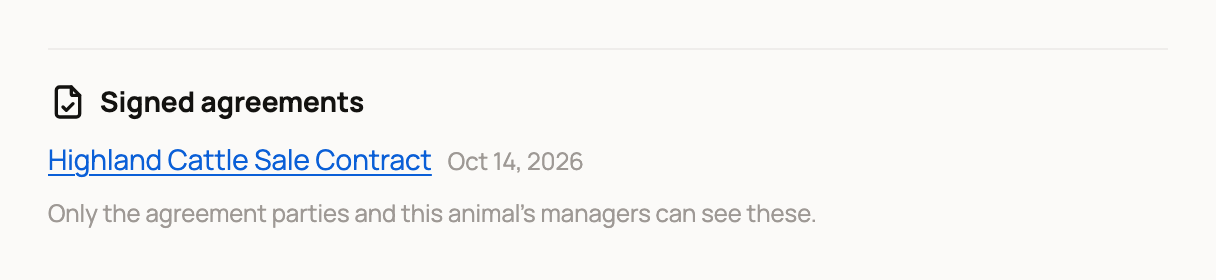
If you sent the agreement, or signed it with your Creatures account, its title opens it. Other managers, such as a co-owner who signed by email, see only the title and date. If they signed it, the link in their completion email opens it. Otherwise, they can ask the sender for a copy.
If you signed it
When the last person signs, each signer gets an email that says "Agreement completed." Select View signed document in that email. On the page that opens, select View signed document to read it, or Download a copy to save it.
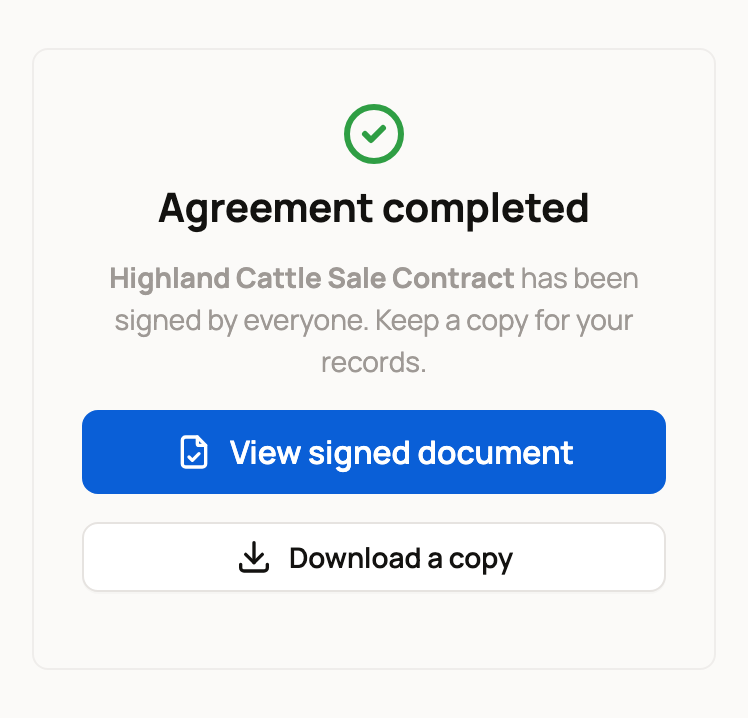
If you signed a waiver for a booking, your booking page says "Waiver signed. View your signed copy." If you signed with a walk-in link, your copy came by email.
If your link has expired
For security, the link in that email stops working after 30 days. The page then explains that everyone has already signed. Ask the sender for a copy: they can download it from the agreement's page and send it to you.
Related information
- How agreements and waivers work
- Send an agreement for signature
- Sign an agreement or waiver someone sent you
Updated on: 29/10/2026
Thank you!