
Require a waiver for your experiences
Attach your waiver to an experience, and every guest reads and signs it while they book, before they pay. You can set this up from the waiver or from the experience.
An experience is a tour, class or appointment people book with you.
Before you start
- Write the waiver first. See Create and manage agreement templates, or Turn a paper waiver into an online signing form.
- Use the same account. The waiver must belong to the account that hosts the experience. A Cedar Hollow Farm waiver only works on Cedar Hollow Farm experiences.
- Keep to booking details. A booking can fill in your name, the guest's name and email, the date and the guest list. Guests can also answer questions and fill in blanks you set up. A booking can't fill in an animal, a price or a second signer, so Creatures asks you to remove those. Only waivers that fit show Use for experiences and appear under Guest waiver or agreement on an experience.
Attach it from the waiver
- Open Dashboard, then Tools, then Agreements.
- On the waiver's card, select Use for experiences.

- Under "Guests sign this before paying for:", tick each experience that needs the waiver.
- Select Save.
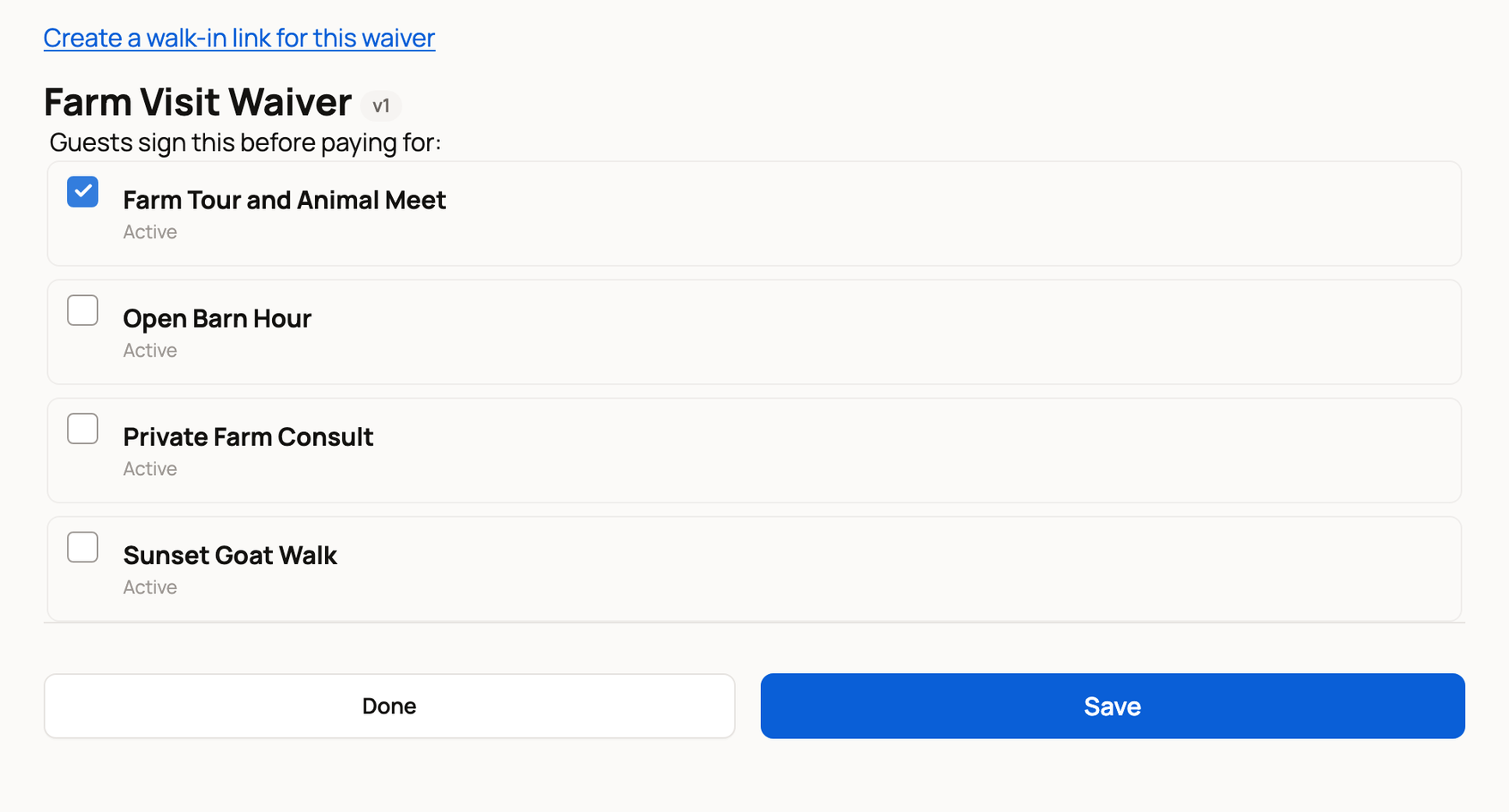
If people already booked and haven't signed, a button such as Send to 3 people emails them the waiver.
If your waiver lists who's coming, or each adult signs their own copy, you'll also see Also turn on the guest list (names and ages) under each experience. The guest list asks for each person's name and age.
A guest list with a waiver covers up to 20 people per booking. If an experience allows more, set its Most guests in one booking to 20 or fewer first.
Experiences another account hosts show under Other experiences you manage and can't use this waiver.
Or choose it on the experience
When you edit an experience, open Guest waiver or agreement and choose your waiver. While you create one, it's Guests sign a waiver. See Creating a bookable offering.
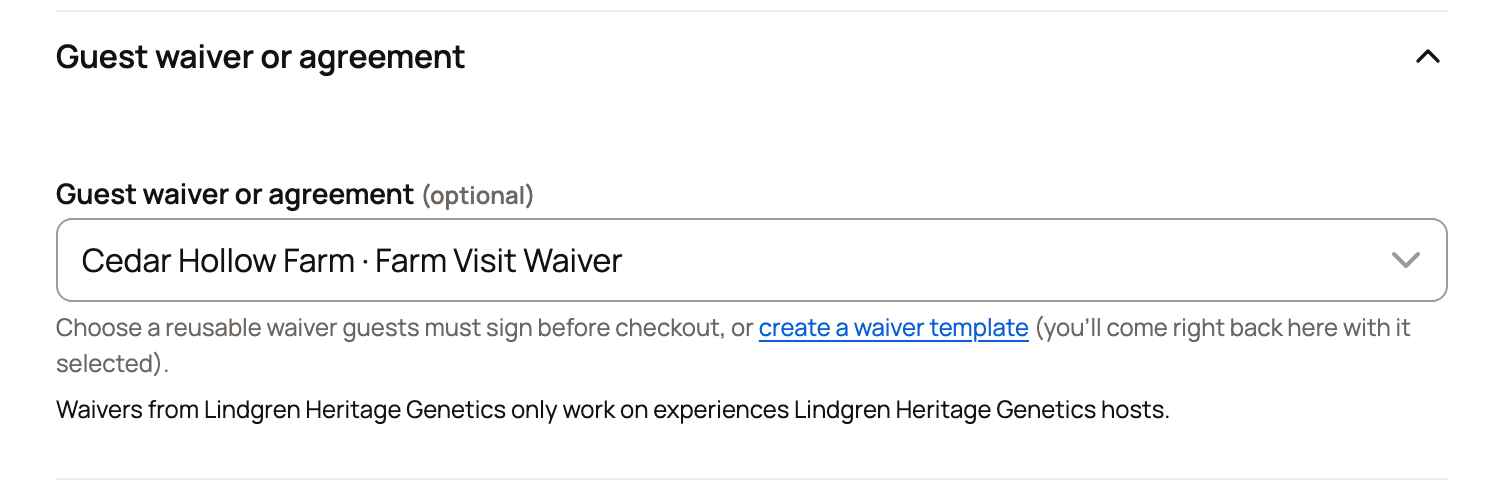
No waiver yet? Select create a waiver template. When you save it, you come back with the new waiver chosen.
Choose how guests sign
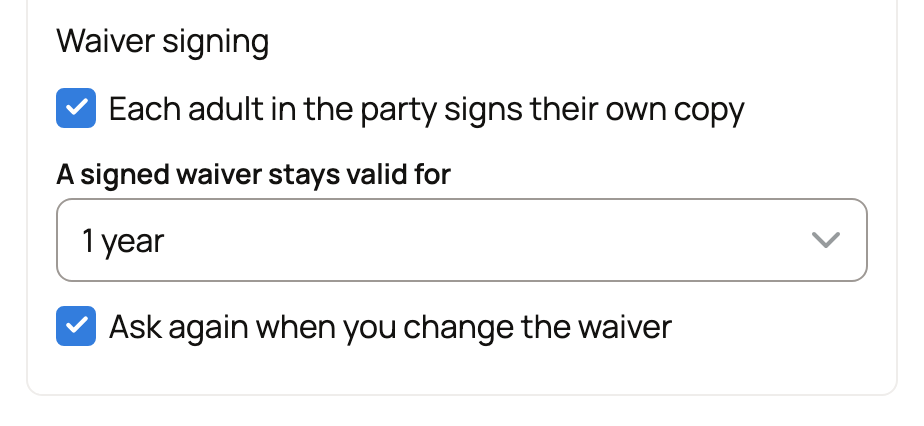
Select Edit on the waiver and find Waiver signing under Waiver tools.
- Each adult in the party signs their own copy: every adult in the group signs, not just the person booking.
- A signed waiver stays valid for: choose Every booking, 30 days, 90 days, 6 months or 1 year. A guest who books again in that time, signed in to the same Creatures account, isn't asked to sign again. They see that their waiver is on file. If they bring children who weren't on that waiver, they sign a new copy.
- Ask again when you change the waiver: guests sign again after you change the wording or questions, even within that time. It's on by default.
Select Save as New Version. New bookings use it, and signed copies keep the text those guests saw.
What happens next
Guests sign the waiver in the booking panel, then pay. Signing never charges anyone.
On your Bookings page, each booking shows Waiver signed, Waiver on file or Waiver not signed · View or resend. For a guest who hasn't signed, Sign on a phone shows a code and link to sign with when they arrive. Ask booked guests to sign emails everyone on that date who still needs to sign. Signed copies also appear under Issued agreements. See Checking guests in with your phone.
Stop using a waiver
Untick the experience on Use for experiences and select Save, or choose No agreement required on the experience. You can't archive a waiver while an experience uses it.
Related information
- Walk-in waiver links and QR signs
- Turn a paper waiver into an online signing form
- How agreements and waivers work
- Taking bookings: schedule, check-in, promos, and the calendar feed
Updated on: 29/10/2026
Thank you!