
Checking guests in with your phone
Open Check in guests on your Bookings dashboard on your phone and scan each guest's ticket. The screen shows who they are, how many are in the party and anything still due, and check-ins save even on a weak signal.
Before the day
Every confirmed booking has a ticket. Guests find it under Your ticket on their booking page, as a code to show at the entrance. Guests you added by phone may not have a ticket, so you can also find any booking by name.
Open gate check-in
- On your phone, open Dashboard > Services > Bookings.
- Select Check in guests. It's also on the Bookings page.
- The Gate check-in screen opens on today. To see another day, pick the Admission date and select View date. If you host for more than one farm or business, choose it under Provider first.
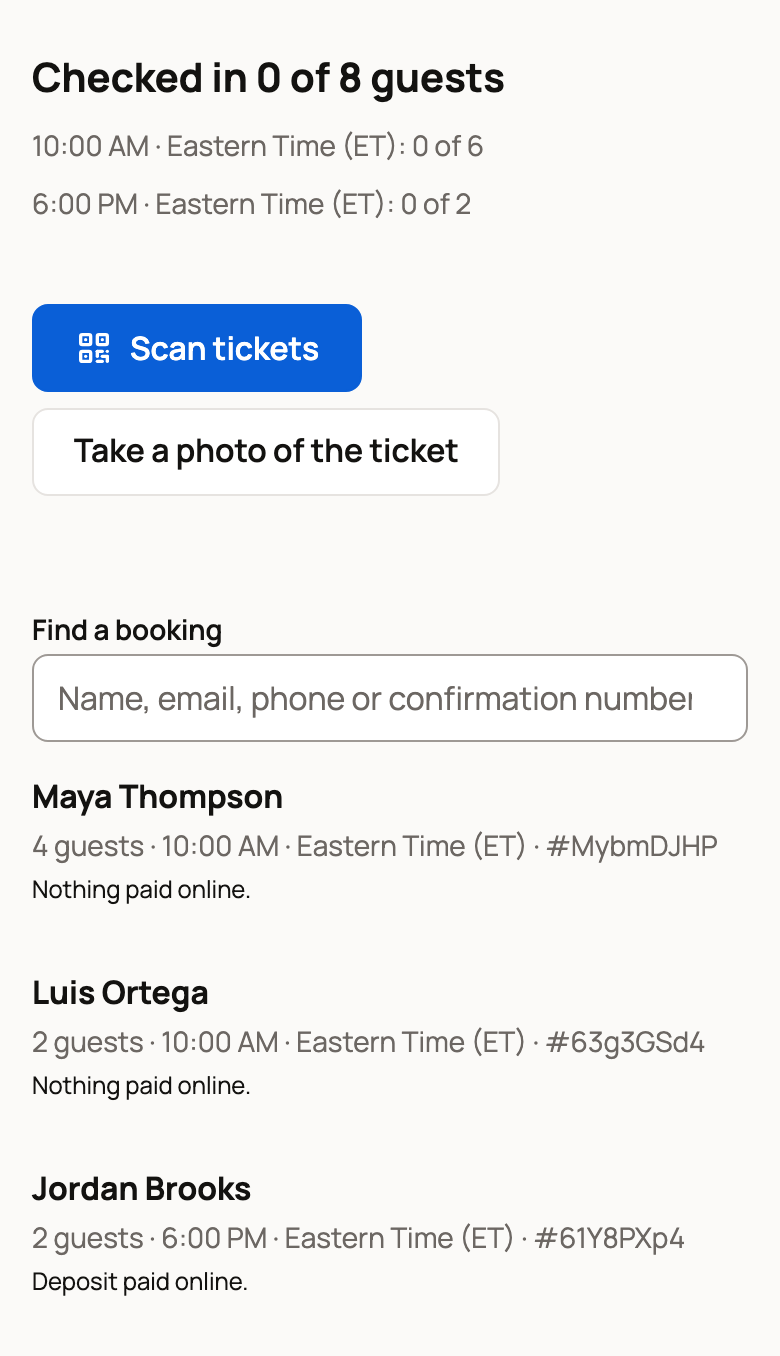
A tally such as "Checked in 0 of 8 guests" sits at the top, with a line for each start time. Below it, every booking for that day is listed.
Scan a ticket or find a booking
- Scan tickets turns on your camera. Hold the ticket code inside the frame. Select Stop camera when you're done.
- Take a photo of the ticket works when the live camera won't.
- Find a booking searches by name, email, phone or confirmation number. Tap a booking to open its card.
A valid ticket for that day with nothing due checks in as soon as it scans.
Tip: if you're signed in and scan a guest's ticket with your phone's own camera app, it opens this screen at that booking. A valid ticket is checked in the same way.
Read the guest's card
The top line tells you what to do:
- Ready to check in: everything is in order.
- Collect and an amount: money is due at the visit.
- Needs a check: the ticket is for another date, or a waiver isn't signed.
- Scanned again: the party already checked in. The card says when.
- Not valid: the booking or time was cancelled.
The card also shows the party size, the offering and time, what was paid online, waivers signed, guest names and any extras to hand over. Use Check in, or Check in anyway after you've sorted out a Needs a check card. Undo check-in reverses a mistake.
Collect money at the gate
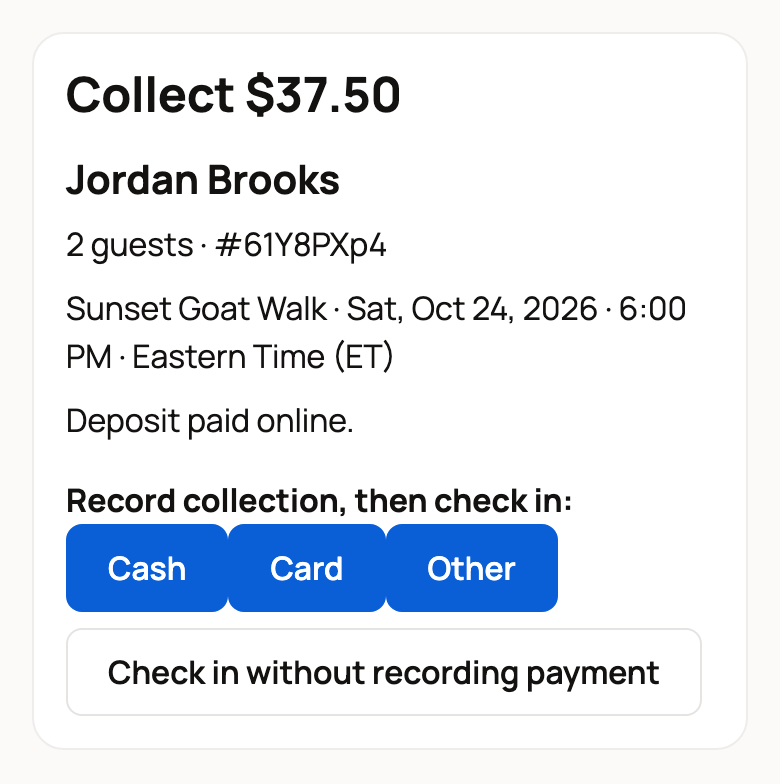
When a card says Collect, take the payment, then choose Cash, Card or Other under Record collection, then check in. That records the payment and checks the party in at once. It's posted to Finance. To let them in without recording money, select Check in without recording payment.
If a payment record can't be saved, it appears under Not saved. Record it from the Bookings page, then select Dismiss after reconciling. On a weak signal, keep the page open while it shows "waiting for signal".
Share check-in with gate staff
Helpers can check guests in without your login.
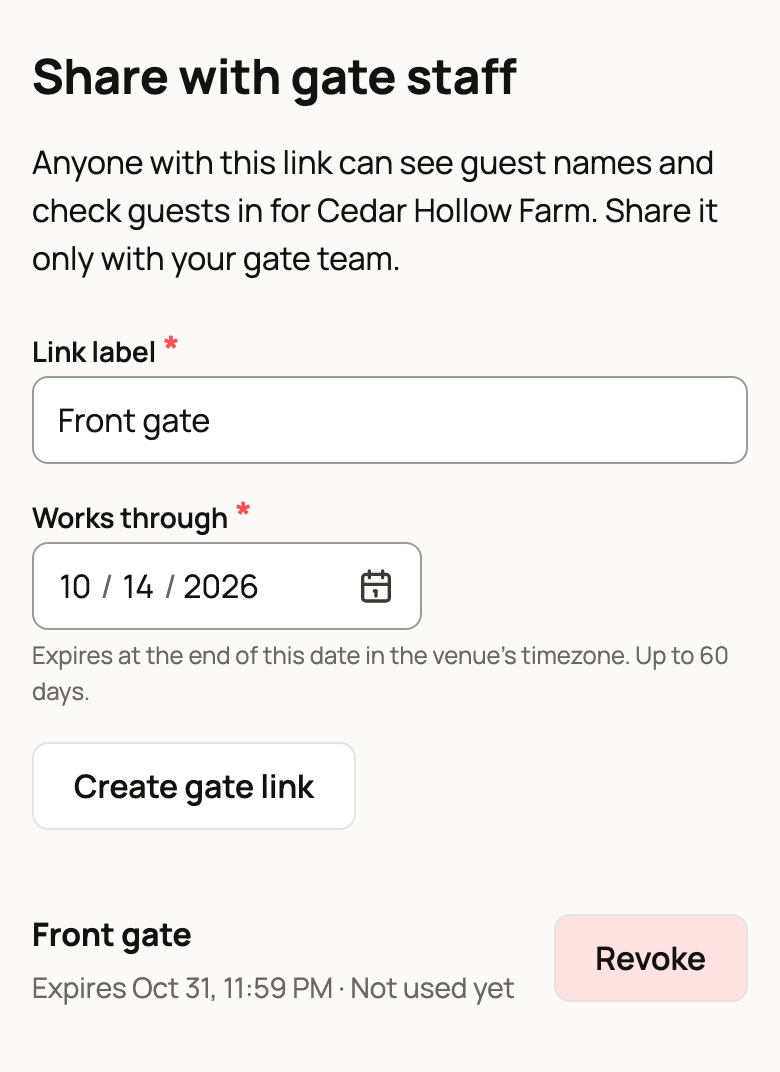
- Scroll to Share with gate staff.
- Enter a Link label, such as Front gate.
- Under Works through, pick the last day the link works, up to 60 days away. It stops at the end of that day in your time zone.
- Select Create gate link, then copy the link right away. It isn't shown again.
Anyone with the link can see guest names and check guests in, but not guest emails or phone numbers. Gate staff see today's bookings only. Each link shows when it expires and when it was last used. Select Revoke to turn it off.
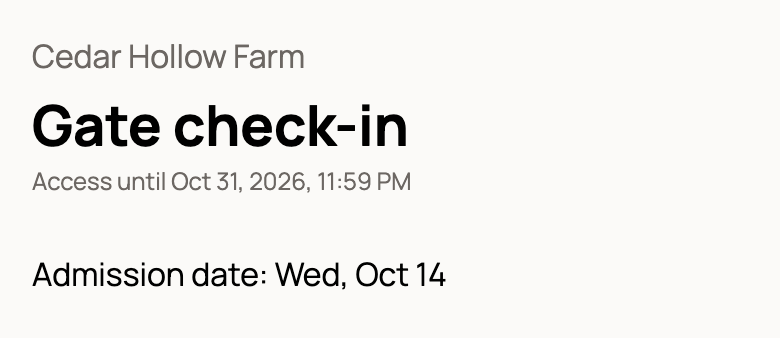
Helpers open the link on their own phone. They get the same scanner and search, and see when their access ends.
Related information
- Your booking: ticket, messages, changes, and cancellations
- Taking bookings: requests, guest lists, and payments at the visit
- Your booking team, vehicles, animals, and time off
Updated on: 29/10/2026
Thank you!