
Your booking: ticket, messages, changes, and cancellations
Every booking has its own page with your ticket and the changes you can make yourself. Open it with the View your booking button in your confirmation email, or from My bookings when you're signed in.
Find your booking
Open your Dashboard and select Services. This opens My bookings. If you host bookings yourself, it opens your host Bookings page instead, so select My bookings there. Upcoming lists visits still ahead, and History has past and cancelled ones.
Open a booking to see exactly what's paid and what's still due at the visit.
Booked without signing in? Use the link in your email. If you typed the wrong email, select Wrong email? Fix it on the booking page. Sign in with the email you booked with to see all your bookings in one place.
Packs and credits shows in My bookings only when you have a pack of visits or a make-up credit.
Show your ticket
Your ticket has a code to scan, your confirmation number, the number of guests, and the time. Show it on your phone when you arrive, as the page tells you (for example, Show this code at the entrance.). The same code is in your confirmation email.
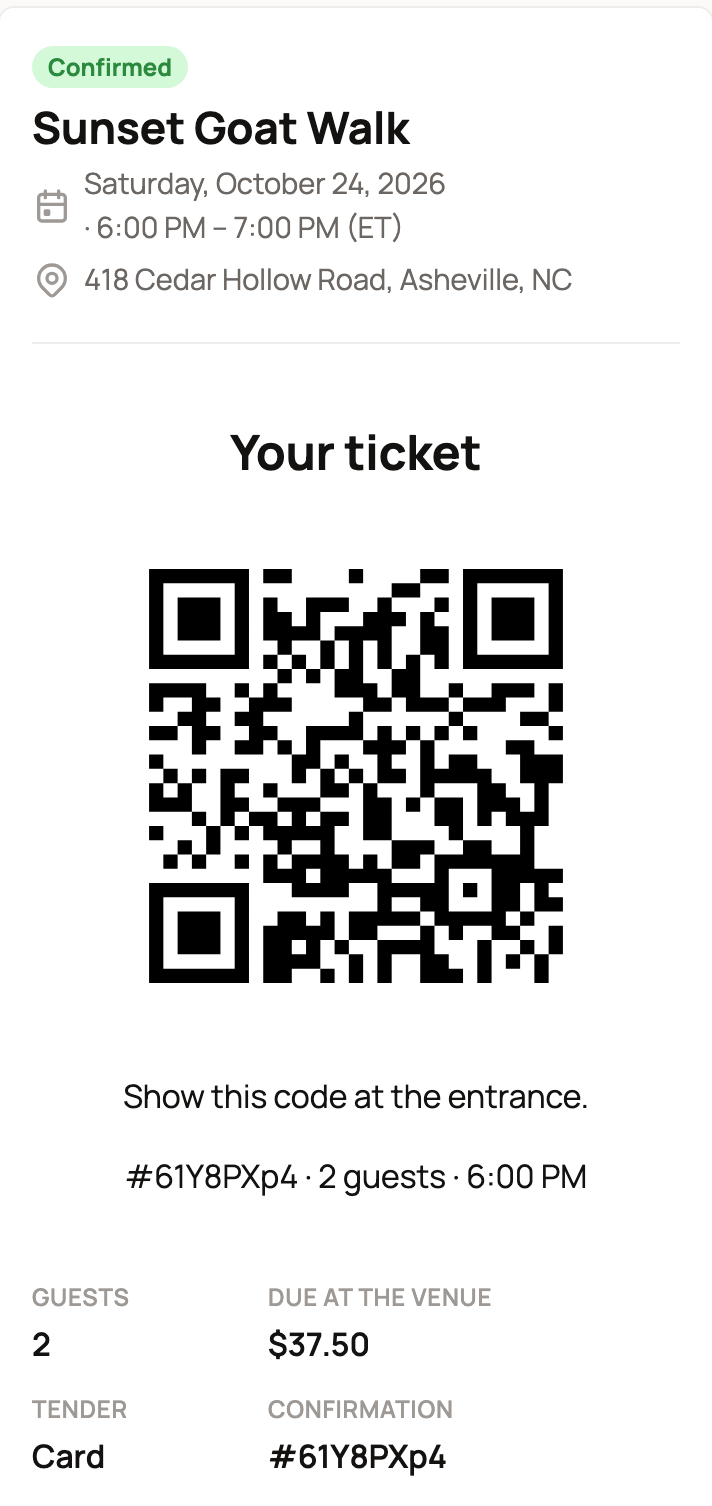
Due at the venue shows anything you still pay the host at the visit. The Price breakdown below it lists each charge.
Message the host
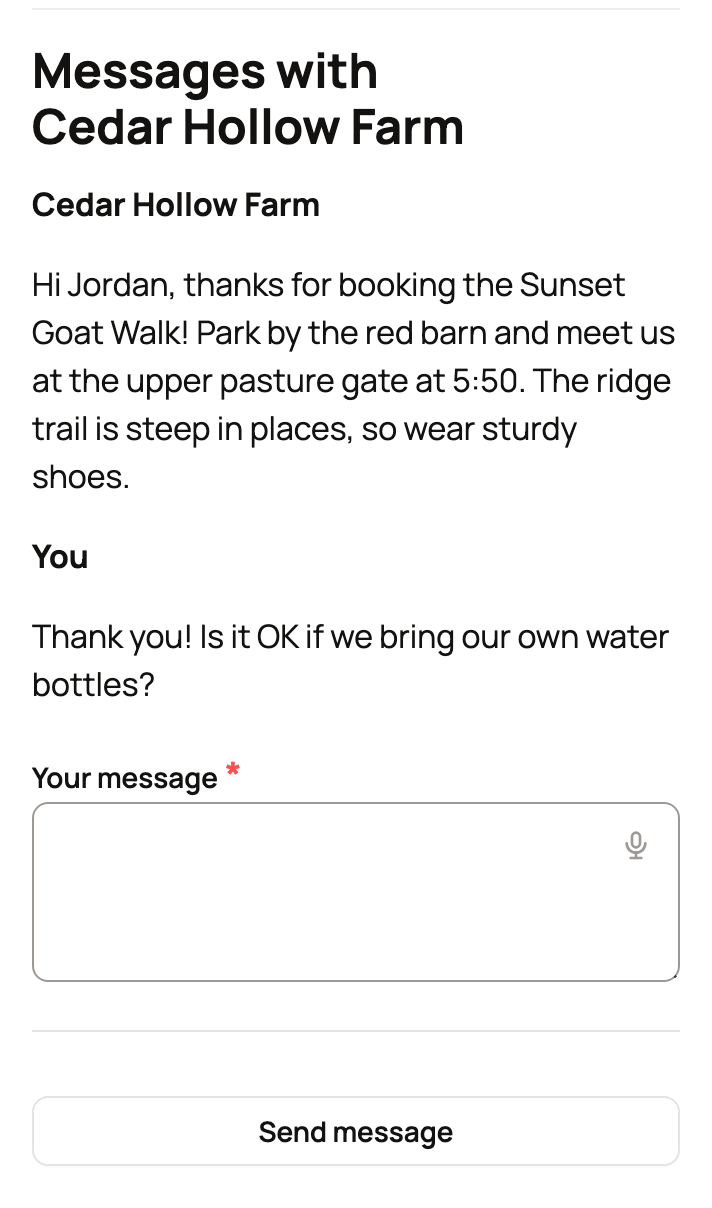
Scroll to Messages with and your host's name. Type in Your message and select Send message. The host's replies, and updates they send everyone booked, show up here too.
Calendar, guests, and waivers
- Add to your calendar has Google Calendar, Apple Calendar, and .ics file buttons.
- Add guests shows when there's room. Added guests pay the regular price. Discounts and promo codes from your first booking don't carry over.
- If your waiver isn't signed yet, use the signing link in your email or Sign your waiver. Once it's signed, select View your signed copy to read it.
Change the time
Select Reschedule, pick an open time, then select Confirm new time. You can do this until the refund cutoff, or 48 hours before the start if your booking has no refunds. If the host allows moves but no refunds, the button says Change time with its deadline.
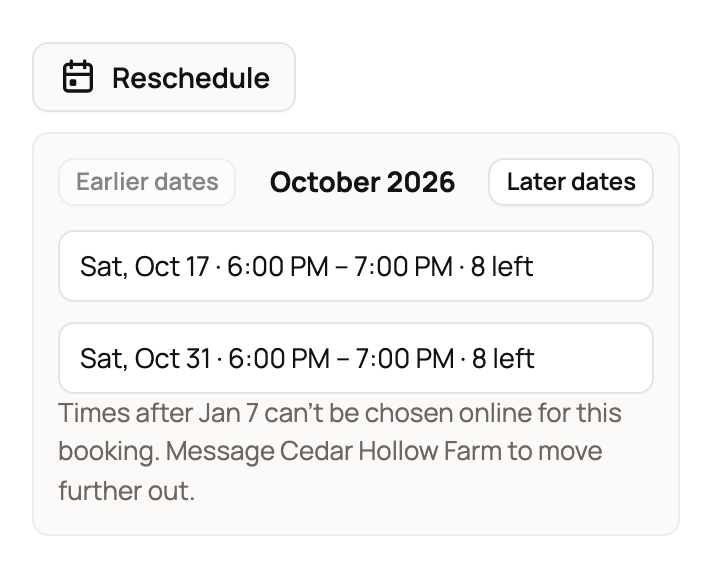
Stays, series, and visits by request can't be moved online. Message the host instead.
If the host moves the whole session with Move everyone and you paid online, select Get a full refund if the new time doesn't work. It's offered until the new start time. Moving only your booking does not add this refund option.
Cancel
The cancel button shows what you get back, for example Cancel booking (refund $12.50 of $15). The line above it gives the cutoff. Select it, check the amount in the confirmation, then select Cancel booking. Keep my booking leaves it as it is.
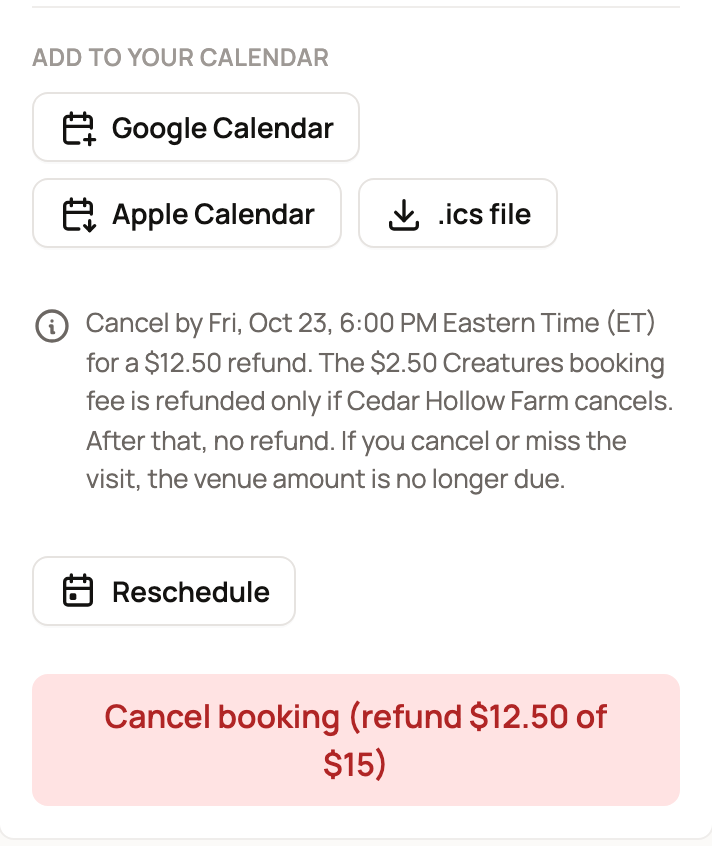
- Before the cutoff: you get back what you paid online, except the Creatures booking fee. If the host pays for Creatures Pro, the card processing cost is kept instead.
- After the cutoff, or with no refunds: nothing paid online comes back.
- Paying at the visit: if you cancel or miss it, that amount is no longer due. If you paid nothing online, you can cancel any time before it starts.
- If the host cancels your booking or the whole series, or a session doesn't get enough guests, you get back everything you paid online. Cancelling one date within a series instead provides a replacement date or make-up credit without refunding the series payment.
Series dates and make-up credits
For a series, Your dates lists each date. If the host cancels a date, you may get a Make-up credit, which lets you book another date instead. Select Book a make-up date before it expires.
Leave a review
After your visit, the booking page asks How was your farm visit? Select Leave a review to tell future guests how it went.
Related information
- Booking a tour, class, or farm visit
- Leaving a review
- Creatures Credit: what it is and how it is spent
Updated on: 29/10/2026
Thank you!