
Your transporter dashboard: opportunities, bids, and jobs
Once your transporter profile is approved, use Opportunities to find matching work and My Jobs to manage trips you have won. You can still see opportunities when insurance is missing or awaiting review, but you cannot place a bid until your insurance is current and reviewed by Creatures.
Find work in Opportunities
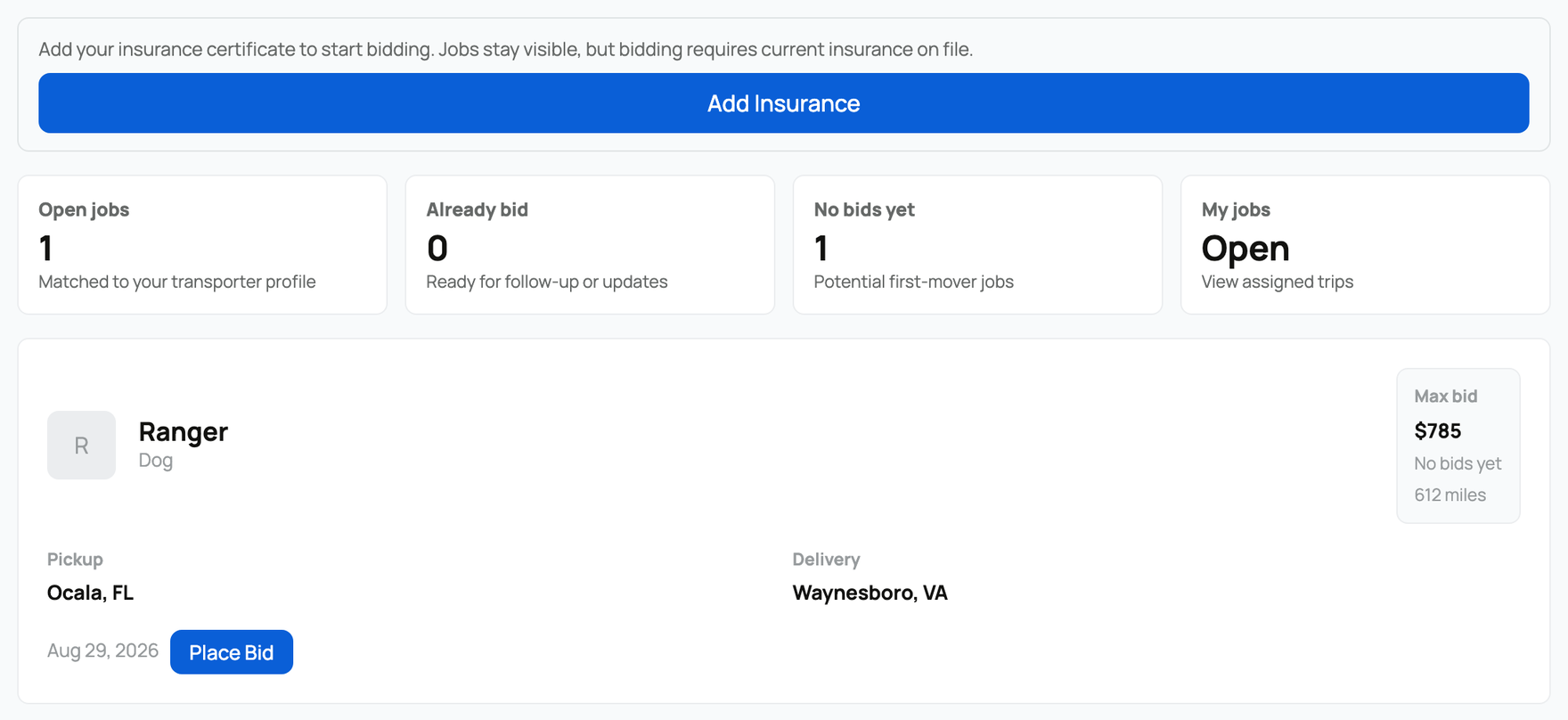
Open Dashboard > Services > Transport > Opportunities. Creatures matches open jobs to your species and selected Service States. Both pickup and delivery must be in those states. If no states are selected, there is no state filter. Service Radius (miles) does not filter these opportunities.
Each opportunity shows the animal, pickup and delivery, distance, maximum bid, and other bidding activity. Use that information to decide whether the trip fits your equipment, schedule, and price.
If a notice appears above the list:
- Add Insurance means there is no current certificate on your profile.
- Update Insurance means the saved certificate has expired.
- A notice that your documents are awaiting review means the Creatures team has not yet approved them.
Jobs remain visible in all three cases. Follow the notice, then return after your current insurance has been reviewed.
Place or update a bid
- Select Place Bid on the opportunity.
- Enter a Bid Amount no higher than the maximum shown.
- Add a short message when the buyer should know something about timing or handling.
- Select Submit Bid.
The opportunity shows Your bid: followed by the amount while Creatures reviews the available bids. Select Update Bid to change it. If selected, it becomes an assigned job; the other pending bids are rejected.
For a direct request sent to your public profile, open the request, enter Your Price and any Notes, then select Send Quote. The buyer must accept and pay before it becomes an assigned job. If you cannot take it, choose Reject Request, enter the required Reason for Rejection, then select Reject.
Complete the job
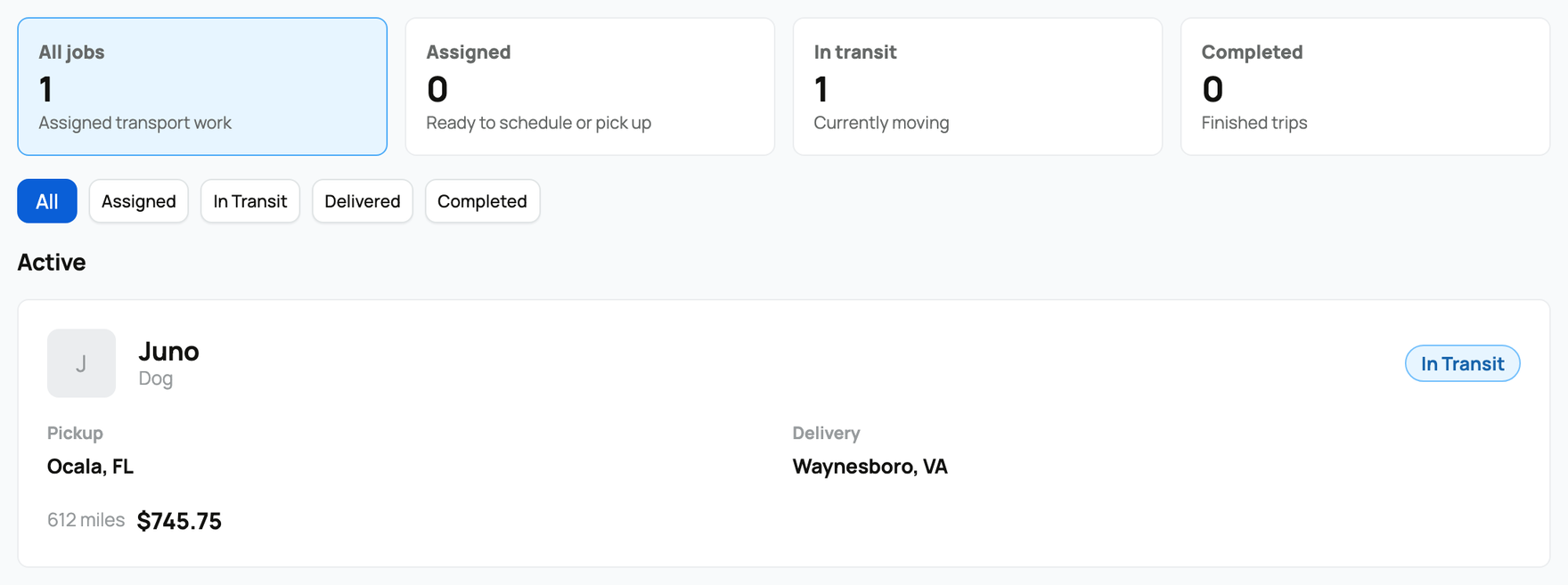
Open My Jobs, select the job, then use Update Status as the work happens:
- Assigned means the trip is yours and ready to schedule.
- Mark it In Transit after pickup so the customer can follow its progress.
- Mark it Delivered after the animal reaches the destination.
- The job becomes Completed when the buyer confirms delivery. That confirmation releases your transport payout to your Creatures Wallet.
For an open job, the selected bid amount is your payout. For a direct quote, Creatures normally deducts a 5% provider fee; an active Creatures Pro subscription waives it. Transporter-funded discounts from Promo codes also reduce your direct-quote payout. See Seller fees and the Creatures Pro subscription and Your Creatures Wallet: balance, holds, and getting paid.
Keep your profile ready
Use Profile to update your service area, species, rates, photos, license, or insurance. At least one photo remains required.
Any change to a license, insurance certificate, or insurance expiry date removes the document review until Creatures checks the new information. During that review, credential badges disappear and bidding pauses, but your approved profile and matching opportunities remain available.
Related information
Updated on: 02/09/2026
Thank you!