
Sharing and embedding your bookable offering on your website
An active offering can be shared as a link, a button, or a booking embed on your own website. Choose the option that fits where your guests already find you, then test it once as a visitor before you promote it.
Open the sharing choices
Open Dashboard > Services > Bookings, find the offering you want to promote, and select Share. Share only appears on active offerings, so publish a draft first.
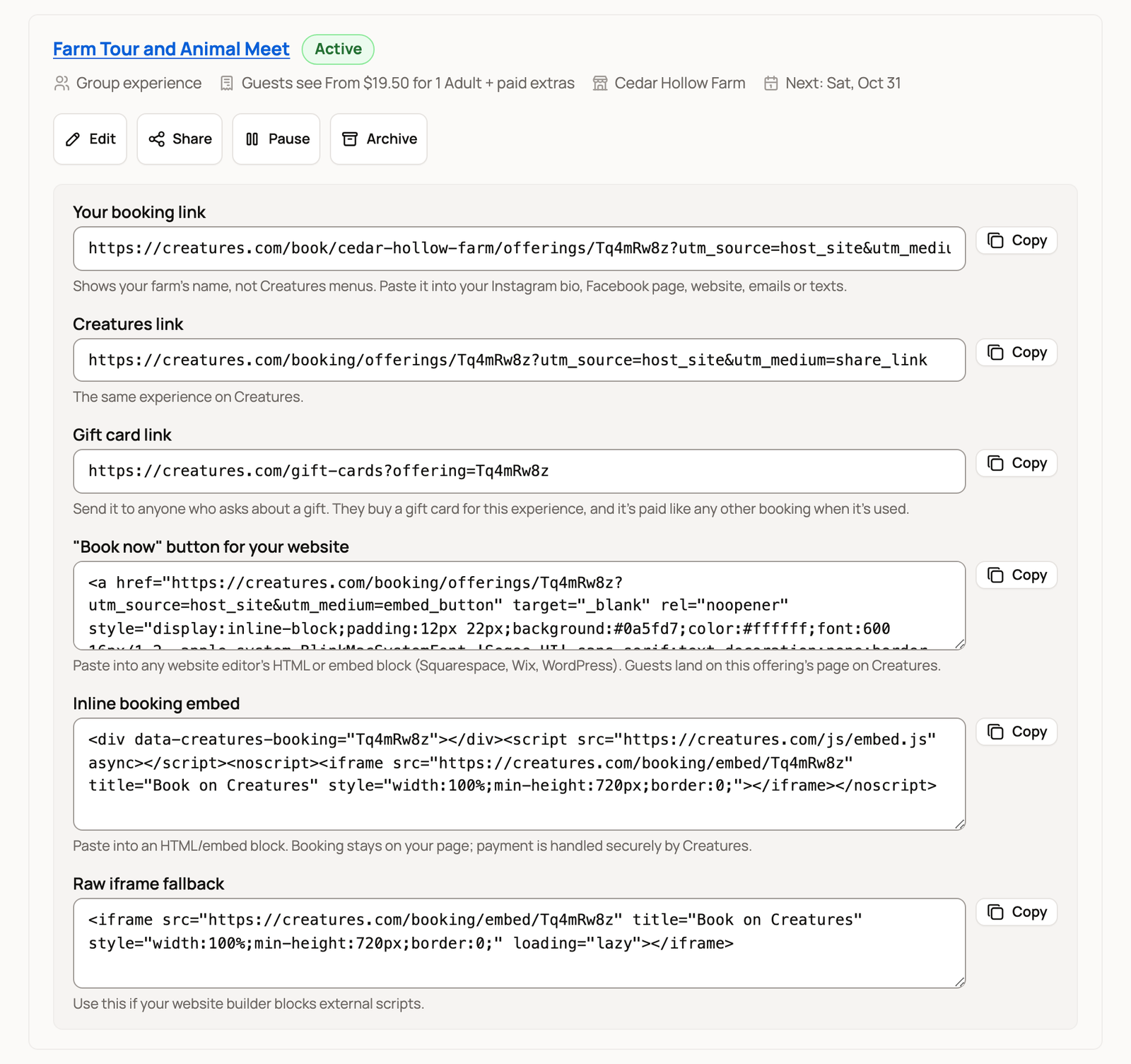
Pick one option
- Your booking link opens that one offering with your display name at the top, without Creatures menus. Use it in a post, an email, a text, or a button you already have.
- Creatures link opens the same offering on Creatures.
- Gift card link shows when guests pay online. Send it to anyone who asks about a gift. They buy a gift card for this experience.
- "Book now" button for your website gives you a ready-made Book now on Creatures button. Guests select it and land on the offering's page on Creatures.
- Inline booking embed puts the booking panel right on a page of your own website. It sets its own height to fit, so there's nothing to adjust.
- Raw iframe fallback is for website editors that block outside scripts. It shows the same panel in a frame that doesn't resize, so guests may scroll inside it.
Each option covers one offering. To share everything you offer with one link, use your booking page instead.
Print a flyer
Every live offering has a printable flyer for a feed store, a vet's office or your farm stand. In Dashboard > Services > Bookings, select the offering's title. On its page, choose Print a flyer beside Copy link and Post to Facebook. While Bookings shows no bookings, the same buttons sit there too, under Share your booking links. The email Creatures sends when you publish an offering also links to its flyer.
The flyer shows your name, the title, a photo when the offering has one, the price and length, and a Scan to book code. Seven tear-off tabs carry the same code. Select Print to print it or save it as a PDF. It fits one Letter page. Cut between the tabs before you post it. A scan opens the offering, ready to book.
Share with one group only
Planning a school trip or a club visit? Edit the offering and find Who can find it? below the price and group size. Choose Only people I send the link to, then select Save changes.
You can also pick it during setup. A new School or group visit starts this way, and so does a class you describe where each family books. If you chose One booking takes the whole time for a class, select Set up as a class below it. Each family then books its own spots, and only people you send the link to can find it.
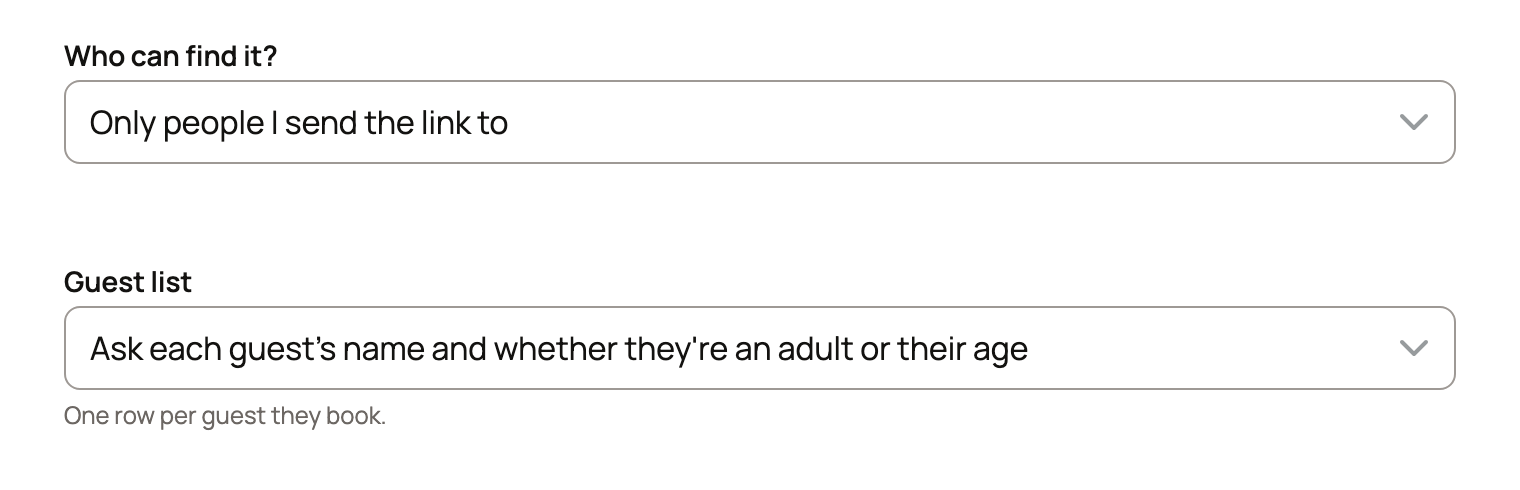
The offering then stays off your booking page, your Creatures website's experience lists, and Creatures search. Anyone you send its link to can still book, so share it only with the group.
Add it to your website
- Select Copy beside the option you want.
- In your website builder (such as Squarespace, Wix, or WordPress), add an HTML or embed block and paste it there.
- Save or publish that page in your builder.
- Open the page in a private browser window or on your phone and check the title, dates, and times.
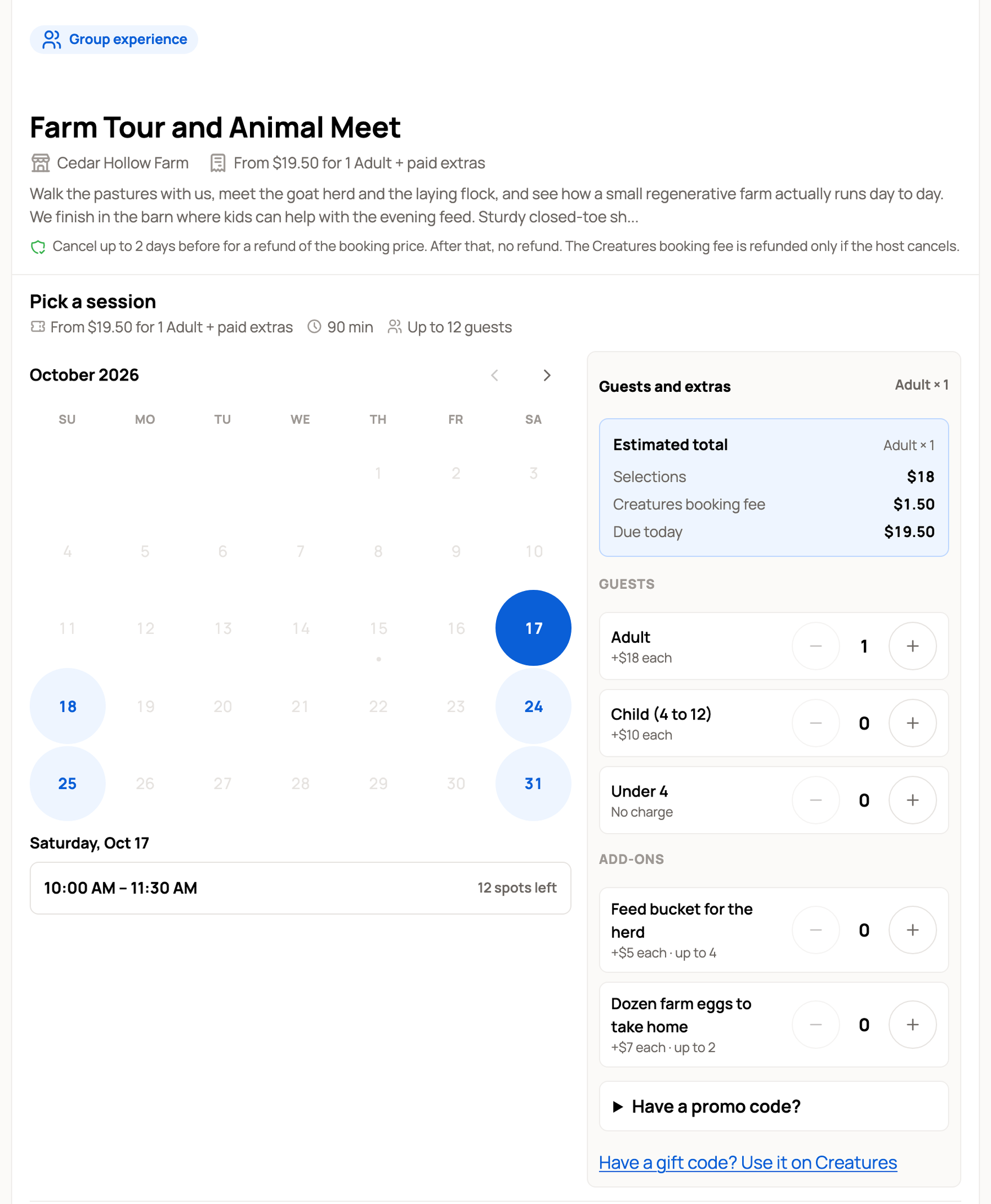
Guests don't need a Creatures account to book through the embed. They enter their name and email, and their confirmation email links back to their booking. Guests with a gift code or a pack follow a link to finish on Creatures, where they can sign in.
What happens at checkout
The schedule, questions, waiver, payment, and cancellation policy all come from the offering you set up in Creatures. When you change the time, price, or spots, the embed updates on its own. You never need to paste new code.
If you approve each request, the embed sends a request instead of taking payment. Nothing is charged yet. Guests see Request sent with a Check your request button.
For a paid booking, the guest moves from your page to secure Creatures checkout to pay. A free booking finishes on the Creatures confirmation page. A free offering is an easy way to test the whole path without a charge.
Have a Creatures website?
You don't need to paste code. A Booking section can show your experiences with dates and a Book button. See Showing your experiences on your website.
Related information
- Your booking page: one link for everything you offer
- Showing your experiences on your website
- Creating a bookable offering: tours, classes, and appointments
Updated on: 06/11/2026
Thank you!