Articles on: Services: Transport, Boarding & Booking

Creating a bookable offering: tours, classes, and appointments

Creating a bookable offering: tours, classes, and appointments


A bookable offering is anything customers can reserve a time for: a farm tour, a class, a riding lesson, a grooming appointment. You build one from /booking/create, and Creatures handles the calendar, payment, and confirmations for you. This guide walks every field on the form, what each value does, and what choosing it means for how your offering sells.


Creating a bookable offering


Two things are locked once you create it


Before the details, two choices cannot be changed after you save the offering, so get them right up front:


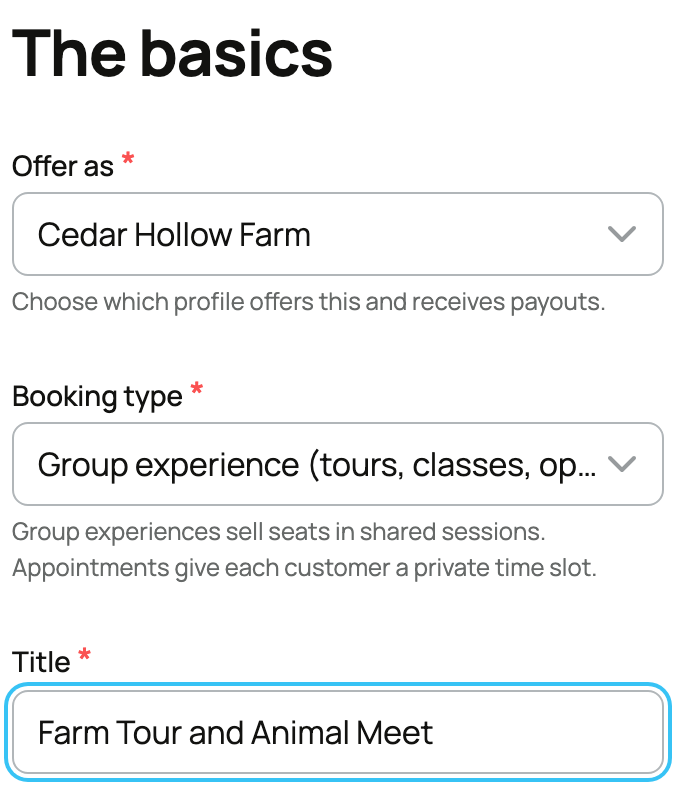
  • The provider. This is who the offering belongs to: you, or an organization you own or co-own. It decides whose profile the offering appears on, who gets paid, and whose Creatures Pro status sets the fee (more on that at the end). The provider service fee follows the selected provider's own Pro status, not yours as the person filling in the form, so pick the right provider before you build the rest.
  • The booking type. Explained next. The type changes how sessions and capacity work under the hood, so Creatures locks it once sessions exist. If you need a different type later, you create a new offering.


The booking type (group experience vs appointment)


This is the most important decision on the form. There are exactly two types:


  • Group experience: many people book the same session. A session has a number of seats, and several separate parties fill it (a tour with up to twelve people, a class with ten spots). Choose this when the point is a shared event at a set time.
  • Appointment: one party books a slot to themselves. The slot belongs to whoever books it, and no one else can join (a one-on-one lesson, a grooming slot). Choose this when each booking is private and you serve one customer at a time.


The implication: group experiences let you sell every seat in a session to different buyers, while appointments sell the whole slot once. This is locked after create, so be sure which one fits.


The basics


  • Title: the name customers see, 3 to 100 characters. Make it concrete ("Sunrise farm tour", "60-minute grooming"). It is the first thing in search and on your profile.
  • Description: what the offering is, at least 30 characters. Say who it is for, what happens, and what to bring. A thin description gets fewer bookings; a clear one sets expectations and cuts down on questions.
  • Cover photo: one image that represents the offering. It headlines the offering page, so use a real, appealing photo of the place or activity.


Pricing and size


  • Duration: how long a session runs, chosen from a fixed list of lengths (15, 30, 45, 60, 75, 90, 120, 150, 180, 240, 300, 360, or 480 minutes). This sets how slots are spaced on the calendar, so pick the real length of the experience.
  • Pricing model (group experiences only): how the price is charged.
  • Per person: the price is multiplied by the number of guests. Two guests pay twice the per-person price. Use this when cost scales with headcount.
  • Per booking: one flat price covers the whole party, no matter how many come. Use this for a fixed-cost session.
  • Appointments are always per booking (one party, one price), so this choice only appears for group experiences.
  • Price: the amount in the model above. This is the base the customer pays before any deposit rule, discount, fee, or add-on.
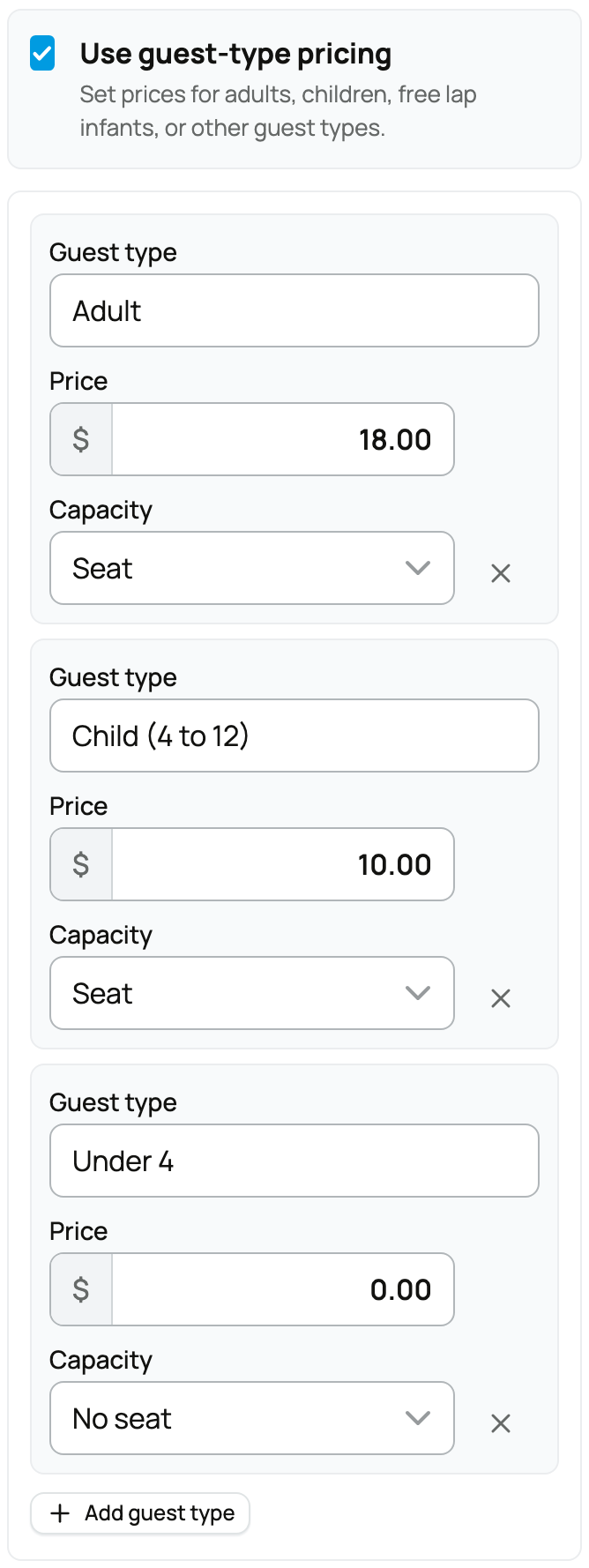
  • Guest tiers (optional): named price levels within one booking, for example "Adult" and "Child". Each tier has its own price, and each carries a counts toward capacity toggle:
  • Counts toward capacity on: that guest takes a seat (an adult fills one of the session's spots).
  • Counts toward capacity off: that guest does not take a seat (a lap infant who joins but does not use a spot).
  • The implication: tiers let you price a mixed party fairly and decide which guests consume your limited seats.
  • Add-ons (optional): paid extras a customer can include at checkout, each with a label, a price, and a maximum quantity. Use them for things like a souvenir or an extra service. They are added on top of the base price.
  • Session capacity (group experiences): the most guests one session holds. This is the seat count buyers draw down as they book, and it is what "sold out" measures against.
  • Minimum and maximum party size: the smallest and largest party a single booking may be. Minimum lets you require, say, at least two people; maximum caps how much of a session one party can take.


Discounts, deposits, and cancellation


  • Offering discount (optional): a standing markdown on this offering, separate from promo codes.
  • None: full price.
  • Percent: a percentage off the base (10% off).
  • Fixed: a set dollar amount off the base ($5 off).
  • The implication: this is an always-on sale price baked into the offering. Time-limited codes are a different tool, covered in Taking bookings: schedule, check-in, promos, and the calendar feed.
  • Deposit policy: how much the customer pays at the time they book.
  • Full: the whole price is charged now. The booking is paid in full up front.
  • Deposit: only a deposit is charged now (a fixed amount you set, or a percentage of the price), and the balance is due later. Use this to hold a spot without collecting everything up front.
  • None: nothing is charged at booking; the booking is confirmed with no payment now and the balance is collected later. Use this for free experiences or pay-on-arrival arrangements.
  • The implication: the deposit policy decides what lands at checkout versus what is still owed, and (as below) the buyer fee only applies when something is actually charged now.
  • Cancellation policy: the rule that governs a customer's refund if they cancel.
  • Full refund with a window: the customer can cancel for a full refund up until a cutoff before the start, chosen from 12, 24, 48, 72, or 168 hours (168 hours is one week). Cancel inside that window and the refund rule no longer applies.
  • No refund: the booking is non-refundable once made.
  • Important: even on a full-refund cancellation, the buyer service fee is kept (it is not part of the refund). And this policy is frozen onto each booking when it is made, so a customer is always judged by the policy that was in effect when they booked, even if you change the offering's policy afterward.


Where it happens


  • Location: the real place the session is held. Bookings are in-person, so this is a physical address.
  • Location visibility: how much of the address the public sees before booking.
  • City and state: shows the city and state only.
  • Region only: shows a broader area, not the city.
  • Hidden: shows no location publicly.
  • In every case the customer who books gets the full address in their confirmation; visibility only controls what is shown before booking. Choose tighter visibility for privacy, looser for discoverability.
  • Timezone: the venue's timezone. Every session time the customer sees is shown in this zone, so set it to where the offering actually happens.


  • Featured animals: animals you manage that customers will meet, shown as chips on the offering page. Only public, living animals you manage can be featured; private or deceased animals are not eligible. This is a nice trust and marketing touch for tours and meet-the-animals sessions.
  • Waiver: an agreement the customer must sign before they can pay. If you attach one, checkout pauses for the signature and only proceeds once it is signed (guests sign with their name and email). Use it for any activity with a safety or liability aspect. For how the waiver gate works and how to build the agreement, see Signing an agreement, and requiring one before a booking.


The schedule


The schedule editor is where you say when the offering is bookable. It combines three kinds of rules with a couple of timing controls:


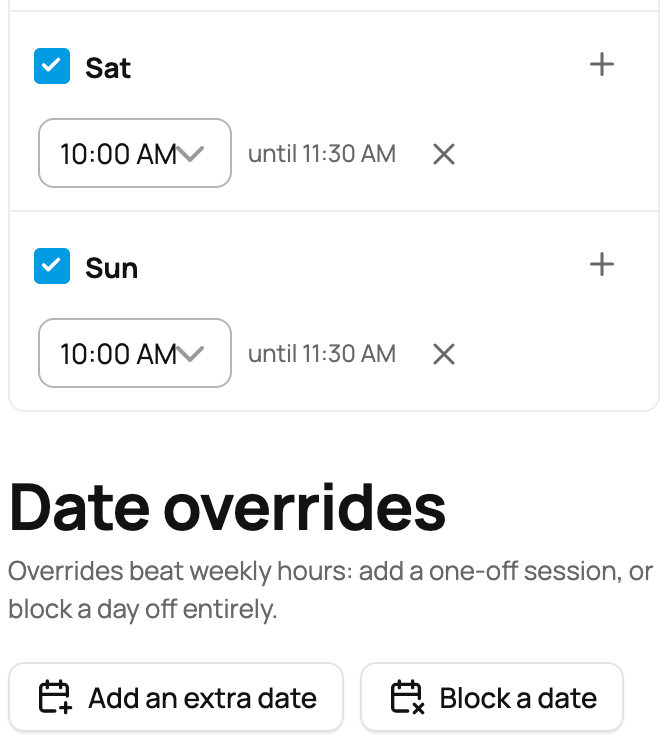
  • Weekly recurring rules: repeating availability ("every Saturday at 9:00 and 13:00"). You can bound a weekly rule to a season with a start and end date, so a summer-only tour stops offering itself in winter.
  • One-off dates: a single extra date and time that is not part of the weekly pattern.
  • Blackout dates: specific dates you are closed, which remove availability that the weekly rules would otherwise create (a holiday).
  • Lead time (booking cutoff): how far ahead a customer must book, in minutes. A lead time stops last-minute bookings you cannot prepare for.
  • Buffers (appointments): padding before and after each appointment so back-to-back slots are not truly back-to-back. Use them for setup, cleanup, or travel between sessions.


Status: draft, active, paused, archived


Every offering has a status that controls whether it takes bookings:


  • Draft: not public yet, your work in progress. A new offering starts here, and it cannot be published until the provider is verified and has a connected payout account.
  • Active: live and accepting bookings. This is the only status where the session picker works for customers.
  • Paused: visible but not bookable, for a temporary stop without losing the offering.
  • Archived: retired and out of circulation.


Fees: what you keep, what the customer pays


Two fees apply to a paid booking, and both are straightforward:


  • Buyer service fee: the customer pays 5% of the subtotal, or $1.50, whichever is greater, on top of the price. It is added at checkout and is only charged when money is actually collected now, so a no-deposit (nothing-charged) booking carries no buyer fee at the time of booking. This fee is not discountable.
  • Provider service fee: Creatures keeps 5% of what is charged, and you receive the rest into your Creatures Wallet. This fee is waived (0%) when the provider has Creatures Pro, so a Pro provider keeps the full charged amount. See Seller fees and the Creatures Pro subscription.


One more ordering detail that works in the customer's favor: any offering discount and promo code are applied before the fees are calculated, so the buyer fee is figured on the discounted subtotal, not the full price.


Once your offering is live, the next step is running it day to day. See Taking bookings: schedule, check-in, promos, and the calendar feed.


Updated on: 23/06/2026

Was this article helpful?

Share your feedback

Cancel

Thank you!