
Booking and managing a session as a customer
A booking page lets you choose an available time, see the final price before payment, and keep a private confirmation page for later. You can book with a Creatures account or as a guest.
Pick a time that works
Open the offering and check the description, duration, location, cancellation policy, and guest requirements. Choose your guests and any extras, then select an available date and time. Check the displayed timezone; times follow the venue's timezone. An appointment reserves a private time slot.
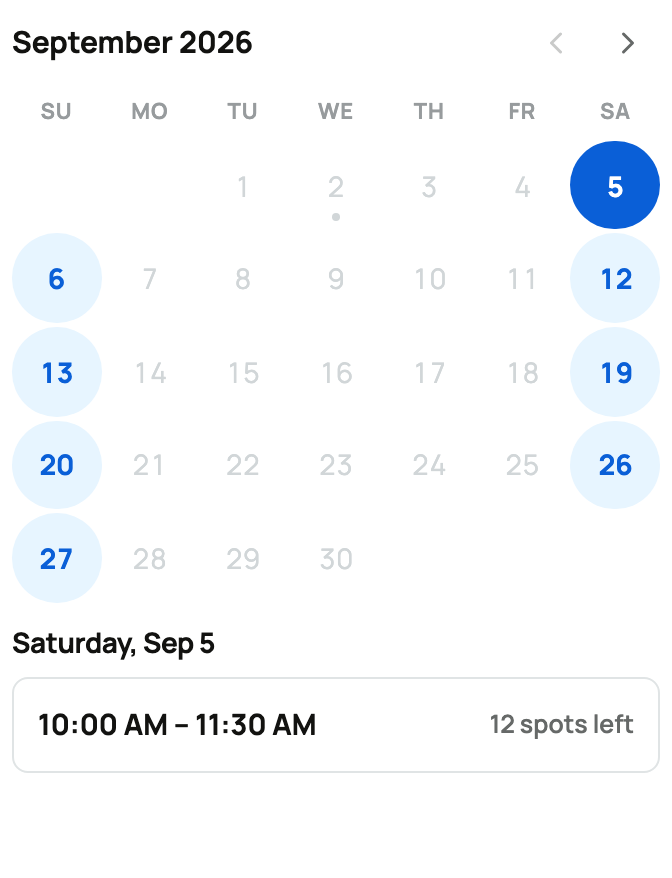
Select Continue to checkout, or Confirm booking when no card payment is needed. This starts a temporary hold while you finish the required steps. The countdown shows the time remaining. If it expires, choose a time again.
Review before you pay
Enter your contact details if requested, answer the booking questions, and sign any required agreement. Review the price, extras, discount, and amount due now. A booking with nothing due online confirms after you finish these steps, without card checkout.
If you are signed in and Use available balance is selected, available Creatures Credit is applied first and Wallet earnings second. Adjust either amount before continuing. Card checkout collects only the remainder, if any. Learn more in Your Creatures Wallet.
Standard bookings with an online payment include a service fee. With a Creatures Pro host, there is no added guest service fee. For Deposit now, rest in person, pay the remaining balance to the host in person; it is not an automatic later card charge.
If Text me about this booking is offered, add your mobile number and select it for confirmation and reminder texts. It is optional. Reply STOP to stop those texts without cancelling your booking.

Use your confirmation page
Your confirmation email contains a private booking link. Keep it, especially if you booked as a guest. Members can also open Dashboard > Services > Bookings > My bookings.
This separate example shows a free Open Barn Hour booking.
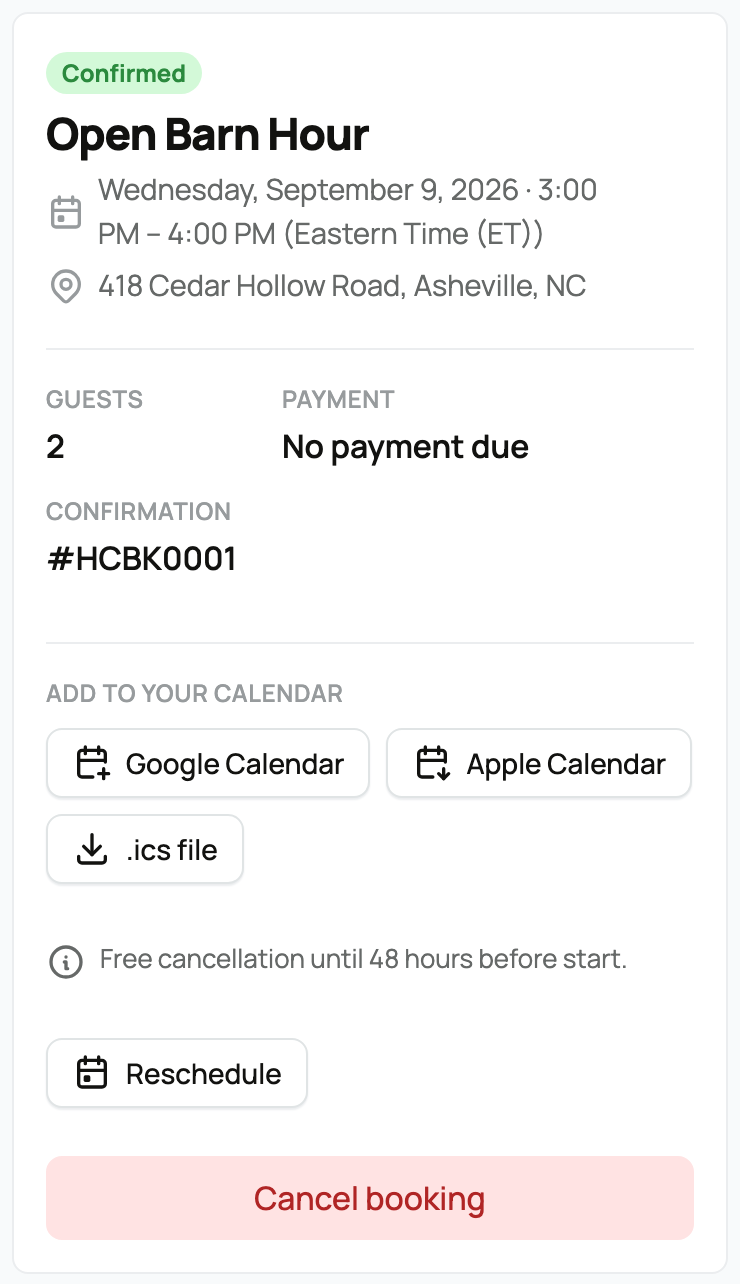
From the booking page you can:
- add the visit to Google Calendar, Apple Calendar, or download a calendar file;
- select Reschedule for another available time on the same offering while changes are allowed; or
- select Cancel booking before it starts; on paid bookings, the button also states the refund outcome.
Rescheduling closes at the original cancellation cutoff, or 48 hours before start for a no-refund booking. If Reschedule is missing, contact the host.
The policy saved when you booked still applies if the host changes the offering later. An eligible refund keeps any service fee or card-processing amount named on the page. A no-refund policy returns nothing. If the host cancels before the session starts, the full payment is refundable. The page reports money returned after a refund succeeds; contact Support if an expected refund is missing.
To find a provider's complete list of current offers, see Your booking page.
Related information
- Your booking page: one link for everything you offer
- Creating a bookable offering: tours, classes, and appointments
- Taking bookings: schedule, check-in, promos, and the calendar feed
Updated on: 03/09/2026
Thank you!