Articles on: Services: Transport, Boarding & Booking

Taking bookings: schedule, check-in, promos, and the calendar feed

Taking bookings: schedule, check-in, promos, and the calendar feed


Once an offering is live, you manage everything from your booking dashboard at /dashboard/booking: which offerings are open, the promo codes you are running, the day-to-day manifest of who is coming, and a calendar feed you can sync to your own calendar. This guide covers each piece and what every action does.


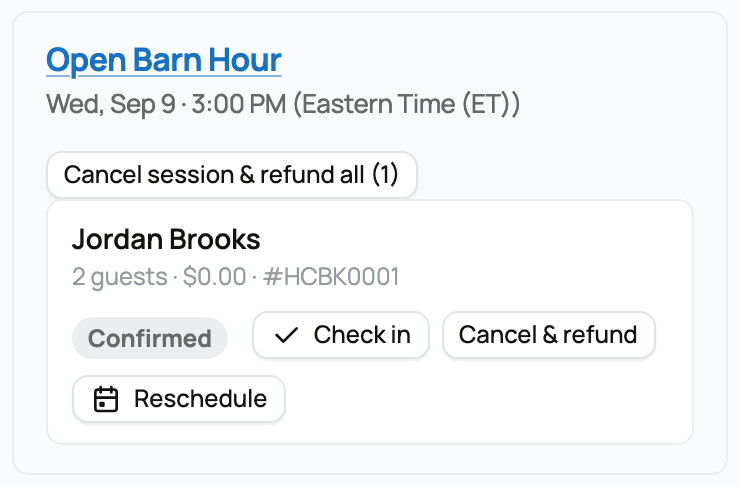
A per-session booking manifest


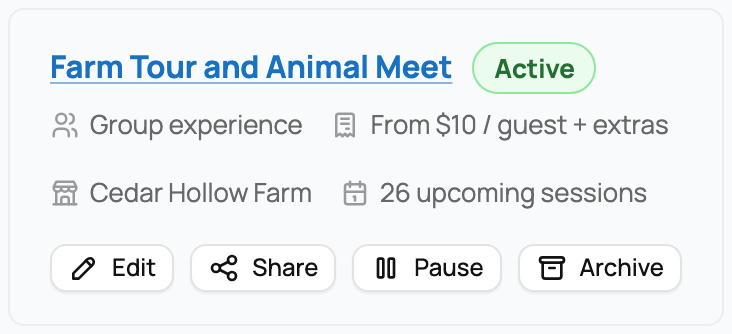
Your offerings and their status


The dashboard lists every offering you manage (your own, plus any for organizations you own or co-own), each with a status control. Flipping the status is how you open and close bookings without deleting anything:


  • Active: the offering takes bookings. This is the only status where customers can pick a time.
  • Paused: the offering is visible but not bookable, for a temporary stop (you are away, fully booked, between seasons).
  • Draft / Archived: not live. Draft is pre-launch; archived is retired.


The implication: status is your on/off switch. Pause rather than archive when you plan to come back.


Promo codes


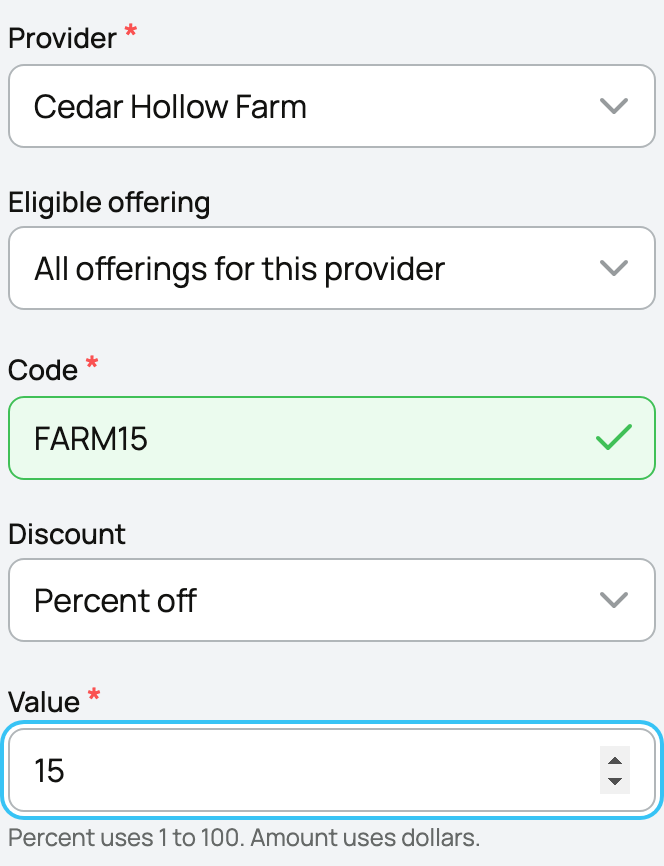
From the dashboard you can create promo codes that customers enter at checkout. Each code has a few settings, and each one shapes how the discount behaves:


  • Code: the text the customer types (for example WELCOME10). It is what you share in a post or an email.
  • Type: how it discounts.
  • Percent: a percentage off the subtotal (10% off).
  • Fixed: a set dollar amount off the subtotal ($5 off).
  • Value: the percentage or the dollar amount above.
  • Minimum subtotal: an optional floor the booking must reach before the code applies, so a code only kicks in above a certain spend.
  • Scope: how widely the code works.
  • One offering: the code only discounts that single offering.
  • All of your offerings: the code works across everything for that provider.
  • The implication: scope lets you run a sale on one experience or across your whole lineup.


A promo code reduces the subtotal before the service fees are calculated, so the customer's fee is figured on the discounted amount, and your standing offering discount and a promo code can stack (offering discount first, then the code).


The manifest: who is coming, and checking them in


/dashboard/booking/bookings is your operational view: upcoming and recent bookings, grouped by session, with the actions you take on the day. It is the printable per-day run sheet. For each booking you have three actions, and it matters what each does to the money:


  • Check in: mark the customer as arrived. This is money-neutral: it changes nothing about payment, it just records attendance and moves the booking toward completed.
  • No-show: mark a customer who did not turn up. The payment is retained: they booked a spot and did not come, so nothing is refunded. Use it honestly, because it is the record of a missed booking.
  • Cancel (provider cancel of one booking): you cancel a single customer's booking. This triggers a full refund including the service fees back to that customer, because the cancellation came from your side, not theirs.


The contrast to remember: when you cancel, the customer is made whole including fees; when the customer cancels, the buyer fee is retained per the policy frozen on their booking. Your cancellation is always the generous direction. Your share of every booking you keep (a completed session, or a no-show whose payment is retained) lands in your Creatures Wallet, where you track and withdraw it; see Your Creatures Wallet: balance, holds, and getting paid.


Cancelling a whole session


Sometimes you have to call off an entire session (weather, illness, too few sign-ups). The session cancel action does this in one step:


  • What it does: cancels the session and refunds every confirmed booking on it, in full, in one action. You do not have to refund each customer one by one.
  • Who can do it: only the provider (you or a manager of the provider).
  • The implication: one click closes the session and returns everyone's money, fees included, so a cancelled session never leaves a customer charged.


Booking statuses you will see


Each individual booking moves through a clear set of states:


  • Confirmed: paid (or confirmed for a free offering) and on the books.
  • Completed: the session happened and the customer attended (after check-in).
  • No-show: the customer did not attend; payment retained.
  • Cancelled: the booking was called off.
  • Refunded: money was returned (for example after a session cancel or a provider cancel).


(You may also briefly see pending payment for a booking that is mid-checkout before its payment lands.)


The calendar feed (ICS)


So your bookings show up alongside the rest of your life, the dashboard gives you a calendar feed: a private link in the standard ICS format that calendar apps (Google, Apple, Outlook) can subscribe to. It lives at a long, unguessable address under /booking/feed/.


  • What it is: a read-only subscription URL. Add it to your calendar app once, and your Creatures sessions appear there and stay updated.
  • How the link works: it carries a secret token, so anyone with the link can see the feed. For that reason the full URL is shown to you only once, right after you create or rotate it, so copy it then. If the link ever leaks, rotate it to invalidate the old one and get a fresh address.
  • The implication: treat the feed URL like a password. It is the convenience of a synced calendar in exchange for keeping that link private.


To set up offerings in the first place, see Creating a bookable offering: tours, classes, and appointments. For the customer's side of a booking, see Booking and managing a session as a customer.


Updated on: 23/06/2026

Was this article helpful?

Share your feedback

Cancel

Thank you!