
Your booking team, vehicles, animals, and time off
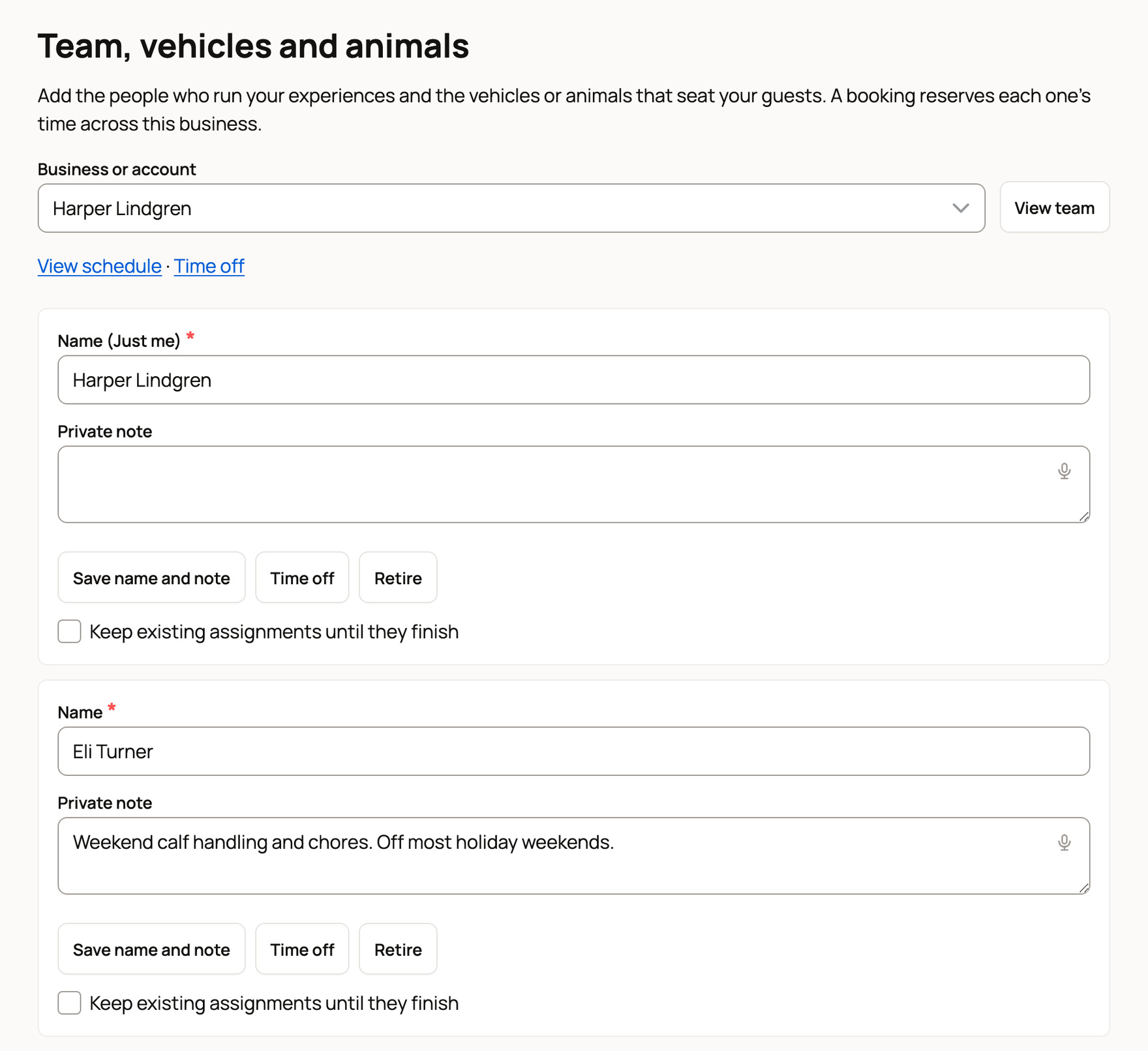
Team on your Bookings page lists the people who run your experiences, plus any wagons, boats or animals that carry or walk with guests. Each experience says who runs it, so a booking holds that person's time, and Time off stops guests booking when someone is away.
Add your team
- Go to Dashboard > Services > Bookings and choose Team.
- Under Business or account, pick the farm or account and choose View team. Each business has its own team.
- The row labeled Name (Just me) is you. It appears once you have an experience.
- Under Add a person, type a Name and choose Add person.
Each person has a Private note that only you see. To stop using someone, choose Retire. If they still have sessions coming up, first tick Keep existing assignments until they finish.
Add vehicles or animals that seat guests
Running hayrides, boat trips or trail rides? Once an experience mentions a wagon, boat, horse or similar, the page becomes Team, vehicles and animals.
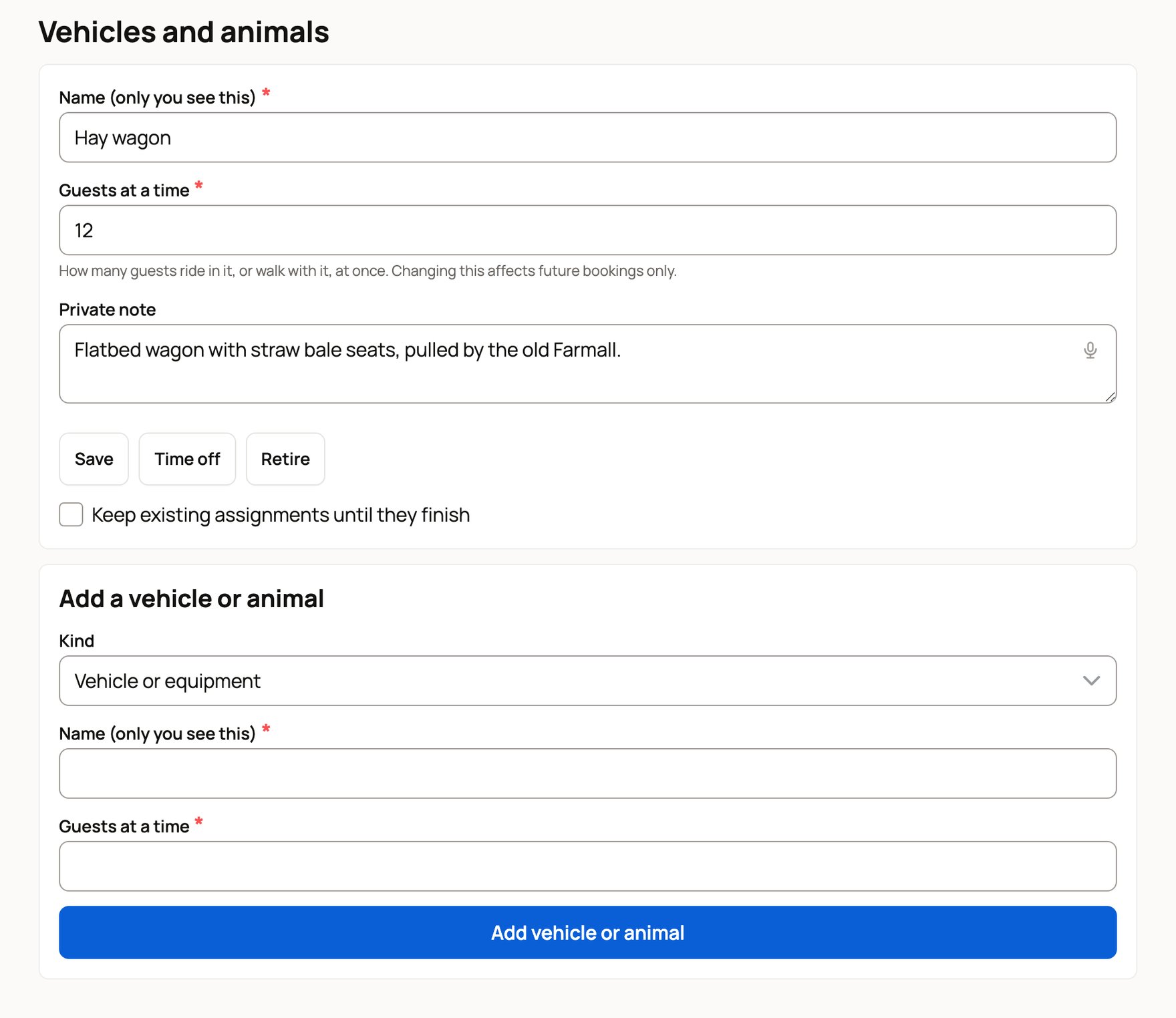
Under Add a vehicle or animal, pick a Kind. Fill in Name (only you see this) and Guests at a time, then choose Add vehicle or animal. An animal can link to its profile on Creatures. Changing the seats affects future bookings only.
In setup, choose vehicles or animals under What decides how many can come at once? In the editor, the same choice is What limits how many guests? Your spot limits still apply. Vehicles and animals add a check that each group fits.
Choose who runs each experience
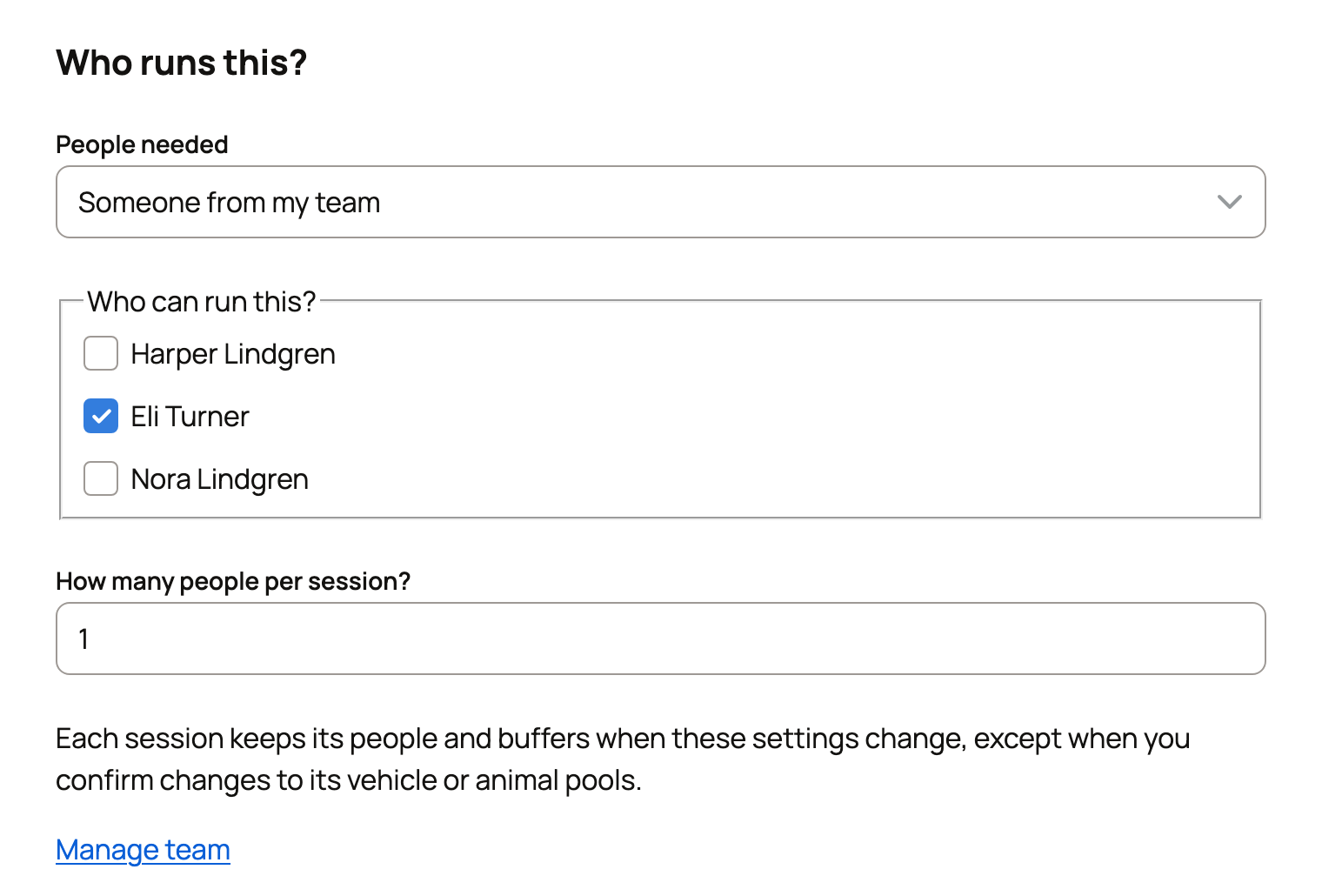
Setup asks Who runs this? The editor asks it too, under Schedule. For People needed, choose:
- Just me.
- Someone from my team. Tick names under Who can run this? and set How many people per session?
- Runs on its own (can overlap my other experiences), for something that needs no host. It isn't offered when guests pick any time you're open.
Each person can only be in one place. If two experiences share a guide, a booking on one closes that time on the other. If your Bookings page shows Link availability for your business, choose Set up team to sort this out, or Got it to hide it.
Add time off
- On the Bookings page, choose Time off. The Team page also has Time off beside each person, vehicle or animal.
- Pick the Business or account. If you have a team, choose who it Applies to: Whole business or one person, vehicle or animal. Then choose View time off.
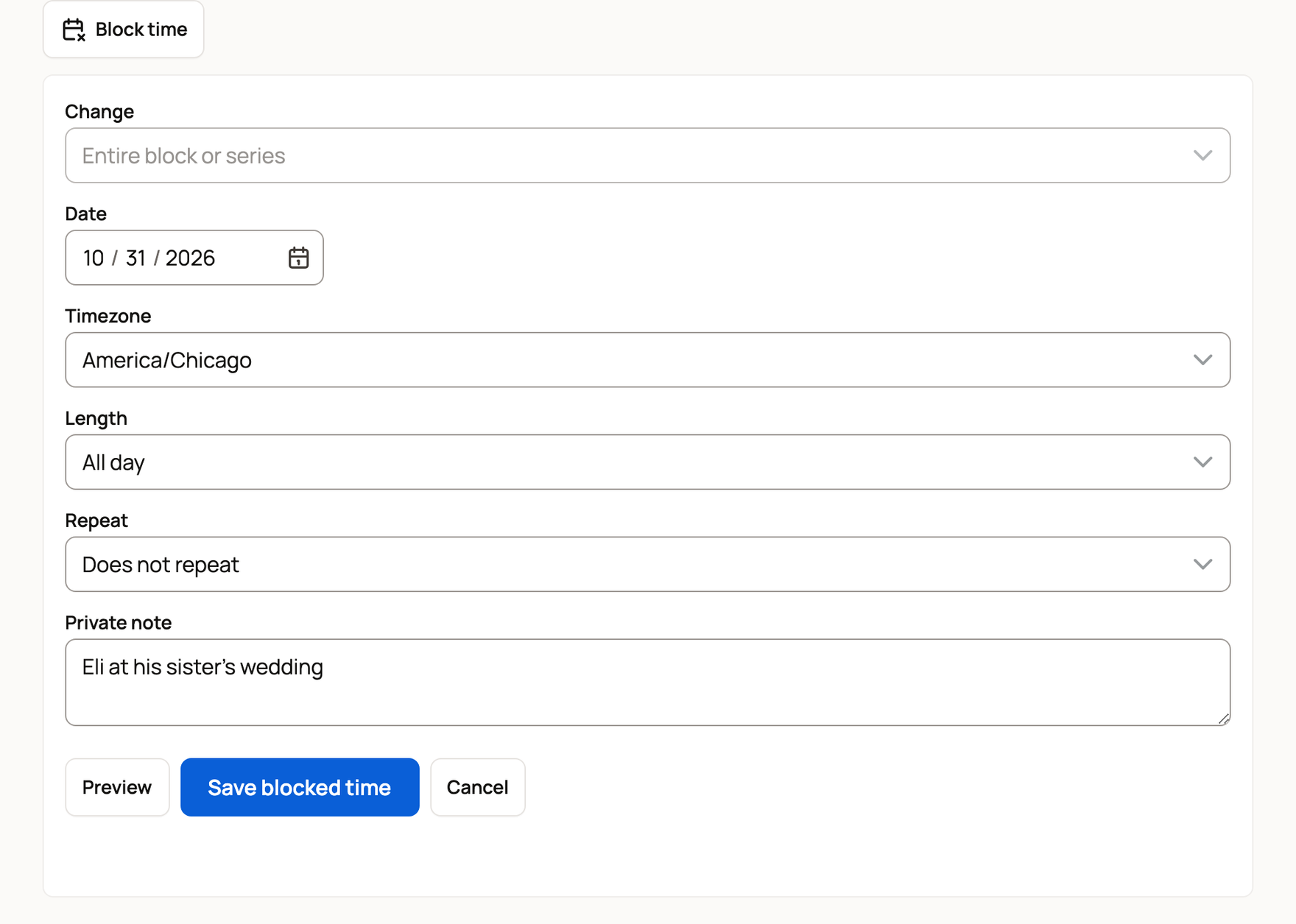
- Choose Block time. Set the Date and Length (All day or Part of the day), and a Repeat if it happens again.
- Add a Private note, then choose Save blocked time.
Existing bookings stay on the schedule. If one falls in your time off, Creatures lists it so you can leave it, move it or cancel it.
What guests see
Time off for the whole business closes those times. Time off for one person keeps the time, but guests can't book it unless someone else who runs it is free.
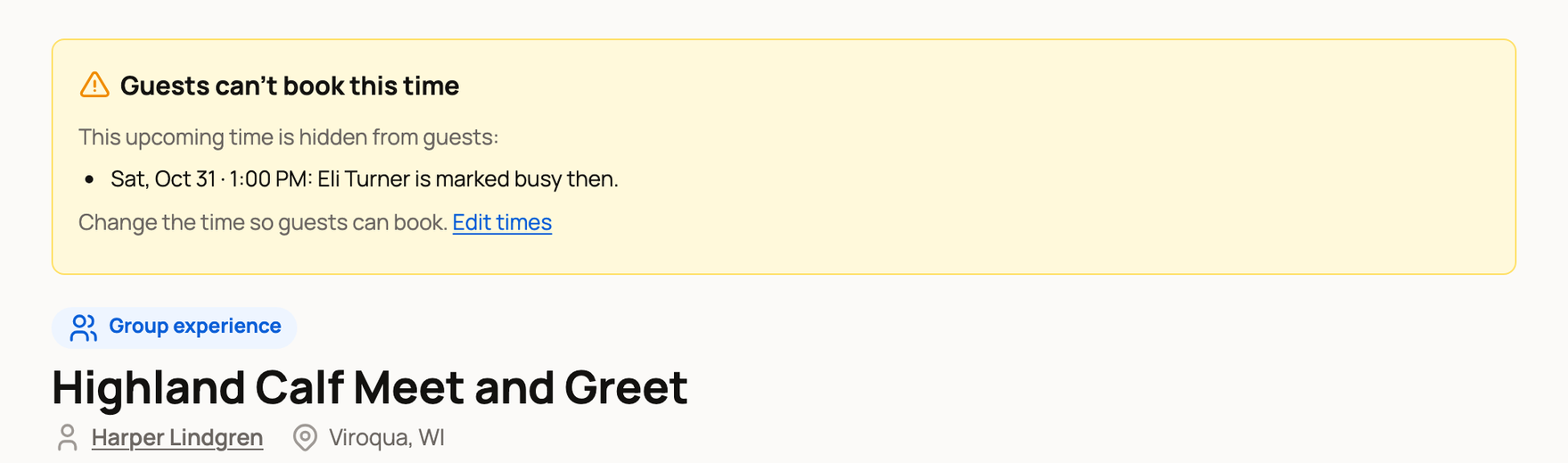
When that happens, your listing and the editor show Guests can't book this time, with the date and the reason. For example: "Eli Turner is marked busy then." Other reasons include another booking for the same person, blocked time, or a busy connected calendar. To fix it, tick another person under Who can run this?, remove the time off, or change the time with Edit times on your listing.
See who is working each day
On the Team page, choose View schedule, then Open day schedule in Today. The Day schedule there shows who runs each session on any date.
Related information
- Creating a bookable offering: tours, classes, and appointments
- Taking bookings: requests, guest lists, and payments at the visit
- Changing a booked time: spots, moves, and cancellations
- Assign care and manage your care duties
Updated on: 29/10/2026
Thank you!