
Changing a booked time: spots, moves, and cancellations
Upcoming group sessions on your Bookings page can offer Change this time, Move everyone and a cancel button. The available controls depend on the kind of booking. Guests with an email hear about moves and cancellations. Cancelling a booking, a whole session or the whole series refunds everything guests paid online, including the booking fee. Cancelling one date within a series instead provides a replacement date or make-up credit without refunding the enrollment payment.
To find them, open Dashboard > Services > Bookings, select Bookings, and scroll to the time under Upcoming & recent.

Change the spots on one time
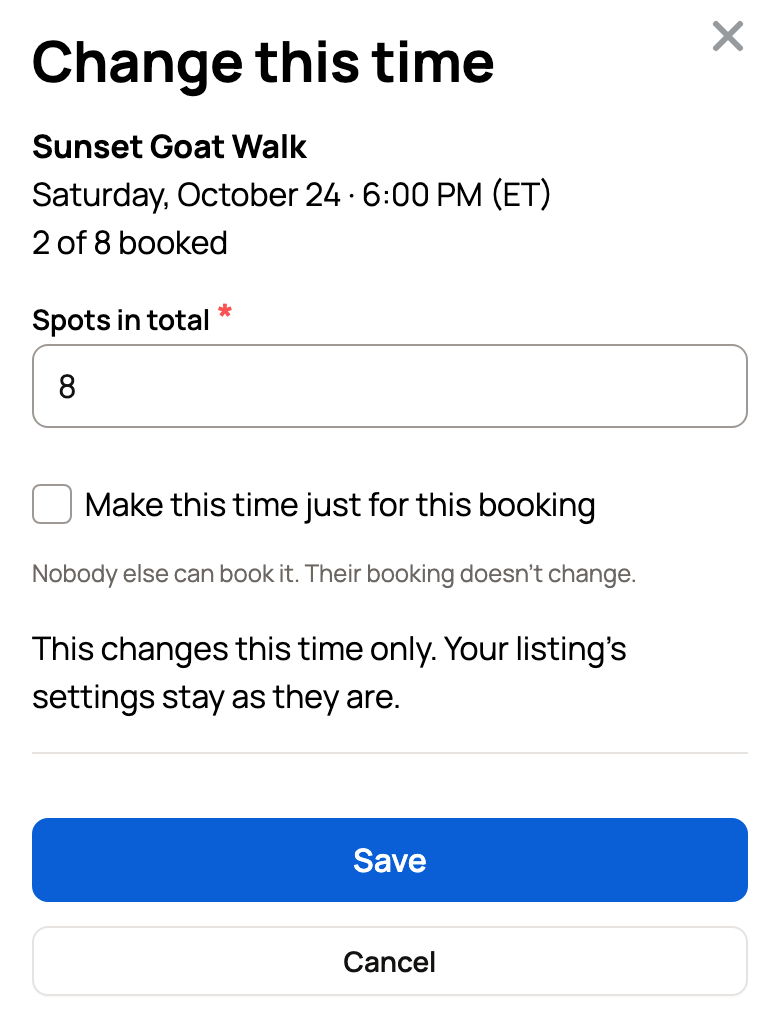
- Beside the count, such as "2 of 8 booked", select Change this time.
- Set Spots in total.
- If only one booking has this time, you can turn on Make this time just for this booking. Nobody else can book it, and their booking doesn't change.
- Select Save.
This changes that one time only. Your offering's settings stay as they are. If one booking already has the whole time, you can choose Open the remaining spots to other bookings instead.
Some times, such as arrival windows or times limited by vehicles or animals, show Add a spot and Remove a spot instead.
Run a small session anyway
If an offering needs a minimum number of guests, a time that is short shows a note. It reads something like "Needs 2 more by Oct 22, 5:00 PM". Select Run it anyway, then select it again to confirm. Everyone booked is told it's on.
If you do nothing and the time doesn't fill by then, Creatures cancels it, refunds what guests paid online and marks it Didn't fill.
Move everyone to another time
Use this for weather, illness or anything that moves the whole group.
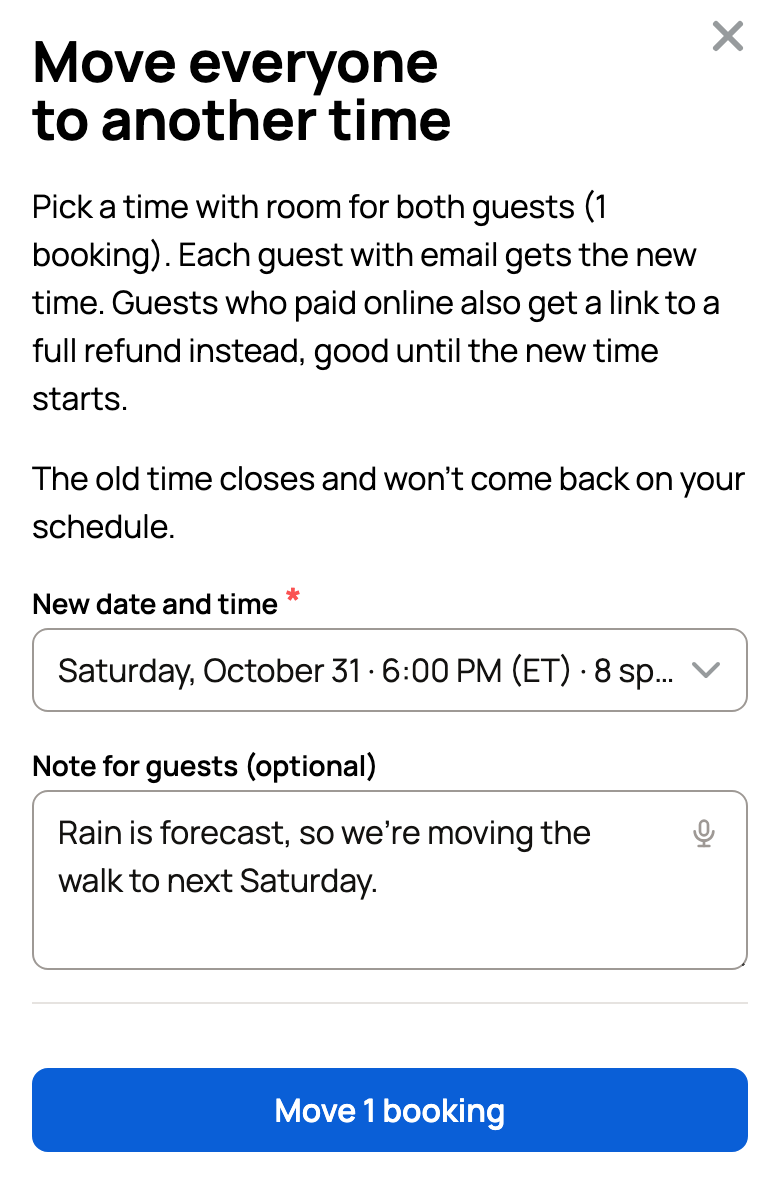
- Select Move everyone on the time.
- Choose the New date and time. Only times with room for everyone are listed.
- Add a Note for guests (optional), such as why you're moving.
- Select the move button. It shows how many bookings will move, such as Move 1 booking.
The old time closes and won't come back on your schedule. Each guest with an email gets the new time. Guests who paid online also get a link to a full refund, good until the new time starts.
Change one booking
- Reschedule (or Move visit for a visit by request) shows open times. Pick one and select Confirm new time.
- Add guests adds people to a booking without charging them online. Collect the difference at the visit.
Cancel a booking or a time
For one booking or a whole time, the button asks you to confirm. Select it again within a few seconds.
- One booking: Cancel & refund, or Cancel booking when nothing was paid online.
- A whole time: Cancel session & refund, or Cancel session when nothing was paid online. The button shows how many bookings it cancels.
- A series (several dates sold together): Cancel this date lets you add a replacement date or give each guest a make-up credit. The credit is good for another date until 90 days after the cancelled one. Cancel series & refund ends the remaining dates and refunds every enrollment in full.
Cancelling a booking, a whole session or the whole series refunds everything guests paid online, including the booking fee. Cancelling one date within a series instead provides a replacement date or make-up credit without refunding the enrollment payment. Money you collected at the visit is yours to return. Phone bookings can't get an automatic make-up credit, so contact those guests yourself.
What guests see
Guests see the new time on their booking page. After you move everyone, a guest who paid online can select Get a full refund until the new time starts.
Related information
- Taking bookings: requests, guest lists, and payments at the visit
- Your booking: ticket, messages, changes, and cancellations
- Your booking team, vehicles, animals, and time off
Updated on: 29/10/2026
Thank you!