
Turn a paper waiver into an online signing form
Import your waiver file and Creatures brings over the words, then points out every blank line, check box and signature line. You choose how guests complete each one, then preview the form before you save.
Before you start
- You need a verified identity and phone number. See Verifying your identity.
- Use a PDF, Word (.docx), JPEG, PNG or WebP file up to 20 MB. A PDF can have up to 20 pages.
- Scans and photos are read with AI and can take a few minutes. You can keep working while you wait.
- You can import up to 10 files an hour. You can always paste the text instead.
Import the document
- Open Dashboard, then Tools, then Agreements, and select New Template.
- Set Template owner to the account that hosts your farm visits or other experiences.
- Enter a Title, and type "Waiver" as the Label.
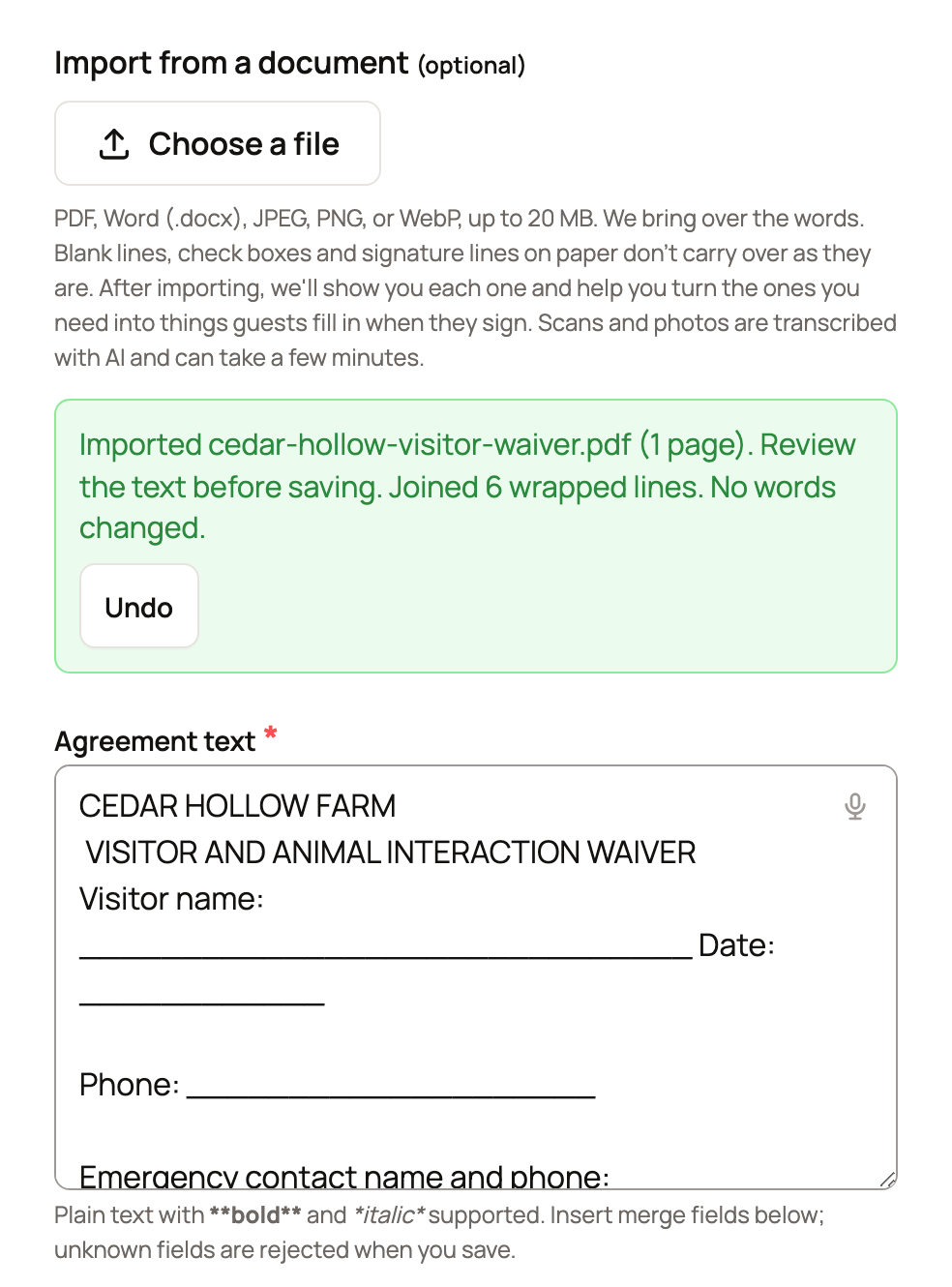
- Under Import from a document, select Choose a file and pick your waiver.
When the text is in, a green note says how many pages were imported. Read the text against your paper copy. Undo takes the import back out.
Find the parts guests fill in
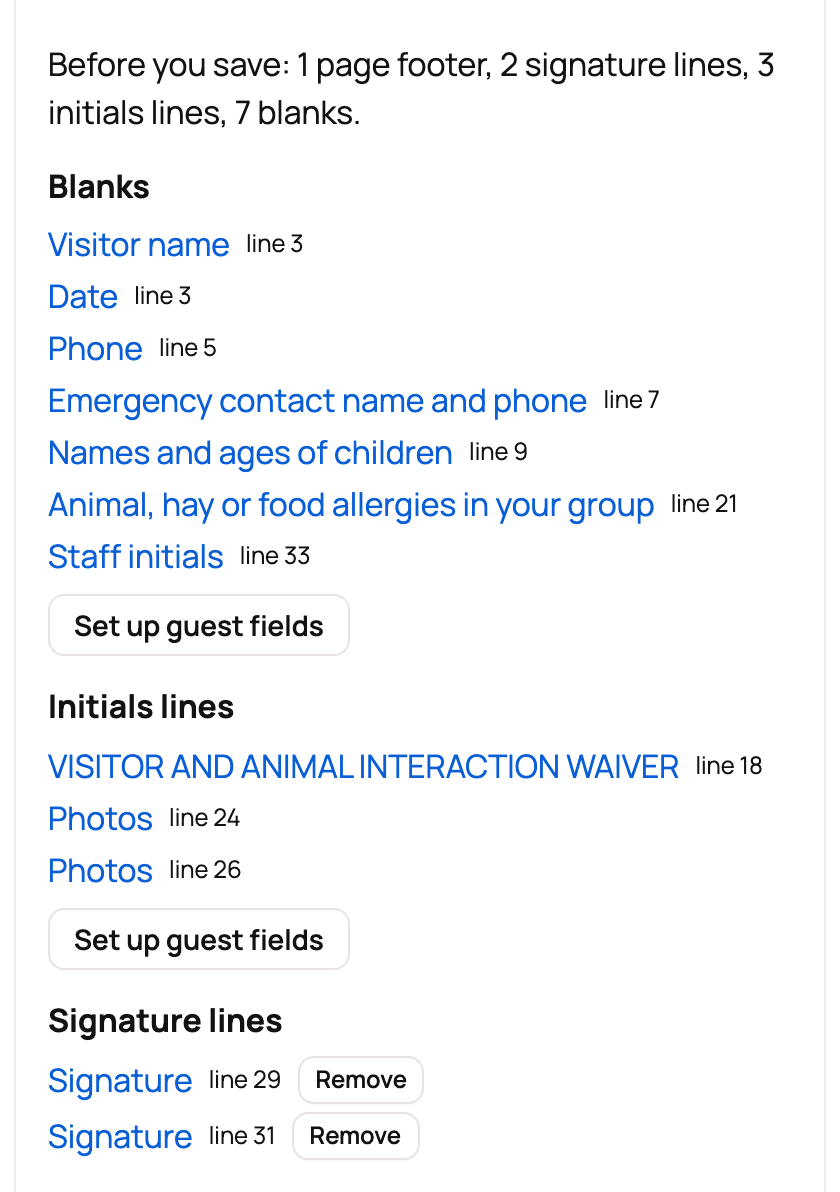
Open Waiver tools if it's folded, then select Check for fillable parts. Creatures lists the blanks, initials lines, signature lines and page footers it found. Select any item to jump to it in the text.
- Signature lines: select Remove. Guests sign online below the waiver, so a printed line isn't needed.
- Page footers: select Remove all page footers to drop printed footer lines, like page numbers.
Choose how guests complete each part
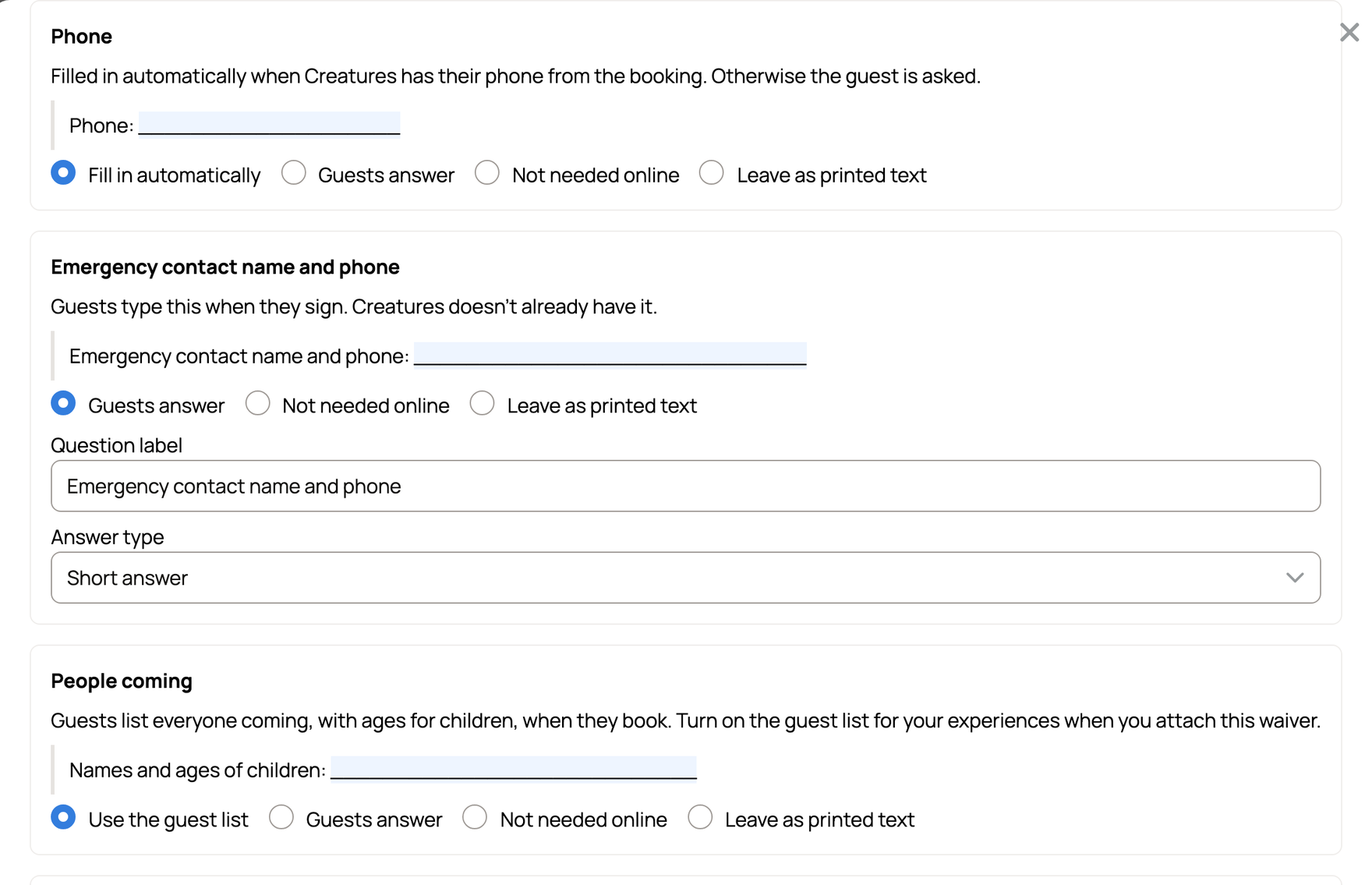
Select Set up guest fields. The Set up your waiver panel suggests a choice for each part:
- Fill in automatically: Creatures adds the guest's name, the date they sign, or their phone number from the booking.
- Guests answer: guests answer it as a question when they sign. You can edit the Question label and Answer type.
- Use the guest list: for lines like "Names and ages of children". Guests list everyone coming when they book.
- Not needed online: for lines only your staff or a second adult would fill in. They're taken out of the online form.
- Leave as printed text: keeps the line just as it's written.
Review every suggestion before you select Apply. The suggestions are a starting point, and some lines are easy to misread. For example, check that staff-only lines are Not needed online and that guests aren't asked for a typed signature. After you apply, select See every change to check the result, or Undo to go back.
The parts now shown in curly brackets in your text are what guests fill in. Guests never see the brackets.
To ask more questions, choose a saved set under Questions guests answer when signing, or select Create question set. Place each question in the text where it belongs. Questions you don't place show up before the waiver.
Preview and save
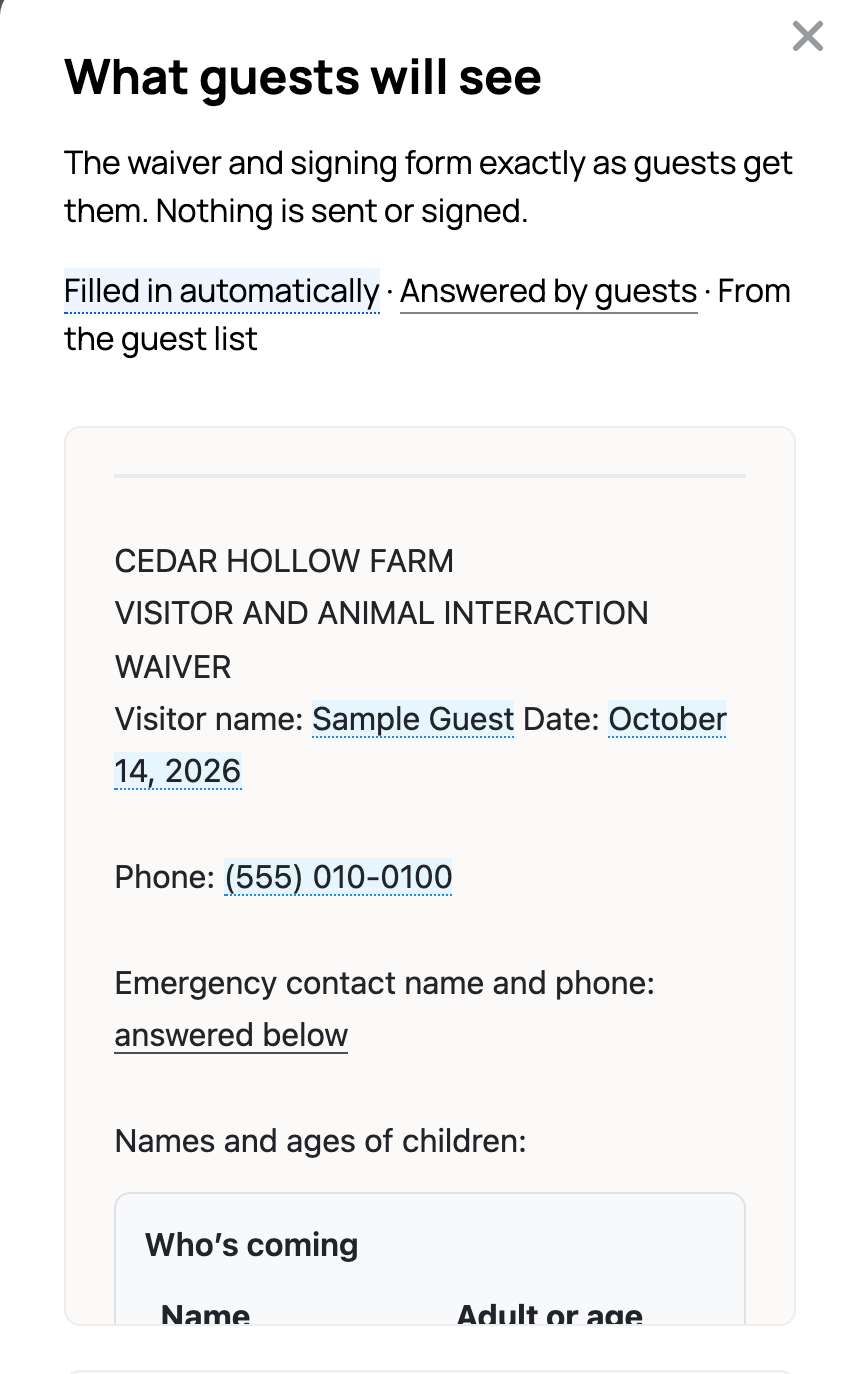
Select Preview as a guest to open What guests will see. It shows the waiver and signing form just as guests get them, and nothing is sent or signed. Highlights show what's filled in automatically, what guests answer, and what comes from the guest list. Example of a signed copy shows the finished copy.
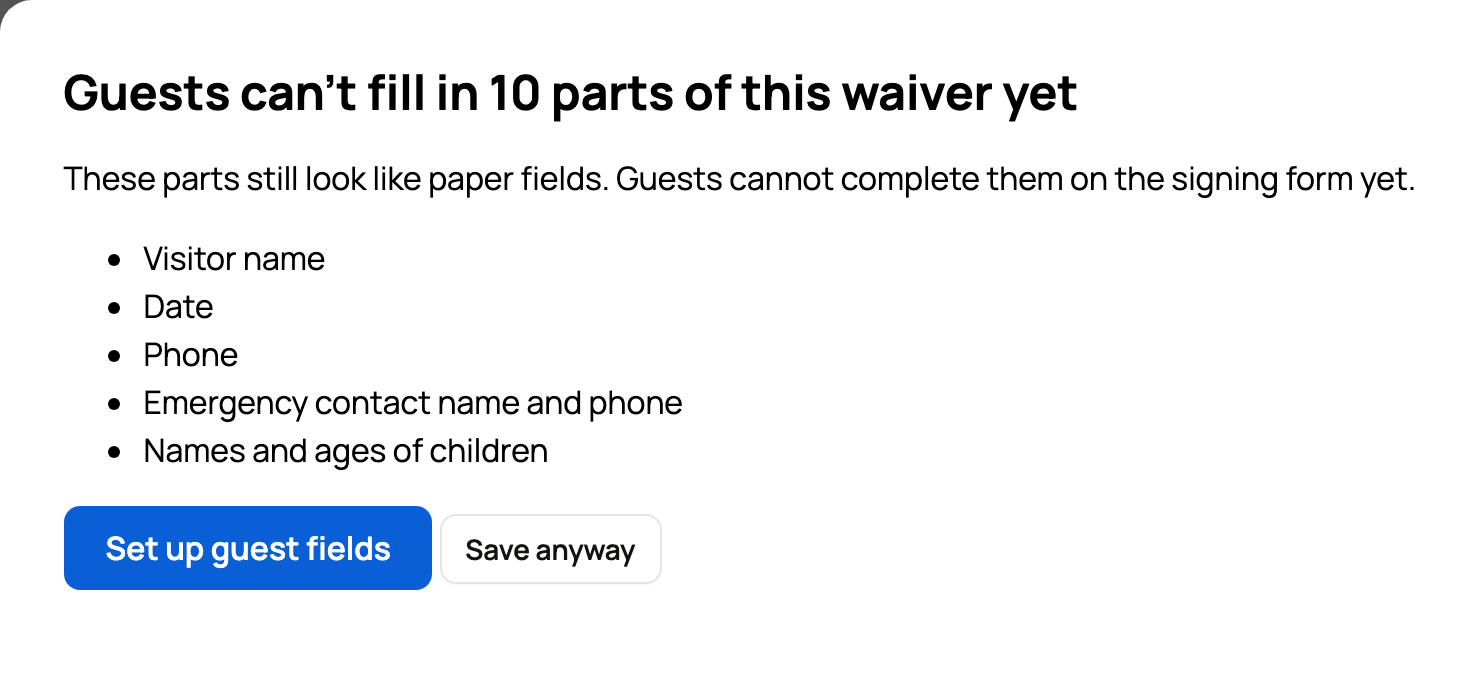
When it looks right, select Create Template. If some parts still look like paper fields, Creatures warns you first. Select Set up guest fields to finish them, or Save anyway to save the text as it is.
What happens next
Your waiver is ready to use. If the account hosts experiences, Creatures opens Use for experiences right after you save. From there, see Require a waiver for your experiences. To let drop-in visitors sign, see Walk-in waiver links and QR signs.
Related information
- Create and manage agreement templates
- Require a waiver for your experiences
- Walk-in waiver links and QR signs
- How agreements and waivers work
Updated on: 29/10/2026
Thank you!