
Require a signed agreement before an invoice is paid
When you create a private sale invoice, turn on Optional: require a signed agreement and choose your template. Your buyer signs it on the invoice page, and the payment button only appears after they sign.
Before you start
- You need to be set up to send private sale invoices. That means a verified identity, a verified phone and a payout account. See Send and get paid on a private invoice.
- You need an agreement template, such as your sale contract. It must belong to the same account as the invoice. Invoices you send as yourself use your personal templates. Invoices you send for an organization use that organization's templates. See Create and manage agreement templates.
The invoice fills in the template for you. It adds your name, the buyer's name and email, the date, the sale price and what you're selling. It also takes the animal's species and breed from its profile.
If the template uses a detail the invoice can't fill in, the invoice won't be created. That happens when the breed is missing from the animal's profile, or when the template names a second signer. Add the missing detail to the profile, or choose another template.
Turn it on
- Open Finance, select Accountant tools, then open Setup and other tools > Private sale invoices. Select Create invoice if the list is empty, or New invoice if it already has invoices.
- Choose what you're selling, the buyer and the price as usual.
- Select Optional: require a signed agreement to turn it on.
- Under Agreement template, choose your template.
- Select Send invoice.

No templates for that account yet? Open How it works in the same spot and select Create agreement template. When you save it, Creatures brings you back to the invoice. Turn on Optional: require a signed agreement and choose your new template there.
What your buyer sees
Your buyer gets the usual invoice email. There is no separate signing email. When they open the invoice, it says "One more step before payment." with a Sign agreement button.
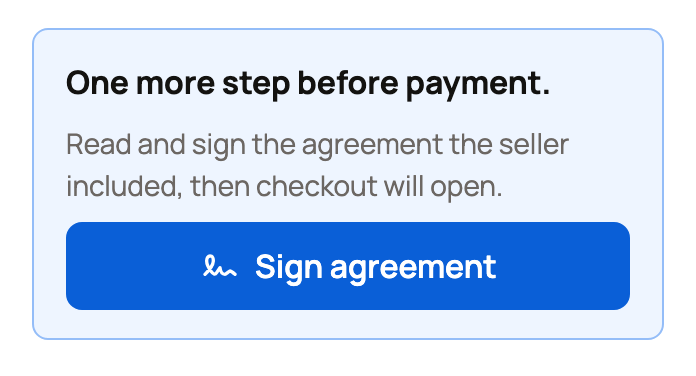
They read and sign on their phone or computer. Then they select Continue to payment and pay. Your buyer is the only signer. See Sign an agreement or waiver someone sent you.
Keep track of it
Open the invoice from your invoice list. Under Records, the Agreement row says Waiting for signature until your buyer signs. Then it says Signed.

The agreement also appears under Issued agreements on your Agreements page, addressed to your buyer. Creatures lets you know when they sign. After they pay and the animal moves to them, the signed copy is linked to that ownership change on the animal's History tab. See Find and download a signed agreement.
If something looks wrong
- Your buyer can't find the invoice. Select Resend link on the invoice. The signing step is on the invoice page.
- Your buyer declined. Creatures lets you know, and the agreement shows Voided under Issued agreements. Open it to see the reason they gave. The invoice can't be paid as it is. Agree on the changes, void the invoice, and send a new one.
- You chose the wrong template, or the terms changed. Before payment starts, void the invoice. If its agreement is still waiting for signature, open it under Issued agreements and select Void, so the old copy can't be signed. A completed agreement cannot be voided here and stays in your records. Send a new invoice with the right template.
Related information
- Send and get paid on a private invoice
- Create and manage agreement templates
- Find and download a signed agreement
- Transferring an animal to its new owner
Updated on: 29/10/2026
Thank you!