
Send and get paid on a private invoice
A private invoice lets you bill a buyer for a sale you arranged yourself. After payment clears, Creatures records the sale, creates a bill of sale and adds your proceeds to your Creatures Wallet.
Before you start
You need a verified identity, a verified phone number and a connected payout account, yours or your organization's. If a step is missing, the invoice flow asks you to finish verification.
Start the invoice
Open the animal's profile, select More animal actions beside Edit profile, then Private sale invoice.
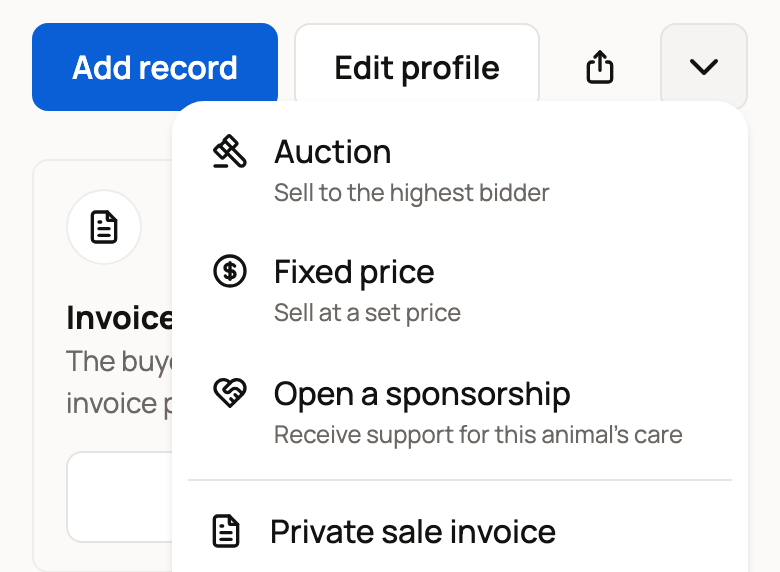
Selling a group or genetic material? Select Invoices at the top of that form to open your Private sale invoices list, then New invoice. In Finance, Sales and private invoices opens your Sales, where you can offer several animals together for one price.
If asked, confirm the records' currency and select Create records and continue before filling in the invoice.
Fill in the sale
- Choose Individual animals, A group or Genetic material, then choose what you are selling. One invoice can include several animals.
- Under Buyer, search for an existing member. For someone new, choose Invite by email or Invite by text and enter their details.
- Use Also send a copy to (optional) only if another person needs the invoice.
- Leave Customer record (optional) empty unless you need to link this sale to an existing customer record.
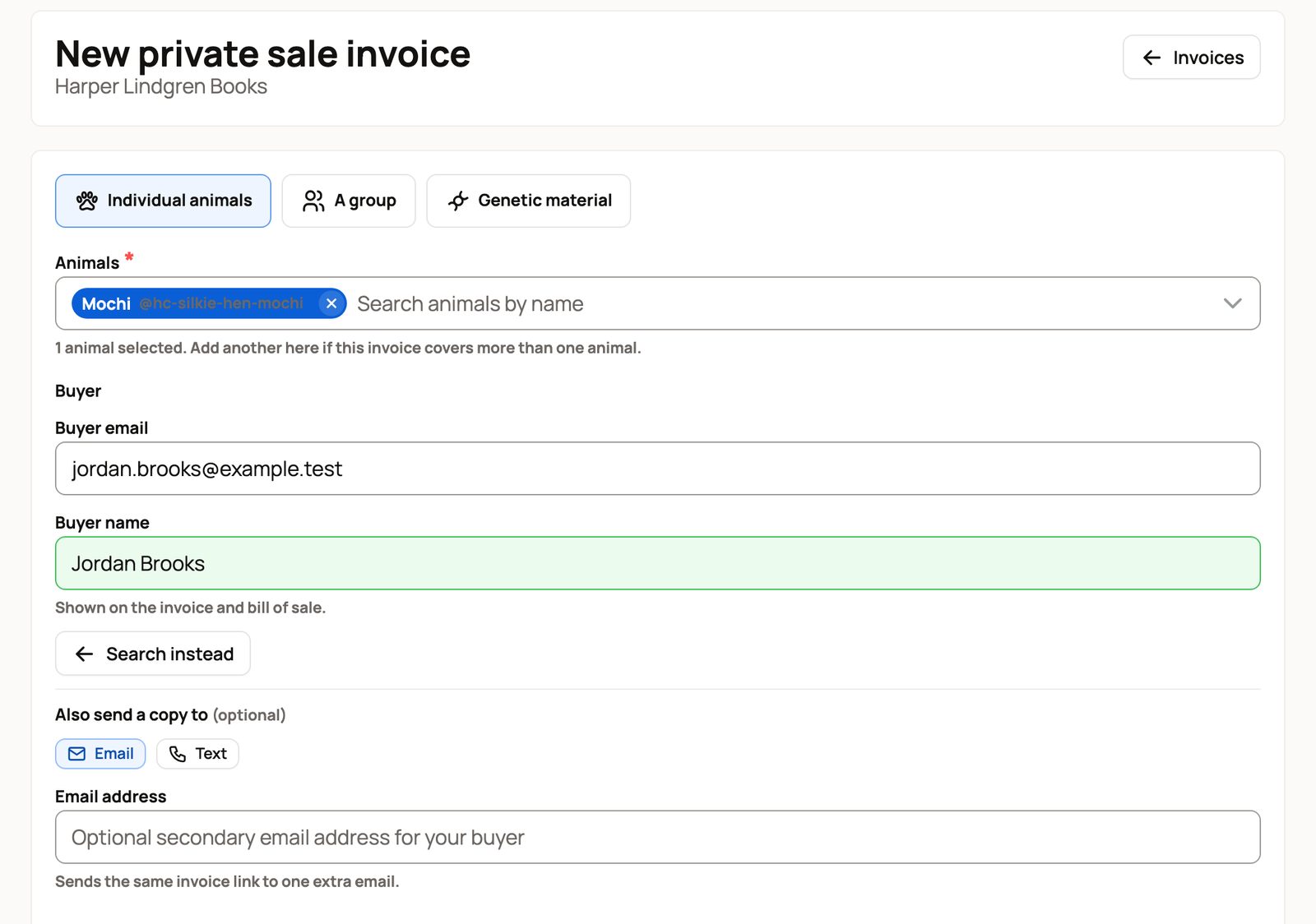
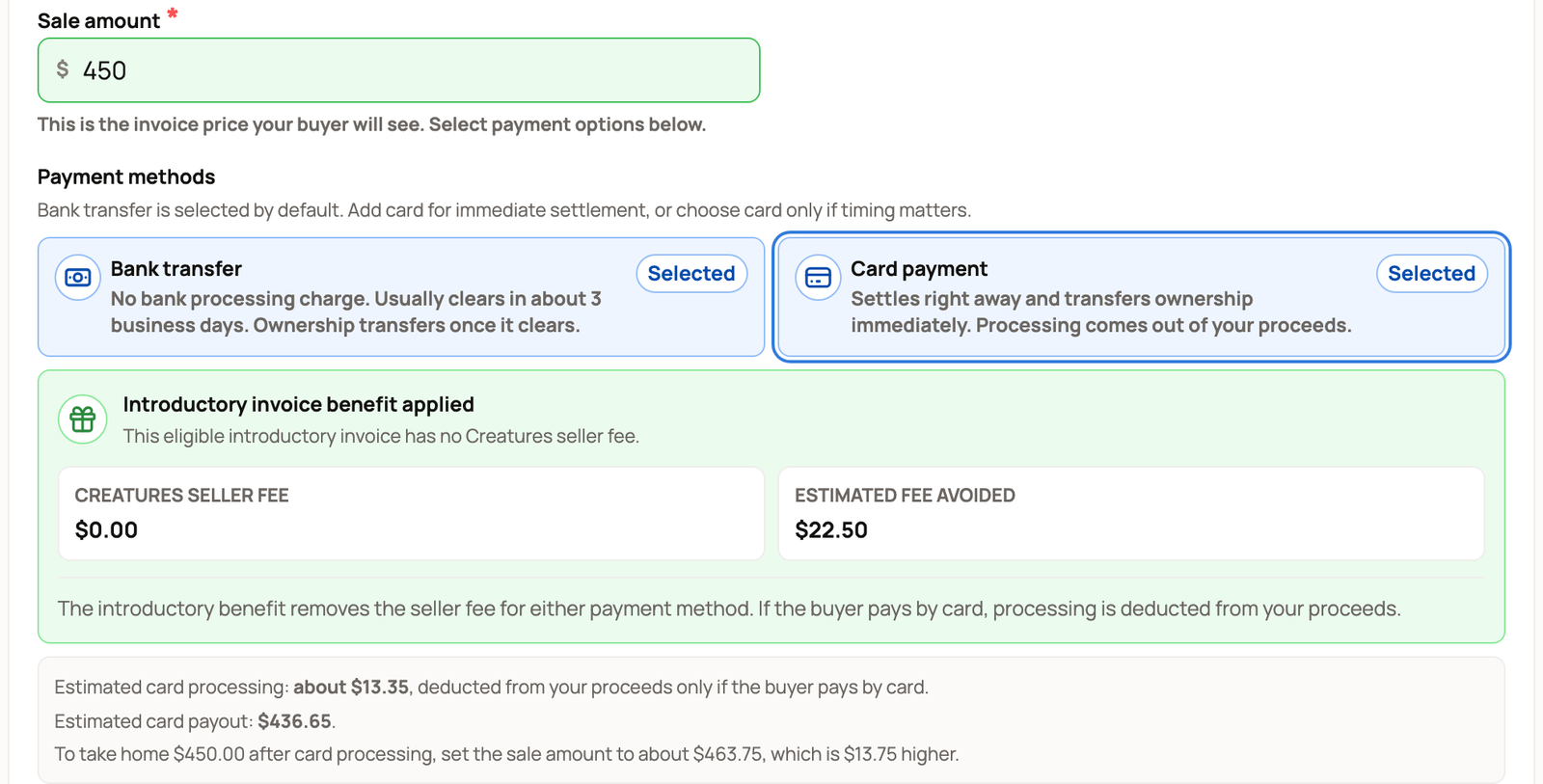
- Enter the full Sale amount, then choose Bank transfer, Card payment or both under Payment methods.
Check the fees before sending
The form shows the applicable Creatures seller fee and estimated proceeds. Pro removes the Creatures seller fee on private invoices. An eligible introductory invoice can also have that seller fee removed; check the benefit shown on your form.
If the buyer pays by card, card processing is deducted from your proceeds. Bank transfer has no seller card-processing deduction. The form's card amount is an estimate; the settled deduction uses the payment facts.
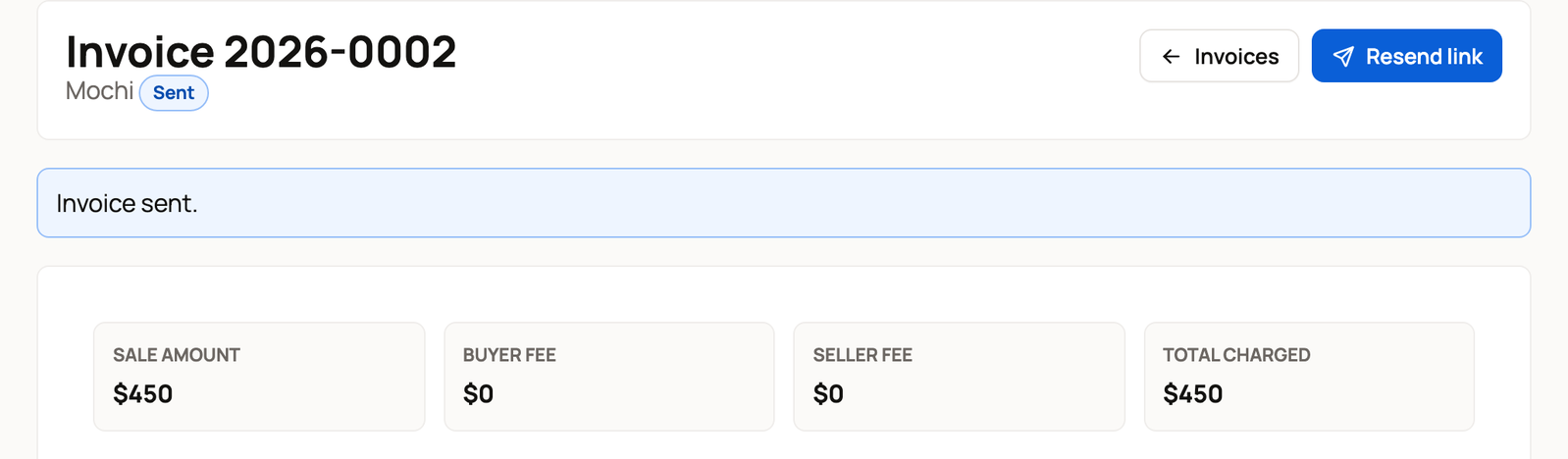
A buyer service fee applies when the buyer’s recent Creatures activity links the sale to your listing or reservation. Check the saved invoice's Buyer fee and total rather than assuming the buyer pays only your sale amount. A credited reservation deposit reduces the balance due.
Save or send
Save as draft keeps the invoice without sending it. Send invoice sends the buyer a link. An existing member is notified in Creatures and by email; any text notice depends on their verified phone and notification settings.
Open the invoice to check its status and amounts. Resend link sends the link again. To cancel an unpaid invoice, use Void invoice, enter a reason if useful, then select Void.
What the buyer sees
The link opens Review and pay your invoice, with what is being sold, the seller, the amount due and the status. The buyer sees any buyer service fee and deposit credit. If an agreement is included, the buyer signs it before paying. Available payment choices are shown on the invoice.
After payment
Wait for Paid. A bank transfer can stay Processing while it clears and can still fail. Do not treat that status as cleared payment.
For an animal sale, payment transfers ownership, while care stays with the seller until pickup or delivery is confirmed. Check the invoice before handing over the animal. Your proceeds go to your Creatures Wallet.
If the animal had a listing, the paid invoice closes it. Visitors see the listing as Sold, with no price or buyer. You see Sold privately · View invoice, and you and the buyer see Waiting for pickup until the handoff.
Related information
Updated on: 05/11/2026
Thank you!