
Adding photos to your website
Photos on your website come from the Choose a photo panel, which shows the photos you already have in Creatures plus anything you upload. When you pick one, your website keeps its own cropped copy, so the original photo stays unchanged.
Choose a photo
Wherever the builder shows Add photo or Change photo, you open Choose a photo. Its tabs show your own photos:
- Profile: your profile picture and cover photo.
- Animals: photos from your animals. Choose View on an animal to see all of its photos.
- Site uploads: photos you uploaded for your website before.
- Posts and Listings: photos from your posts and sale listings.
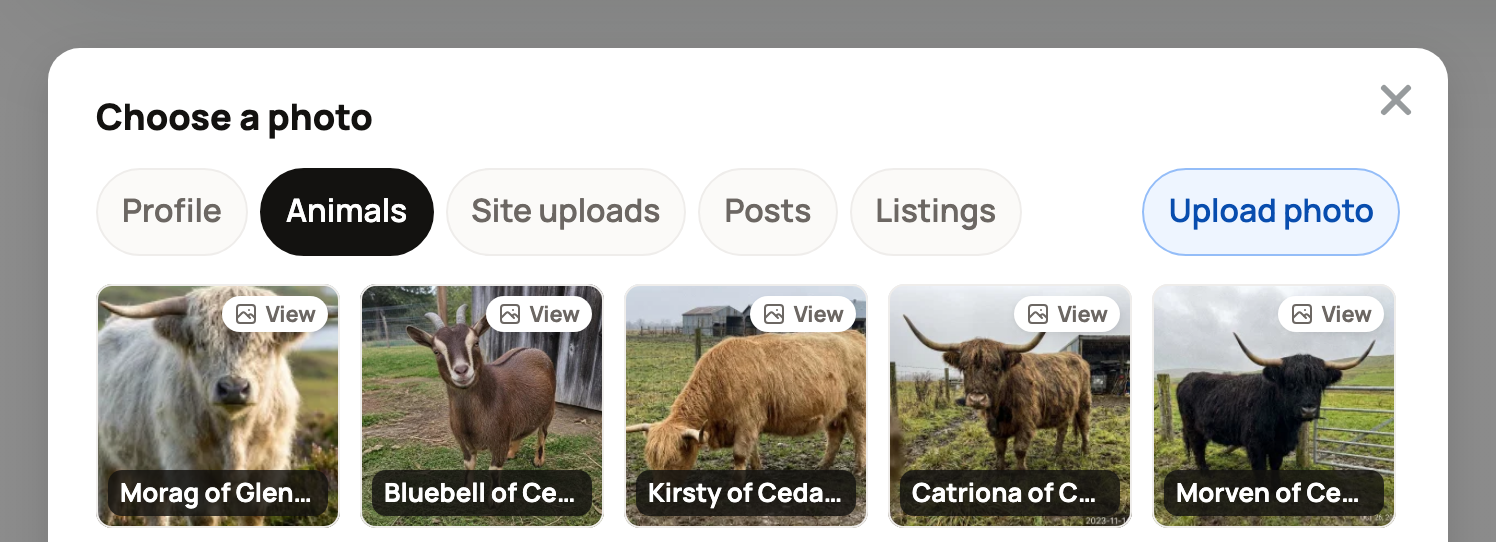
Choose Upload photo to add a new one from your device. After you pick a photo, you can crop it to fit the space. Where a spot takes several photos, the panel is called Choose photos. Pick each one, use Adjust to recrop, then choose Apply (the button shows how many photos you picked).
Where photos go
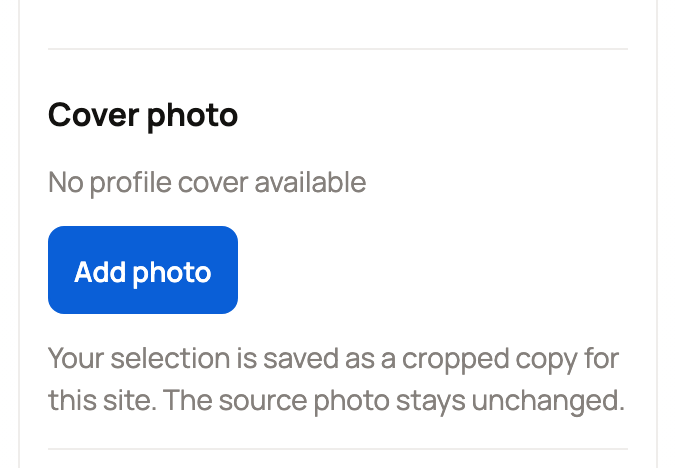
- Section photos: in Sections, choose a section such as Big welcome photo to open its settings. Use Add photo or Change photo in its photo area. For the welcome photo this is called Cover photo. Remove photo leaves the space empty.
- Galleries: a Gallery section shows photos from your animal, group and for sale records. Use Choose photos to pick which ones show, or Add a photo gallery to upload a separate set just for your website.
- Pages, posts and your story: add an Image or Gallery block. A post can also have a Featured image, shown on blog cards and when the post is shared.
- Favicon: the small icon in a browser tab is set in Design. See Designing your website: templates, colors, and Design with AI.
Give an animal a website photo
Animal cards on your website use each animal's profile photo. To use a different photo on your website only:
- In the preview, make sure Editing is selected, then choose the animal's photo.
- Choose Add photo or Change photo, and pick a photo.
- To go back to the original, choose Use profile photo.
The new photo is used for that animal everywhere on your website. The animal's profile photo in Creatures stays the same.
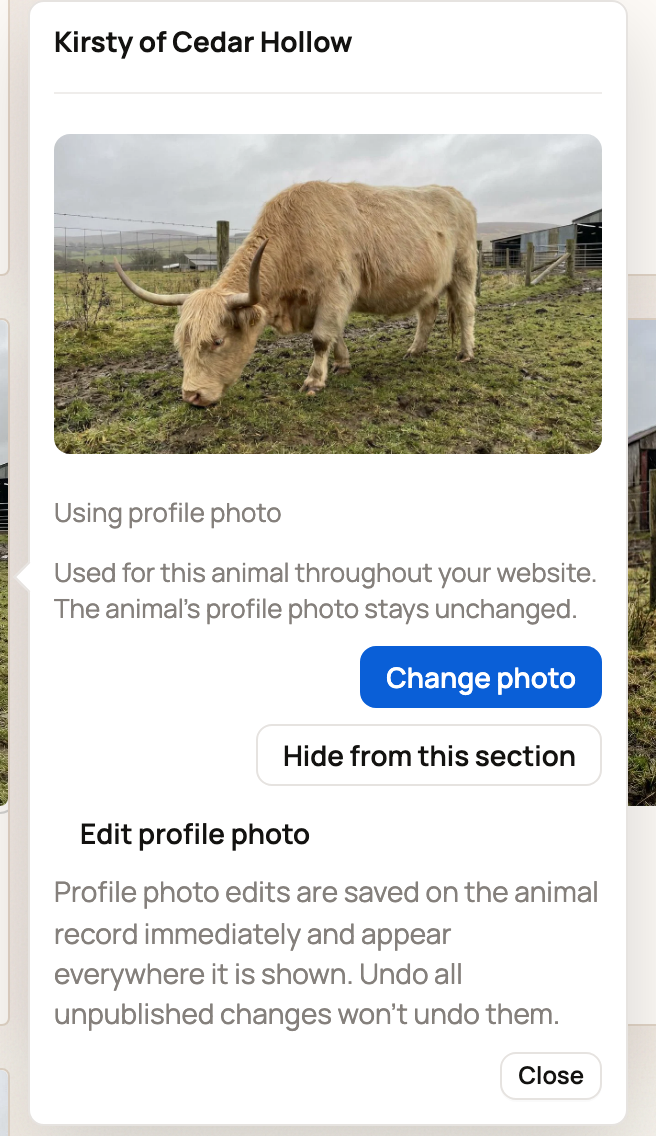
Edit profile photo in the same box is different. It changes the photo on the animal's profile right away, everywhere in Creatures. Undoing your website changes won't bring the old photo back.
Good to know
- You can only use your own photos. The panel shows photos from your account and from any organization you own or co-own.
- Removing a photo from your website doesn't delete it from Creatures.
- New and changed photos wait in your draft. They go live when you choose Publish changes. See Publishing, updating, and taking your website offline.
Related information
- Adding and arranging sections on your website
- Designing your website: templates, colors, and Design with AI
- Publishing, updating, and taking your website offline
Updated on: 29/10/2026
Thank you!