
Claiming your registry or club listing
Claiming connects a public registry, association, or club listing to the organization that manages it. Creatures reviews the claim before anything changes.
1. Find the listing
Open the registry directory, search for the organization, and select its name. Choose Claim on the listing.
If the organization is missing, return to the directory and select Suggest a registry. Send its name, website, country, organization type, and species. After Creatures adds the listing, you can claim it.
2. Choose how to prove the connection
The claim window offers email verification when the listing has an official website.
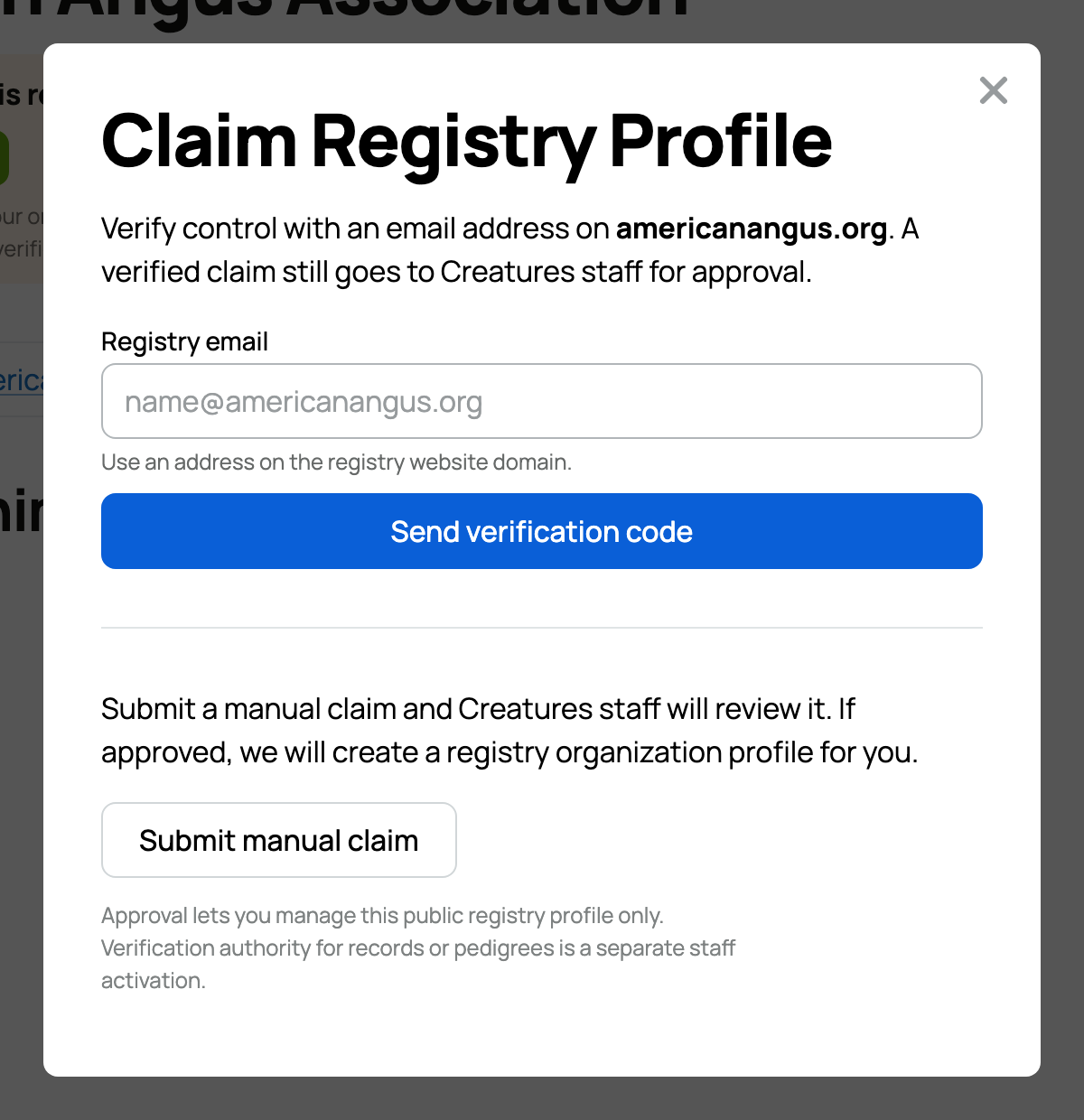
Enter an address on the registry's own website domain, such as registrar@willowdexter.org. Creatures sends a six-digit code to that address. A personal address from another provider will not work for this path.
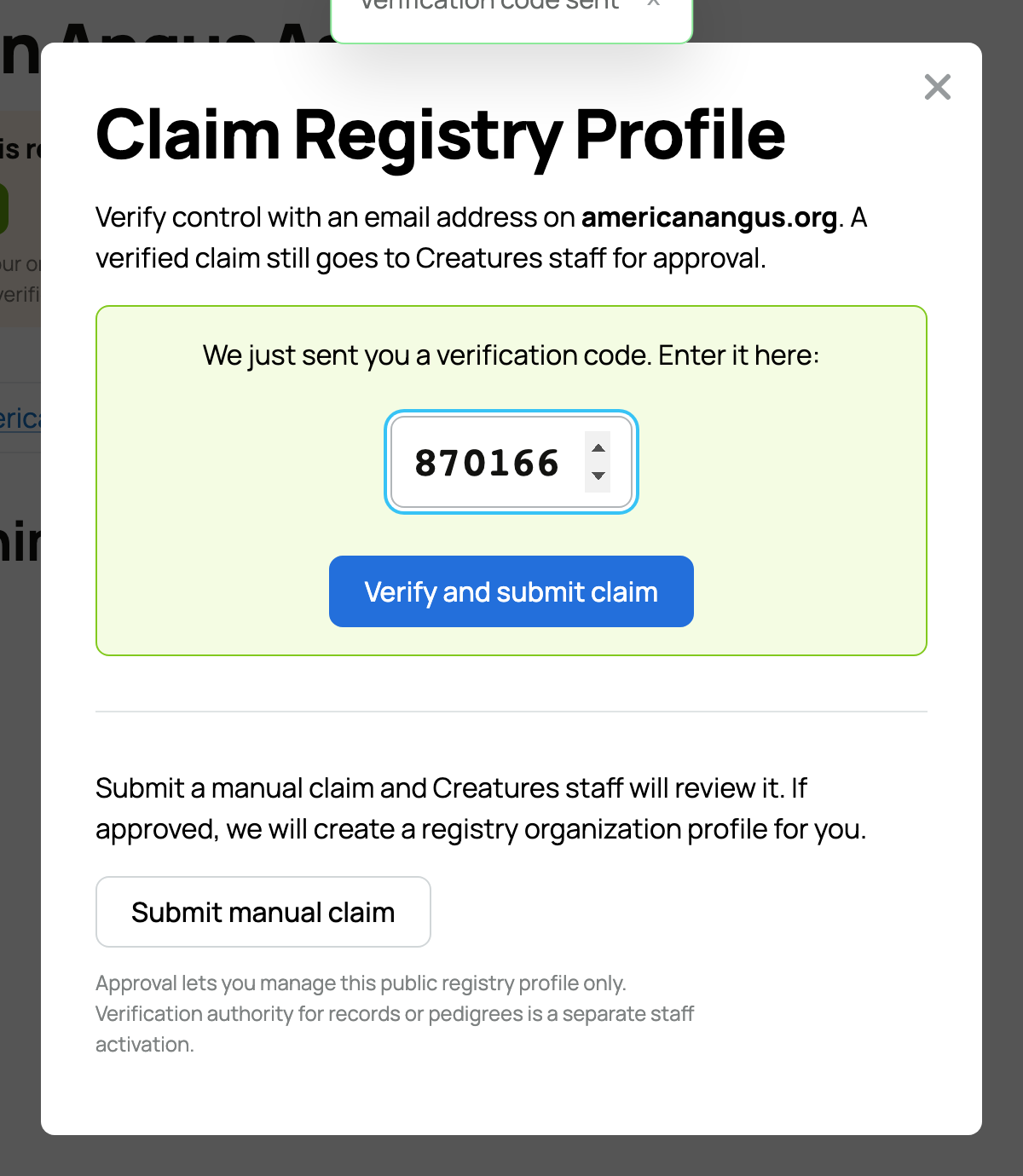
Enter the code and select Verify and submit claim. Verification shows that you can receive mail for the organization, but it does not approve the claim automatically. Creatures staff still review it.
If you cannot use the official domain, choose Submit manual claim. You can connect the request to an organization you already manage on Creatures. If you do not have one yet, Creatures can create the organization profile after approving the claim. Include enough accurate information for the team to confirm your role.
3. Wait for review
Do not submit several claims for the same listing. Creatures will review the evidence and contact you if more information is needed. The public listing remains unchanged while the claim is pending.
An approved claim lets the organization manage the public profile and use the Association Hub for memberships and dues, its directory, roster, and member badges. It does not let the organization approve registrations, verify pedigree, or issue registration numbers and certificates.
To add registration work, open Registry Setup after the claim is approved. The checklist explains what is already ready and gives you the next supported way to ask Creatures to activate additional authority.
Related information
Updated on: 29/09/2026
Thank you!