
Issuing printed registration certificates
A registry of record issues a digital registration certificate when an approved application finishes. If the registry offers printed copies, paid member orders appear in the Certificate Fulfillment queue.
Choose the design before issuing
Open the Association Hub and review Document design before approving the first applications. Add the logo, colors, registrar details, and optional signature, then choose a registration certificate family.
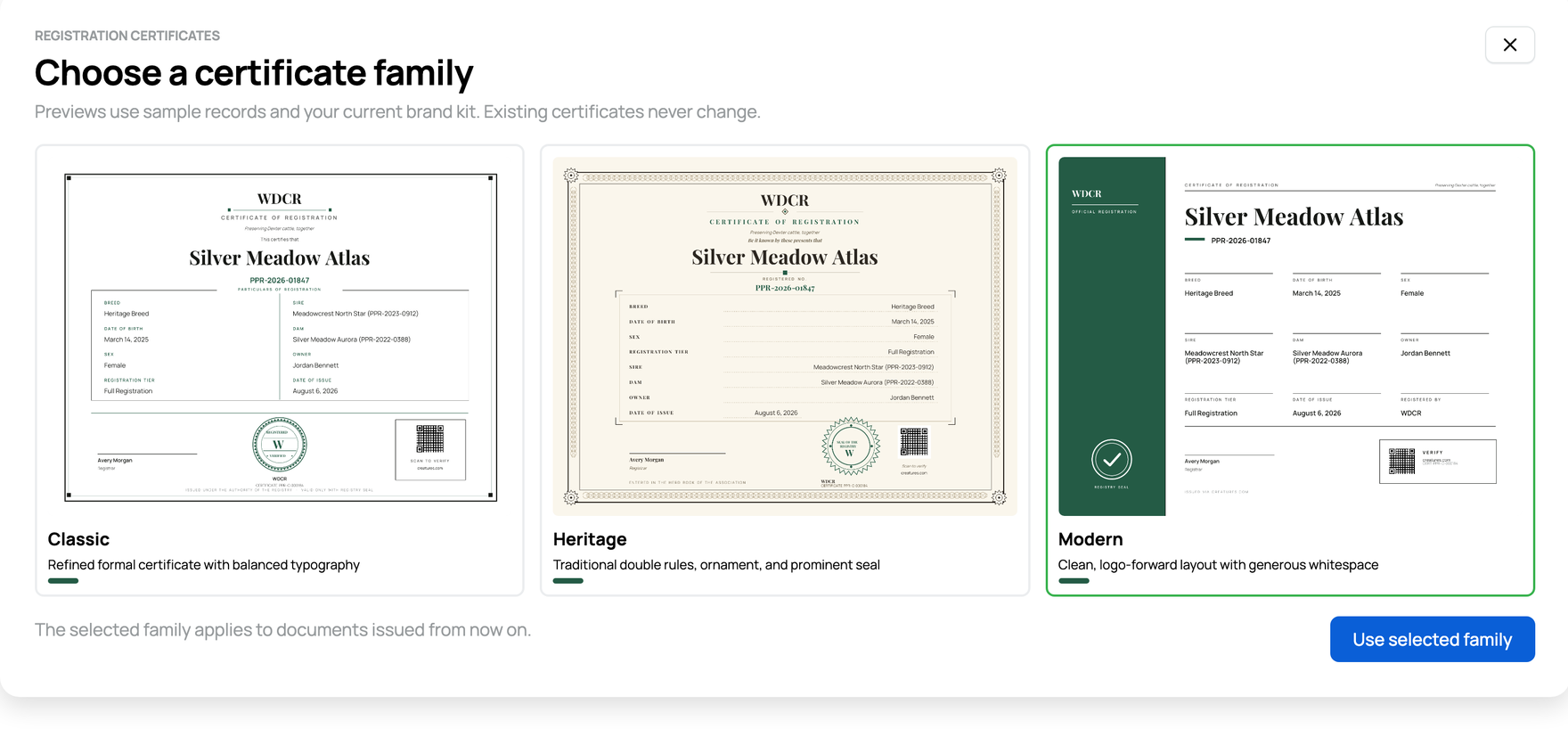
The chosen design applies to certificates issued after it is saved. An existing certificate keeps the design and wording it had when issued, even if the brand kit changes later.
Work the paid order queue
The fulfillment page summarizes orders ready to batch, waiting to be mailed, and waiting for payment. Tabs separate Ready, Printed, Mailed, Awaiting payment, Failed, Canceled, and All.
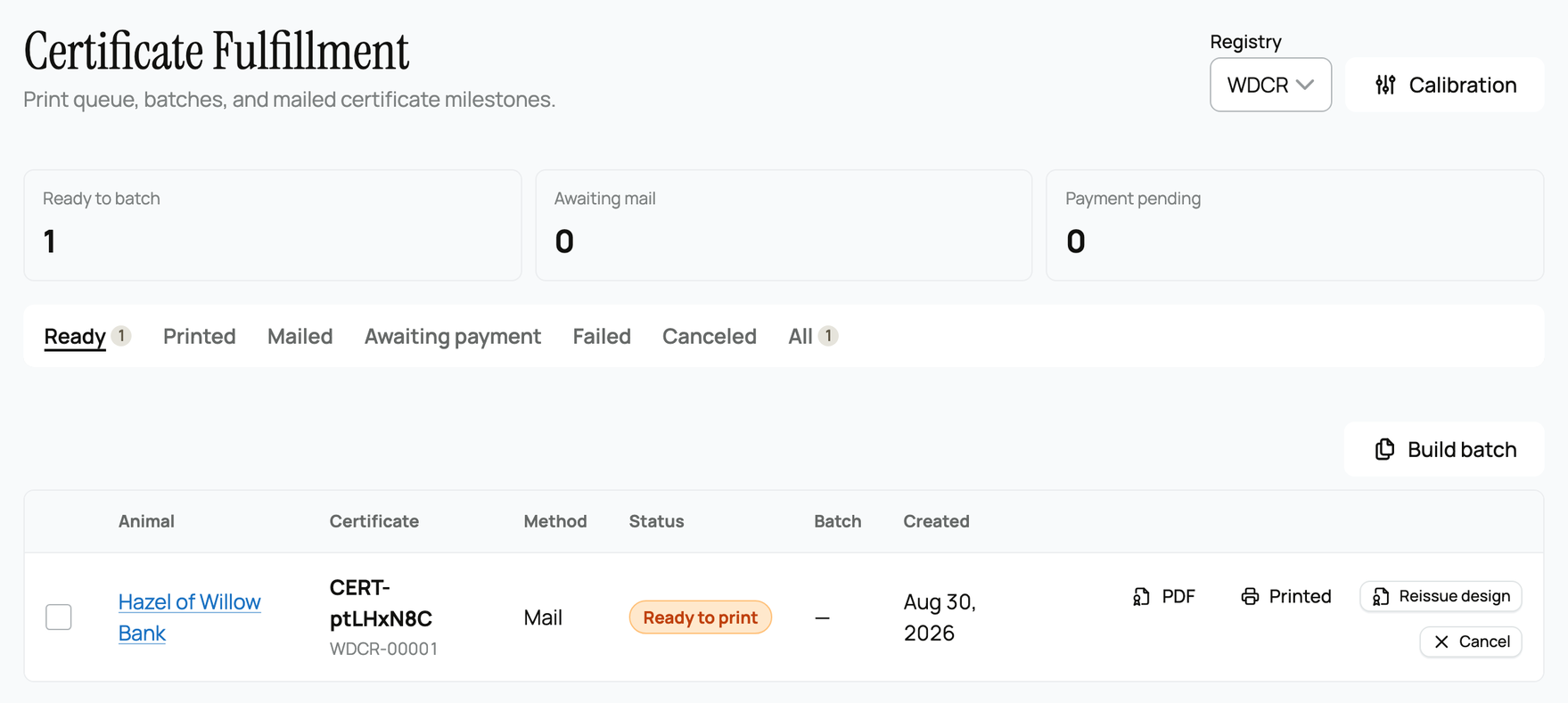
Each row shows the animal, certificate serial and registration number, delivery method, status, batch, and created date. Only paid orders become ready to print.
For a single order, open the PDF and select Printed after it is successfully printed. For several ready orders, select the rows and choose Build batch. A batch can contain up to 200 certificates. Download and print the batch, then record the next milestone.
- For Mail, select Mailed and add tracking when available.
- For Pickup, use the printed handoff action when the member collects it.
- Use Cancel only when the order should not be fulfilled. Add a short reason so the member and the next registrar understand what happened.
If a PDF fails, retry the render before changing the application or issuing another certificate. Creating a duplicate certificate can leave two official-looking records for the same registration.
Calibrate special paper carefully
The Calibration area is for a printer or preprinted stock that needs small horizontal or vertical adjustments. Create a named profile, choose the stock, enter the offsets in millimeters, and test it before making it the default. Calibration changes placement, not the certificate's facts or design family.
Related information
- The Association Hub: member directory and badges
- Reviewing registration applications
- Ordering a printed certificate for your animal
Updated on: 29/09/2026
Thank you!