
Accepting or declining an invitation to join a farm or organization
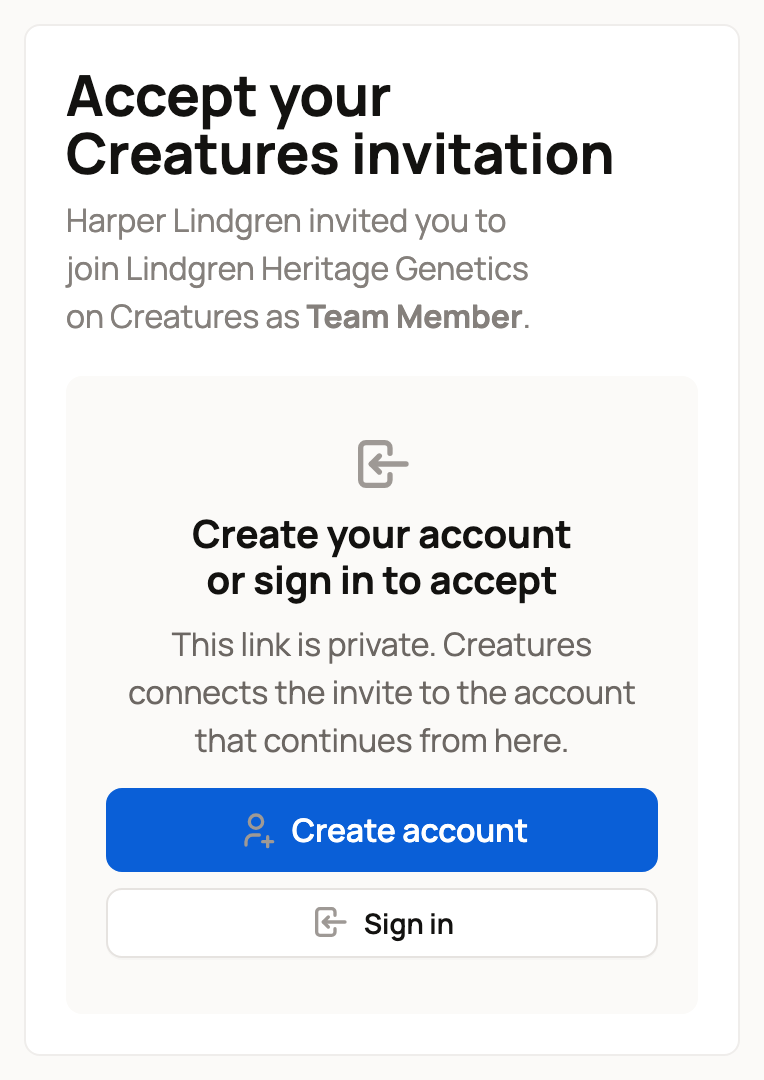
Open the link in the invitation email or text. The page Accept your Creatures invitation shows who invited you, to which farm or organization, and in which role. Select Accept invitation to join, or Decline to turn it down.
Nothing changes on your account until you accept. Each invitation link works for 7 days.
Open the invitation
The email has an Accept Invitation button. If you already use Creatures, you may also get a notification that opens the same page.
If you aren't signed in, the page asks you to Create your account or sign in to accept. Choose Create account or Sign in. Use the same email address or phone number the invitation was sent to. For a text invitation, that phone number must be verified on your account. Creatures brings you back to the invitation when you're done.
New to Creatures? See Creating your account and signing in.
Accept or decline
Once you're signed in, the page shows Accept as and your name, with the email address of the account it will connect to.
- Accept invitation: you join right away. Care Helpers land on Today. Team Members and co-owners land on the organization's animals, with a note such as Harper added you to Lindgren Heritage Genetics.
- Decline: no access is added. You land on Settings > My access, which says Your access was updated.
- Use a different account: signs you out and brings you back here, so you can sign in as the account the invitation was meant for.
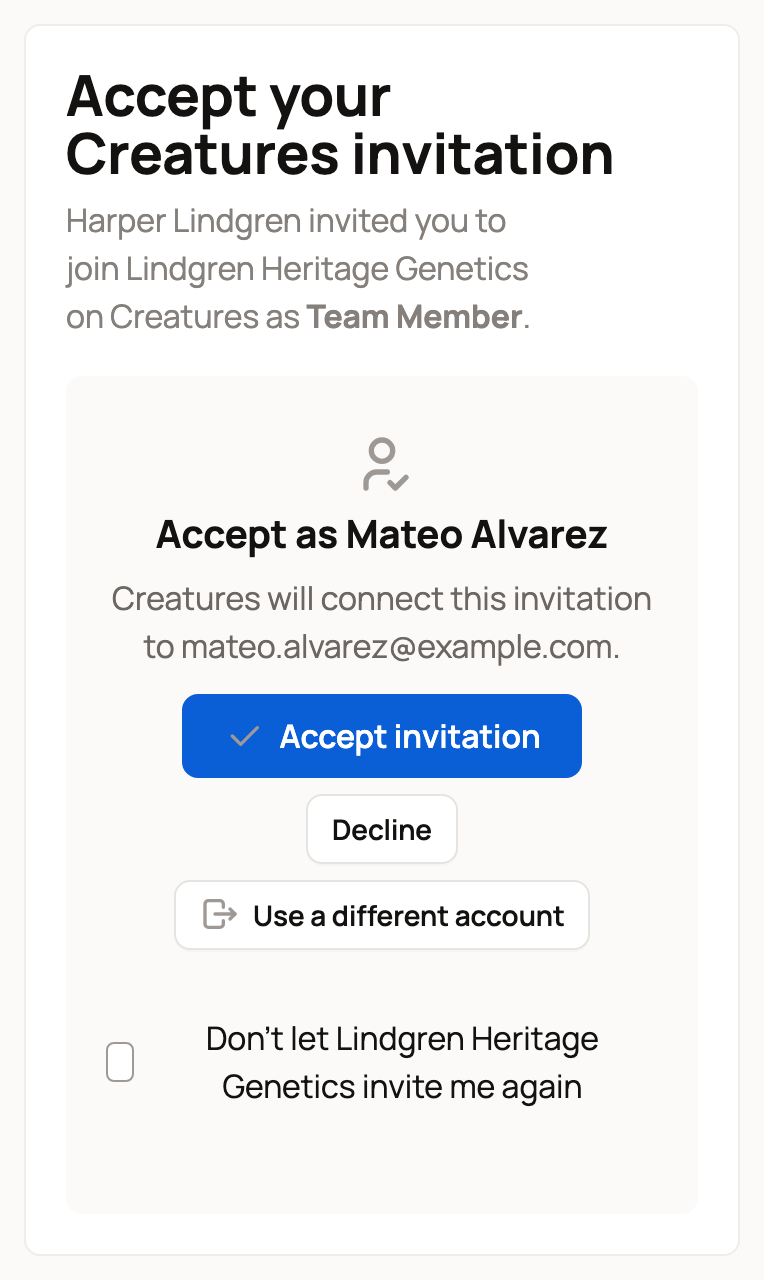
When you decline, that farm or organization can't invite you again for 90 days. To block their invitations until you choose to allow them again, check the box that names them, such as Don't let Lindgren Heritage Genetics invite me again, before you select Decline. You can lift either block later.
The people who manage the organization get a notification when you accept or decline.
What each role can do
The invitation names your role:
- A Team Member works with the organization's animals and records, such as adding health and care records and photos. The organization's profile, finances and team stay with the owners.
- A co-owner helps run the organization, including its profile, animals, records and finances. Co-owners can also add Team Members and Care Helpers.
- A Care Helper sees the organization's current Today checklist, marks available care done and leaves care notes. Care Helpers can't browse animal records or manage animals, groups, locations, care plans, the organization or finances.
If the page says something else
Sometimes the page shows Invitation status with one of these messages:
- This invitation expired: ask the person who invited you to send a new one.
- This invitation is no longer available: it was cancelled. Ask for a new one if you still need access.
- This invitation is for a different account: it went to another email or phone number. Select Use a different account and sign in with that one, or ask them to invite the account you're using.
- This invitation has already been accepted: someone already used this link. If it was you, select Open Creatures.
- This invitation is no longer valid: the person who invited you can no longer add people. Ask the organization to invite you again.
- You declined this invitation: no access was added.
Change your mind later
To leave an organization you joined, or to allow invitations again from one you declined, go to Settings > My access. See Seeing and leaving the accounts you can access.
Related information
- Seeing and leaving the accounts you can access
- Adding co-owners, team members and care helpers to your organization
- Get help with daily care: invite a care helper
- Creating your account and signing in
Updated on: 29/10/2026
Thank you!