
Adding co-owners, team members and care helpers to your organization
Already have an organization page? Open it, find Our Team and select the pencil. Choose Add someone, pick a Role, then find the person by name or invite them by email or text. Their access starts when they accept.
Owners and co-owners can add people. Only the owner can add a co-owner or change a co-owner's access.
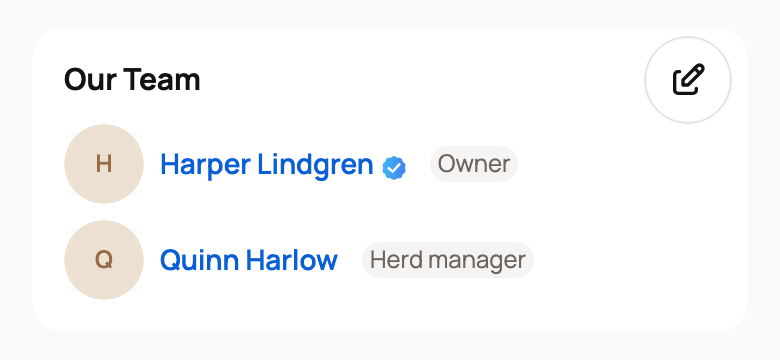
Find Our Team
- Select your picture at the top of any page, then your organization's name.
- Our Team is near the top of the organization's page, above the Posts and Animals tabs. It isn't shown while another tab, such as Animals, is open.
- Select the pencil beside Our Team. Only owners and co-owners see it.
Choose a role
The pencil opens People at and your organization's name, with a guide to each role:
- Organization co-owner: helps run the organization, including its animals, records, profile and finances, and can manage Team Members and Care Helpers. Choose it only for someone you trust with money and your public page, such as a business partner.
- Team Member: works across the organization's animals and records, without the owner controls. This fits most farm hands and family members.
- Care Helper: sees the care they can mark done on Today, such as feeding, and can leave care notes. They can't browse records or manage animals, the organization or finances. This fits a neighbor or sitter covering chores.
Invite someone
- Select Add someone.
- Pick a Role: Co-owner, Team or Care Helper.
- Then add them one of these ways:
- Already on Creatures: type their name under Member, pick them, and select Add. They also get a notification in Creatures.
- By email: select Invite by email, enter their Email and Name, and select Send invite.
- By text: select Invite by text, enter their Phone and Name, and check I have this person's consent to text them about this invitation. Then select Send invite. Texts go to US and Canadian numbers only.
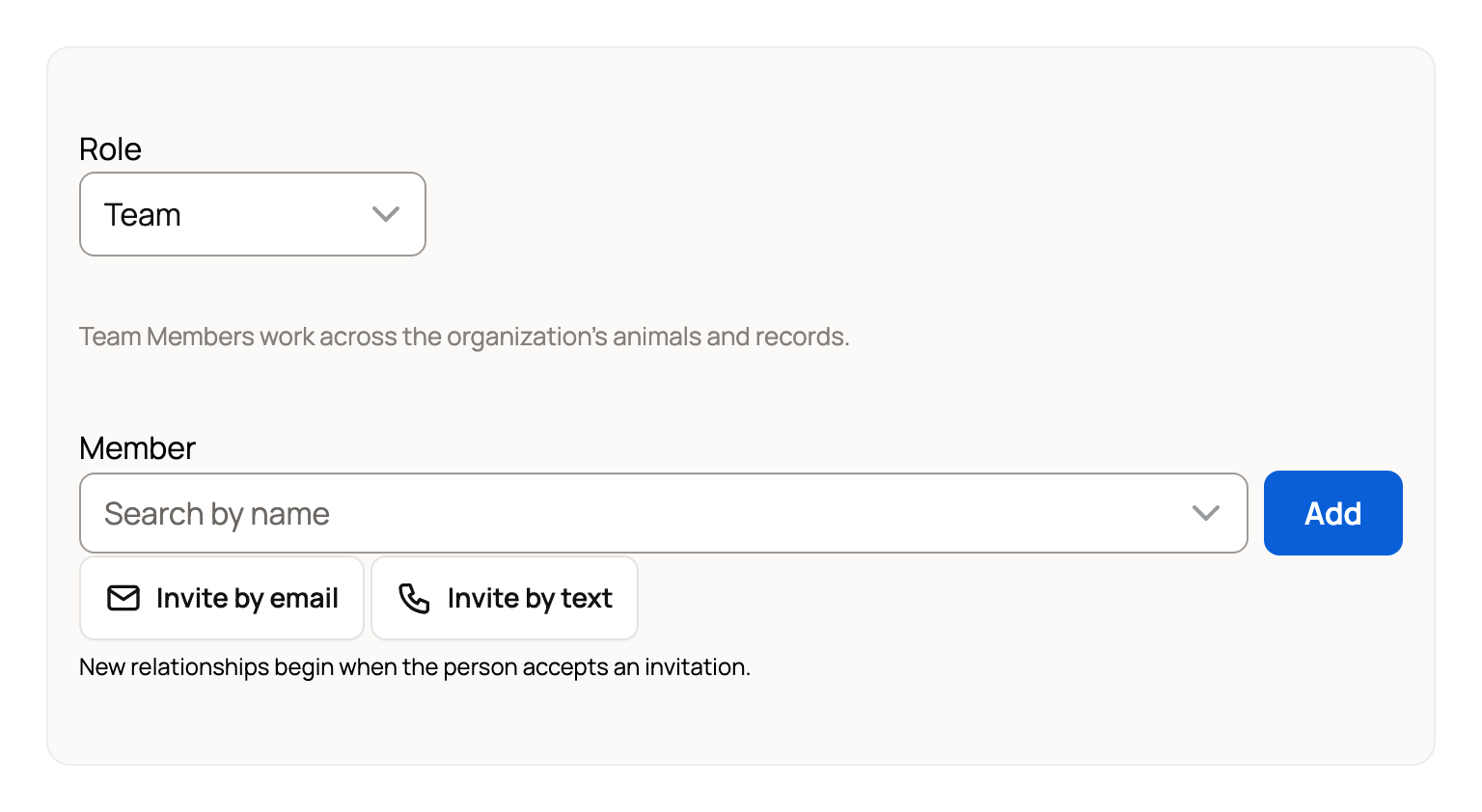
If you pick Care Helper, you may also see Care they can help with, where you choose which care they'll see. See Get help with daily care: invite a care helper.
What the person you invite sees
They open the link in the email, text or notification, which shows Accept your Creatures invitation with your organization and their role, and select Accept invitation. If they aren't signed in, they create an account or sign in with the email address or phone number you invited.
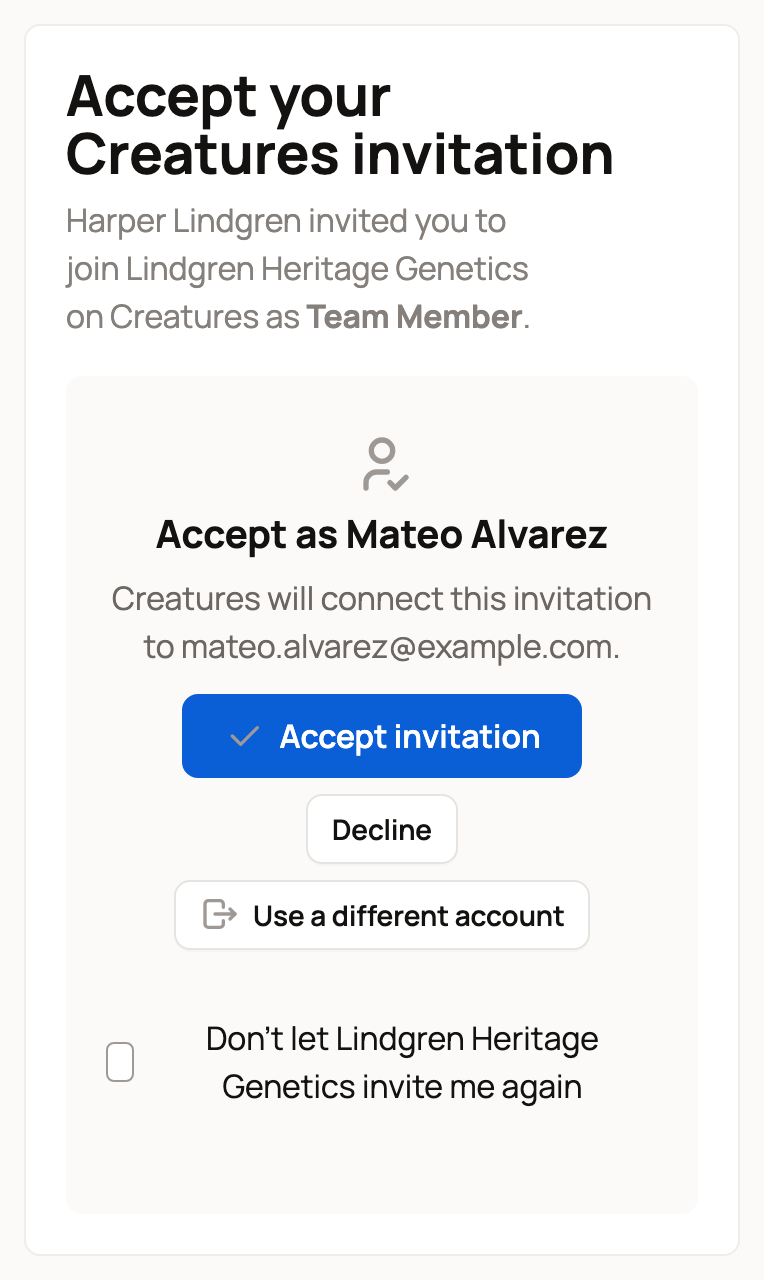
Team Members and co-owners then land on your organization's animals, and Care Helpers land on Today. You get a notification such as Mateo Alvarez accepted access to Lindgren Heritage Genetics. Their name appears under Our Team. Care Helpers get their own list, which isn't public.
Keep track of pending invitations
Invitations wait under Pending invitations with the role, how each was sent and when. Each link works for 7 days.
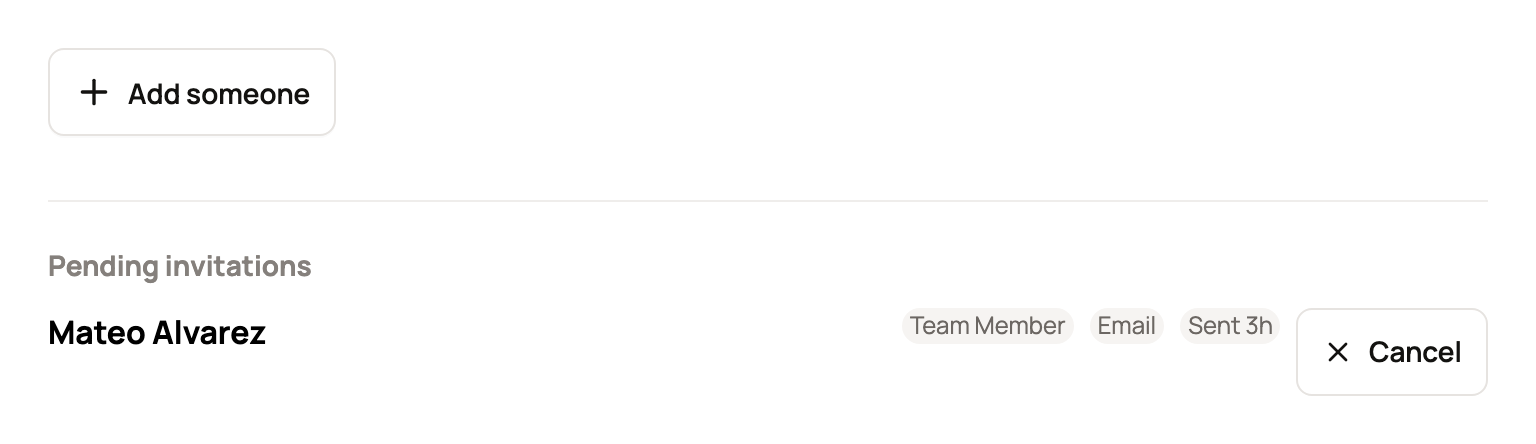
- To take one back: select Cancel, then Cancel invitation. The link stops working.
- If it expired or they can't find it: cancel it and invite them again. Signing up on their own doesn't show them the invitation, so if they now have an account, add them by name. It then reaches their notifications too.
- If you see This person has declined or left. You cannot invite them again right now.: they turned down an invitation or left recently. Invitations from you are paused for 90 days. If they also chose to block you, the pause lasts until they lift it.
Change a role, add a title or remove someone
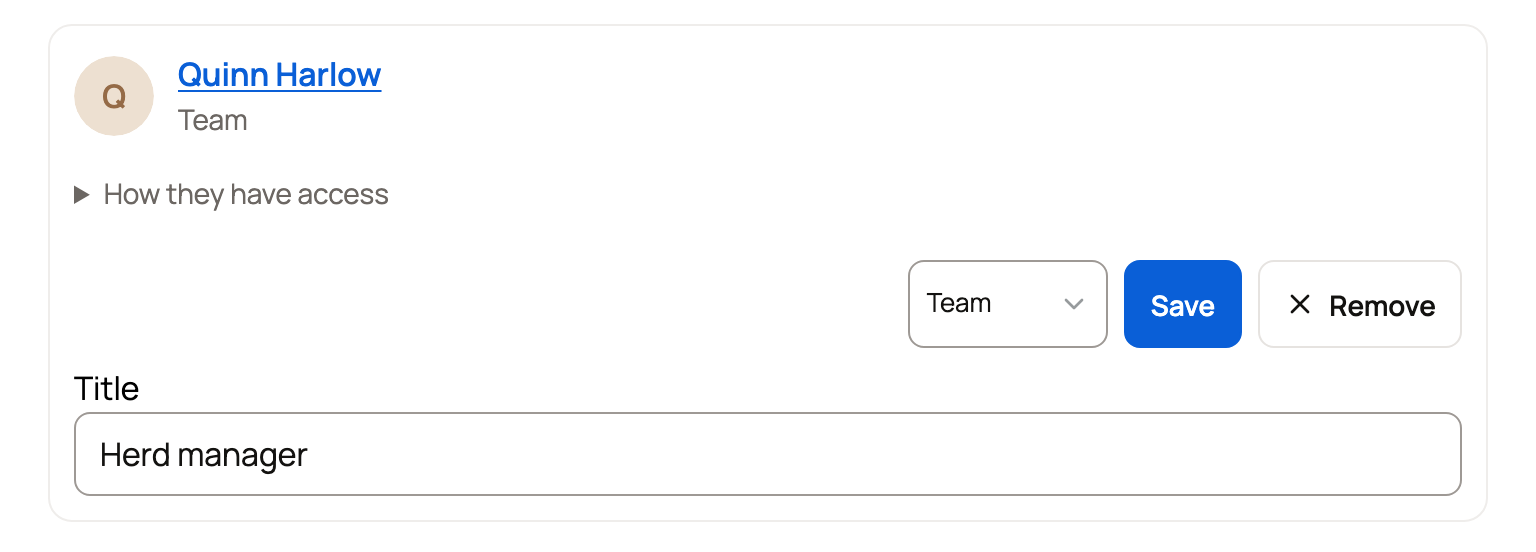
Each person has their own row in the editor.
- Change a role: pick the new role in their row and select Save.
- Add a title: type a job title, such as "Herd manager," in Title and select Save. On the owner's row, the owner uses Save title. Co-owners need the owner to change their title. Titles show next to names under Our Team.
- Remove someone: select Remove, then Remove access.
Removing someone ends their organization access. Access you gave them to individual animals stays, and their row says so.
People you add can see and leave their access in Settings > My access. See Seeing and leaving the accounts you can access.
Related information
- Accepting or declining an invitation to join a farm or organization
- Get help with daily care: invite a care helper
- Creating an organization for your farm or business
- Co-owners and team members: sharing access to an animal
Updated on: 29/10/2026
Thank you!