
Adding pages, posts, and menu links to your website
Use Add page to start a new page from a template, Posts to write dated updates, and the Menu tab to choose the links across the top of your website. New pages, posts and menu changes reach visitors when you publish.
Add a page
- In the website builder, open the Sections tab and choose Add page.
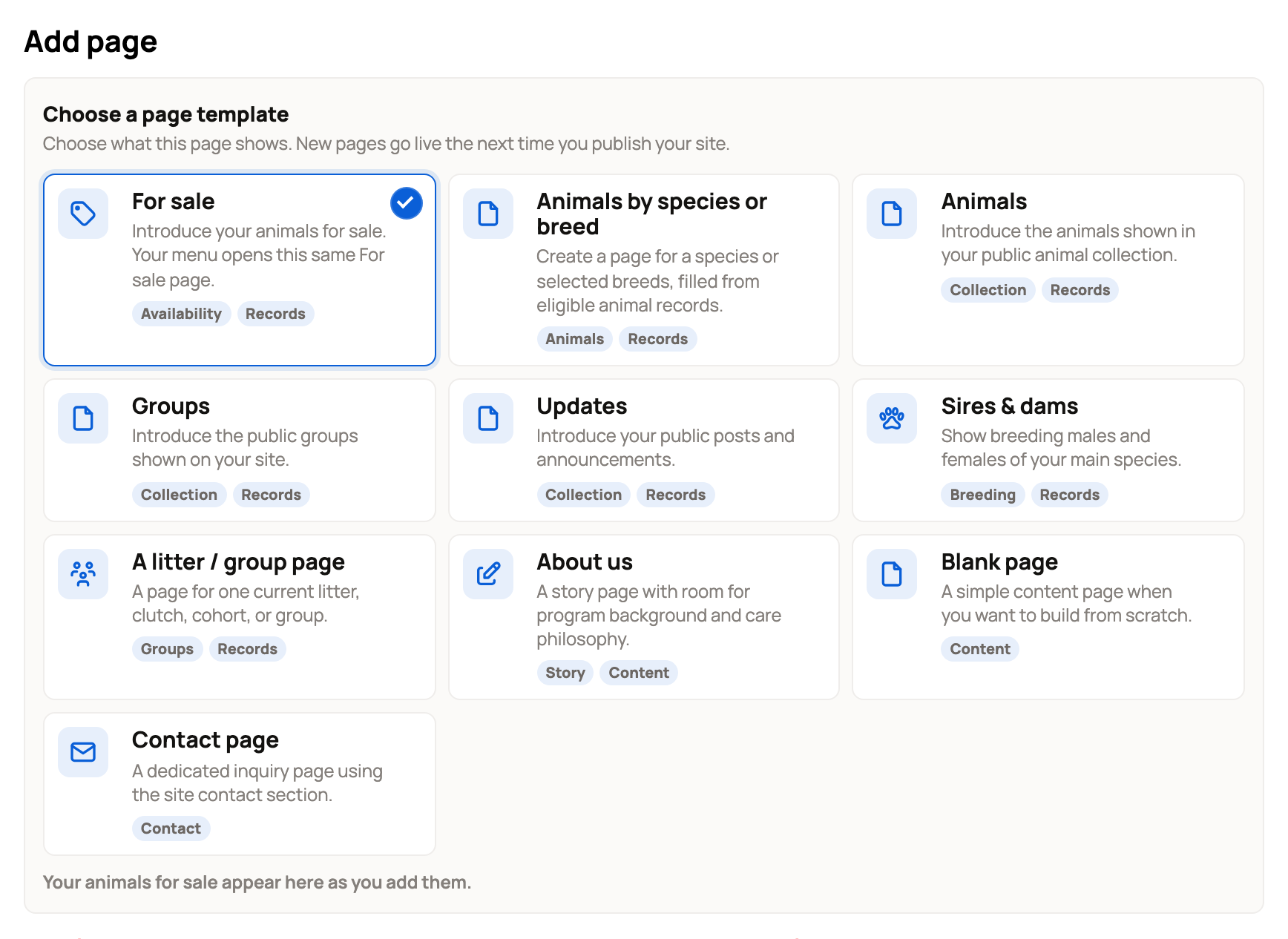
- Under Choose a page template, pick what the page shows, such as For sale, Sires & dams, A litter / group page, About us or Contact page. Templates tagged Records fill in from your animal records.
- Check the details:
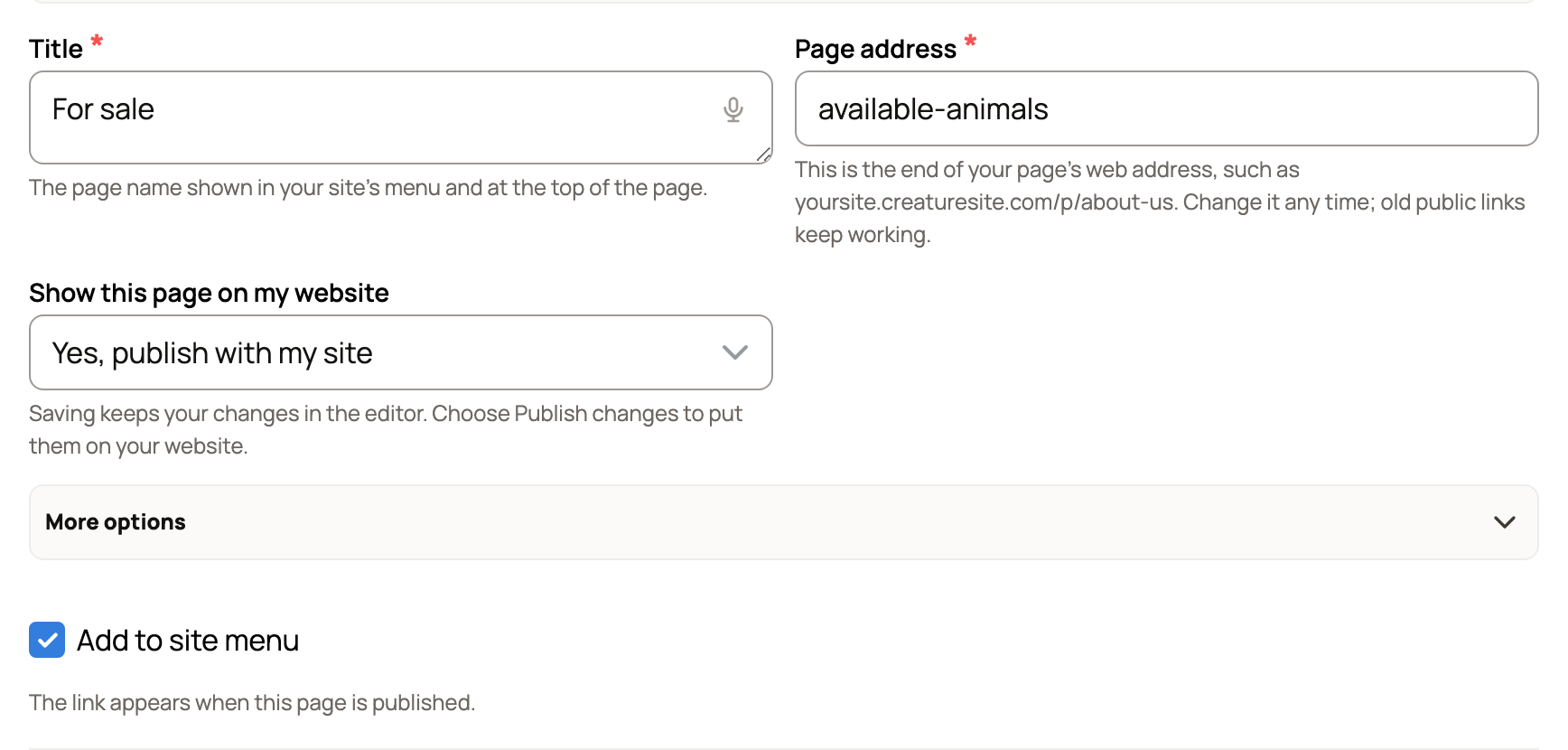
- Title is the page name in your menu and at the top of the page.
- Page address is the end of the page's web address. You can change it any time, and old public links keep working.
- Show this page on my website: Yes, publish with my site, or Only me, keep a private draft.
- More options has Sort. Lower numbers come first.
- Leave Add to site menu ticked to add a menu link once the page is published.
- Choose Save page. If your website is live, Save and publish website changes saves and publishes in one step.
For an About us page, the title box sits below your text and is called Add a heading (optional).
Keep track of your pages
Choose Pages to see Your pages. Each page shows its address and where it stands: Publishes with site, Private draft, Only you or Will be removed when you publish.
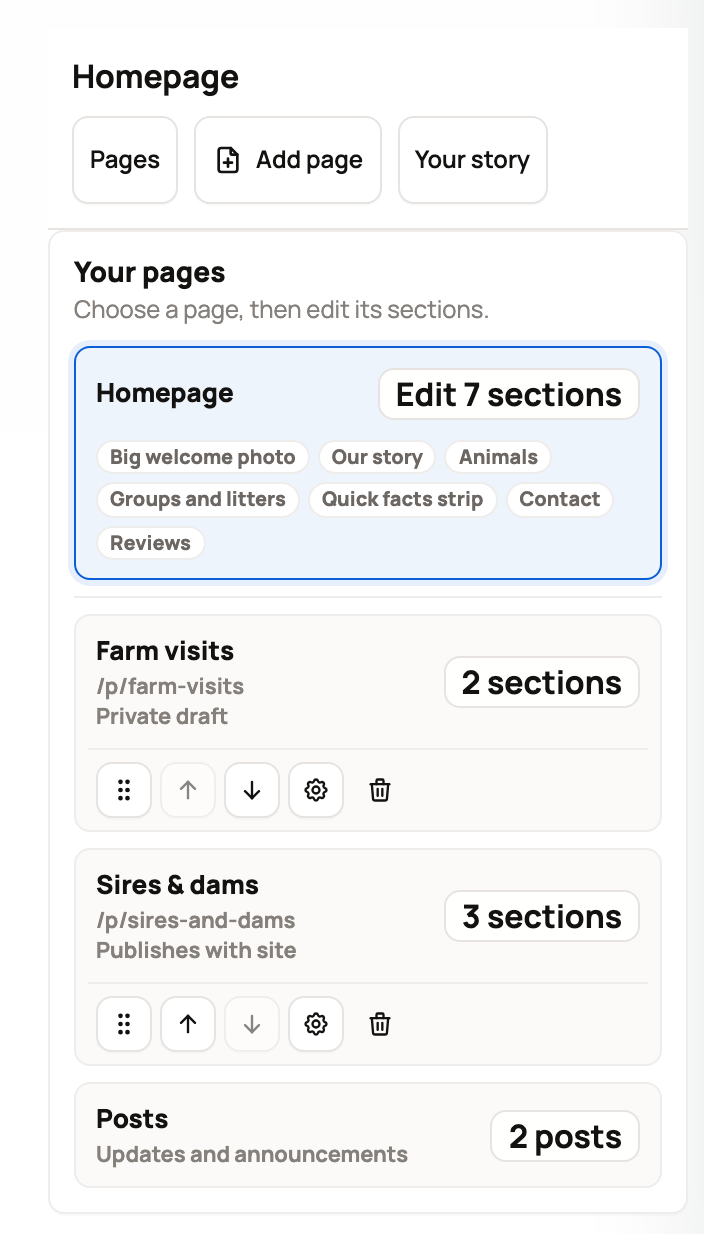
Select a page to edit its sections. The page you have open says Edit next to its number of sections; select it again to jump to them. The buttons under each page move it up or down, open its settings (the gear) or delete it (the trash can). A deleted page is marked Will be removed when you publish, and Keep this page brings it back.
Write a post
Posts are dated updates and announcements, like a calving report. Visitors find them on your Updates page.
- In Your pages, choose Posts, then Create post.
- Add a title and your text. Use Heading, Image, Gallery or Video above the text to add more. Featured image sets the photo shown on post cards and when someone shares the post.
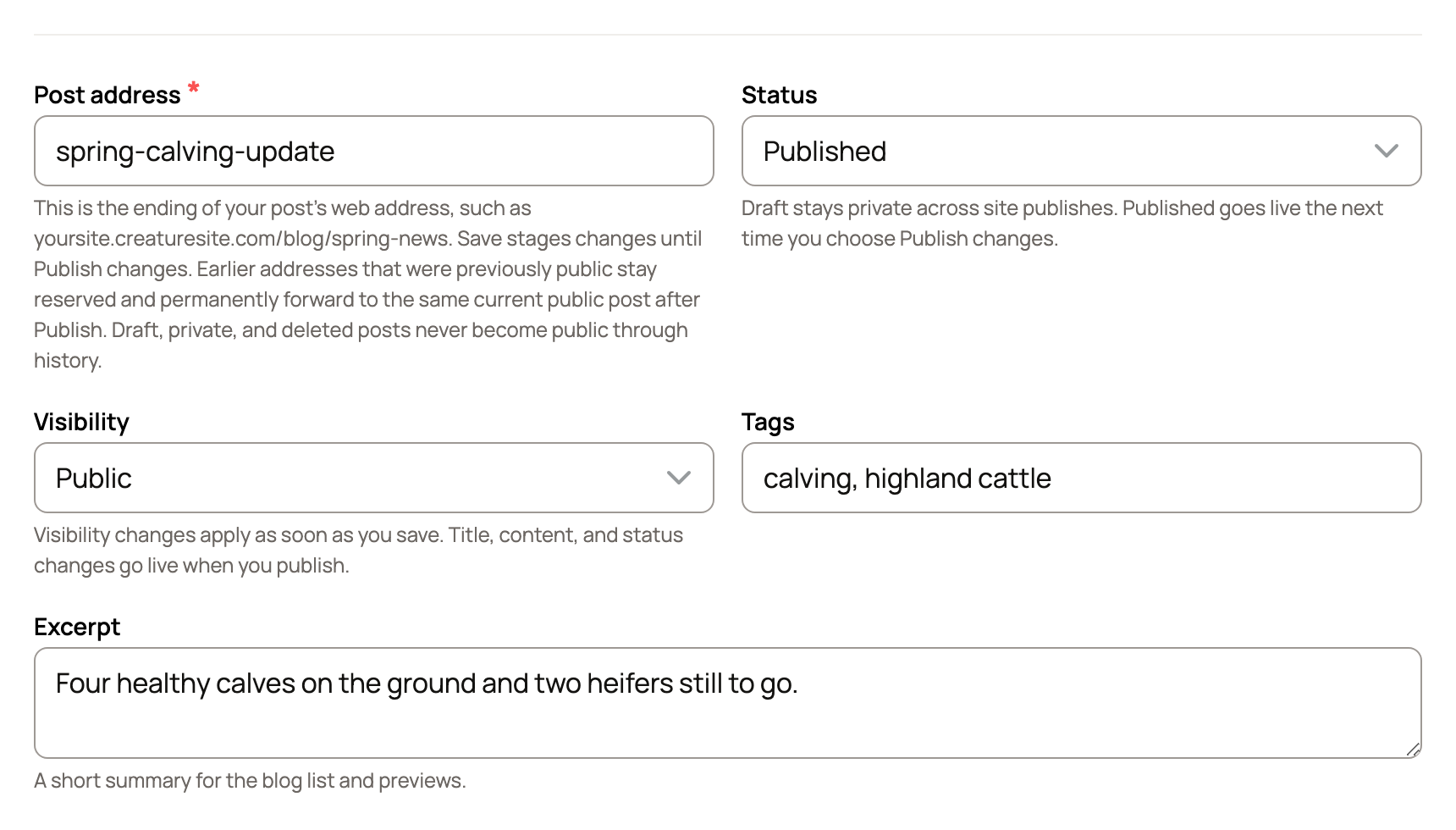
- Choose Post settings to set the Post address, Status, Visibility, Tags and Excerpt (a short summary for the post list).
- Choose Save post.
A Draft post stays private when you publish. A Published post goes live the next time you publish your website. Visibility (Public or Only you) changes as soon as you save, so you can hide a post right away.
Edit the menu
Open the Menu tab. For each link, set:
- Link name: the words visitors see.
- Where should this link go?: Home, A page on my site, Experiences, Reviews, Our story, Sires, Dams, Past animals, All my animals, For sale, Updates or Web link.
- Who can see this link?: Public or Only you.
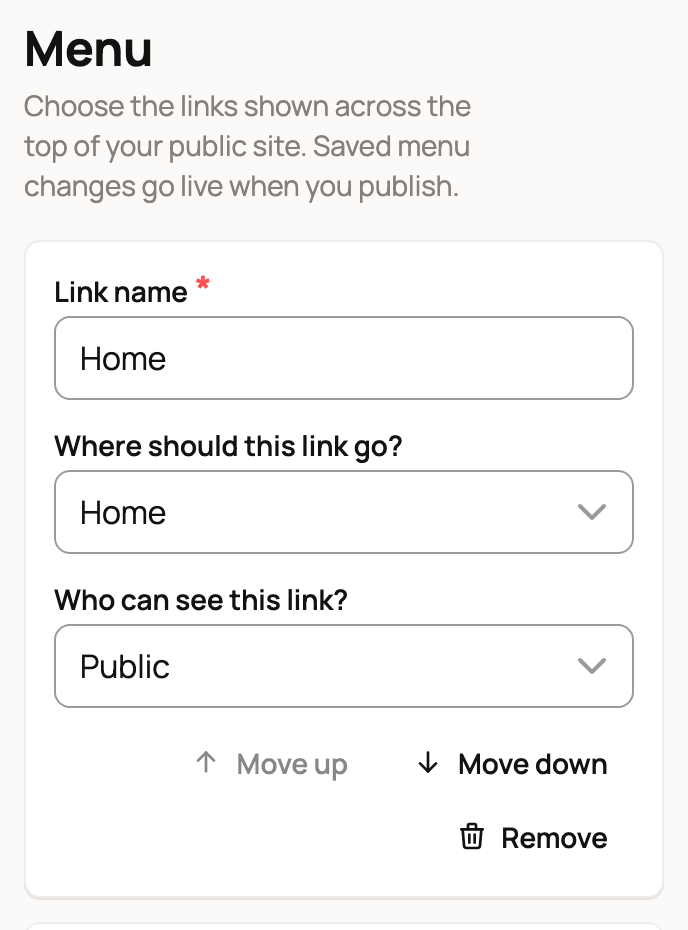
With A page on my site, pick the page under Choose a page on your site. If that page is a private draft or set to Only you, its link won't appear on your public site.
Experiences goes to the Experiences page on your website, where visitors see your experiences, their dates and how to book. If an older link goes to your booking page on creatures.com, it now shows as Experiences with a note. Choose Save menu to send visitors to Experiences on your website instead.
Reviews goes to all your guest and buyer reviews. The link appears once you have a public review.
Use Move up, Move down and Remove to tidy the list, or Add menu link for a new one. Then choose Save menu.
Related information
- Adding and arranging sections on your website
- Writing your website story
- Publishing, updating, and taking your website offline
- Showing your experiences on your website
Updated on: 29/10/2026
Thank you!