
Showing your experiences on your website
Your Creatures website can list your tours, classes, and visits with dates and a Book button, and it gets its own Experiences page. Choose Take bookings when you build your site from your goals, or add a Booking section yourself.
Before you start
Your website shows the experiences hosted by the same profile as the site. A farm's website shows that farm's experiences, and your personal website shows the ones you host as yourself. (Your Bookings dashboard calls them offerings; your website calls them experiences.)
Only active experiences that anyone can find appear. If you don't have one yet, see Creating a bookable offering. Experiences set to Only people I send the link to stay off your website's lists.
The quick way: Take bookings
When the website builder asks What should your website do?, tick Take bookings. Next to it, you see how many live experiences you have.
Creatures then adds to your draft:
- A Booking section on your homepage, headed Experiences with Visit us above it, set to All experiences.
- A Book menu link to your Experiences page, if you have a live experience.
For the other goals, see Setting up your website from your goals.
Add or change the Booking section
- In the builder's Sections tab, open Choose section under Add section, pick Booking, and select Add section. Or select the Booking section you already have.
- Under Show as, choose how it looks:
- All experiences shows your first three and a See all experiences button. Change the order in Bookings sets which come first.
- Selected experiences shows the ones you pick under Experiences in your order, up to 24, in your order. A paused pick stays saved and comes back when it's active again. Experiences set to Only people I send the link to show as Link only and can't be picked here.
- Full booking form (one experience) puts the whole booking panel for one Experience in the section. It is tall, so most homepages use All experiences. Choose automatically when there is one shows your only active experience.
- Change Section heading and Small heading above the title if you like.
- Choose Publish changes (or Publish site the first time) to go live.
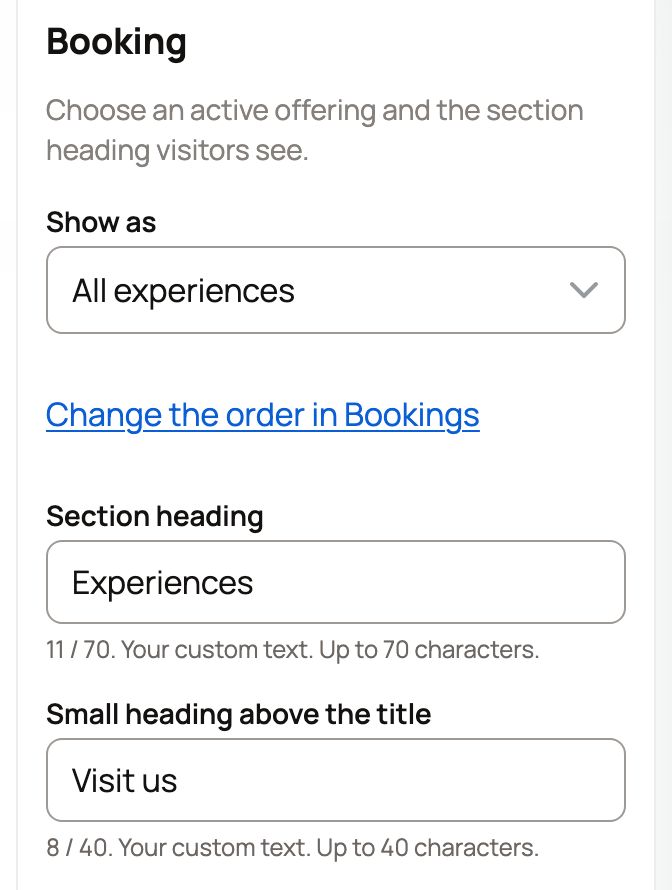
With no active experiences, the section stays hidden from visitors and offers Create a booking experience.
Full booking form (one experience) is the one way to show an experience set to Only people I send the link to. Pick it by name under Experience.
Your Experiences page
Your website's Experiences page lists every experience in your site's own style. It has the same All experiences and Available to book online buttons and order as your booking page.
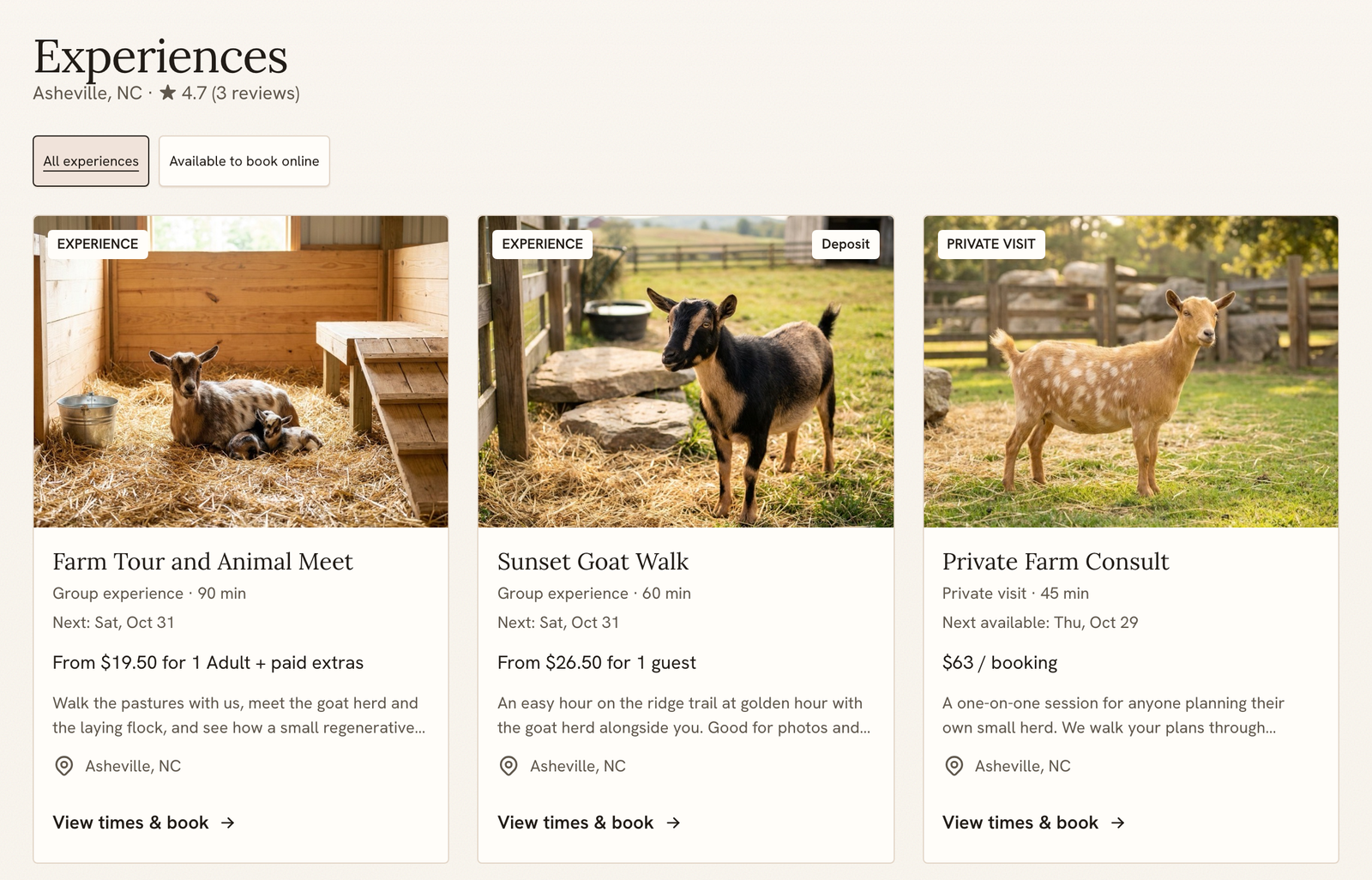
Each card opens that experience's own page on your website. It has a Back to experiences link, photos, details, the booking panel and, once you have some, your Creatures reviews. Visitors pick a time there, then go to secure Creatures checkout to pay.
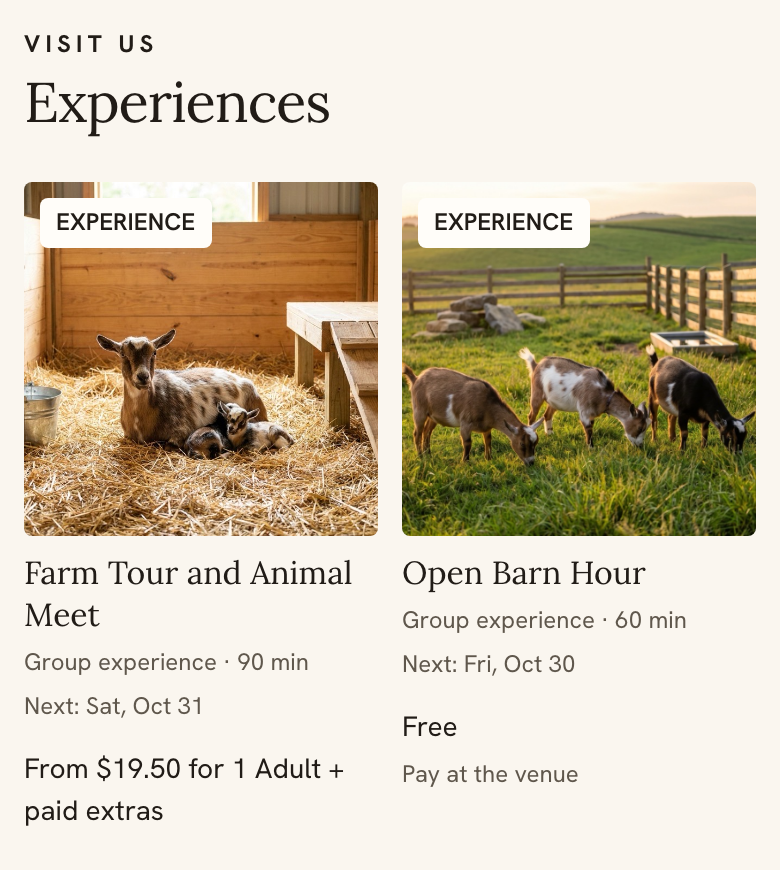
On a phone, the cards sit two to a row, so a homepage section set to All experiences shows two.
Link to it from your menu
In the builder's Menu tab, add a link and set Where should this link go? to Experiences. It opens your Experiences page in your website's style.
An older link to your booking page on Creatures also shows as Experiences. Save the menu to point it at your website instead.
If your homepage has a full booking form, or your menu links to your booking page, the Sections tab shows Review compact experiences. It lists what it would change. Adopt compact experiences swaps full booking forms on your homepage for compact cards and points those menu links at your Experiences page. Nothing changes for visitors until you publish.
Related information
- Your booking page: one link for everything you offer
- Sharing and embedding your bookable offering on your website
- Adding and arranging sections on your website
Updated on: 29/10/2026
Thank you!