
Setting up your website from your goals
The first time you open your website builder, it asks What should your website do? and offers goals based on the records you already have. Tick the goals you want, add your story, and choose Build from my goals. Creatures fills in your draft, and nothing is public until you publish.
Choose your goals
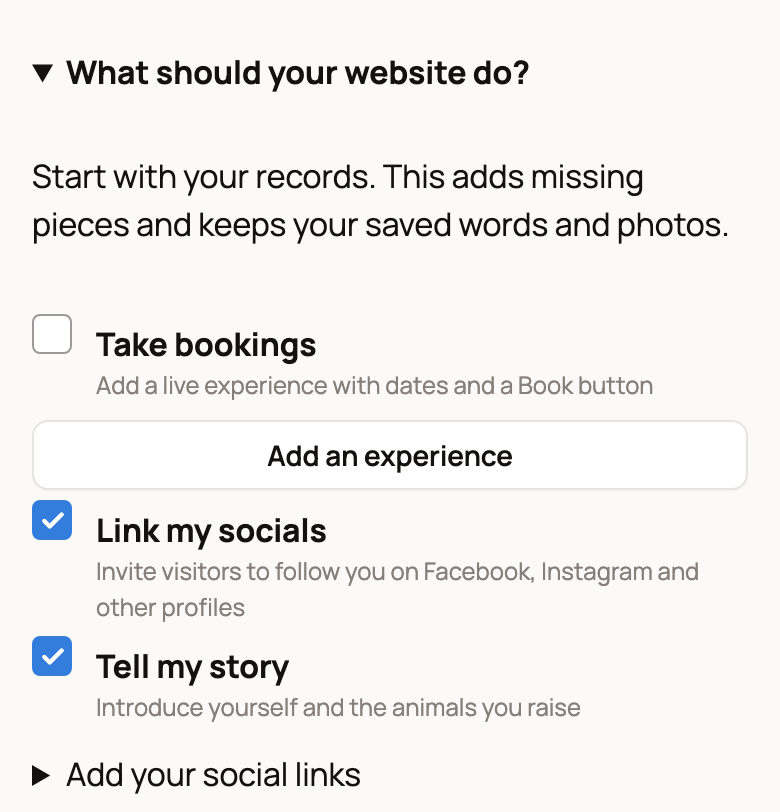
Each goal adds what it needs to your draft:
- Show my breeding animals adds an animals section, a Sires & dams page and a menu link to it.
- Take bookings adds your live experiences to your homepage and a Book menu link. If you don't have a live experience yet, choose Add an experience to create one.
- Show reviews adds your guest and buyer reviews to your homepage.
- Show animals for sale adds your animals for sale and a For sale menu link. They stay current as your listings change.
- Link my socials shows your social links in your website footer.
- Tell my story adds your story to your homepage and an Our story menu link.
Some goals appear only when you have records to fill them. For example, Show reviews appears once you have a review. Show my breeding animals appears when you have public sires or dams of your main species, which is the species with the most animals that can appear on your website. Each goal shows a count from your records.
Add your social links
Open Add your social links to add your Facebook, Instagram, TikTok, YouTube, X or LinkedIn link. These links save to your Creatures profile and appear in your website footer. A link that is already on your profile shows here but can't be changed. Edit it on your profile instead.
Add your story
If you don't have a story yet, setup asks for one:
- Home page shows: Summary shows a short introduction with a Read full story link. Full story shows your whole story on the homepage. New websites start on Summary.
- Home-page introduction: a few sentences in your own words, up to 1,000 characters.
- Full story: up to 20,000 characters. Leave a blank line between paragraphs.
With Summary, you need both an introduction and a complete public story before you can publish. You can still save unfinished work in your draft. To edit your story after setup, use Your story. See Writing your website story.
Build from my goals
Choose Build from my goals. Creatures adds whatever is missing and keeps the words and photos you already saved. Your saved story is never replaced. The builder reloads with your new sections and menu links.
Work through your website goals
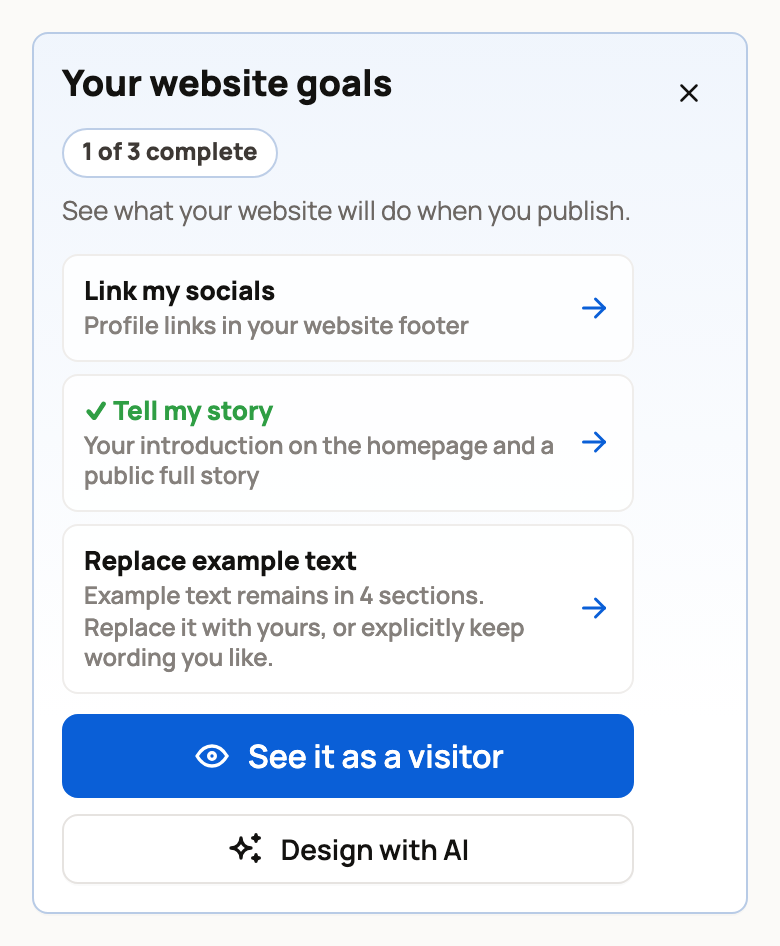
The Your website goals checklist shows how far along you are, such as 1 of 3 complete. A check mark means a goal is covered. Choose an item to jump to where you can finish it. You may also see:
- Add a welcome photo, when your homepage doesn't start with a big welcome photo.
- Replace example text, when sections still use example wording. Replace it with your own, or choose Keep this wording for text you like.
Two buttons help you check your work. See it as a visitor shows your website the way guests see it. Design with AI opens Design with a suggested description of a look. Nothing changes until you choose Design my theme.
To put the checklist away, choose the x (Hide checklist). It stays hidden in that browser. Choose Show your website goals to bring it back.
Change your goals later
Once your website is started, the setup panel above the checklist is called Set up from my goals. Open it, change your goals, and choose Build from my goals again. It only adds what is missing.
Related information
- Your Creatures website: what it is and how to open the builder
- Writing your website story
- Designing your website: templates, colors, and Design with AI
- Publishing, updating, and taking your website offline
Updated on: 29/10/2026
Thank you!