
Your booking page: one link for everything you offer
Your booking page is one public page that lists every tour, class, visit, or stay you offer. Share its link once, and it stays current as you add, pause, or fill up offerings.
Find the link to share
Open Dashboard > Services > Bookings and look for Your booking pages. You get one row for each profile that has offerings: yours, and each farm or business you manage. Each row says Live or Not live.
- Copy copies the link. Paste it in a bio, email, text, or post.
- Open shows the page the way visitors see it.
- Post to Facebook shares the same link on Facebook.
If the page lists just one experience, Copy and Post to Facebook share that experience's own link, which opens straight onto it, and Print a flyer opens its flyer. Visitors can still reach your booking page from there with All offerings. Open still shows your booking page. Once the page lists two or more, they share the booking page link again.
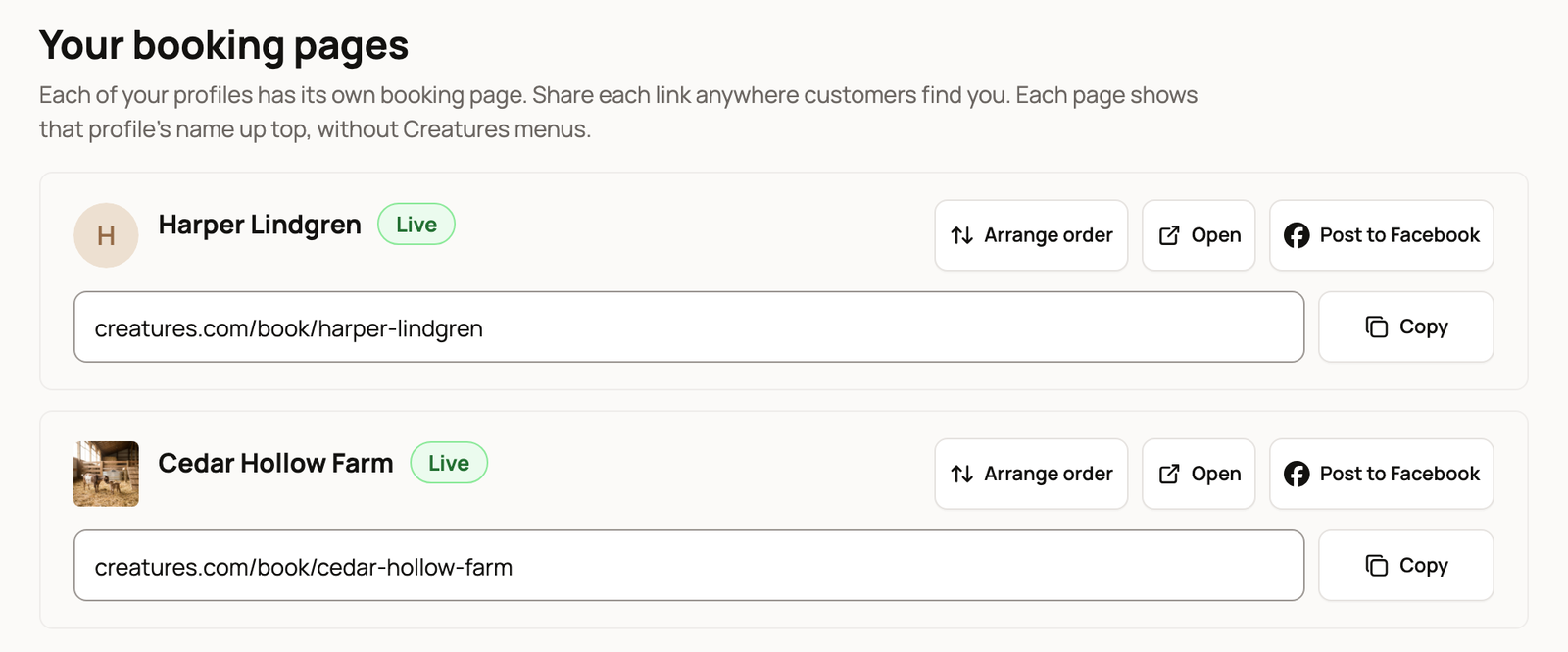
Check the name on the row before you copy. A farm's page shows only that farm's offerings.
Get the page live
A page goes live once that profile has at least one active offering that anyone can find. Visitors never see drafts, paused or archived offerings, or offerings set to Only people I send the link to.
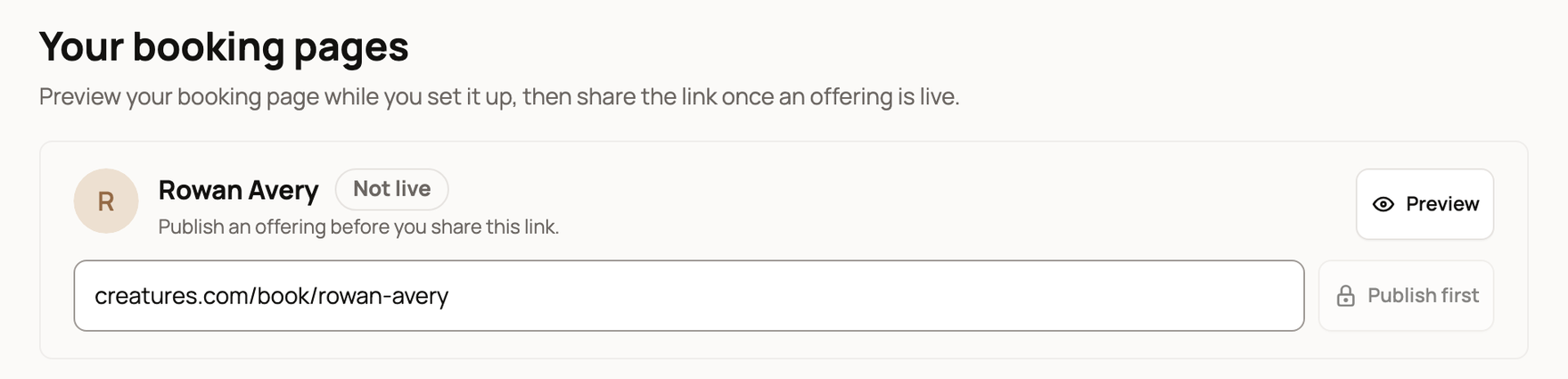
Until then, the row says Not live. Preview shows you the page, but visitors can't open it yet. Copy stays locked as Publish first.
What visitors see
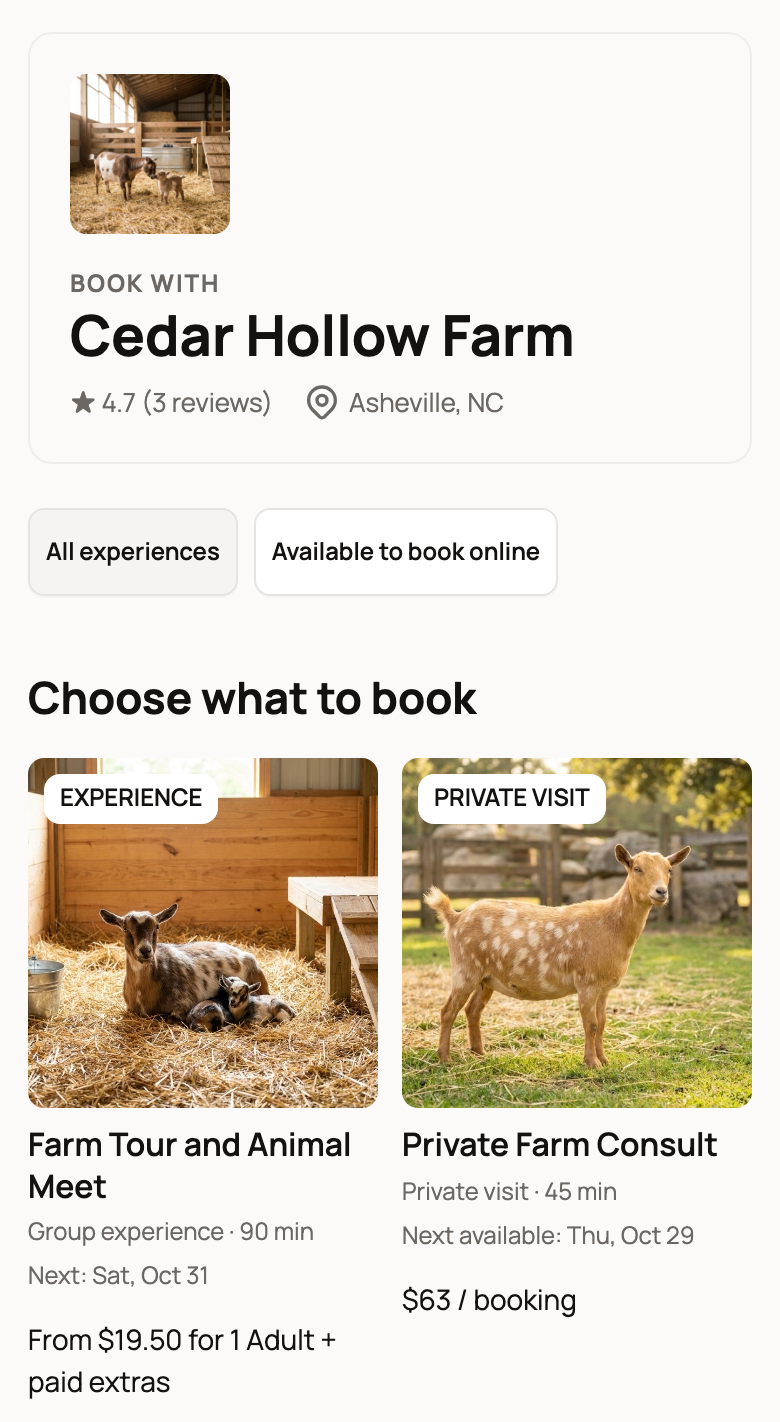
The top of the page shows your name, photo, rating (or New on Creatures), and area. Two buttons sort the list: All experiences shows everything, and Available to book online hides offerings that are sold out or not open yet.
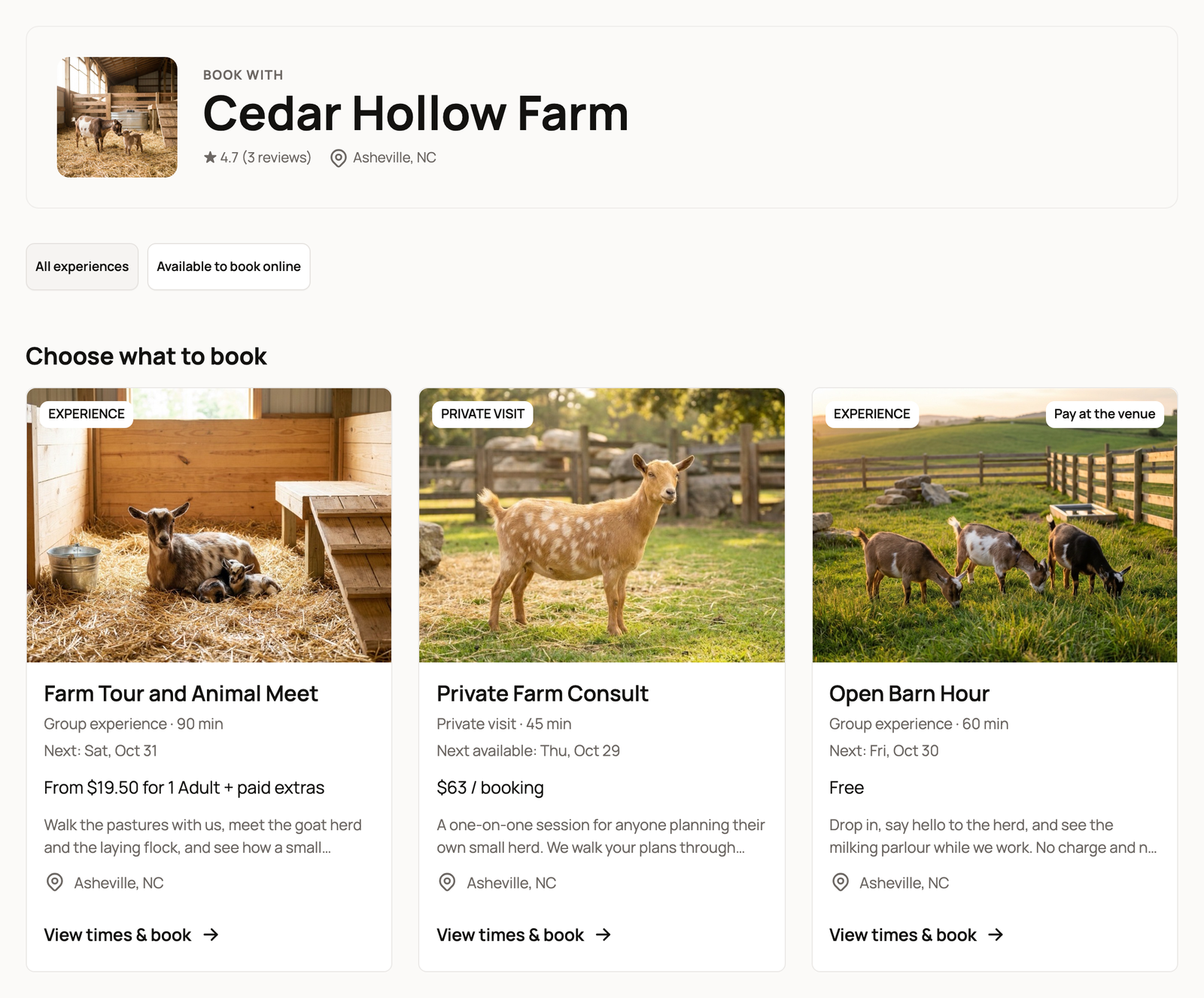
Under Choose what to book, your offerings sit in one list, in your order. Sold-out offerings and ones that open later go last, with a note such as "Booking opens Feb 1, 2027 at 9:00 AM (CT)".
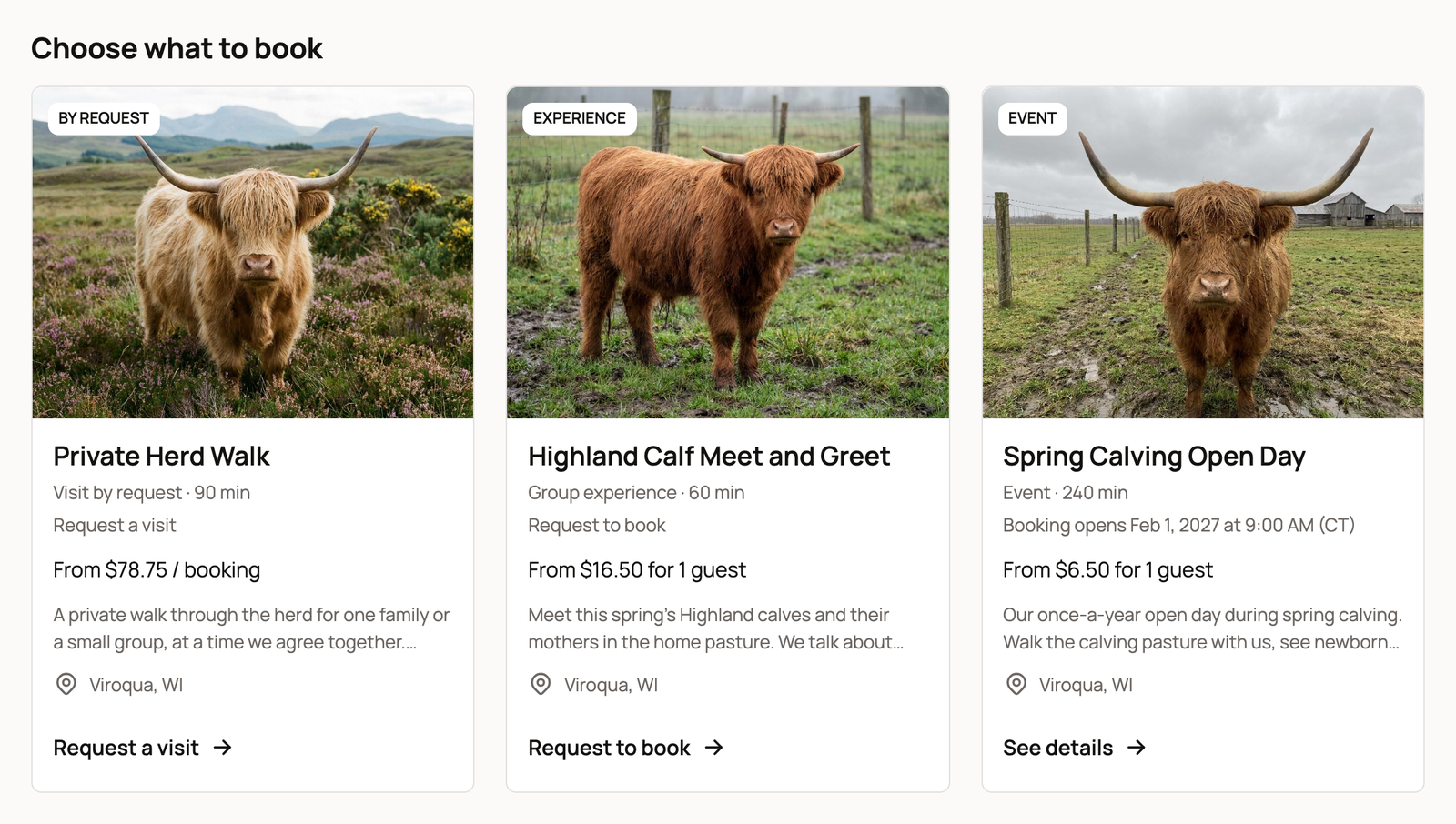
Each card shows the kind of booking, how long it lasts, the next date, and the price guests pay. Buttons match how guests book: View times & book, Choose a day & book, Choose dates, See dates, Request to book, or Request a visit. Cards guests can't book online show Join the waitlist or See details. Guests see your cancellation policy when they open the offering.
At the bottom, Get in touch has a Message button, your website and social links, and View full profile.
Choose the order
With two or more offerings anyone can find, your row shows Arrange order. Select it, then drag offerings into place or use the arrows, and select Save order.
Your Creatures website uses this order too. The first offering with a photo also sets your link's preview picture.
A new offering goes after the ones you've arranged. Open Arrange order again to move it.
Check it on a phone
On a phone, the cards sit two to a row with a shorter price, and guests tap a card to open it. After you change a photo, price, or schedule, select Open on your row and check the page as a guest would.
Pick the right link
- Use your booking page for one lasting link to everything you offer.
- Use one offering's link, button, or embed for a single event. See Sharing and embedding your bookable offering on your website.
- Have a Creatures website? It can show the same experiences on its own pages. See Showing your experiences on your website.
If something looks wrong
- Visitors can't open the page. If every active offering is set to Only people I send the link to, the row says Not live and the copy button reads Link only. Share each offering's own link, or set Who can find it? to Anyone on one of them.
- One offering is missing. Open it and check that it's active and that Who can find it? isn't set to Only people I send the link to.
- A card shows no open time. The offering is active, but its schedule has no open dates. Add dates or times in its schedule.
Related information
- Sharing and embedding your bookable offering on your website
- Showing your experiences on your website
- Creating a bookable offering: tours, classes, and appointments
Updated on: 06/11/2026
Thank you!