
Getting inquiries and applications from your website
A Contact section lets visitors send you a message, and an Application section lets them apply to your program. Messages arrive in Messages marked Website inquiry, applications arrive in Applications, and Website results shows what your website brings in.
Add Contact and Application sections
In the website builder, open Sections, then use Choose section under Add section. See Adding and arranging sections on your website.
- Contact: set Inquiry form to Show the inquiry form or Show the contact button only.
- Application: set Visitor framing to Apply now or Join the waitlist. Visitors see this section only while your program takes applications, which means Program waitlist intake is Open on your Applications page. See Opening your program to applications and running a waitlist.
New sections go live when you publish your changes.
What visitors do
A visitor fills in Name (optional), Email and Message, then taps Send inquiry. Creatures emails them a link to confirm it's really them. The message reaches you only after they open that link, and the link works for one hour.
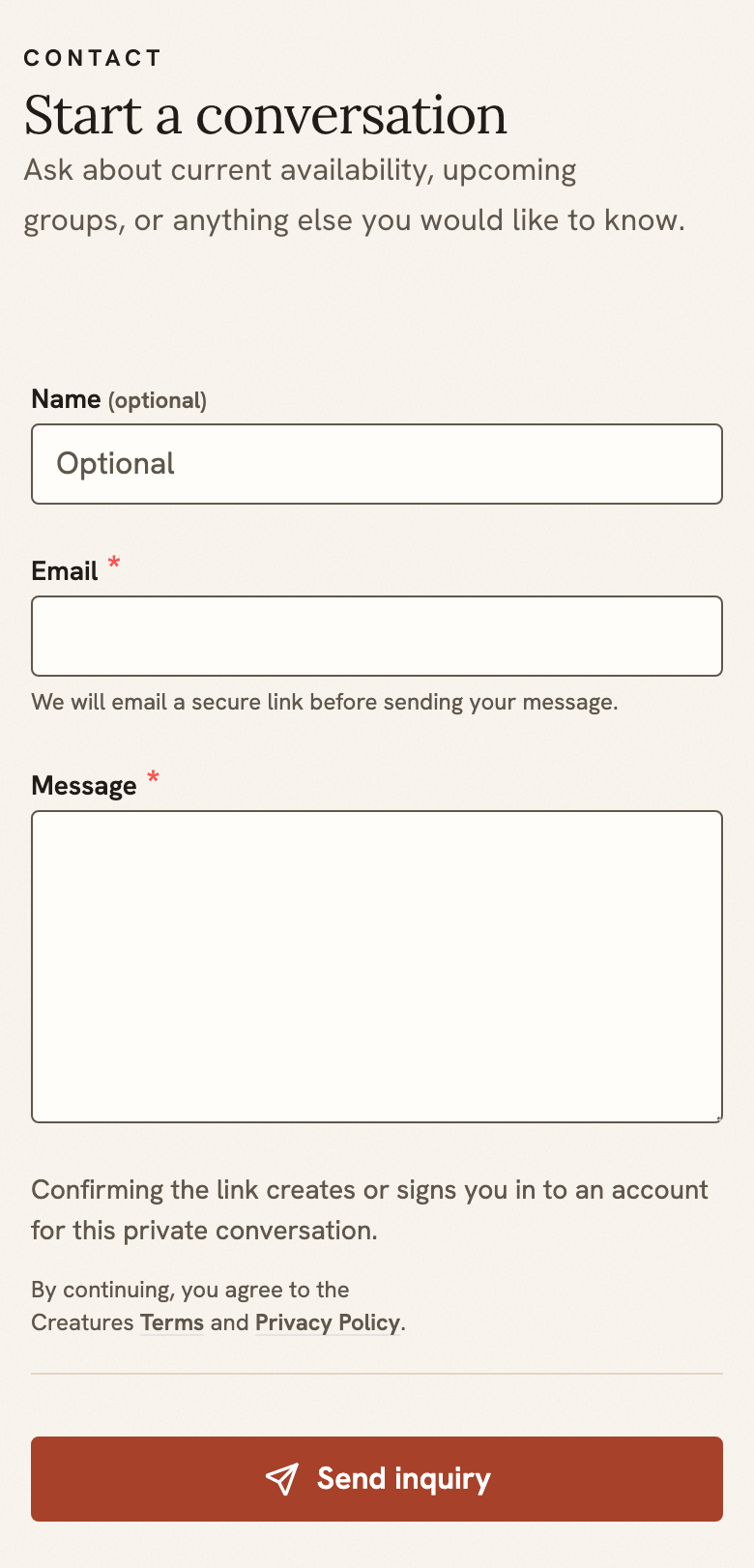
Confirming also creates a Creatures account for them, or signs them in, so your whole conversation stays in one place. Applications work the same way: the visitor answers questions about their home, experience and timeline, then confirms by email.
Once confirmed, most messages reach you right away. An application from a brand-new account can take about an hour while Creatures checks it for spam. If a message or application looks like spam, it waits until the Creatures team has checked it.
Answer inquiries in Messages
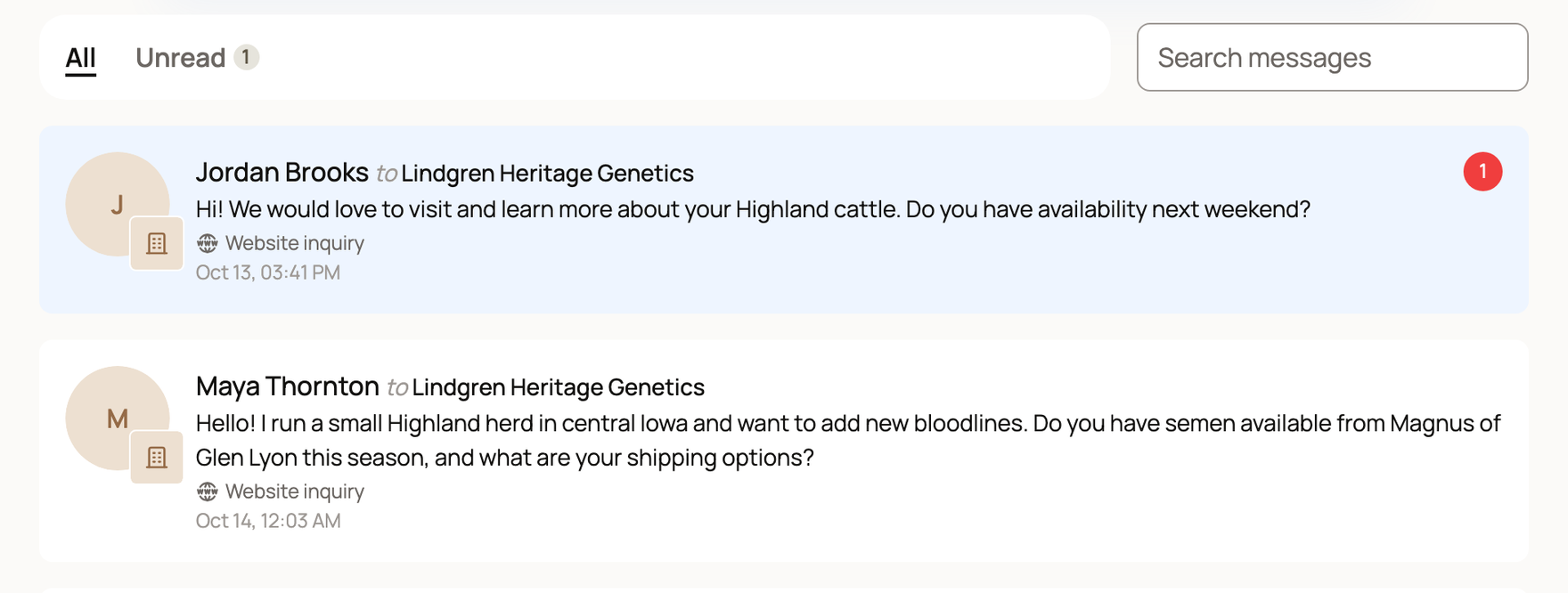
Website messages land in Messages with a Website inquiry label. On a farm or business website, they go to that organization, and everyone who manages it sees them. Reply the way you answer any message.
Review applications and mark fit
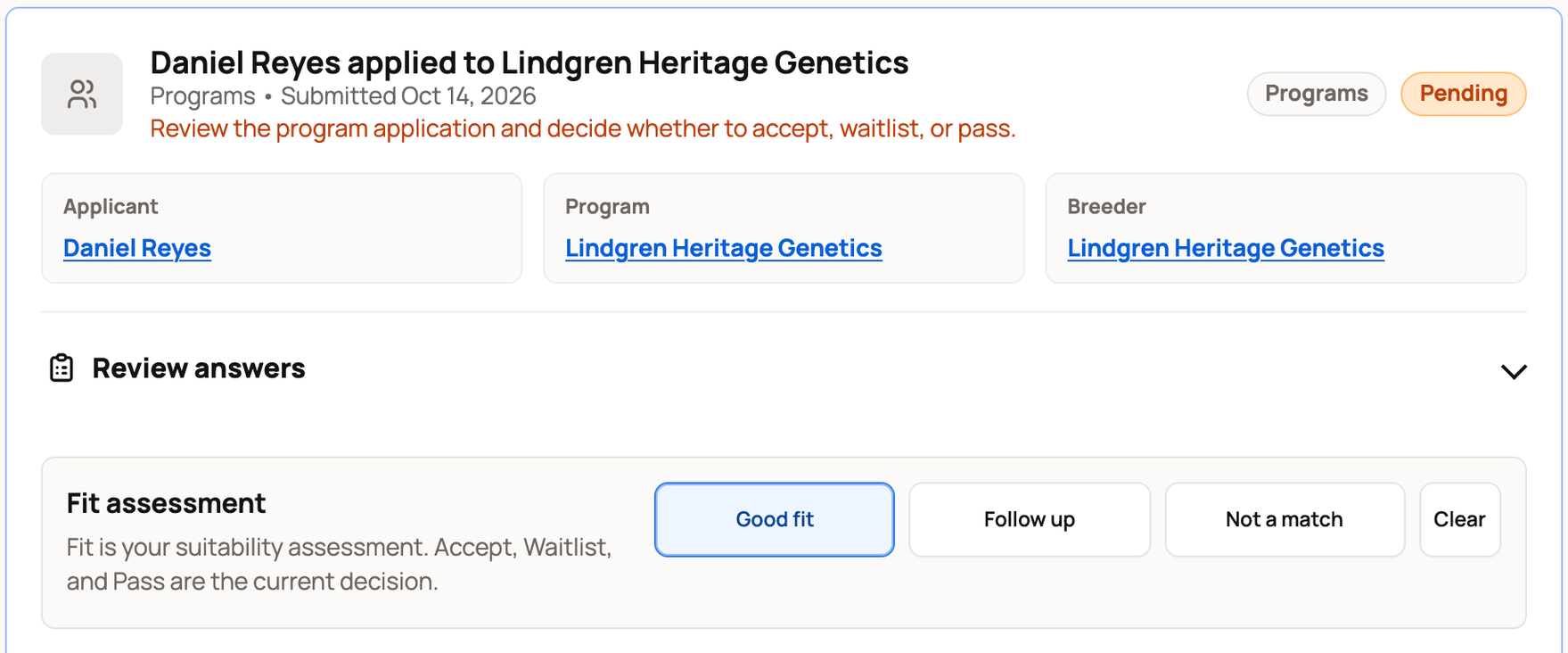
Website applications appear under Dashboard > Selling > Applications. Decide with Accept, Waitlist or Pass, as with any application. See Reviewing and approving buyer applications.
Fit assessment is your own note on how well someone suits your program: Good fit, Follow up or Not a match. Clear removes it. It doesn't change your decision, and applicants never see it.
See what your website brings in
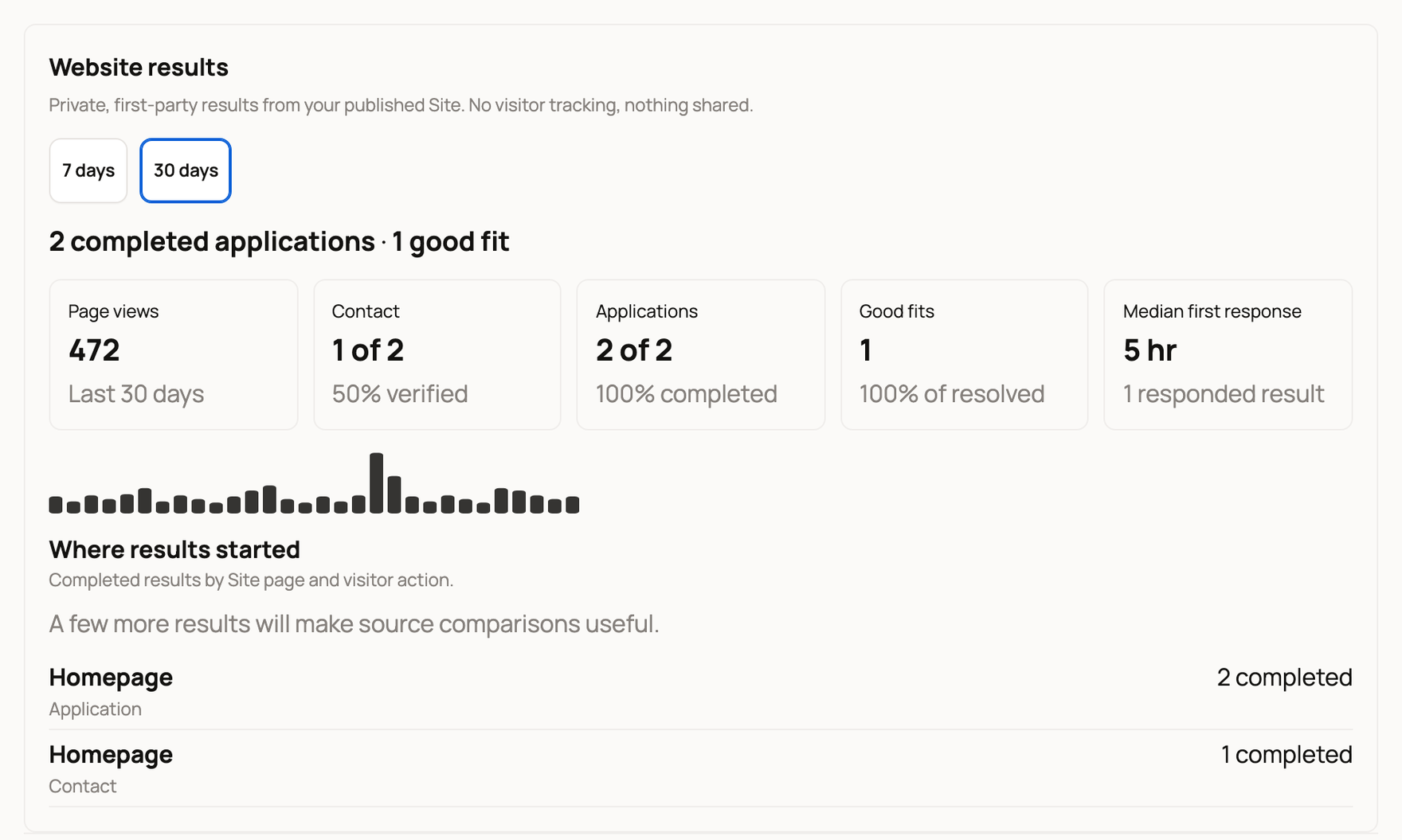
In the builder, open Settings and scroll to Website results. Choose 7 days or 30 days.
- Page views: visits to your published website. Bots are left out.
- Contact: confirmed messages out of the ones visitors sent. "1 of 2" means one of two people confirmed by email.
- Applications: finished applications out of the ones started.
- Good fits: applications you marked Good fit.
- Median first response: how long you usually take to reply to an inquiry or decide on an application.
- Where results started: the page and form each result came from.
When something waits more than two days, a note such as 1 waiting 2+ days appears. Review applications and Open Website inquiries take you straight to those.
If something looks wrong
- No results yet: counting starts once your website is published.
- Visitors can't open your Site right now: your Site visibility is Only you. Choose Change visibility and set it to Public. See Website settings: search, announcement bar, contact details, and analytics.
- A message hasn't arrived: the visitor may not have confirmed by email yet. If their account is brand new and the message looked like spam, it waits until the Creatures team has checked it.
- No Application section on your live website: your program isn't taking applications right now.
Related information
- Adding and arranging sections on your website
- Opening your program to applications and running a waitlist
- Reviewing and approving buyer applications
- Finding and managing your messages
Updated on: 29/10/2026
Thank you!