Opening your program to applications and running a waitlist
Buyers often decide on a breeder long before that breeder has anything listed. Program applications let you capture that interest early: a buyer applies to your program rather than to a listing, you accept, waitlist, or pass, and your waitlist becomes an ordered queue you send offers from when places open. No money changes hands at this stage; program interest is free for buyers, with no deposit and no application fee.

Where to turn it on
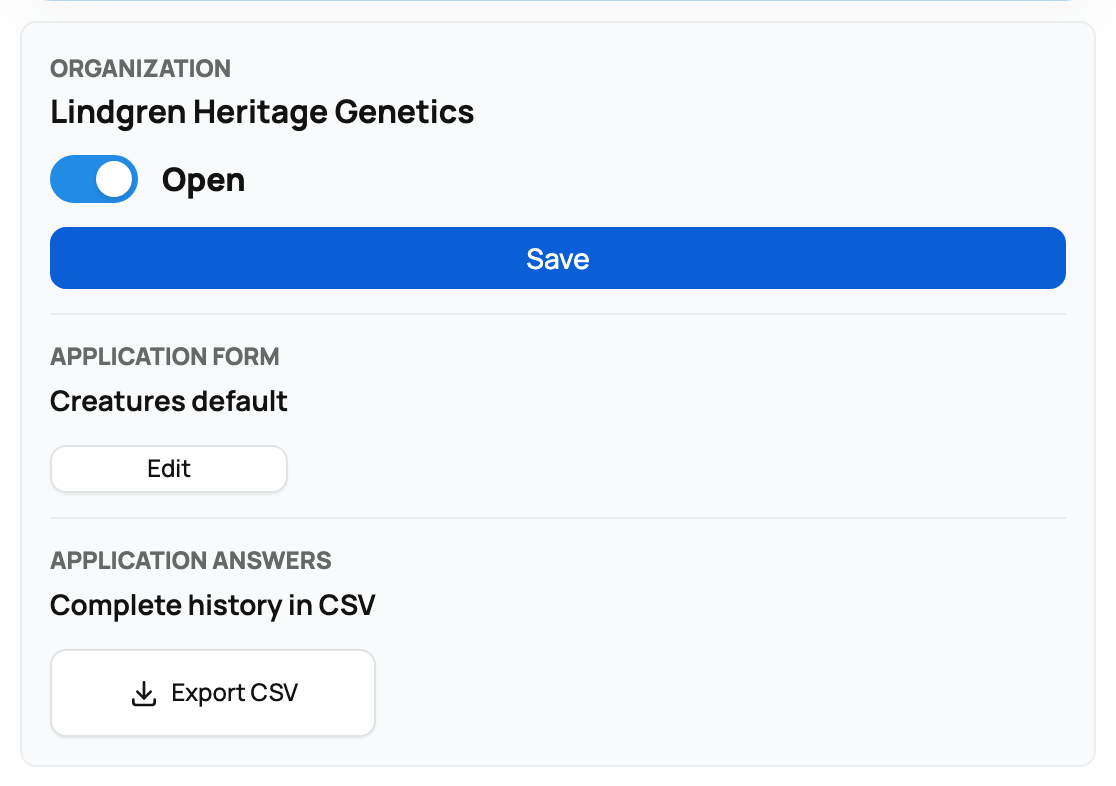
Go to Dashboard, then Applications, and open the Programs tab. At the top, a "Program waitlist intake" panel lists every profile you can run a program under: your personal profile and each organization you own or co-own, each with its own switch.
- Open: buyers can apply to that profile's program. Flip the switch, select Save, and the page confirms "Program applications enabled."
- Closed: no new applications for that profile. Applications you already received stay in your inbox and keep working; closing only stops new ones from arriving.
The panel's subtitle says what this is for: "General interest before a specific group is available." Each profile you manage is opened or closed independently, so an org program can take applications while your personal one stays closed.
Where buyers see it
While intake is open, your public profile (personal or organization) shows a Join program waitlist button. It opens an application page headed "Join {your name} waitlist" that tells buyers "No deposit or application fee is due for program interest," that you can accept, waitlist, or pass, and that "Accepted applications wait for a matching group before any reservation is created." When you close intake, the button disappears and the page stops accepting new applications.
Every program uses the standard Creatures application, so there is nothing to build before you open intake. Buyers answer: name and contact details, location, where the animal would live, who would share the space, experience with the species, preferred timing, a required write-up of the care they can offer, preferred sex, color and temperament, and a required "Why are you interested in this breeder's program?" Buyers do not need an account to start: a signed-out buyer fills the same form and confirms their email with a 6-digit code, and Creatures creates their account as part of submitting. The buyer's walkthrough is Applying to a breeder's program: waitlists and offers.
Reviewing each application: accept, waitlist, or pass
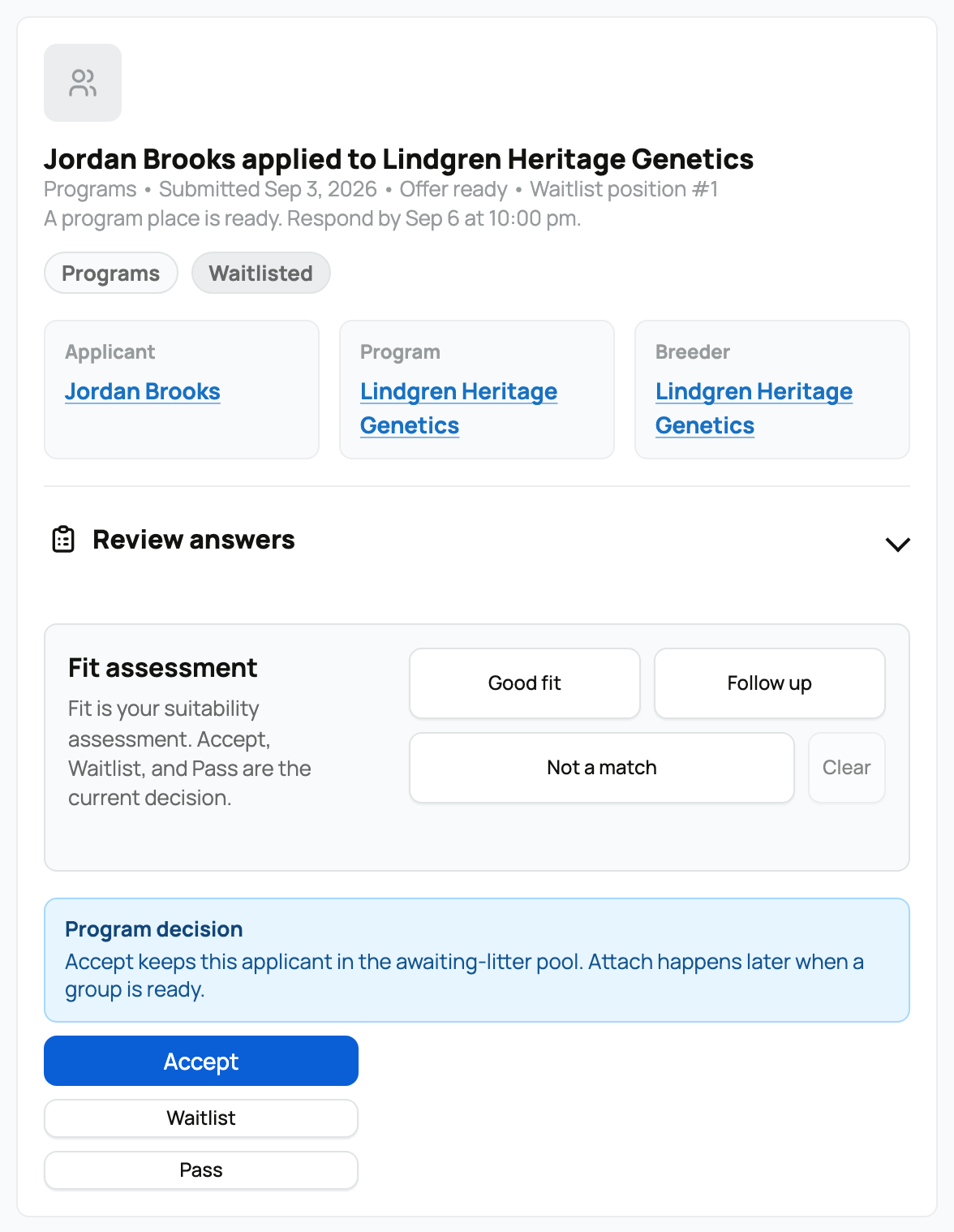
New applications land in the Applications inbox under the Programs tab, and you are notified as each arrives. A card shows the applicant, when they applied, and a Review answers panel with their full responses.

While an application is pending, in screening, or waitlisted, the card offers three decisions, framed by a note worth taking literally: "Accept keeps this applicant in the awaiting-litter pool. Attach happens later when a group is ready."
- Accept: moves the applicant into your accepted program pool. The confirmation is explicit about what it does not do: "No reservation slot is created until you attach them to a group." Accepted applicants simply wait until you have a litter or group that fits.
- Waitlist: adds the applicant to that program's ranked waitlist, joining at the bottom of the queue. As the confirmation puts it, "They stay visible for future review," so waitlisting is a real queue position, not a soft no. You can still accept or pass them later.
- Pass: declines the application. "The applicant will be notified and this application will leave your active queue." On their side the buyer sees "This program was not the right fit right now," and they can apply again later if your intake is open.
The buyer is notified of every decision, so you never need to send the news yourself (though a message is always a kind touch).
The ranked waitlist
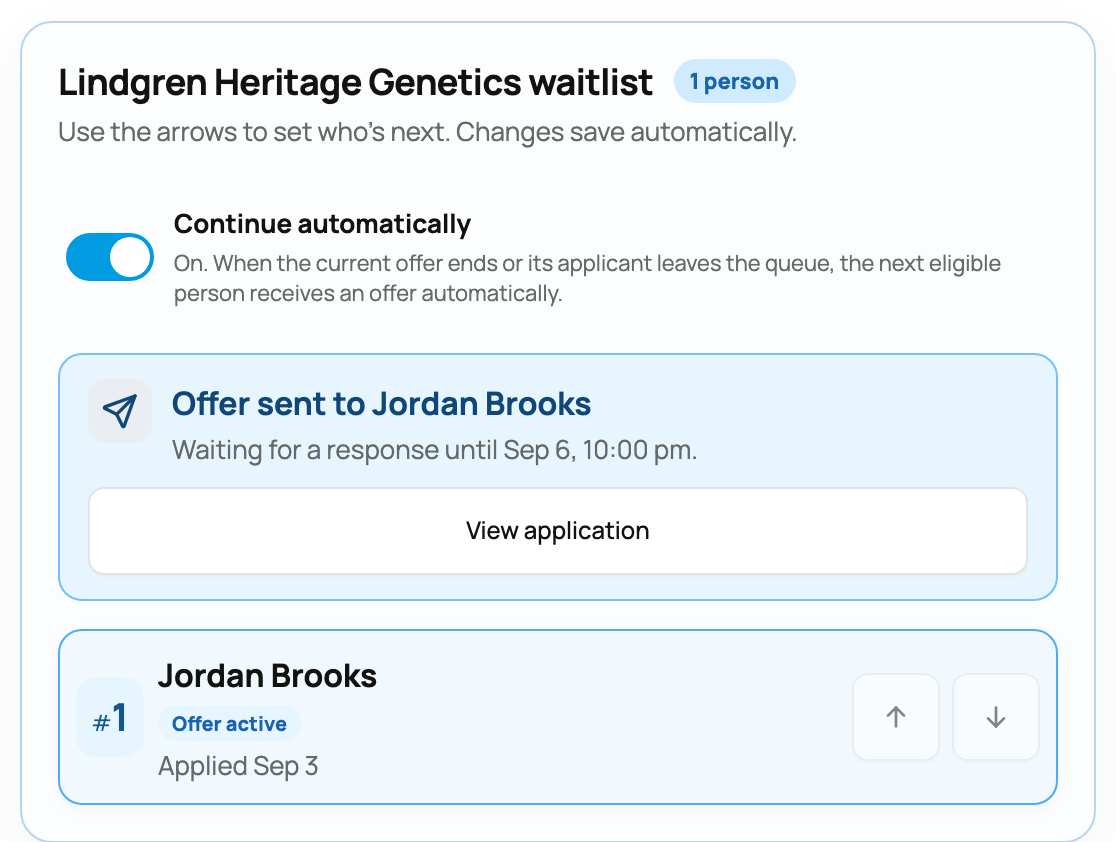
Waitlisted applicants form an ordered queue, shown as a "{your profile} waitlist" panel on the Programs tab with a person count and a numbered position for every applicant. Position #1 is marked "Up next." Buyers see the same number on their side as "Your waitlist position: #N," so the queue you manage is the queue they watch.

- Reorder any time. Drag the grip or use the arrows; changes save automatically, and buyers' position numbers update to match. Use it to move a strong fit up without rejecting anyone.
- Send offer to {name}. The button offers the place to the top eligible applicant. Only one offer can be active at a time per queue; while one is out, the panel shows "Offer sent to {name}" with the time it is waiting until, and the button stays out of reach until that offer resolves.
- A guest applicant can pause the front of the queue. If the next person applied signed out and never finished account setup, the panel says so: an offer cannot be delivered until their application is linked to a buyer account. They keep their position while you wait, skip past them by reordering, or pass.
Offers, declines, and auto-advance
An offer gives one waitlisted applicant a 72-hour window to claim their place. On their side it appears as an "Offer ready" card with a respond-by deadline, and their offer page tells them accepting "moves your application into the breeder's accepted program pool" with no payment taken.
- They accept: the application becomes accepted and joins your awaiting-litter pool, ready to attach.
- They decline, or the offer expires: the applicant stays waitlisted but drops to the bottom of the queue, and their row notes that a manual re-offer is available later. Nobody is silently removed for hesitating.
- They withdraw: the applicant leaves the queue entirely, and everyone below them moves up one.
Continue automatically is the queue's auto-advance switch, and its two states say exactly what they do:
- On: "When the current offer ends or its applicant leaves the queue, the next eligible person receives an offer automatically." Declines, expiries, and withdrawals keep the queue moving without you.
- Off: "You choose when to send the next offer." Nothing goes out until you press the button.
Either way, when an offer ends and no one else is eligible to receive one, Creatures notifies you that the queue is exhausted, so a stalled waitlist never fails silently.
Accepted applicants wait for a group, then you attach them
Accepting is a promise to match, not a sale. When you have a Count Group ready (a planned litter, a hatch, a crop of young animals), each accepted application shows a "Ready to place" note: "Attach creates the accepted group application and reservation slot in one step."
- Pick the group in the Attach to litter selector (it lists your Count Groups that are currently able to take on buyers) and select Attach.
- Attaching creates the buyer's group application and its accepted reservation slot in one step, and links the program application to it. From there the buyer continues through the normal count-group reservation flow, deposits and all where your group uses them.
- No eligible groups yet? The card says "Create an accepting Count Group before attaching." See Offering a count group to buyers for the Selling-side orientation and Offer a count group to buyers: applications and reservations for the full breeder walkthrough.
- After attaching, the card links View attached group, and the buyer is free to send fresh program interest for a future group.
Export every answer as a CSV
Each profile row in the intake panel carries an Export CSV button under "Application answers: complete history in CSV." It downloads a dated spreadsheet of every application that program has received, with the applicants' answers, for your records or offline sorting. Only owners and co-owners of the profile can export.
Where this fits with your other application tools
Program applications use the standard Creatures form and need no setup beyond the intake switch. If you also gate individual listings behind buyer approval, those listing application forms are a separate tool, built and reused per listing; see Requiring buyer applications and building a form and Reviewing and approving buyer applications. The two work well together: the program waitlist gathers tomorrow's buyers, and listing approval screens today's.
Related information
- Offering a count group to buyers
- Reviewing and approving buyer applications
- Requiring buyer applications and building a form
Updated on: 22/07/2026
Thank you!