
Website settings: search, announcement bar, contact details, and analytics
Your website Settings hold the details that apply to every page: who can open your website, how it shows up in Google, an announcement bar, contact details, Buy buttons and analytics. Make your changes, choose Save settings, then choose Publish changes to put them on your live website.
To open them, choose Settings in the website builder. It's the gear at the top, and also a tab next to Sections, Design and Menu. On a phone, if the builder opens on your preview, tap Done first.
When your changes go live
Saving doesn't change your live website right away. Search, announcement, contact, Buy button and analytics changes wait with your other edits until you choose Publish changes. Until then, Unpublished changes lists them as Website settings changed.
Two things apply as soon as you save: Site visibility, and the animals you show or hide in Manage which animals appear. See Publishing, updating, and taking your website offline.
Visibility & access
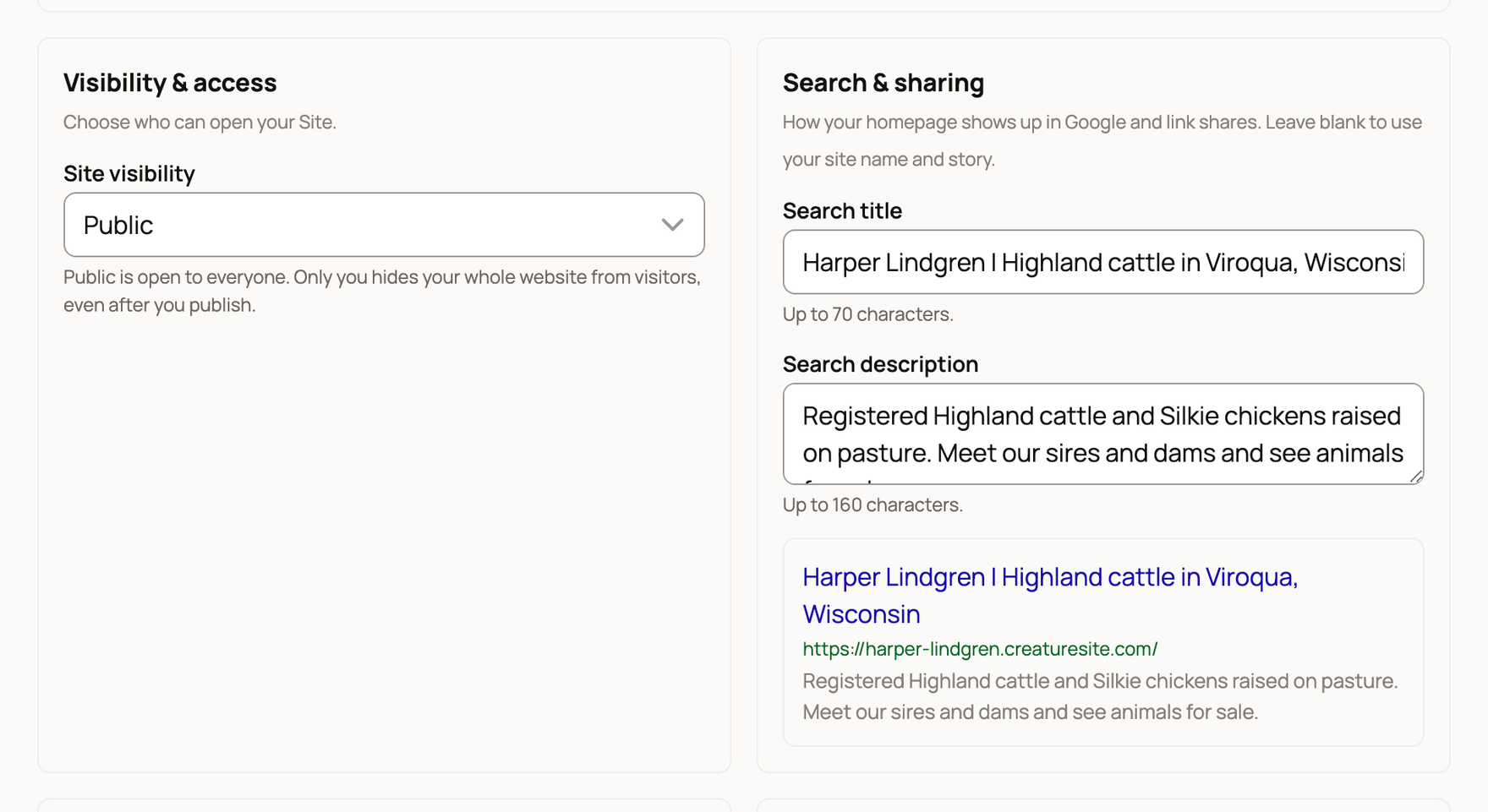
Site visibility has two choices:
- Public: anyone can open your website once it's published.
- Only you: your whole website is hidden from visitors, even after you publish. Visitors get a not-found page.
While a published website is set to Only you, the top of the builder says Published · Only you and offers Change visibility. This is handy for a short break when you don't want to unpublish.
Search & sharing
These fields set how your homepage looks in Google results and when someone shares your link.
- Search title: up to 70 characters. Name yourself, your animals and your area.
- Search description: up to 160 characters. Say what you raise and what visitors will find.
The preview below the fields shows roughly how your result will look. Leave both blank and Creatures uses your website name and story.
Announcement bar
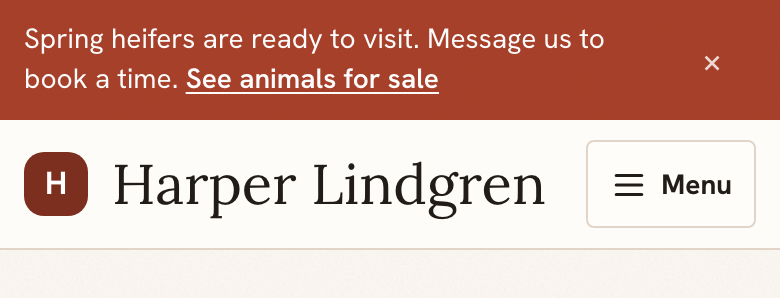
The announcement bar is a short banner across the top of every page. Use it for news like a new litter, a sale or a farm open house.
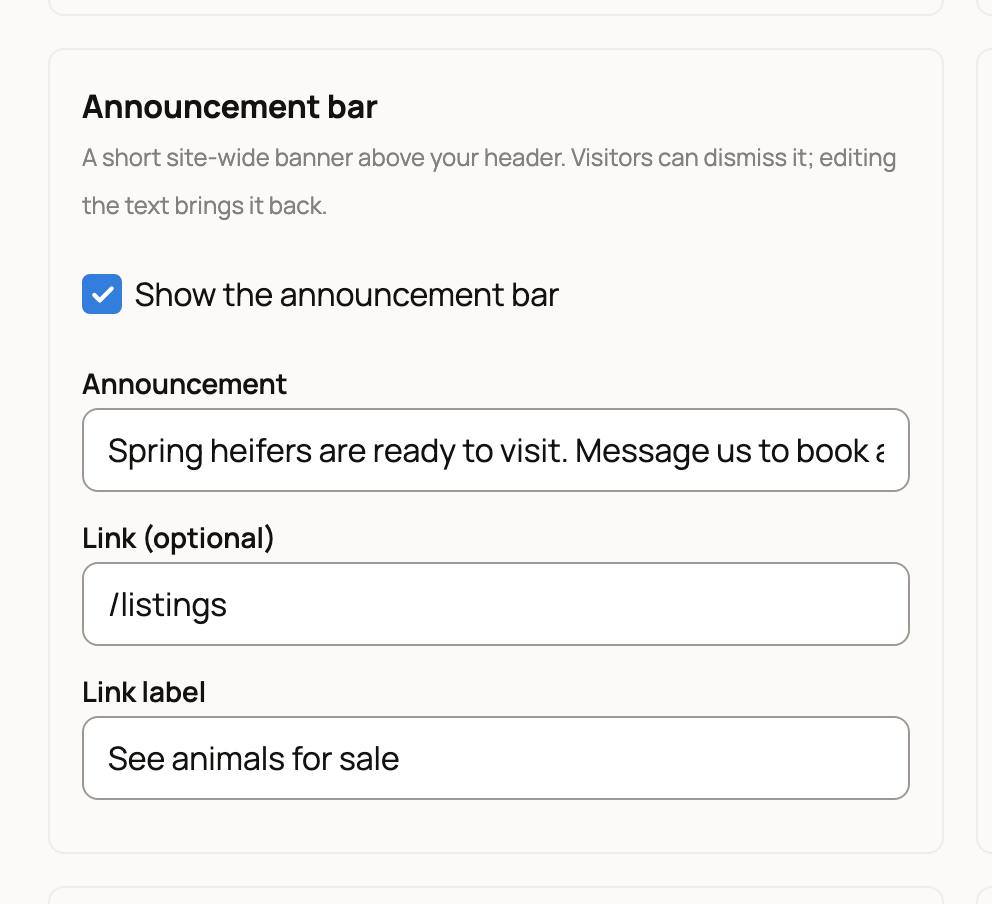
- Turn on Show the announcement bar.
- Type your message in Announcement, up to 160 characters.
- To add a link, fill in Link (optional) and Link label. A page on your own website starts with a slash, like /listings. A link to another website starts with https://. If you leave Link label blank, the link says Learn more.
Visitors can close the bar with the X. When you change the text, it shows again for everyone.
Contact details
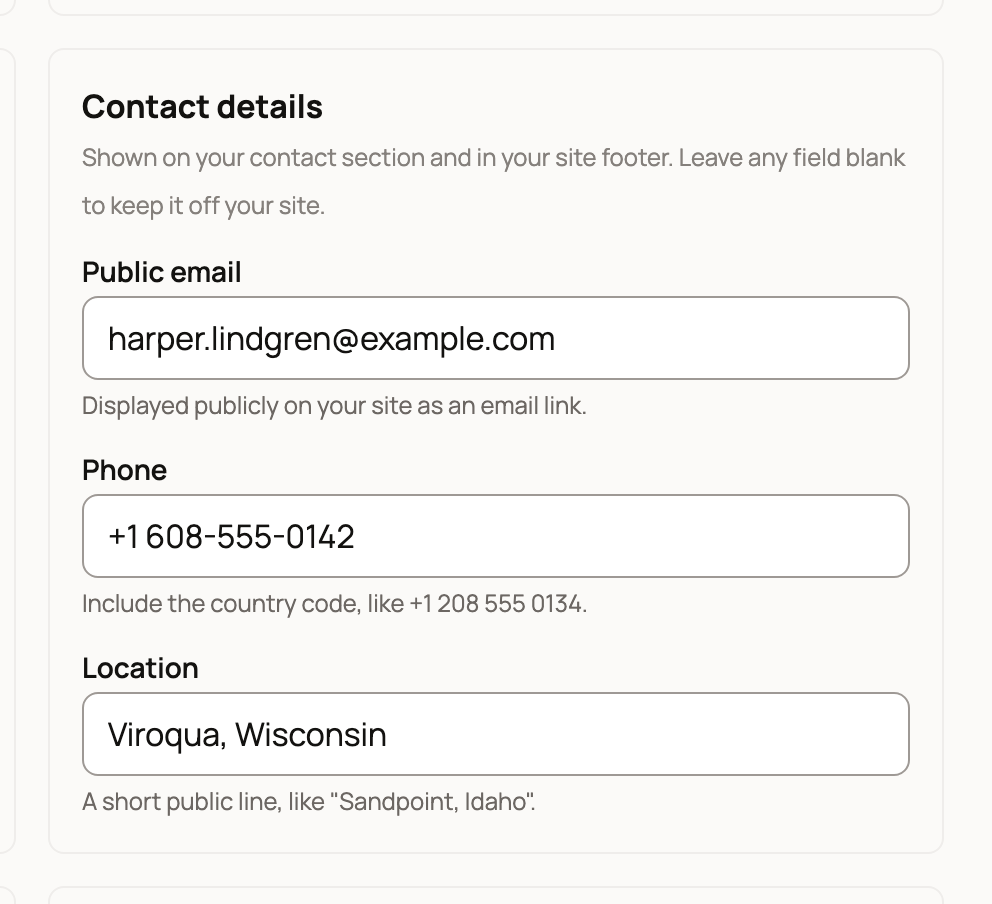
Public email, Phone and Location appear in your website's Contact section and footer. Leave any field blank to keep it off your website.
- Type the phone number with its country code, like +1 208 555 0134.
- Keep Location short, like a town and state.
On an organization's website, the card lists any email or phone already on the organization's profile, so you can copy them in.
Selling
Show Buy buttons lets visitors buy your fixed-price animals right from your website. It's on until you turn it off. See Selling from your website with Buy buttons.
Analytics
If you use Google Analytics, paste your GA4 measurement ID. It starts with G-. It loads only on your live website, never in the builder. Leave it blank if you don't use Google Analytics.
On your site
- Manage which animals appear lets you show or hide each animal. See Choosing which animals appear on your website.
- Edit profile links opens your profile, where you add social links. They show in your website footer.
Your address and your own domain are under Web address at the top of Settings. See Connecting or buying a custom domain for your website. Your private Website results are at the bottom. See Getting inquiries and applications from your website.
If something looks wrong
- You saved, but your live website looks the same. Choose Publish changes.
- Your phone number won't save. Add the country code at the start, like +1.
- Visitors get a not-found page. Check that Site visibility is Public and your website is published.
Related information
- Publishing, updating, and taking your website offline
- Connecting or buying a custom domain for your website
- Getting inquiries and applications from your website
- Choosing which animals appear on your website
Updated on: 29/10/2026
Thank you!