Apply records and track activity for a group
One of the biggest reasons to use a group is recording work once and having it apply to every animal at the same time. Instead of opening each profile, you add a record to the group and Creatures handles the rest.
Add a record to the whole group
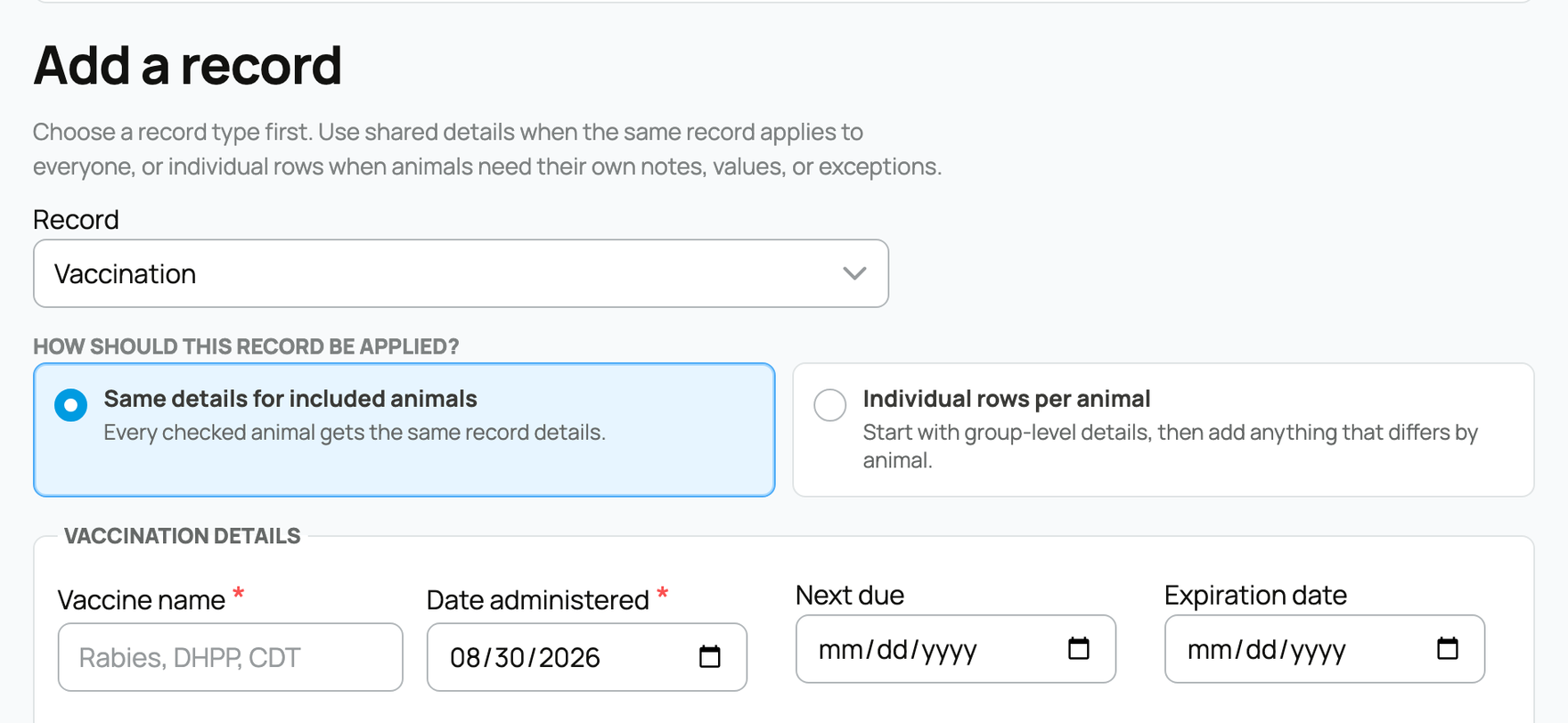
Open the group and, on the Overview tab, find Add a record. Choose a record type first, then fill in the details.

The record types include vaccination, medication, routine care, examination, surgery, certification, test result, reproductive, and reminder, plus a general "other" option. Each type shows the fields that fit it, so the form changes with your choice. For a vaccination, for example, you can record the vaccine name, date administered, next due date, manufacturer, lot and serial numbers, who gave it, and the route and site. (For full per-type detail, the individual-animal records guides cover every field.)
Choose how the record applies
Two modes decide whether the group gets one identical record or a per-animal version. This is the key decision on a group record, because it changes what lands on each animal:
- Same details for included animals: every included animal gets the exact same record. Best when the work really was identical across the group, like one vaccine clinic or one dewormer day. The implication: one entry, applied uniformly, fastest when nothing differs.
- Individual rows per animal: start from the shared details, then adjust anything that differs by animal, such as a different dose, a skipped animal, or a per-animal note. The implication: a little more work, but the record is accurate per animal, which matters for things like weights or doses that genuinely vary.
Choose who can see it
- Public on each animal profile (toggle): turn it on to have the record appear on each animal's public profile, off to keep it visible only to you and your team. It only publishes for animals that allow public records, so an animal set to private stays private. This is the same public-or-private control you have on an individual record, applied across the group at once.
Choose Preview record, review what will be created, then apply. Previewing first means you can confirm the included animals and details before anything is written.
What applying does, by group type
- For an Animal profiles group, applying the record creates it on each included animal, so it also shows on their individual profiles (on each animal's Records tab). The group record and the per-animal records stay linked.
- For a count group, the record is saved to the group's history for the number of animals you are tracking. Individual per-animal records are created later, once those animals have their own profiles, so the history is complete even though the animals were not individual yet when you logged it.
Draft records from a document with AI
If you have a document that already lists the work, such as a vet invoice, a lab report, or a boarding summary, you do not have to retype it. On the Overview tab, Create a draft record from a file reads the document and stages draft records for you to review. This is offered on profile-backed groups that have at least one member animal, when AI tools are enabled for your account; it is not offered on count groups, which have no individual animals to write to yet.
- Pick the kind of document you are uploading: a vet document, lab report, farrier or grooming notes, boarding notes, a spreadsheet, or another source. This tells the reader what to expect; it does not limit what it can pull out.
- One file can become several drafts. If the document covers more than one record, for example an invoice that lists a vaccination, a dewormer, and an exam, Creatures stages each as its own draft (up to twelve from a single file) rather than forcing them into one entry.
- Each draft is yours to review. Every draft appears as a card with its proposed type and details. You choose Fill editable form to open the normal record form pre-filled, check it, and save, or Reject to discard it. The safeguard that matters: nothing is saved from this tool until you open a draft and save it yourself. It drafts, you decide.
- Animals are matched, not guessed. Where a draft names specific animals, Creatures matches them to your group's members and surfaces any name it could not place, so a misread name never writes a record to the wrong animal.
The result is the same records you would have typed, with the typing done for you, and with you confirming every one before it lands.

Schedule recurring care
Below the composer, Care plans let you schedule recurring care for the whole group, like a regular deworming or vaccination schedule, instead of logging the same thing over and over. The behavior that matters: when you complete a reminder, it is recorded on every current member of the group. "Current member" means whoever is in the group at that moment, so keeping membership accurate keeps the care accurate. Group care plans and reminders are private to you and your team; only the records you choose to make public surface on each animal's profile.
See what has been recorded
Three tabs keep the history, each answering a different question:
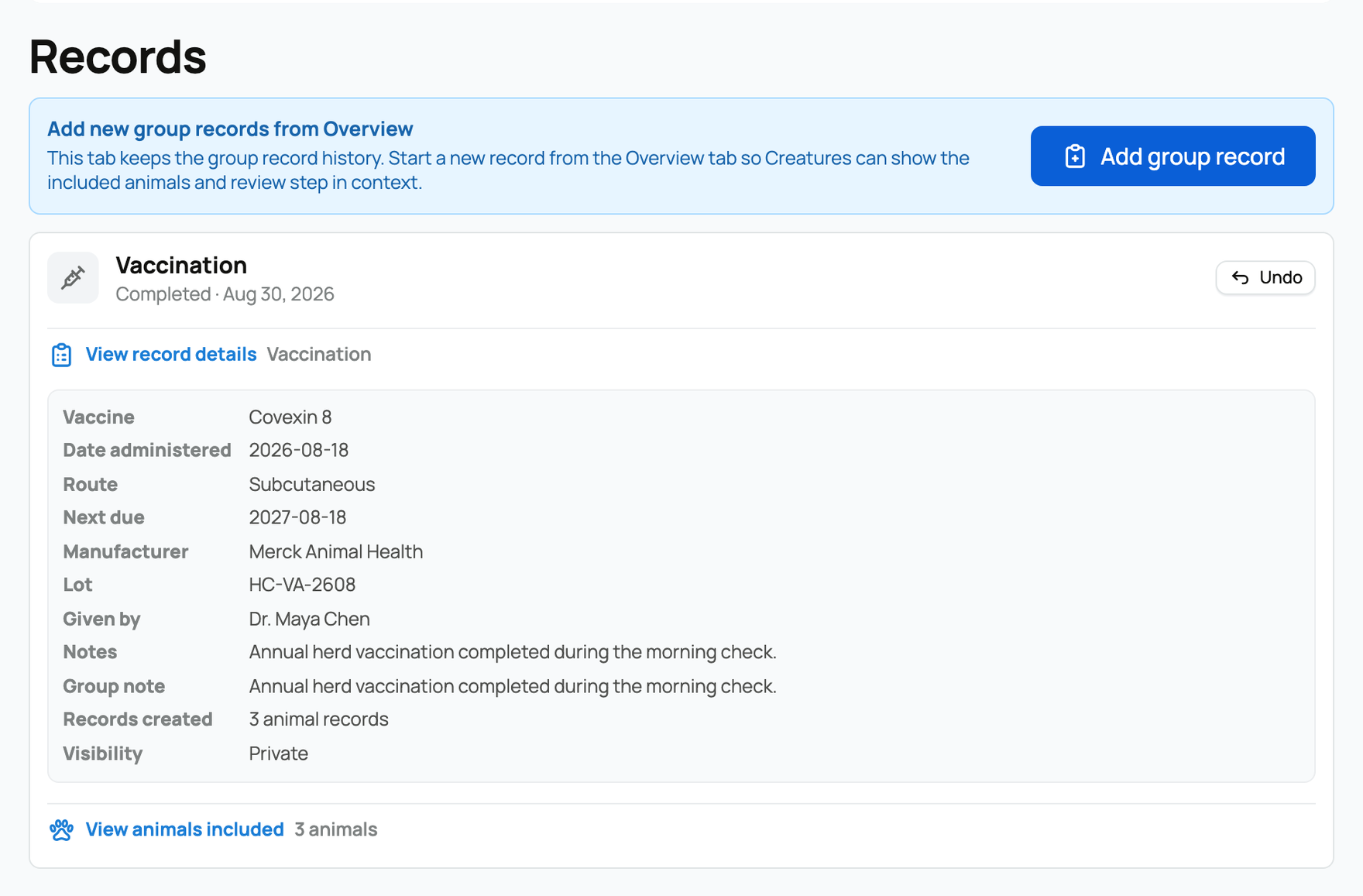
- Records: every group record. View the details, see exactly which animals were included, or undo a completed record if it was applied in error (undoing removes it from the affected animals too).
- Financials: expenses and income linked to the group, so shared costs and any group income live with the group instead of being split across animals by hand.
- Activity: a combined timeline of records, finances, and membership changes (including splits and merges), so you can see the group's full history, who did what and when, in one place.
Related information
Updated on: 23/06/2026
Thank you!