Articles on: Your Animals & Records

Create and manage animal groups

Create and manage animal groups


Groups let you manage a set of animals together instead of one at a time, whether that is a show string, a breeding pen, a litter, or a pasture group. You can apply records to the whole group, track shared costs and history, and keep everything organized in one place.


Two kinds of groups


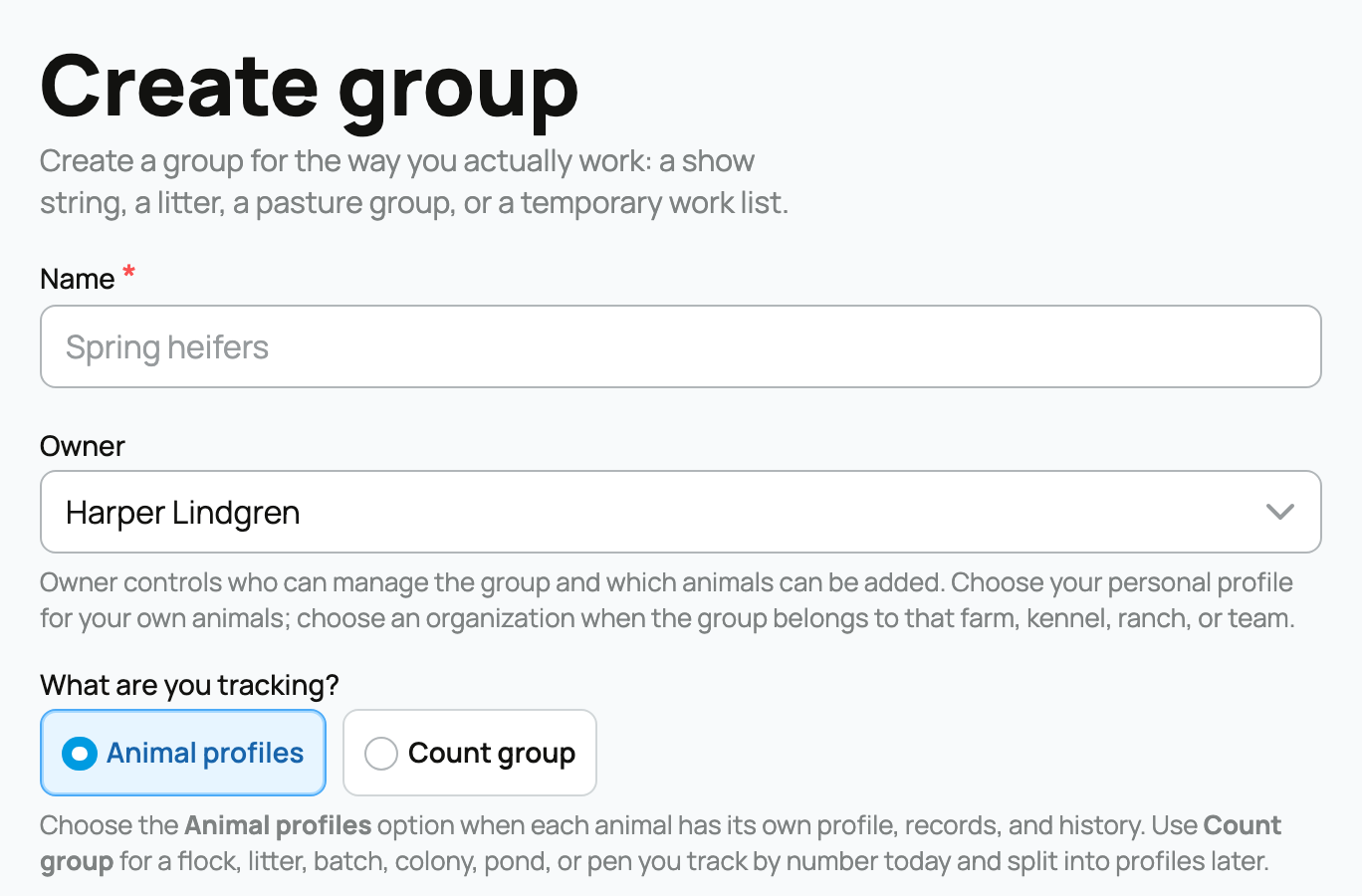
When you create a group, you first choose what you're tracking. This is the most important decision on the form, because it changes how membership works and what the group can do:


  • Animal profiles (a collection): each animal already has its own profile, records, and history, and you decide which ones belong. Best for a breeding pen, a show string, or any set of individually tracked animals. Choosing this unlocks the membership-rule question below (hand-picked, rule-driven, or both).
  • Count group: you track animals by number first (a flock, clutch, litter, batch, colony, pond, or pen) and split them into individual profiles later. Choosing this hides the membership-rule question and asks for a head count instead, and it is the only mode that can be published for buyers. See Track animals by count with count groups.


The implication: this choice is fixed once the group is created, so pick the one that matches how you work. Everything else on the form can be edited later.


Step 1: Open your groups


From your Dashboard, open the Animals & Groups tab, then Groups, or go straight to your Groups. Every group you own shows up here as a card, with quick stats and a button to create a new one.


Your groups


Step 2: Create a group


Choose Create group and fill in the form. Here is each field, what it controls, and what follows from your choice:


  • Template (optional, shown when you have made groups before): start from a previous group to prefill the type and defaults, or leave it on Start from scratch. Picking a template only pre-fills values; every field stays editable, so it is a shortcut, not a lock-in.
  • Name (required): what the group is called, for example "Spring heifers". By default Creatures tidies the capitalization to match how names display across the site.
  • Display this name exactly as entered (checkbox, off by default): tick it when the name has intentional capitalization (an abbreviation, a line name, a stylized spelling) that Creatures should not adjust. On means your exact text is kept; off means Creatures may normalize it.
  • Owner (required): your personal profile or one of your organizations. The owner controls who can manage the group and, critically, which animals can be added (only animals that owner can access). Choose your personal profile for your own animals; choose an organization when the group belongs to that farm, kennel, ranch, or team. The owner cannot be changed later, so if the wrong owner is set you would recreate the group.
  • What are you tracking? (required): Animal profiles or Count group (see above). Fixed after creation.
  • How should animals get added? (animal-profile groups only): Choose animals myself, Keep updated by rules, or Use rules, then adjust. Each behaves differently and is explained in full in Manual, smart, and hybrid groups. Unlike the tracking mode, you can change this later.
  • Animals (shown for hand-picked or hybrid groups): search by name or tag number and select the members. You can only add animals the chosen owner has access to, so if an animal is missing, check that you picked the owner that manages it.
  • Current count (count groups only): the number of animals you are tracking today (whole number, zero or more). This is the live head count; you refine the expected, born, and available breakdown later.
  • Location note (optional): a short label for where the group physically is, for example "Pasture 4". It is for your own organization and appears on the group; it does not move animals or change permissions.
  • Notes (optional): free text for anything your team should know.


Creating a group


Step 3: Manage the group


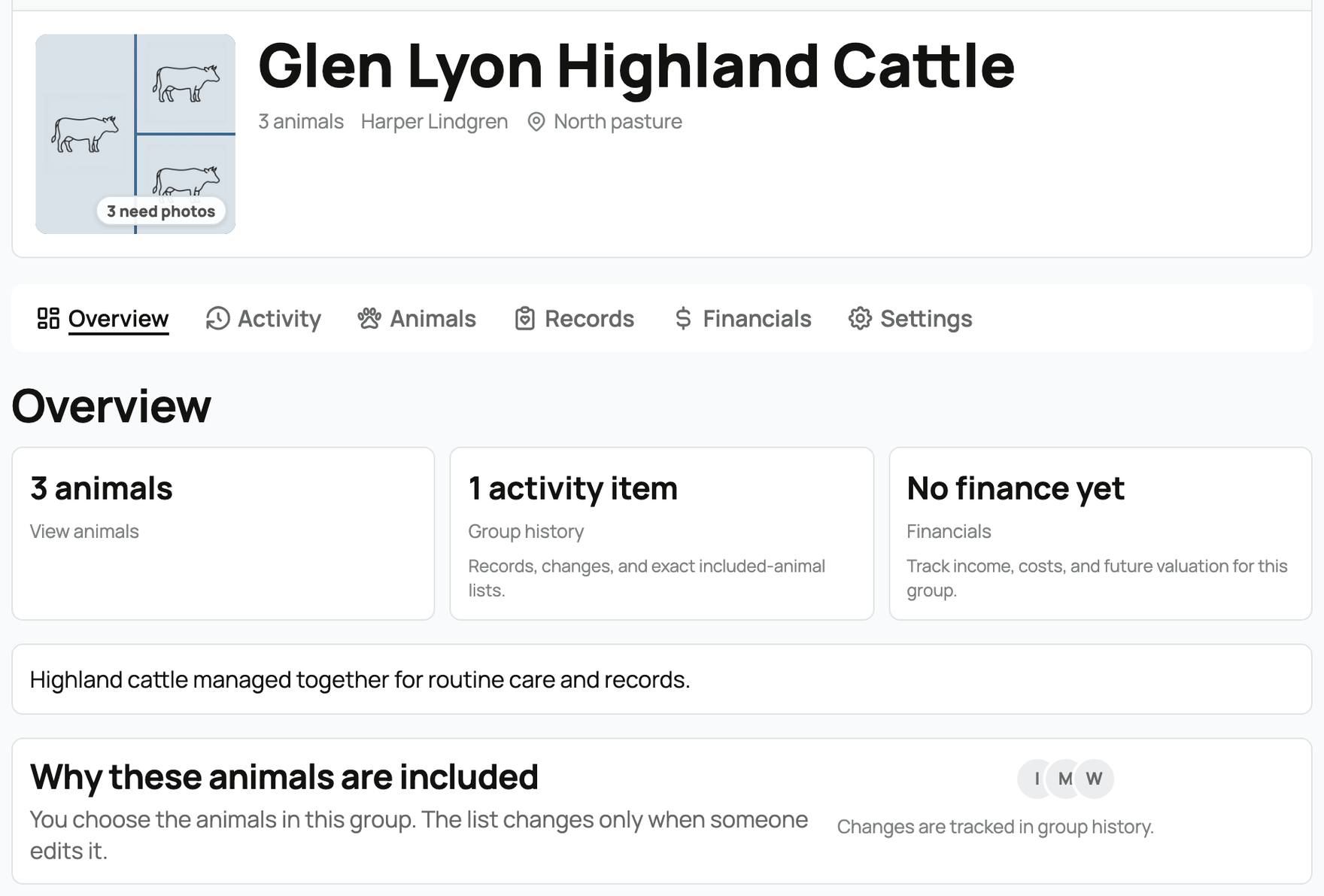
Open any group to manage it. The tabs across the top each hold a different part of the group's life:


  • Overview: the group at a glance, plus where you add a record and, for count groups, manage the buyer pipeline (applications and reservations).
  • Animals: view the members. For hand-picked groups, use Edit animals to add or remove them. For smart groups the list is read-only and recalculates from your rules. For count groups, this is where you promote the count into individual profiles.
  • Records: every record applied to the group, with the option to see which animals were included or undo a record. See Apply records and track activity for a group.
  • Financials: expenses and income linked to the group, so shared costs live with the group rather than scattered across animals.
  • Activity: a combined timeline of records, finances, and membership changes (including splits and merges), so the whole history is in one place.
  • Settings: rename and edit details, set your notification watch level (All activity, Mentions only, or Off) and see watchers, split or merge the group, and archive it. For count groups, Settings is also where you publish to buyers and set the deposit policy (see the selling guide).


A group's members


Splitting, merging, and archiving


From Settings you can reshape or retire a group, and each option keeps your history intact:


  • Split: move some animals (or part of a count) into a new group. Past group records and financial allocations stay with the original group, and each animal keeps its own profile history. The split is recorded in Activity.
  • Merge: fold this group into a compatible one when two groups should become a single set.
  • Archive: retire a group you are done with. Archiving keeps all the history available and can be undone, and it cancels any open group care reminders so they stop nagging you. There is no permanent delete, so archiving is the safe way to put a finished group away without losing its records.


Statuses, at a glance


A group is Active day to day. It becomes Closed when its work is finished (for example a litter that has all been placed), and Archived when you tuck it away from Settings. None of these delete data; they change how the group is surfaced.


Updated on: 23/06/2026

Was this article helpful?

Share your feedback

Cancel

Thank you!