
Bringing your existing website over to Creatures
Yes. Paste your current website address into Bring over my existing site, and Creatures copies its pages, words and photos into a new draft of your Creatures website. Nothing goes live until you publish, so you can tidy everything up first.
Before you start
- It must be your own website, and you need the right to use its text and photos.
- The website must be public so Creatures can open it.
- If you've already started your Creatures website, importing replaces its current draft. Your published website stays exactly as it is until you publish.
- You can run one import at a time, and up to five a day.
Where to start
- A brand-new website: in the Your website goals checklist, choose Bring over my existing site.
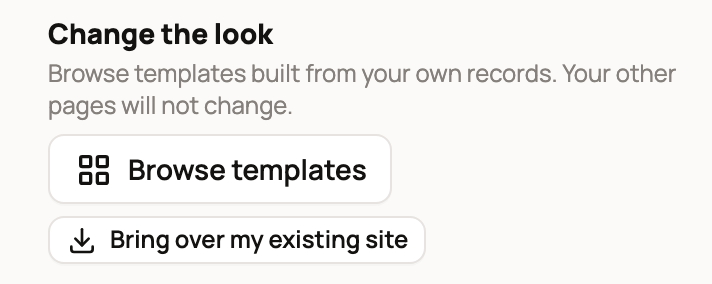
- A website you've already started: open Design, then under Change the look, choose Bring over my existing site. You can also choose Change the look at the top of the builder and pick the Already have a website? card.
- No Creatures account yet: go to creatures.com/websites. Under Already have a website? See it on Creatures in about a minute., type your address and choose See my site. Creatures shows what it found. Choose Build it free to make a free account and bring it over.
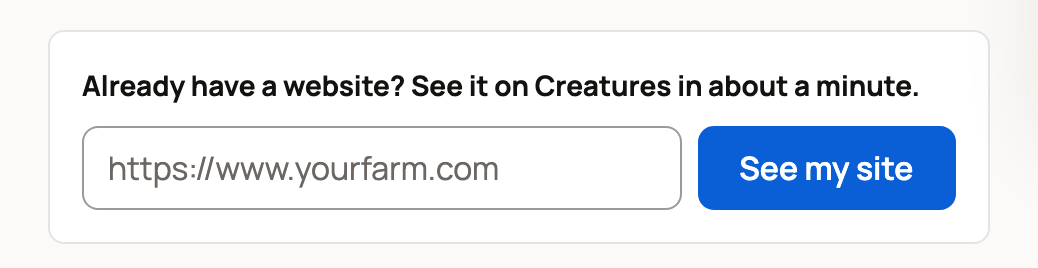
Signed in already? See my site opens your builder with the address filled in.
Start the import
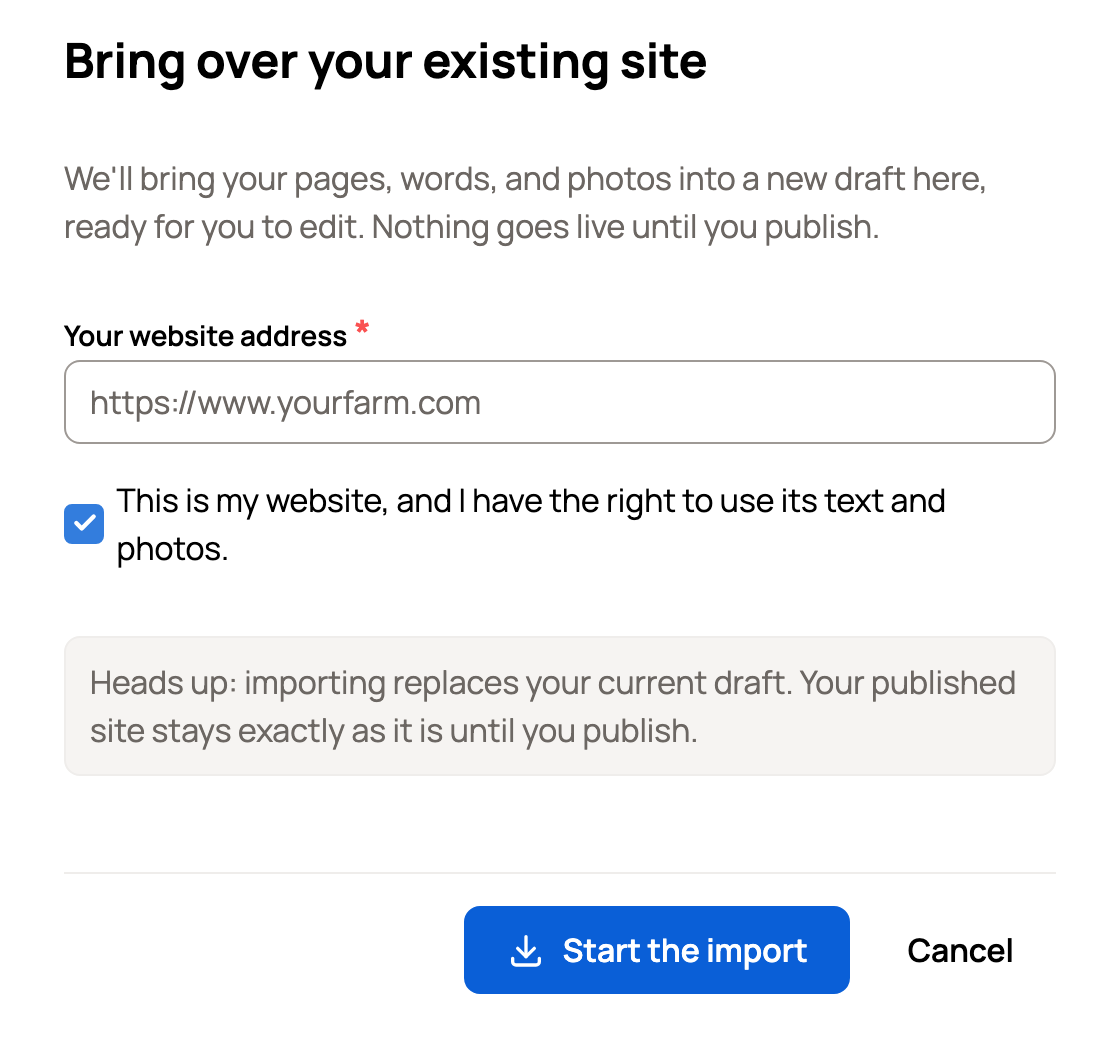
- In Bring over your existing site, type your address in Your website address, like https://www.yourfarm.com.
- Select This is my website, and I have the right to use its text and photos. For a farm on OpenHerd, the box reads This is my farm on OpenHerd, and I have the right to use its text and photos.
- Choose Start the import.
- If you already have a draft, Creatures asks Replace your current draft? Choose Replace my draft to go ahead, or Keep my current draft to stop.
A Bringing over your website panel shows progress while Creatures reads your pages. If it can't finish, choose Try again. When some pages were read, you can also choose Start with what was found to keep them.
Your draft is ready
When the import is done, the builder shows Your draft is ready with a short summary of what came over. Everything stays editable.
- Open my draft shows the draft the way visitors will see it.
- Under Pick a look to start from, you may see up to three looks. Familiar stays close to your old website's colors and feel. Refreshed keeps your colors with a cleaner, more modern layout. Surprise us tries a bolder new direction.
- Keep as-is keeps the draft the way the import built it.
Some websites build their pages in your browser. For those, Creatures can only bring over page titles and short descriptions, and the panel tells you so. Add the rest in the builder.
When the draft looks right, publish it. See Publishing, updating, and taking your website offline.
Your animals
If Creatures finds pages about your animals, or your website is a farm on OpenHerd, it starts a separate animal import and shows its progress in the same panel. When it's ready, a button like Review 4 animals lets you check each animal profile. Nothing is added to your records until you confirm. See Import your animals from files, photos, or a website.
If something looks wrong
- We couldn't find that website. Check the spelling, and make sure the website is online and public.
- That is already a Creatures site. Enter the address of your old website instead.
- An import is already running for this site. Give it a few minutes to finish, then try again.
Related information
- Setting up your website from your goals
- Designing your website: templates, colors, and Design with AI
- Publishing, updating, and taking your website offline
- Import your animals from files, photos, or a website
Updated on: 29/10/2026
Thank you!